Survey
Download Survey Report
Whatfix enables you to download Survey reports, which help you analyze Survey responses and share the insights and feedback with other stakeholders.
Note:
To download Survey Reports, sign in to the Whatfix Dashboard where your survey exists.
Use the following steps to download a Survey report:
- On the Whatfix Guidance dashboard, click Guidance analytics.
 2. Click Surveys.
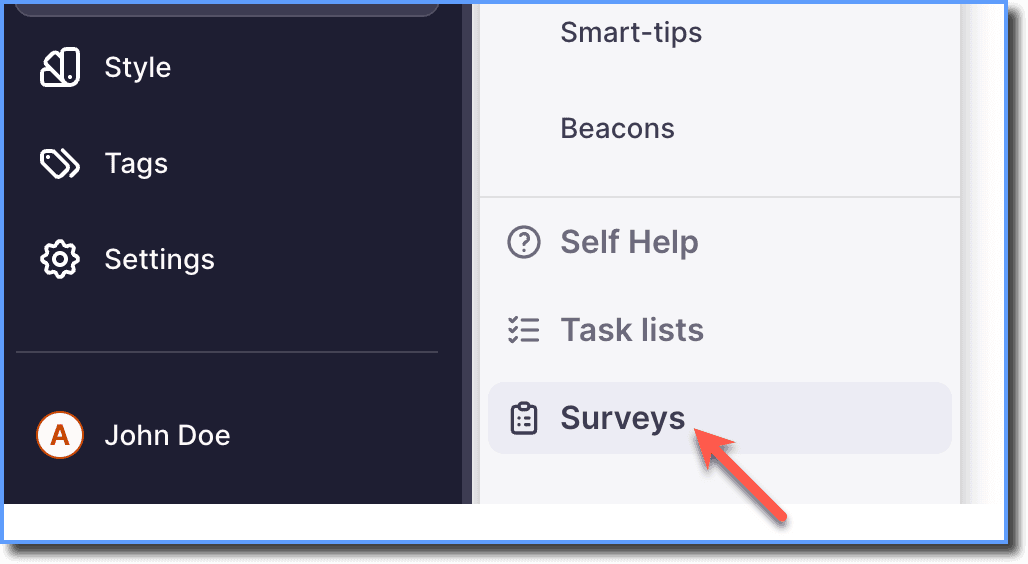
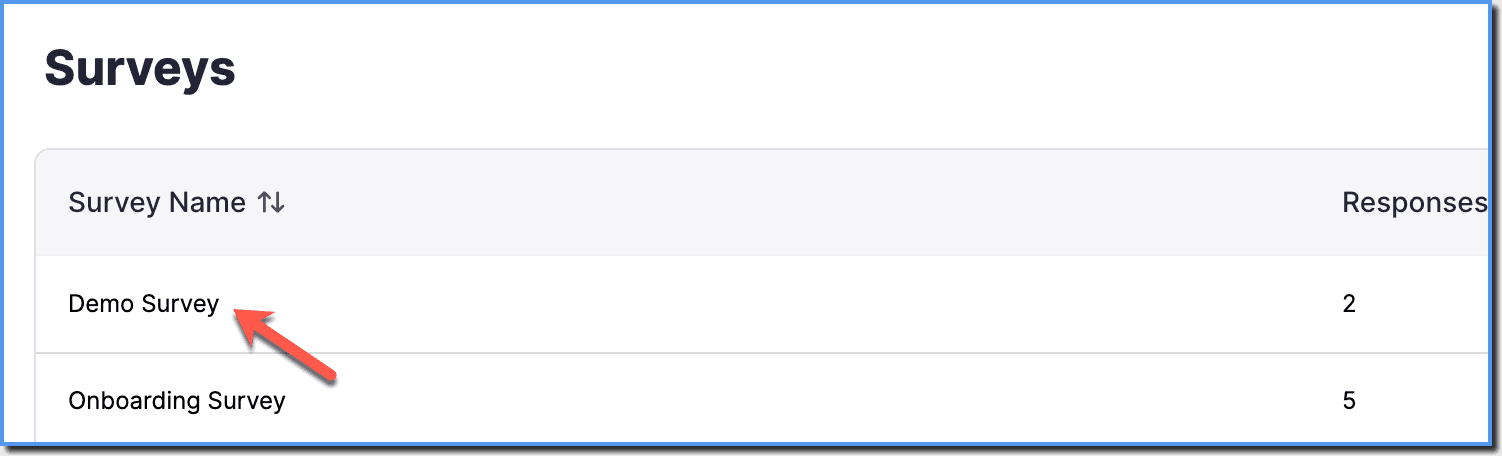
- On the analytics dashboard, select the survey for which you want to download the report.
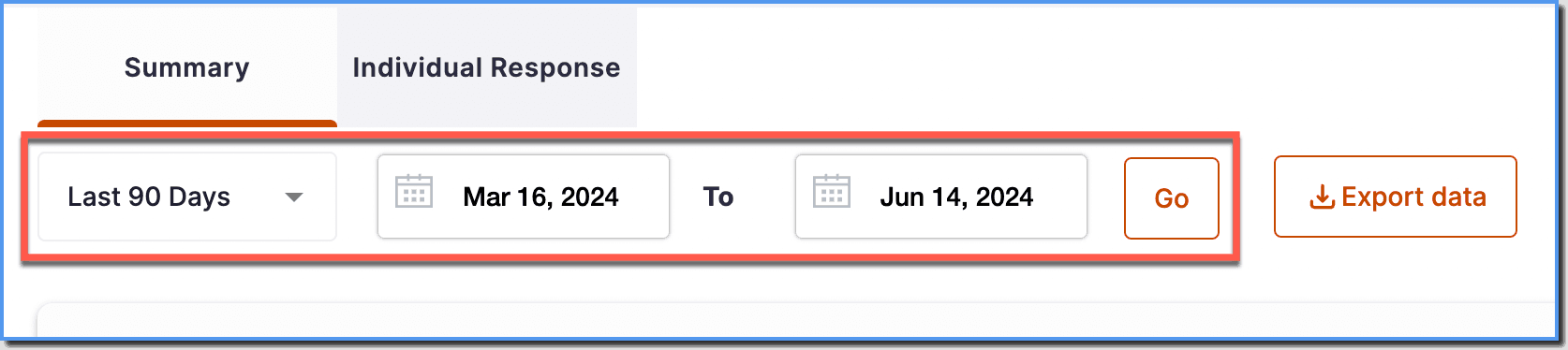
- In the Summary tab, select the time frame you want the report for, and then click Go.
Note:
You have the option of filtering survey responses at both Production and Ready stages.
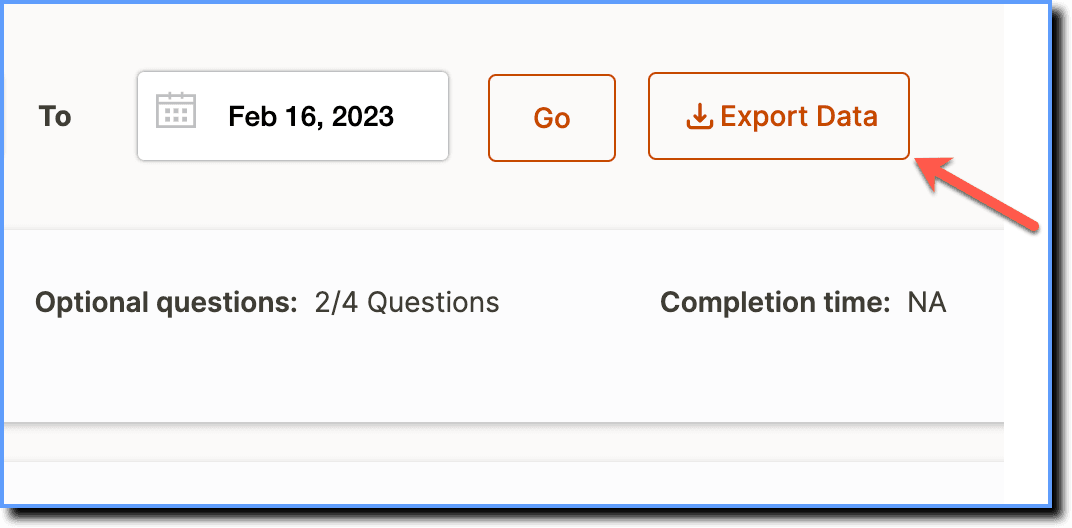
- Click Export Data.
Note:
Once the report is downloaded, go to your Downloads folder and extract the CSV file from the zip file.
Understand the Survey Report
The Survey report shows you the User IDs and responses of the end users who participated in the Survey, along with a Timestamp for each response, showing when it was received.
The following image shows a sample Survey Report. 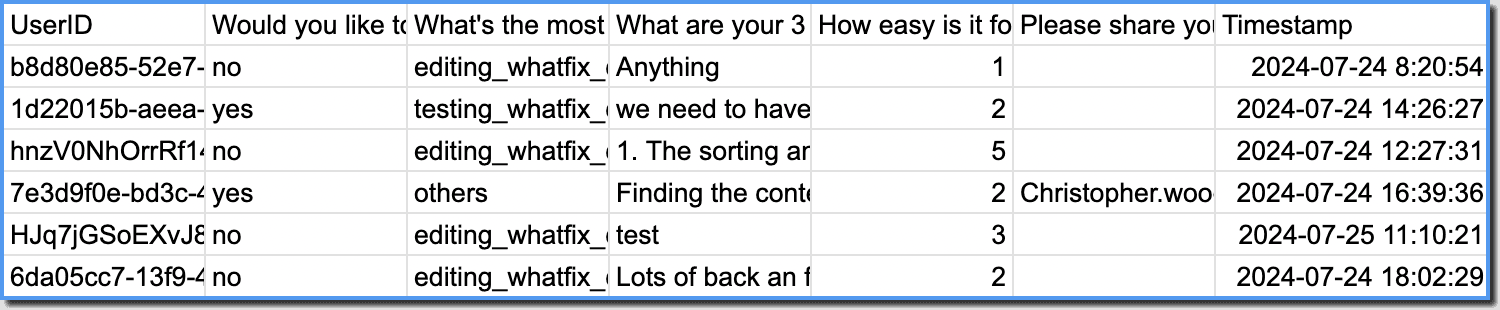
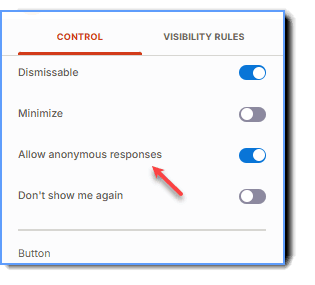
If you do not want to capture the user ids, enable the Allow anonymous responses toggle while creating a survey.
The Whatfix Dashboard is where you can perform the following actions:
- Access all content that has been created by users in your organization.
- Access and manage content widgets like Self Help, Pop-ups, Smart tips, Beacons, and Task List
- Manage users
- Manage tags
- Access Analytics
- Manage translations
- Manage Tip or Flow configurations