Survey
Share a Public Survey
Whatfix enables sharing a Survey link directly with end users. Doing so helps end users access a Survey without staying on the underlying application. When end users click the shared link, the Survey loads on their web browser.
- Sharing a Survey is part of the Premium plan. To enable this feature, contact support@whatfix.com.
- You can share Surveys that are only in the Production stage.
Use the following steps to share a Survey link with your users:
-
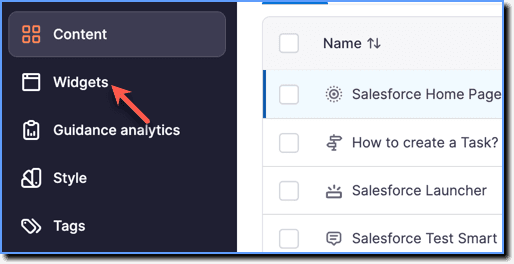
On the Whatfix Guidance dashboard, click Widgets.
-
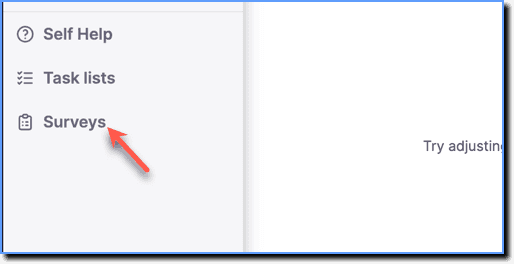
Click Surveys.
-
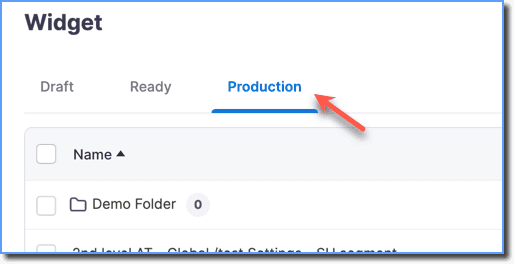
Click the Production tab.
-
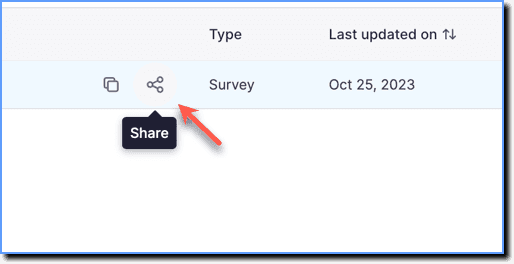
Hover your cursor over the required Survey, and then click the Share icon.
Note:
The Share icon only appears for Surveys in the Production stage.
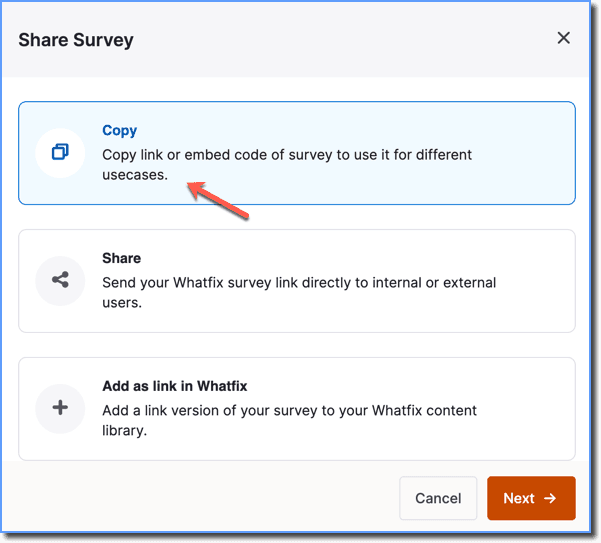
- Click Copy.
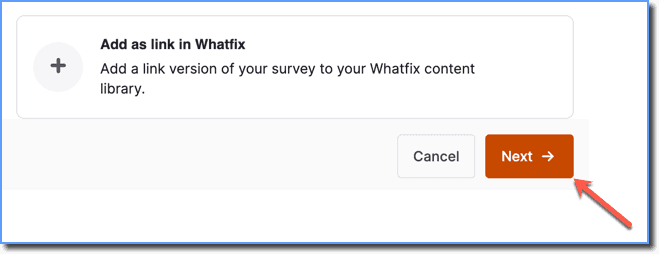
- Click Next.
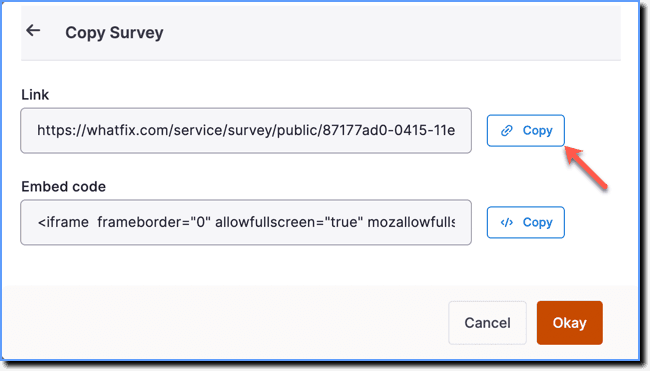
- Click Copy
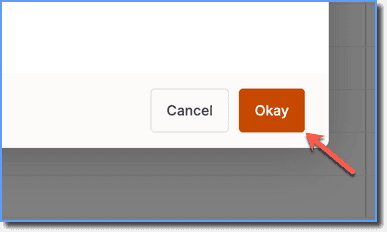
- Click Okay.
- Share the copied link of the Survey with your end users through any messaging application.
When you use a Public Survey, it opens in a new tab. Because of this, the Survey can't capture a user's ID. Instead of a user ID, the Survey captures a generic identifier like a cookie ID or a randomly generated ID to track responses. For more information, see unable to capture user ID in public Surveys.