Accessibility
Keyboard shortcuts for Whatfix
Whatfix supports assistive technology, including screen readers and quick navigation through keyboard shortcuts. Access the tooltip and widgets using the following keyboard shortcuts:
Keyboard Shortcuts for Windows
Shortcuts for content creators
Studio
| To do this | Use |
|---|---|
| Add a step | Ctrl+Shift+A |
| Re-select an element | Ctrl+Shift+E |
| Insert step before the current step | Ctrl+Shift+Z |
| Insert step after the current step | Ctrl+Shift+X |
Enable or Disable navigation mode on the Studio > [!NOTE] > Info: > > This shortcut enables you to switch on and off the element selection mode. > > 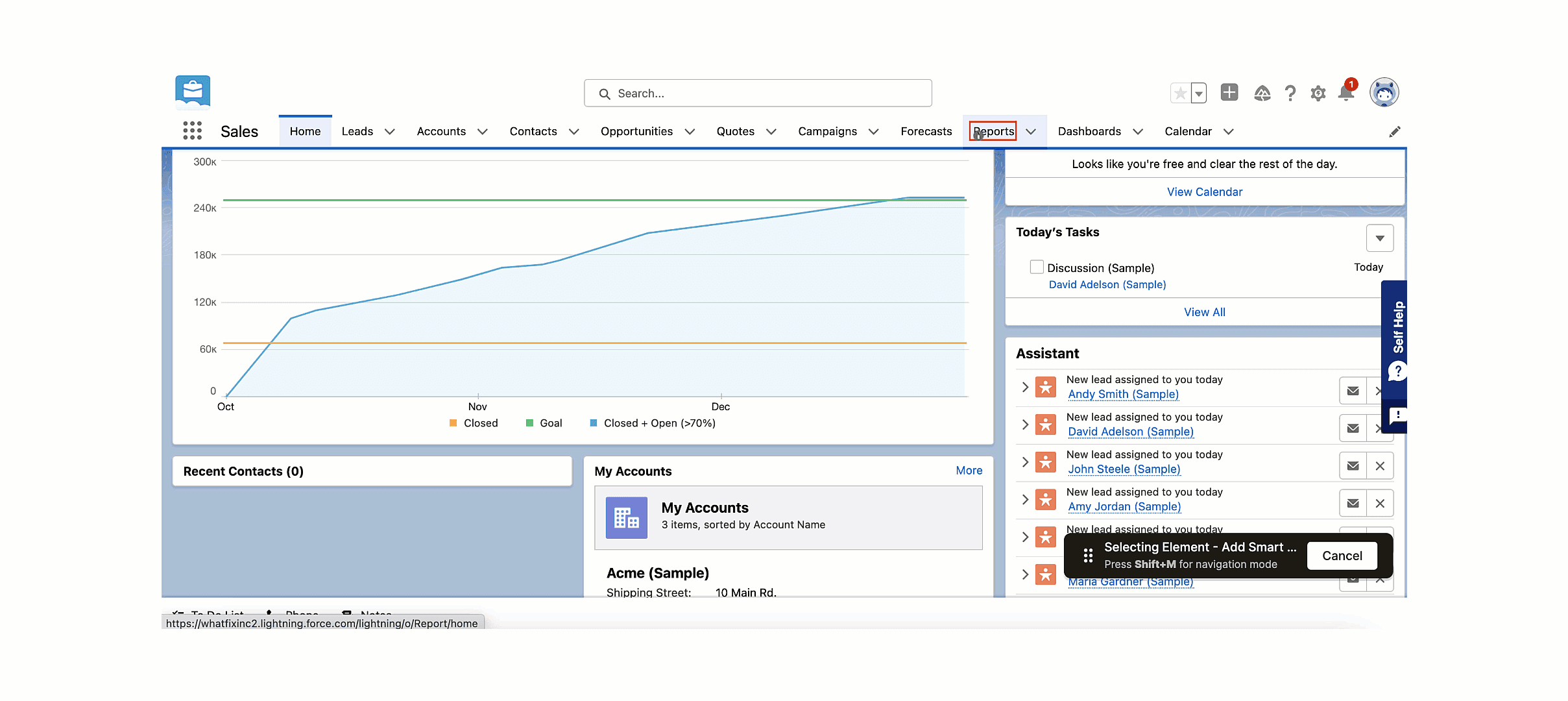 | Shift+M |
Shortcuts for end users
Self Help
| To do this | Use |
|---|---|
| Open or close Self Help > [!WARNING] > Note: > > The Self Help widget is opened or closed based on the current state of the widget, that is, opened/ or closed. | Alt+w |
| Go to the Self Help widget in the application | Tab Key |
| Navigate within the Self Help widget | |
| Open Self Help after navigating to the widget on the application | Enter Key |
| Open content within the Self Help widget | |
| Close the Self Help widget | Esc Key |
| Navigate the self help panel to the left | Alt + O Key |
| Navigate the self help panel to the right | Alt + P Key |
Task List
| To do this | Use |
|---|---|
| Open or close Task List > [!WARNING] > Note: > > The Task List widget is opened or closed based on the current state of the widget, that is, opened/closed. Only content creators can use these shortcuts while creating content such as Flows, Smart Tips, Beacons, and more using Whatfix Studio. | Ctrl+shift+L |
| Go to the Task List widget in the application | Tab Key |
| Navigate within the Task List | |
| Open the Task List in the application | Enter Key |
| Open a task within the Task List | |
| Close the Task List | Esc Key |
Tooltip
| To do this | Use |
|---|---|
| Go to the tooltip next button > [!WARNING] > Note: > > If the tooltip doesn’t have the next or close button, the respective shortcut doesn’t work. | Alt+n |
| Go to the tooltip close button > [!WARNING] > Note: > > If the tooltip doesn’t have the next or close button, the respective shortcut doesn’t work. | Alt+q |
| Go to the tooltip back button > [!WARNING] > Note: > > If the tooltip doesn’t have the back button, the respective shortcut doesn’t work. | Alt+b |
Beacons
| To do this | Use |
|---|---|
| Open the Beacon tooltip | Ctrl+i |
| Close the Beacon tooltip | Esc Key |
Smart Tips
| To do this | Use |
|---|---|
| Open the Smart Tip | Ctrl+i |
| Go to the Smart Tip close button If the Smart Tip does not have a close button, use the Tab Key to move to the next element. | Alt+q |
Keyboard shortcuts for Mac
Shortcuts for content creators
Studio
| To do this | Use |
|---|---|
| Add a step | Ctrl+Shift+A |
| Re-select an element | Ctrl+Shift+E |
| Insert step before the current step | Ctrl+Shift+Z |
| Insert step after the current step | Ctrl+Shift+X |
| Enable/Disable navigation mode on the Studio > [!NOTE] > Your title goes here > > This shortcut enables you to switch on and off the element selection mode. > > | Shift+M |
Shortcuts for end users
Self Help
| To do this | Use |
|---|---|
| Open/close Self Help The Self Help widget is opened or closed based on the current state of the widget, that is, opened/closed. | Option+w |
| Go to the Self Help widget in the application | Tab Key |
| Navigate within the Self Help widget | |
| Open Self Help after navigating to the widget on the application | Enter Key |
| Open content within the Self Help widget | |
| Close the Self Help widget | Esc Key |
| Navigate the self help panel to the left | Option + O Key |
| Navigate the self help panel to the right | Option + P Key |
Task List
| To do this | Use |
|---|---|
| Open/close Task List > [!WARNING] > Note > > The Task List widget is opened or closed based on the current state of the widget, that is, opened/closed. | Ctrl+shift+i |
| Go to the Task List widget in the application | Tab Key |
| Navigate within the Task List | |
| Open the Task List in the application | Enter Key |
| Open a task within the Task List | |
| Close the Task List | Esc Key |
Tooltip
| To do this | Use |
|---|---|
| Go to the tooltip next button > [!WARNING] > Note > > If the tooltip doesn’t have the next or close button, the respective shortcut doesn’t work. | Option+n |
| Go to the tooltip close button > [!WARNING] > Note > > If the tooltip doesn’t have the next or close button, the respective shortcut doesn’t work. | Option+q |
| Go to the tooltip back button > [!WARNING] > Note > > If the tooltip doesn’t have the back button, the respective shortcut doesn’t work. | Option+b |
Beacons
| To do this | Use |
|---|---|
| Open the Beacon tooltip | Ctrl+i |
| Close the Beacon tooltip | Esc Key |
Smart Tips
| To do this | Use |
|---|---|
| Open the Smart Tip | Ctrl+i |
| Go to the close button of the Smart Tip If the Smart Tip does not have a close button, use the Tab Key to move to the next element. | Option+q |
- Whatfix enterprise accounts created after February 9, 2017 have the keyboard shortcut enabled by default.
- For accounts created before February 9, 2017, the shortcuts would not be enabled by default. Use the following integration script to enable the shortcut feature.
Window._wfx_settings = { "theme": { "help_key" : "87, " Tip_close_key": "81, "tip_next_key" : "78 } };JavaScript
- Shortcut keys can override the default keys with the above integration script. As per common guidelines, "alt" is fixed and cannot be changed. The end user has to provide only keyboard key codes for the corresponding keys.