Integration Hub
Scheduling an Integration
Once you have integrated an application with Whatfix (for example, Confluence Integration), you can schedule it to run automatically at a specific interval of time. This ensures that any data changes, which in done post the integration, are incorporated.
Benefits of scheduling an Integration
- Reduces manual intervention.
- Increases transparency on data movement.
Schedule an Integration
Use the following steps to schedule an integration,
-
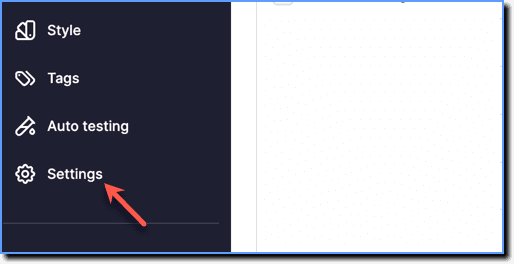
On the Whatfix Guidance dashboard, click Settings.
-
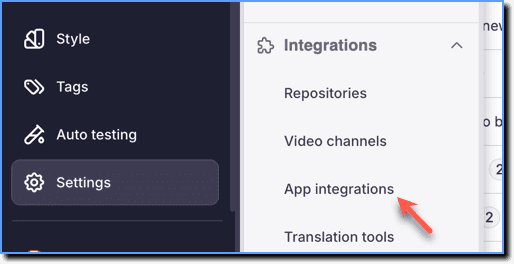
Click App integrations.
-
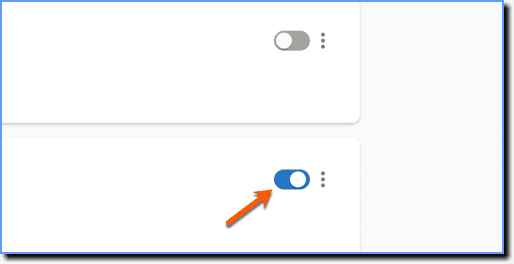
On the All Integrations page, go to the Integration you want to schedule and make sure the Integration is in an Active state.
-
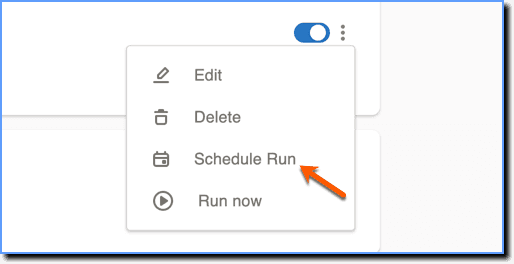
Click Schedule Run.
-
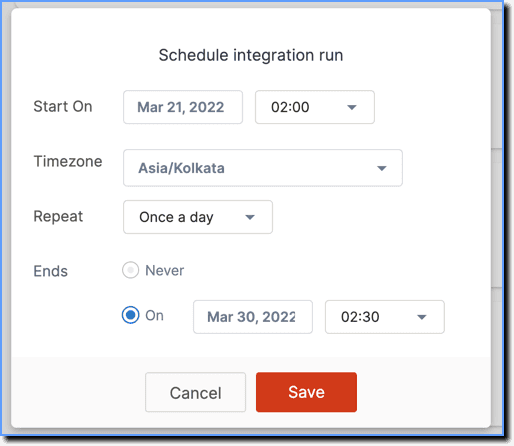
The following are the options that you can configure,
- Start On - Set the start date and time period.
- Time zone - Specify the time zone from the dropdown for the specified dates to follow.
- Repeat - Configure the frequency of the Integration run during the selected time period.
- Ends -
- Select the Never option if you want the Integration to run forever. (or)
- Select the On option and then specify the end date and time period.
- Click Save.
Info
- Only Integrations in an active state can be scheduled.
- A webhook based integration (for example, SurveyMonkey Integration cannot be scheduled.
The following are a few use cases,
Push a Flow as slideshow/article to Confluence and Zendesk - Monthly
In the Schedule integration run pop-up,
- Set the start date and time period.
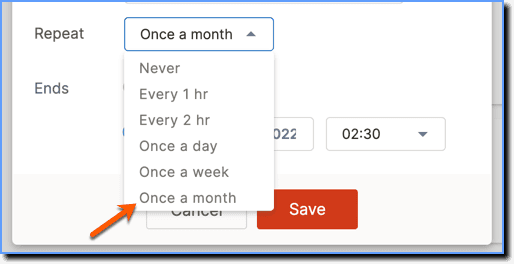
- In the Repeat section, select Once a month.
- Set the end date and then click Save.
Push Whatfix analytics data to a BI tool - Weekly
In the Schedule integration run pop-up,
- Set the start date and time period.
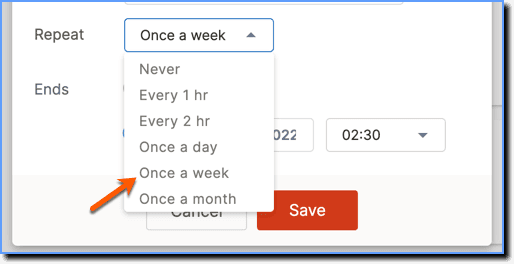
- In the Repeat section, select Once a week.
- Set the end date and then click Save.
Pull Role information from Salesforce and Successfactor - Weekly
In the Schedule integration run pop-up,
- Set the start date and time period.
- In the Repeat section, select Once a week.
- In the Ends section, select the Never option and then click Save.