Guidance Analytics
Unable to find the Survey report in Survey Analytics
Issue
The Survey report does not appear on the Guidance Analytics page.
Probable Causes
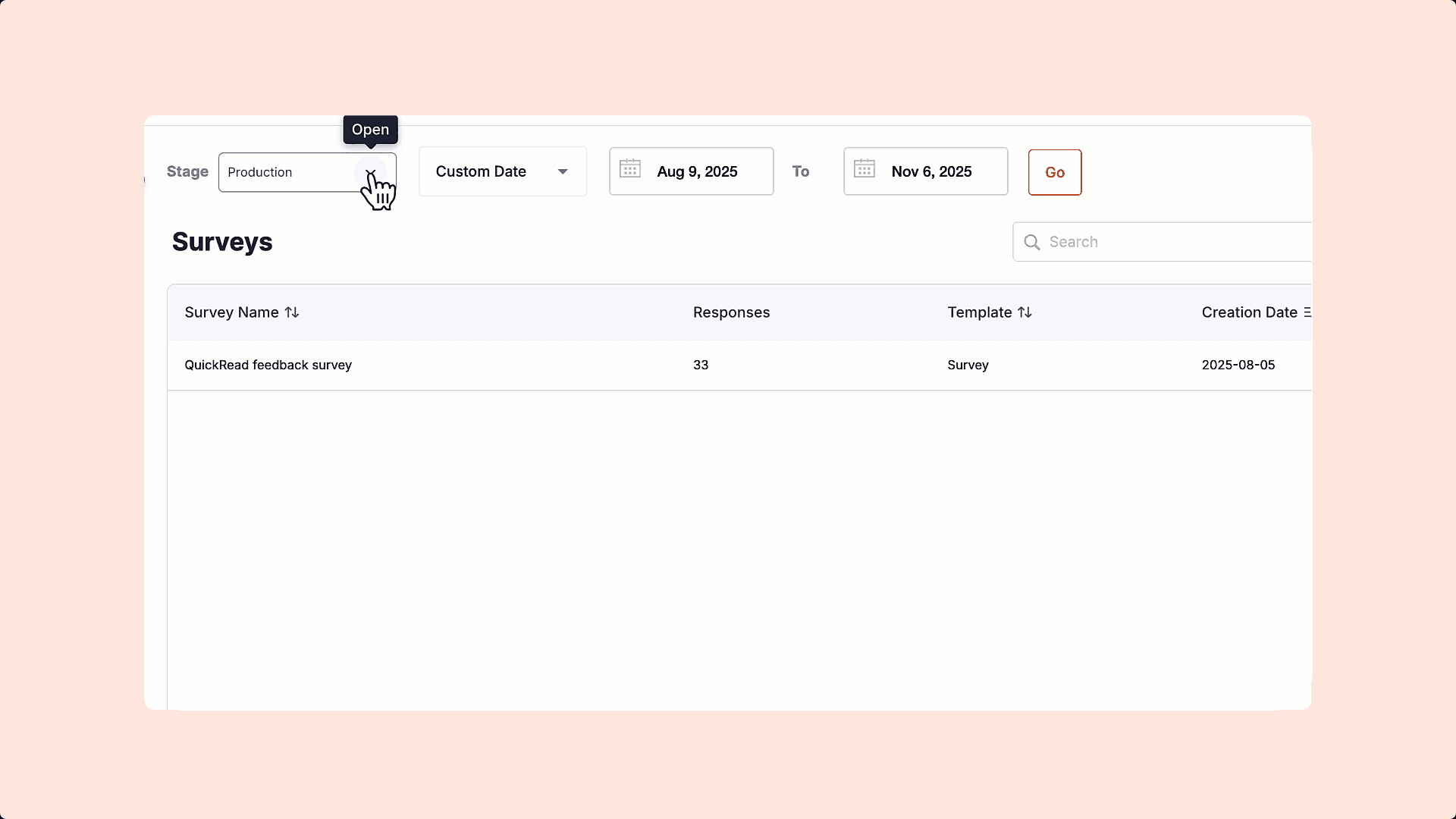
If you don't see a Survey report and you have set a Custom Date range, confirm your selected range includes both the Survey's Creation Date and its published timestamp. By default, the date filter is set to All Time; this behavior applies only when you manually narrow the date range.
For example, if you published a Survey on August 30, 2025, but set a custom date range of August 1, 2025 to August 29, 2025 the dashboard does not show the Survey report even if the Creation Date is August 15, 2025. Similarly, consider a survey created on 05/01/2025 and published on 08/29/2025. Setting the date range from 08/01/2025 to 08/29/2025 excludes the survey from the dashboard.
- The Stage filter is set to Ready, but the Survey report exists in Production because the Survey is still live.
- The Stage filter is set to Production, but the Survey report exists in Ready because the Survey has been unpublished.
- The selected Custom Date range does not include both the Survey's creation date and its published date.

Suggested Solutions
- Set the filter such that the Creation Date and the published date of the Survey are within the selected date range.
- Verify the Survey's creation and published dates, and then select a date range that includes both these dates.
- Set the Stage filter to Production to view the responses data for a live Survey.
- Set the Date filter to the default “All Time” to view all responses from the Ready or Production stage.
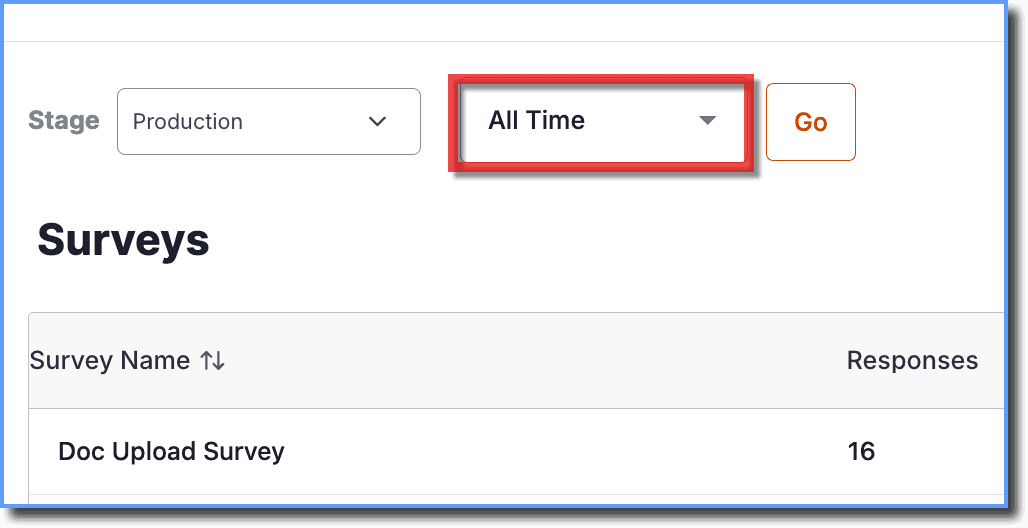
- Use the following steps to view a Survey's responses data after unpublishing a Survey from the Production stage:
- Enable analytics data capture from CLM stages and then include the Ready stage. For more information, see Get Analytics Data across CLM Stages.
- Move the Survey to the Ready stage. For more information, see Publish Whatfix Content.
- On the Guidance Analytics dashboard, click the Stage drop-down menu, select Ready, and then click Go.
- If the issue persists, contact support@whatfix.com.
- For more information, see Survey Analytics.