Smart Tips PDF Export
Share Smart Tips as PDF
- Whatfix evaluates only one Smart Tip Collection per page at any given time. To show two or more Smart Tips on the same page, create them as part of a single Collection.
- Whatfix also enables you to display multiple Smart Tip Collections on the same page. To enable this feature, contact support@whatfix.com.
Whatfix enables you to share your Smart Tips as PDFs. Any Smart Tip on the Whatfix Dashboard can be emailed to a customer as an attachment.
- If the Smart Tip title includes spaces or any of these special characters —, <, >, :, ", /, |, ?, *, #, %, period (.), and comma (,) then they are replaced with an underscore (_) when content is shared. This prevents errors.
- When content has a Display Name, the PDF shows the Display Name instead of the Content Title. For more information, see Add a Display Name to Whatfix Content.
Use the following steps to share a Smart Tip as a PDF:
-
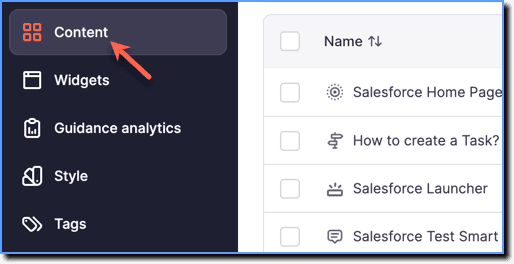
On the Whatfix Guidance dashboard, click Content.
-
Click Smart-tips.

-
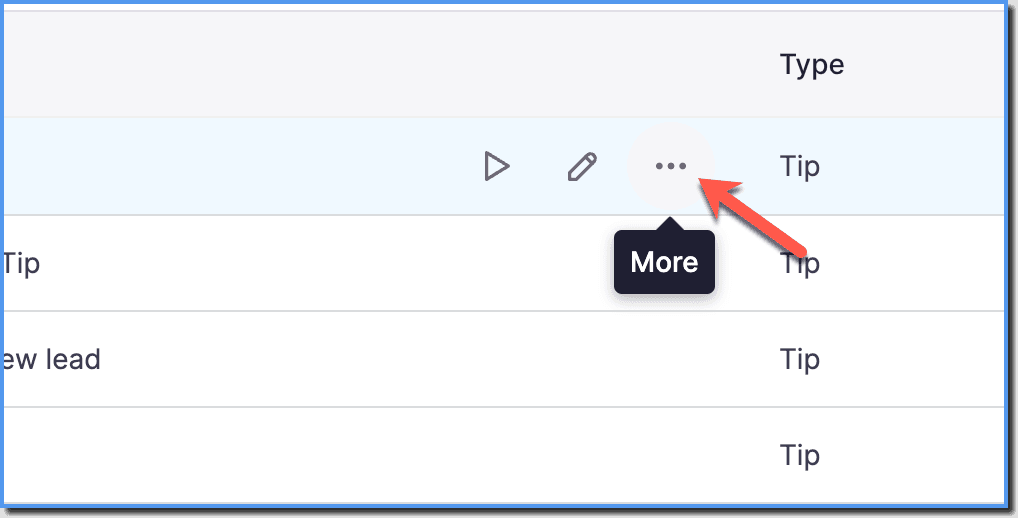
Hover over the required Smart Tip, and then click the More icon.
-
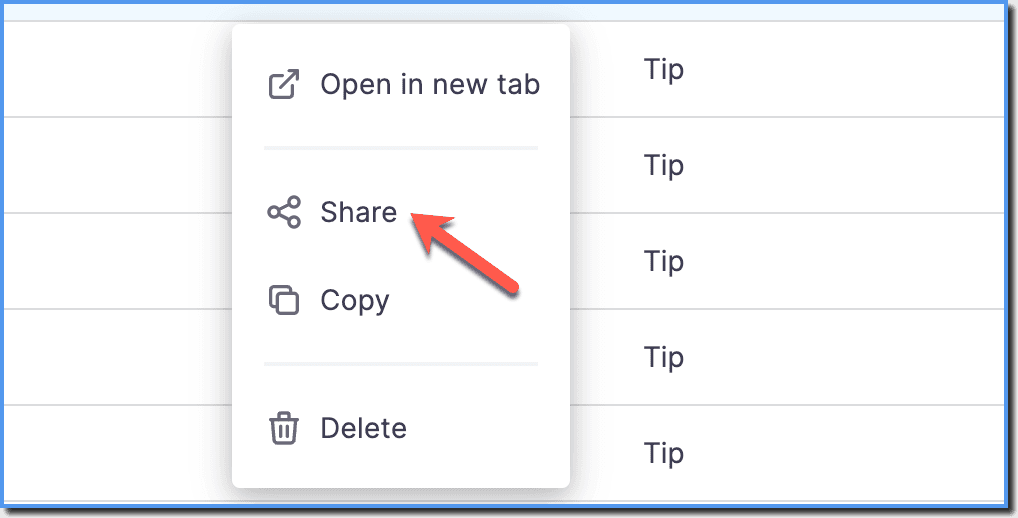
Click Share.
-
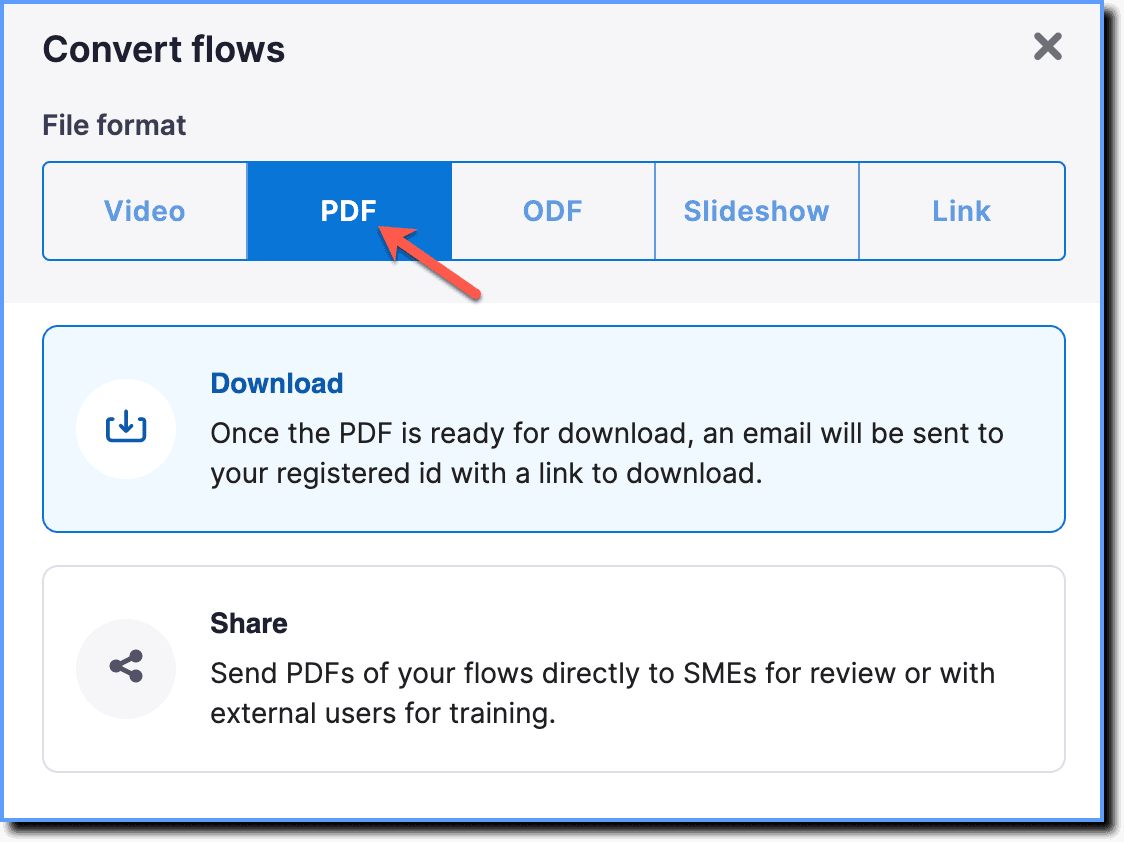
Choose the PDF option.
-
Click Share.
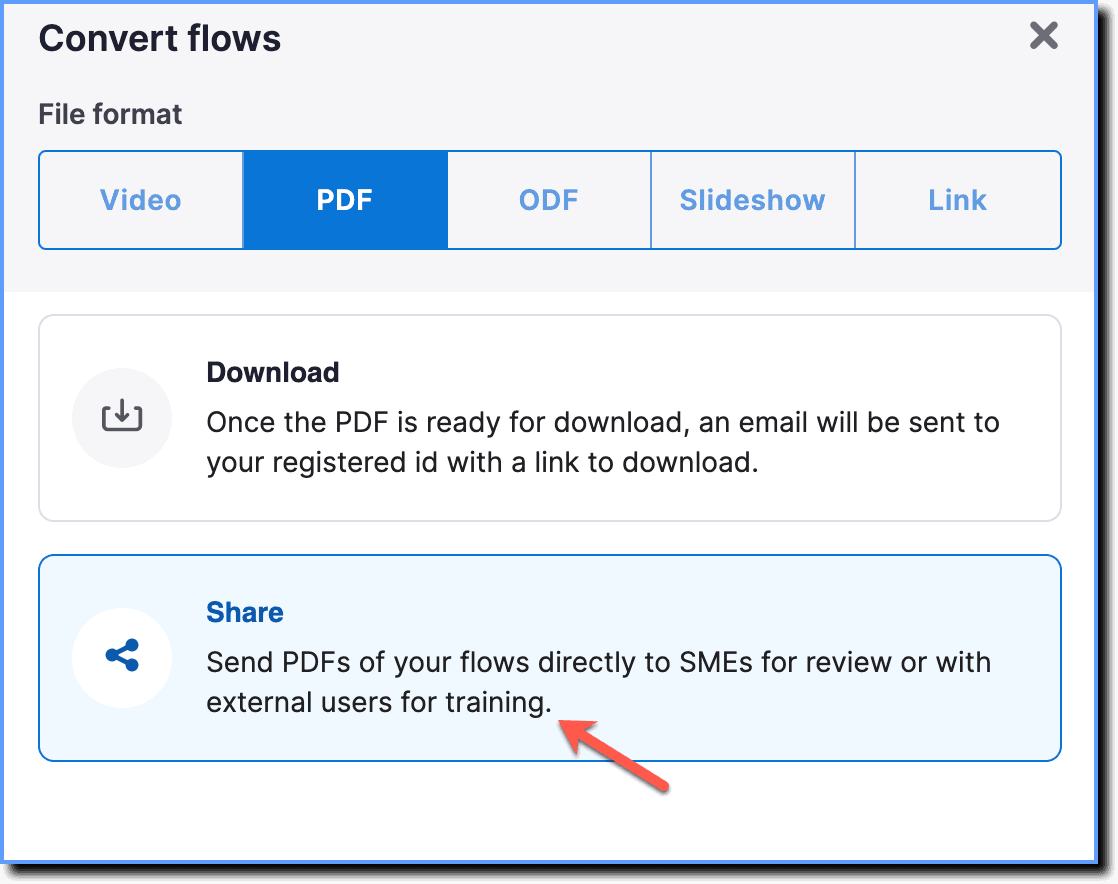
-
Click Next.
-
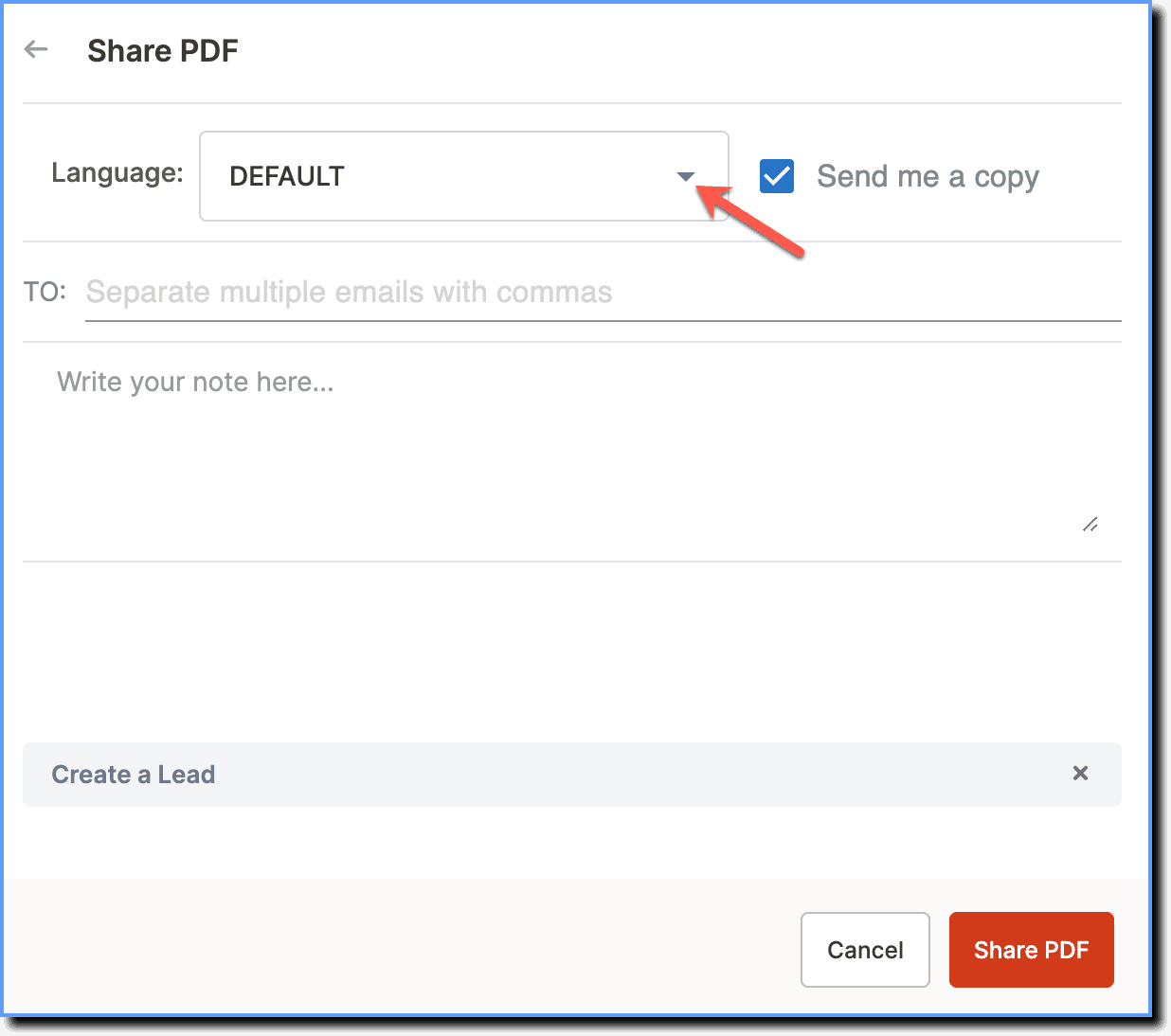
In the Language dropdown, select the language in which you want to share the Smart Tip.
-
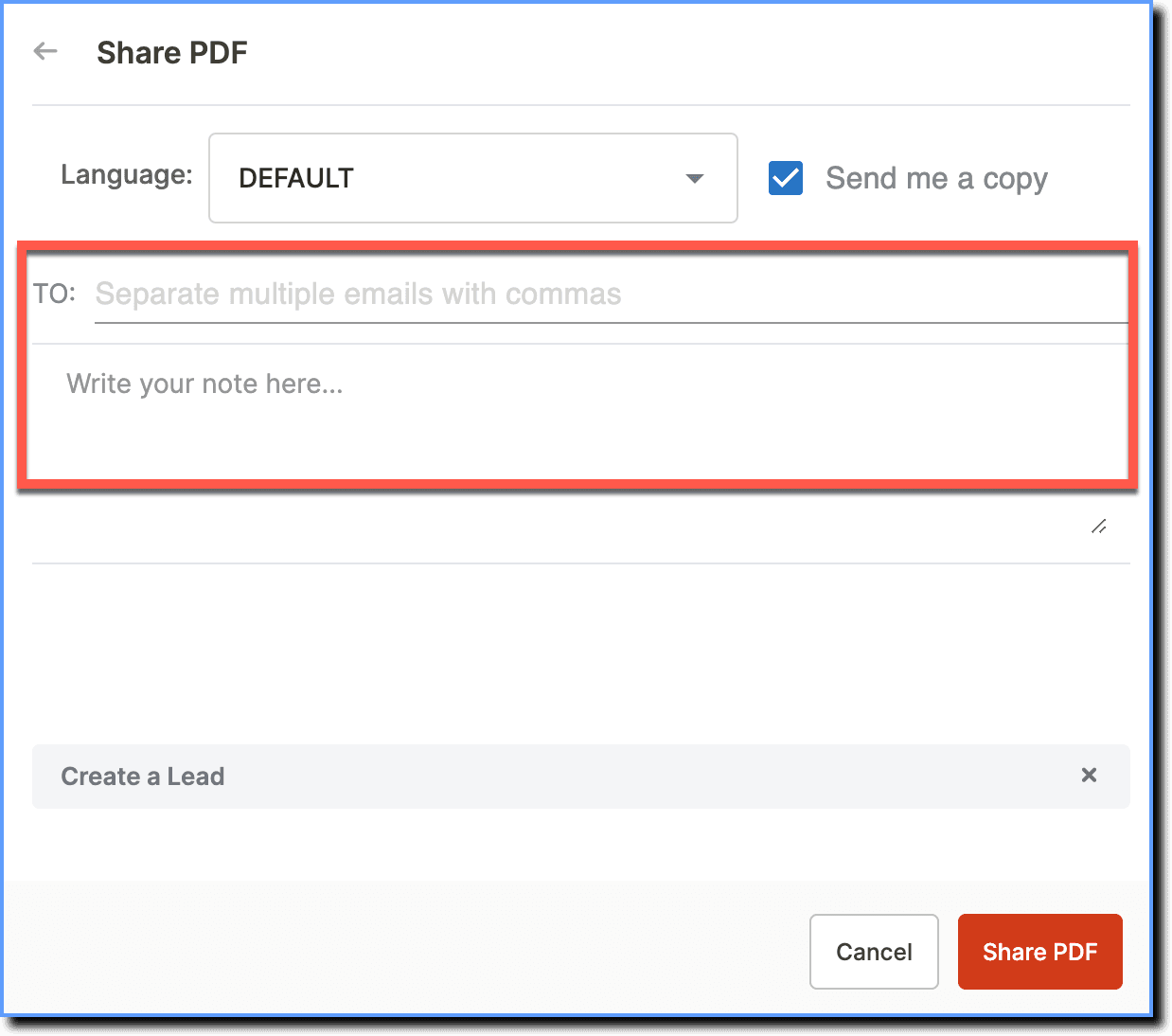
Enter the recipients' email addresses and description (email body).
-
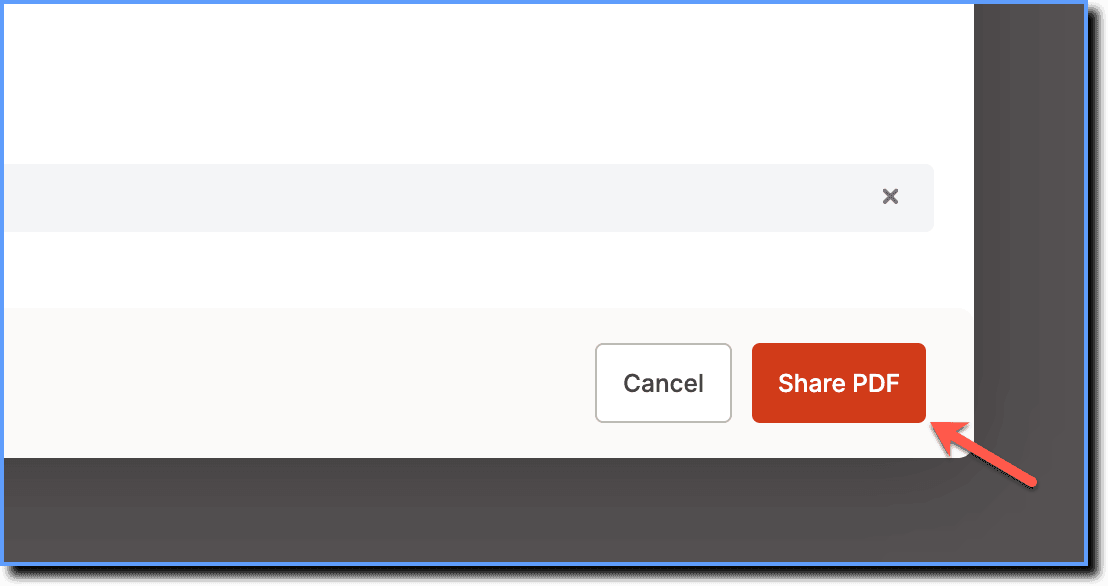
Click Share PDF.
- Emails are sent from the support@whatfix.com address with the subject line —Smart Tips shared by <user_name>.
- By default, Smart Tips can be shared only to people whose email address belongs to your organization's domain. To add additional domains, contact support@whatfix.com.