Smart Tips
Edit Smart Tips
- Whatfix evaluates only one Smart Tip Collection per page at any given time. To show two or more Smart Tips on the same page, create them as part of a single Collection.
- Whatfix also enables you to display multiple Smart Tip Collections on the same page. To enable this feature, contact support@whatfix.com.
Whatfix enables you to edit Smart Tips inside a collection both during creation and after creation, and perform the following changes:
- Change its position
- Edit its purpose
- Update the description
- Delete a Smart Tip from the collection
Expand the following accordions for more details:
During Smart Tip creation
Use the following steps to edit Smart Tips inside a collection during Smart Tip creation:
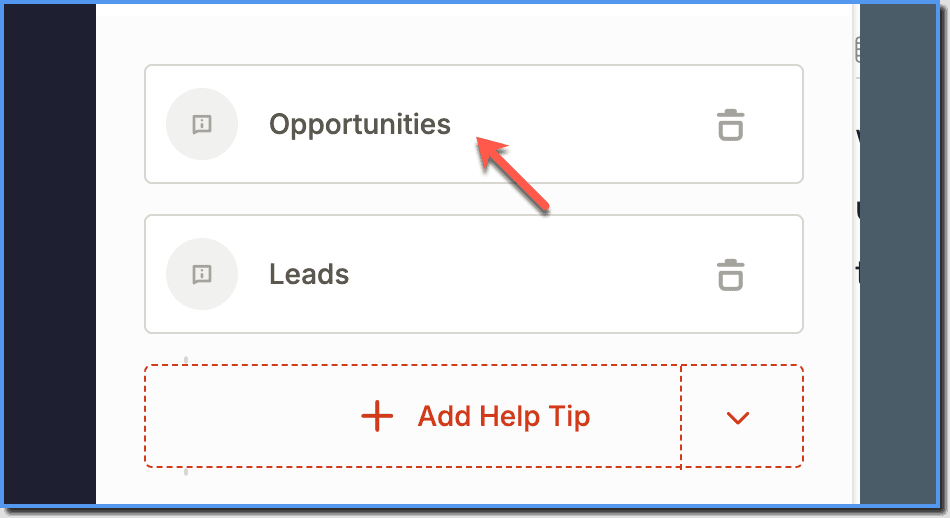
- On Whatfix Studio, click the Smart Tip you want to edit.
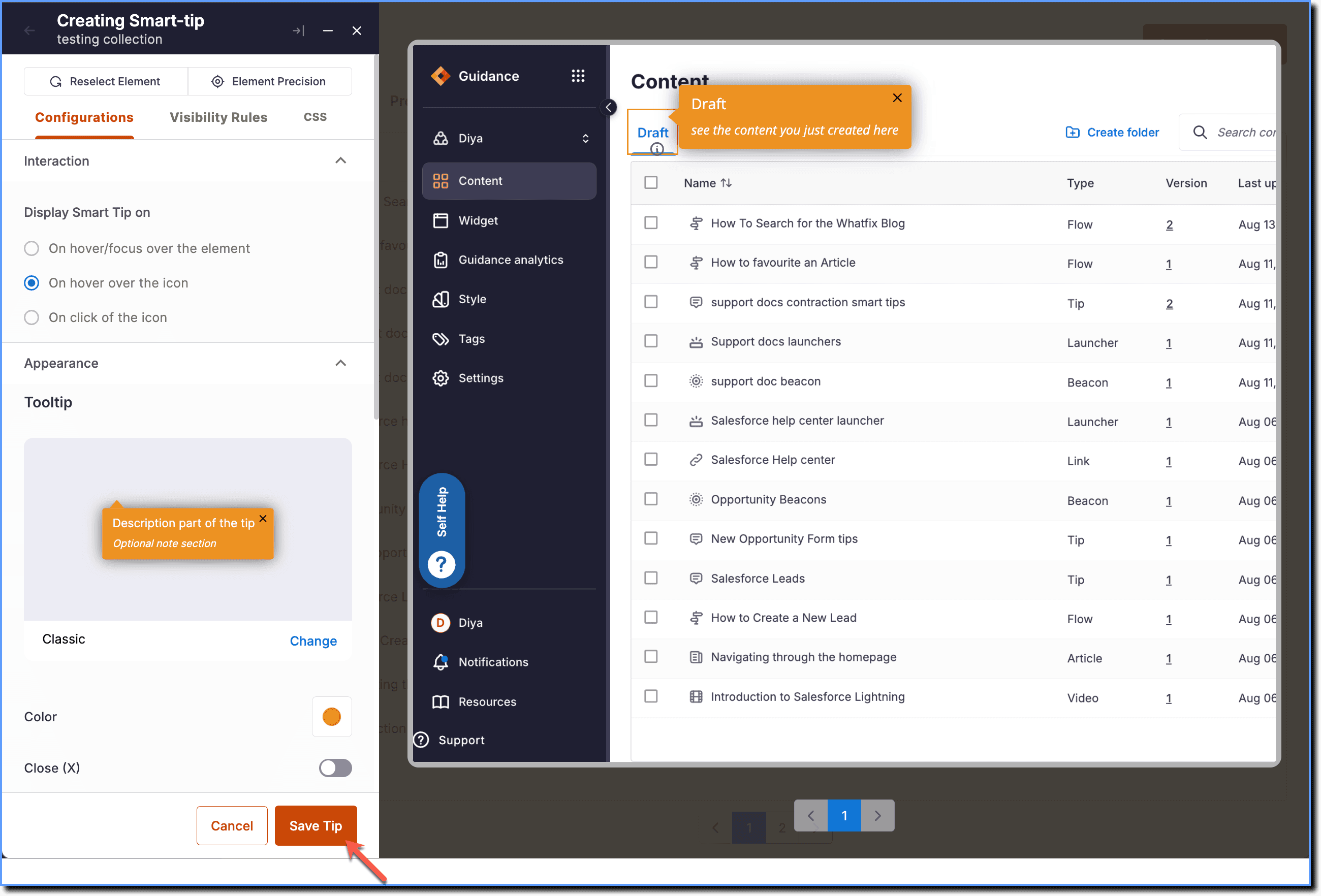
- Make changes to the Smart Tip and then click Save Tip.
After Smart Tip creation: Using Whatfix Guidance Dashboard
Use the following steps to edit Smart Tips inside a collection after Smart Tip creation:
-
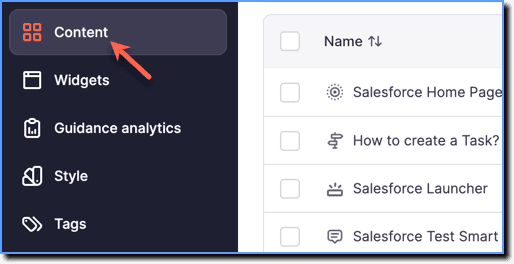
On the Whatfix Guidance dashboard, click Content.
-
Click Smart-tips.

-
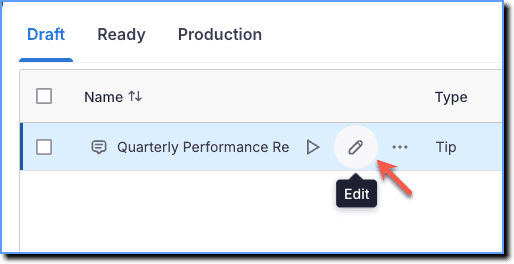
Hover your cursor over the Smart Tip collection you want to edit, and then click the Edit icon.
-
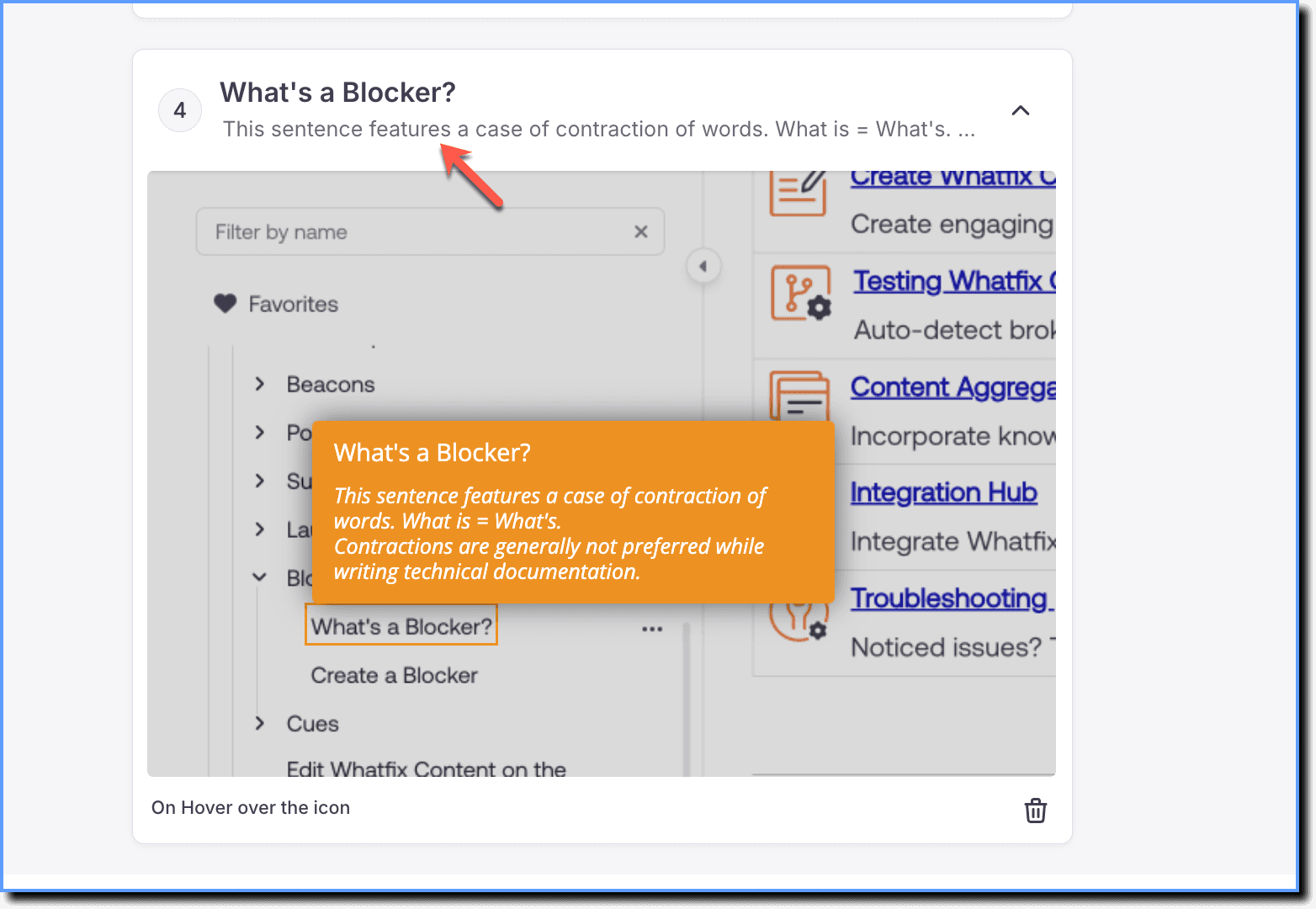
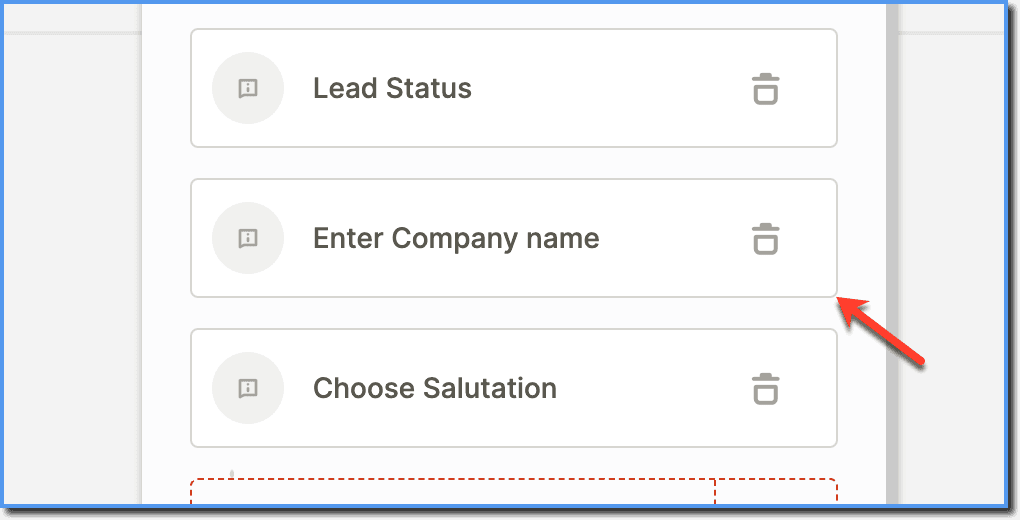
Go to the Smart Tip you want to edit and then click anywhere on the card to open edit mode.
-
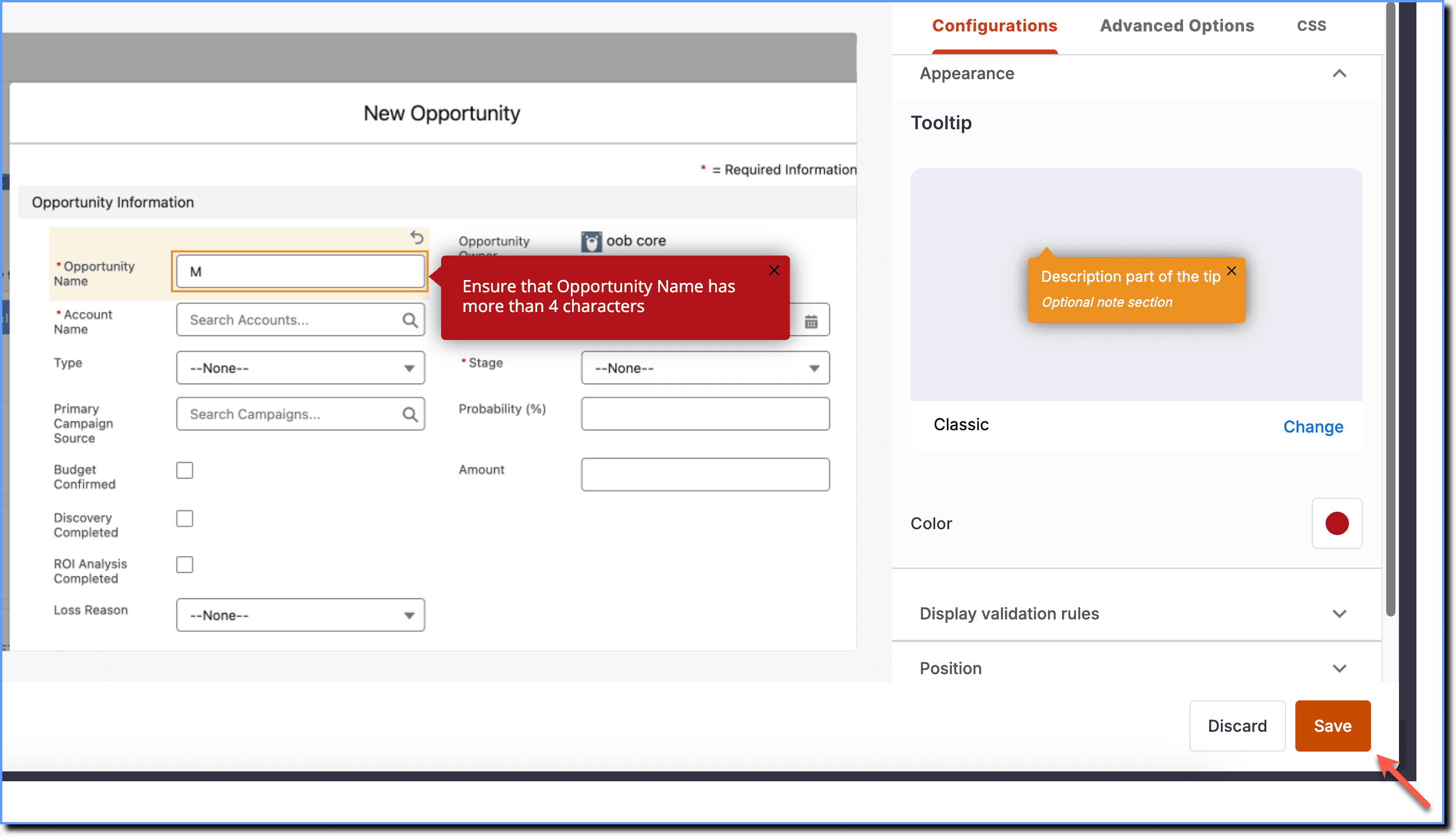
Make changes to the Smart Tip and then click Save.
-
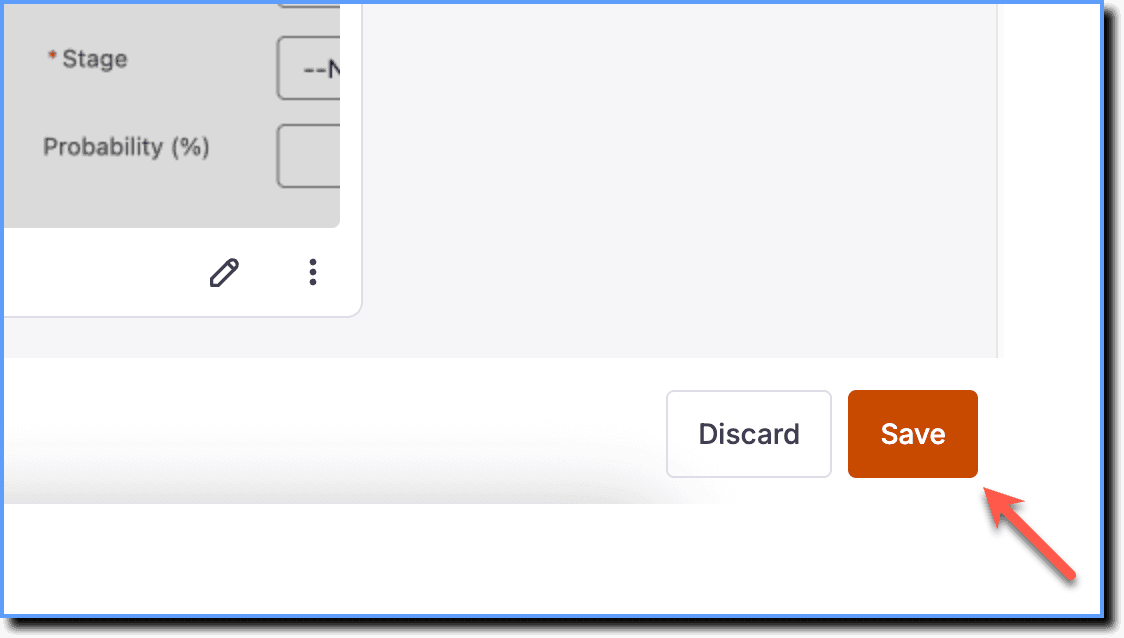
Click Save to save the Smart Tip collection.
After Smart Tip creation: Using Launch live edit
Use the following steps to edit Smart Tips using Launch live edit:
-
On the Whatfix Guidance dashboard, click Content.
-
Click Smart-tips.
-
Hover your cursor over the Smart Tip collection you want to edit, and then click the Edit icon.
-
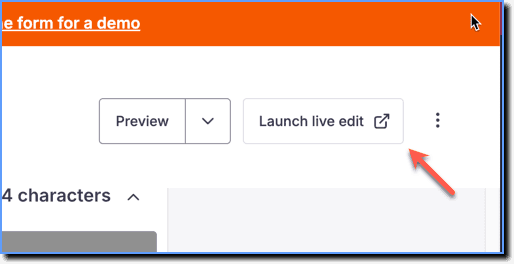
Click Launch live edit.
-
Once the Studio launches on the application, click the Smart Tip you want to edit.
-
Make changes to the Smart Tip and then click Save Tip.