Smart Tips
Add a Survey to a Smart Tip
- Whatfix evaluates only one Smart Tip Collection per page at any given time. To show two or more Smart Tips on the same page, create them as part of a single Collection.
- Whatfix also enables you to display multiple Smart Tip Collections on the same page. To enable this feature, contact support@whatfix.com.
Add a Survey to a Smart Tip by creating a Link for the Survey from the Whatfix Dashboard and then adding the Link to the Smart Tip.
- Sharing a Survey requires a Premium plan. To enable this feature, contact support@whatfix.com.
- The Share a Survey functionality is available only in the Production stage.
Create a Link for the Survey
Use the following steps to create a Link for your Survey:
-
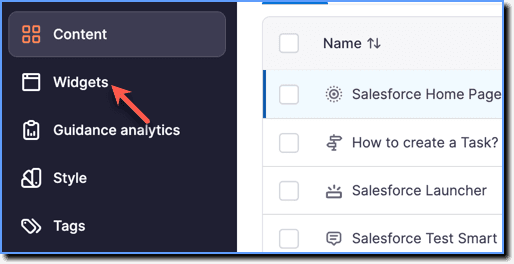
On the Whatfix Guidance dashboard, click Widgets.
-
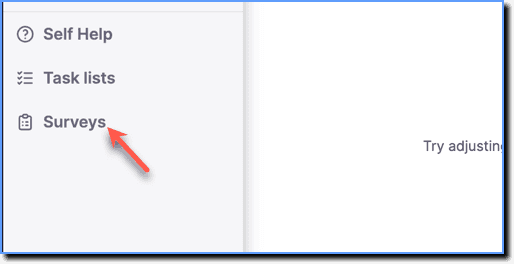
Click Surveys.
-
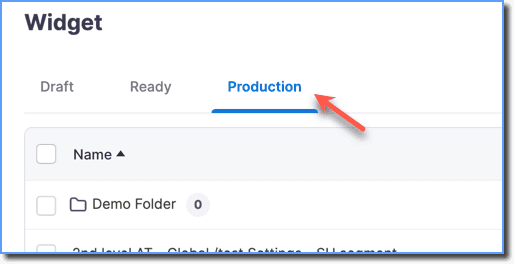
Click the Production tab.
-
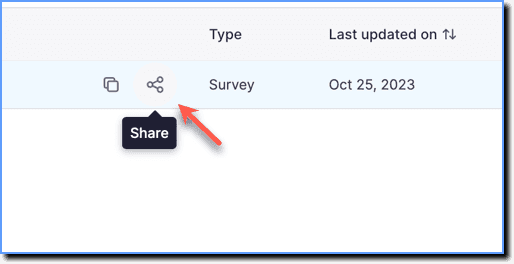
Hover your cursor over the required Survey, and then click the Share icon.
Note:
The Share icon only appears for Surveys in the Production stage.
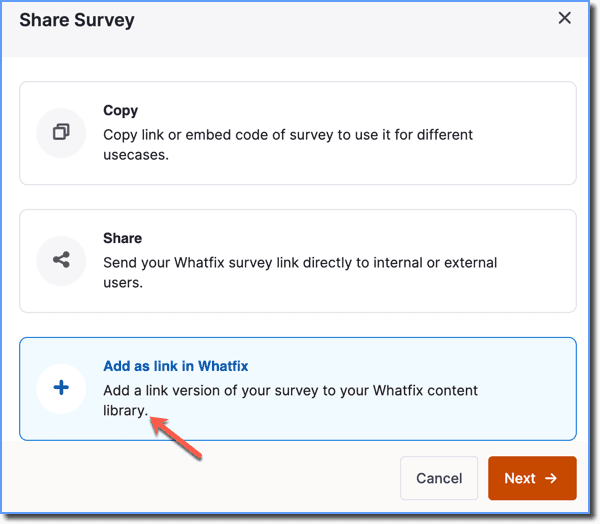
- Click Add as link in Whatfix.
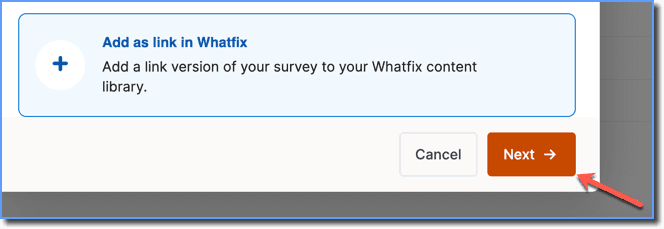
- Click Next.
- Enter a Title Prefix.
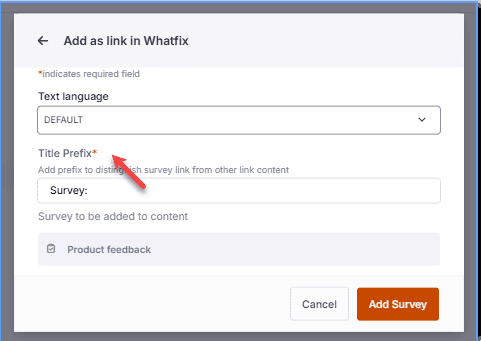
The prefix title distinguishes the Survey link from other links on the dashboard. 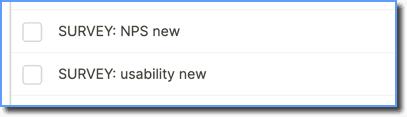
- Click Add Survey.
View the Link that you just created in the Draft Stage of the Dashboard.
Add the Survey Link to a Smart Tip
Use the following steps to add the Survey link to a Smart Tip:
-
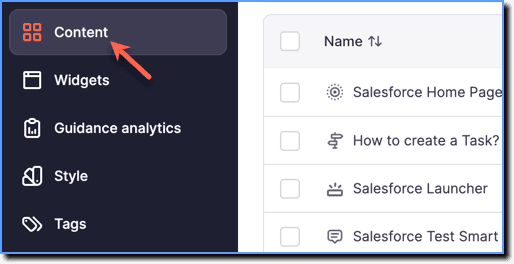
On the Whatfix Guidance dashboard, click Content.
-
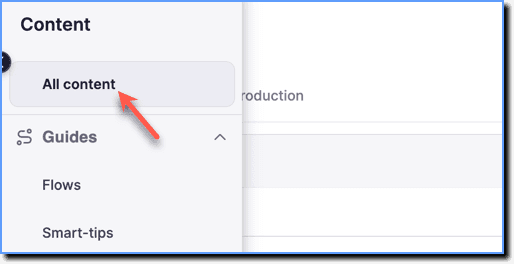
Click All content.
-
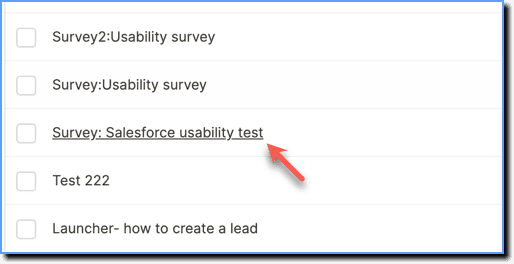
Click the Survey Link you just created.
-
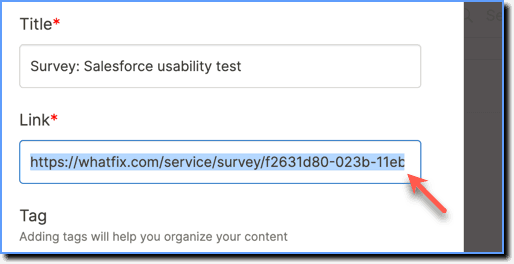
Copy the Survey Link URL.
-
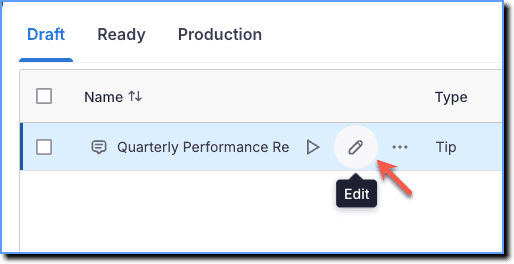
Hover your cursor over your Smart Tip Collection, and then click the Edit icon.
-
Click the Edit button on the Dashboard.
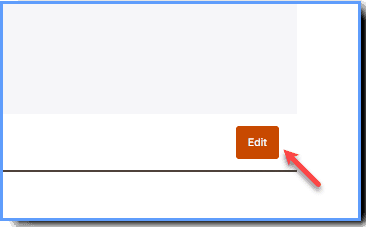
You have the option to edit the Smart-tip either on the Dashboard or using Launch live edit mode.
- On the Smart Tip message, select the text to which you want to attach the Link.
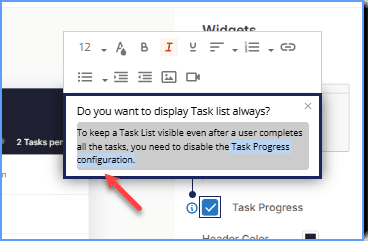
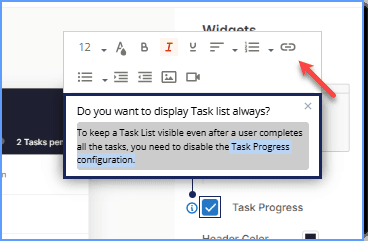
- In the Rich Text Editor, click the Link icon.
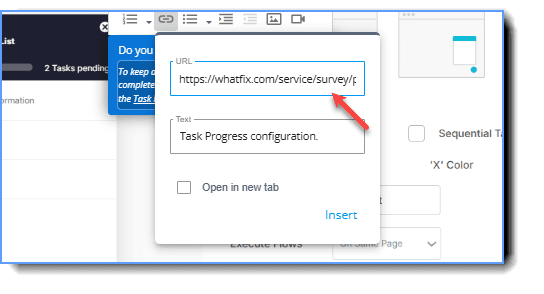
- Paste the Survey Link URL.
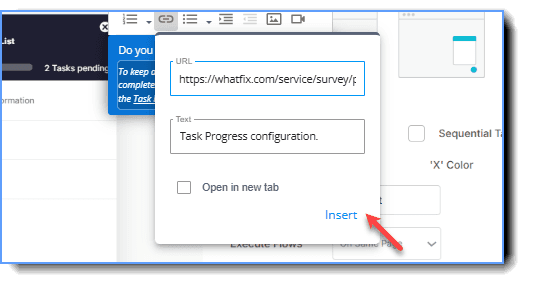
- Click Insert.
- Click Save Tip.