Smart Tips
Link a Flow to a Smart Tip
- Whatfix evaluates only one Smart Tip Collection per page at any given time. To show two or more Smart Tips on the same page, create them as part of a single Collection.
- Whatfix also enables you to display multiple Smart Tip Collections on the same page. To enable this feature, contact support@whatfix.com.
Whatfix enables you to link an existing Flow to the text of the Smart Tip. Your end users have the option to either view the Flow or skip it. Linking a Flow to a Smart Tip enables the user to complete an associated action on your application thus increasing their engagement with your application.
Use Cases
Link a Flow to a Smart Tip in the following cases:
- You have a Smart Tip introducing new feature updates to your end users: Linking a Flow enables you to provide a better understanding as you are able to redirect your end users to the new application elements.
- You have a Smart Tip reminding end users to complete a certain procedure: Linking an instructional Flow can help your end users complete the task easily.
Link a Flow to a Smart Tip
Linking a Flow to a smart tip is a two-step process:
Step 1: Find the Flow ID that you want to link Step 2: Link the Flow to the Smart Tip
Find the Flow ID
Use the following steps to find the Flow ID:
- On the Whatfix Guidance dashboard, click Content.
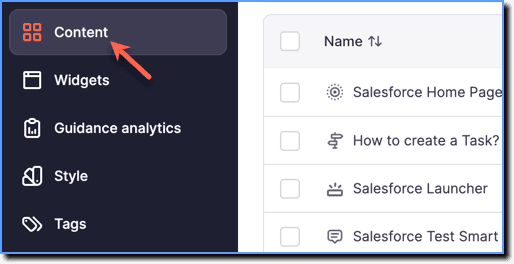
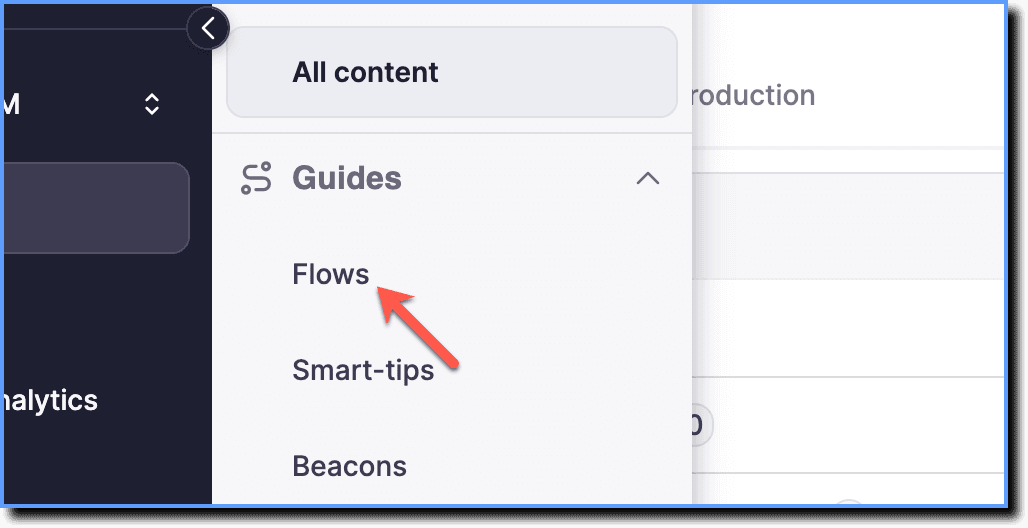
- Click Flows.
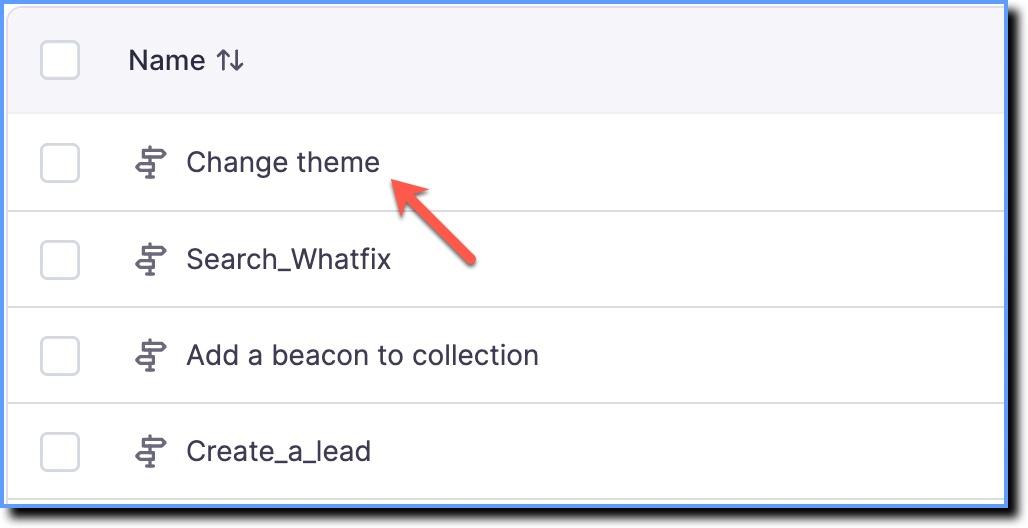
- Click the Flow whose ID you want to copy.
- Click Flow ID.
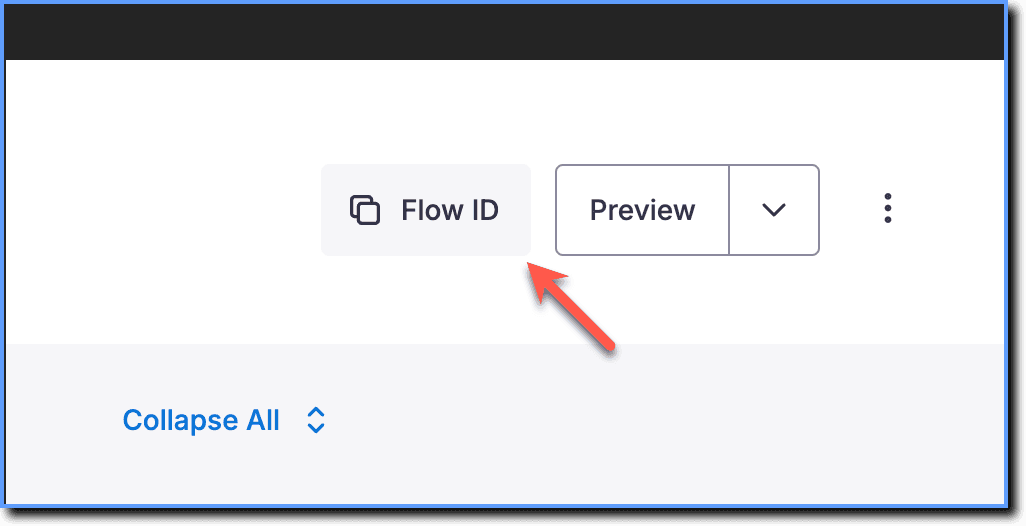
Whatfix also enables you to view the Flow ID in the URL of the Flow. The last section in the URL is the ID of the Flow. 
In this case, the Flow ID is 33f7a870-330e-11ec-98fc-32b5f385aed9.
Link the Flow to the Smart Tip
Use the following steps to link the Flow to the Smart Tip:
-
On the Whatfix Guidance dashboard, click Content.
-
Click Smart-tips.

-
Hover your cursor over the Smart Tip collection you want to edit, and then click the Edit icon.
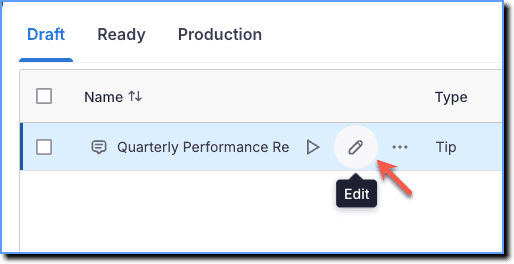
-
Go to the individual Tip that you want to edit, and click anywhere on the card to open edit mode.
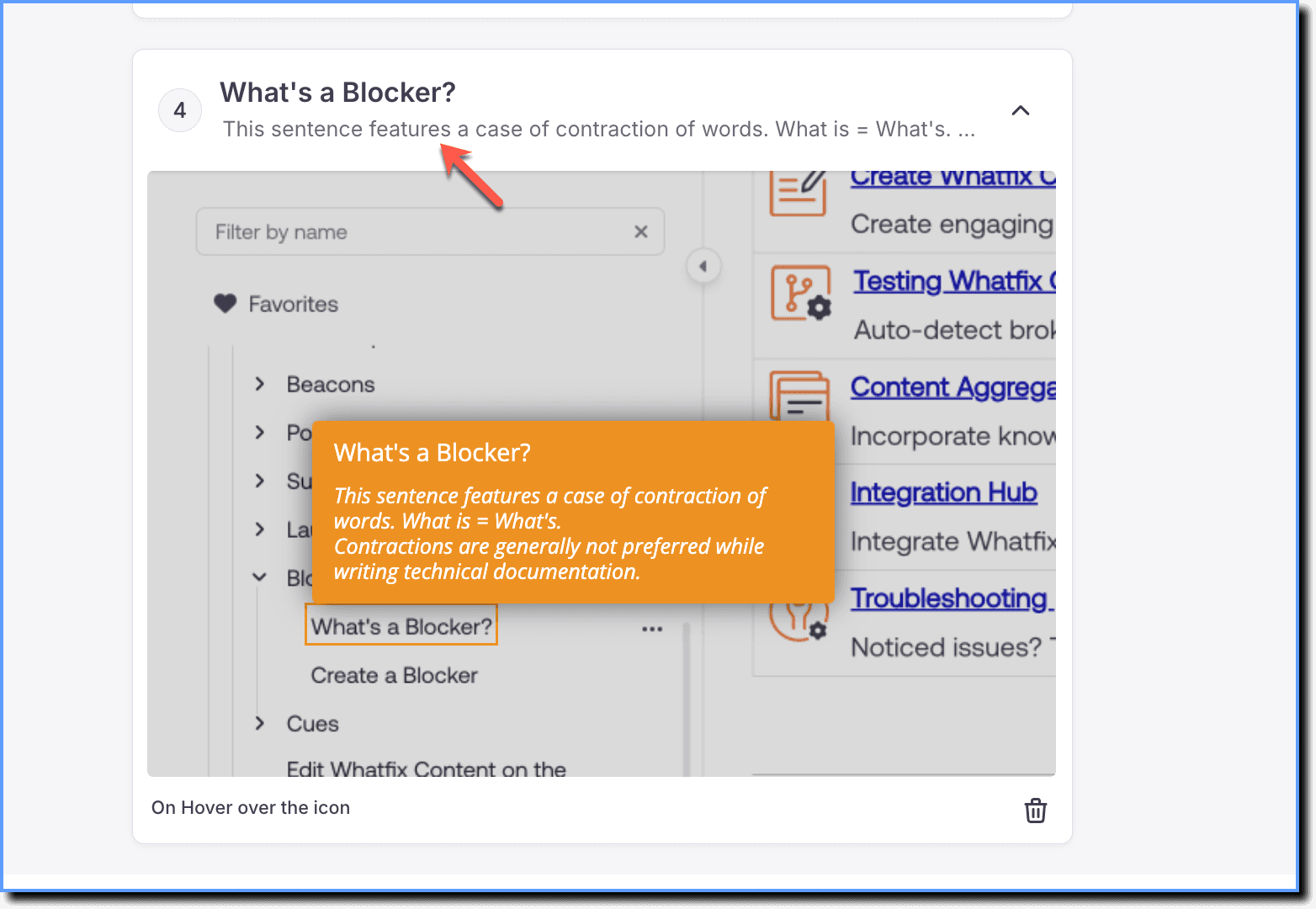
-
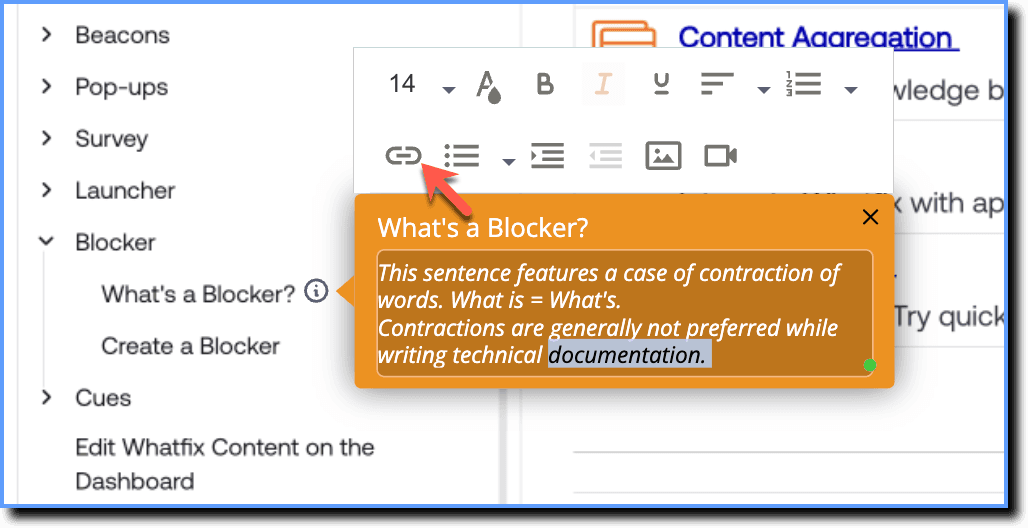
In the Purpose of this tip section, highlight a word in the text that you want to hyperlink.
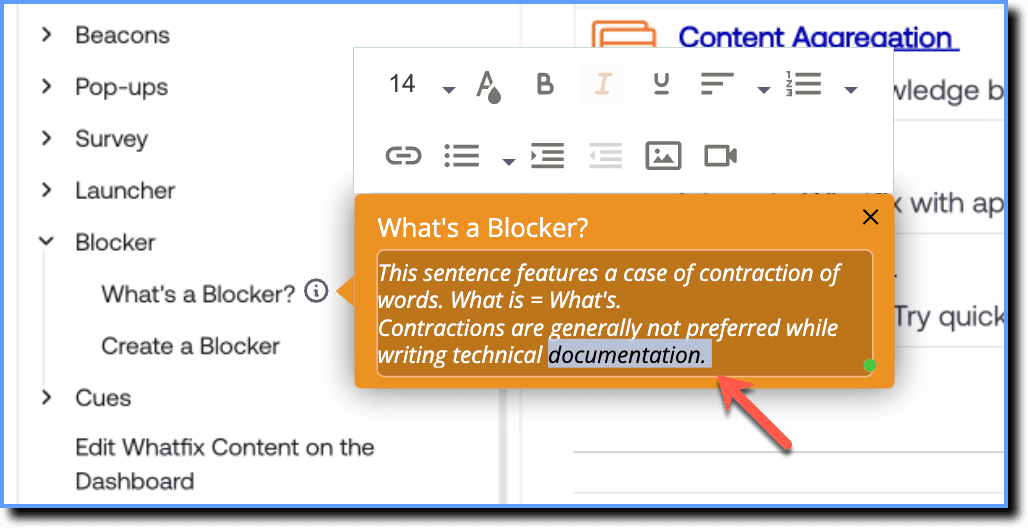
-
In the toolbar, click the Insert Link icon.
-
In the URL field, enter the Flow ID in the following format:
wfx-{FlowID}For example, to insert the Flow that was identified, the URL to be entered is wfx-33f7a870-330e-11ec-98fc-32b5f385aed9.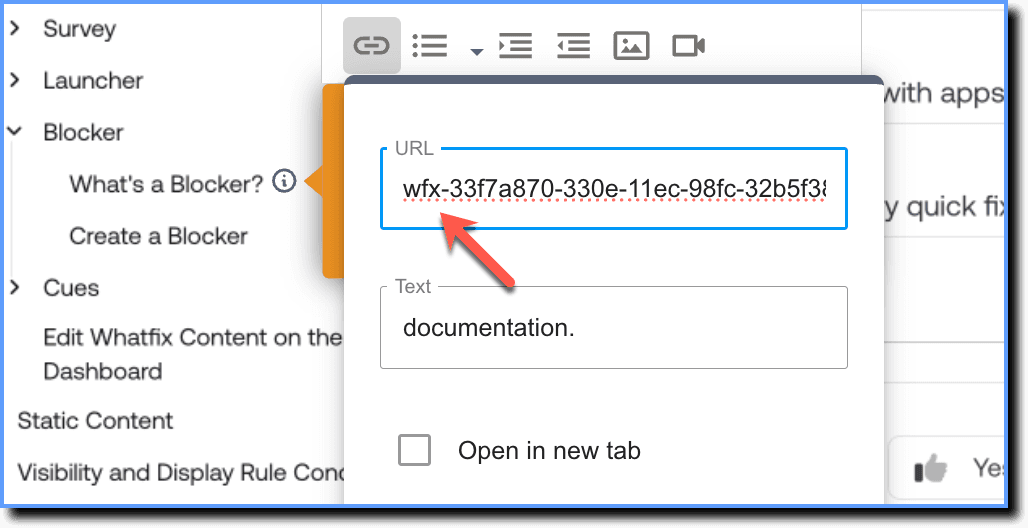
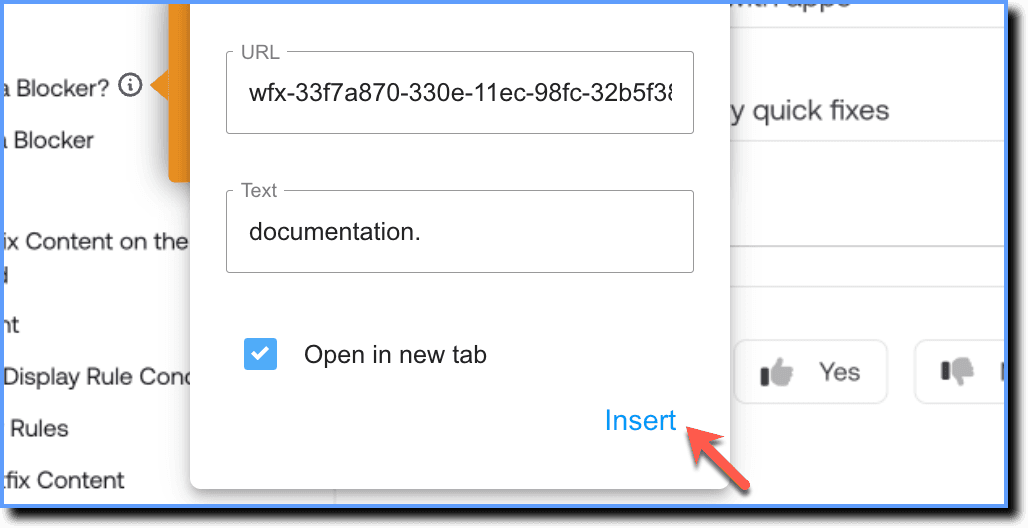
If you want the inserted link to open in a new tab, then select the checkbox next to Open in new tab.
- Click Insert.
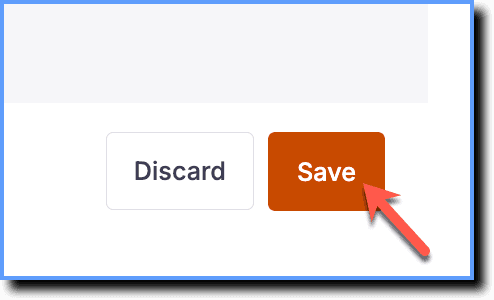
- Click Save.
- Save the Collection.