Smart Tips PDF Export
Download Smart Tips as PDF
- Whatfix evaluates only one Smart Tip Collection per page at any given time. To show two or more Smart Tips on the same page, create them as part of a single Collection.
- Whatfix also enables you to display multiple Smart Tip Collections on the same page. To enable this feature, contact support@whatfix.com.
Whatfix Smart Tips can be downloaded in PDF format for sharing and printing.
- If the Smart Tip title includes spaces or any of these special characters —, <, >, :, ", /, |, ?, *, #, %, period (.), and comma (,) , then they are replaced with an underscore (_) when downloading Smart Tips to prevent errors.
- When content has a Display Name, the PDF shows the Display Name instead of the Content Title. For more information, see Add a Display Name to Whatfix Content.
Whatfix enables you to generate a PDF for a Smart Tip in any stage, be it in Draft, Ready, or Production. To generate the PDF, Go to the respective stage and follow the steps mentioned in this article. 
Download a Smart Tip as a PDF
Use the following steps to download a Smart Tip as a PDF:
-
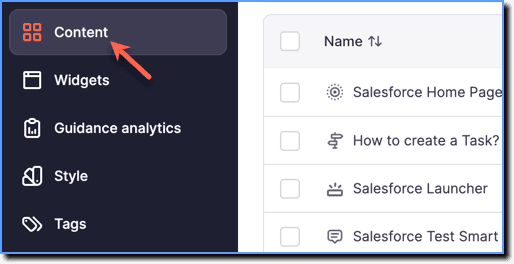
On the Whatfix Guidance dashboard, click Content.
-
Click Smart-tips.

-
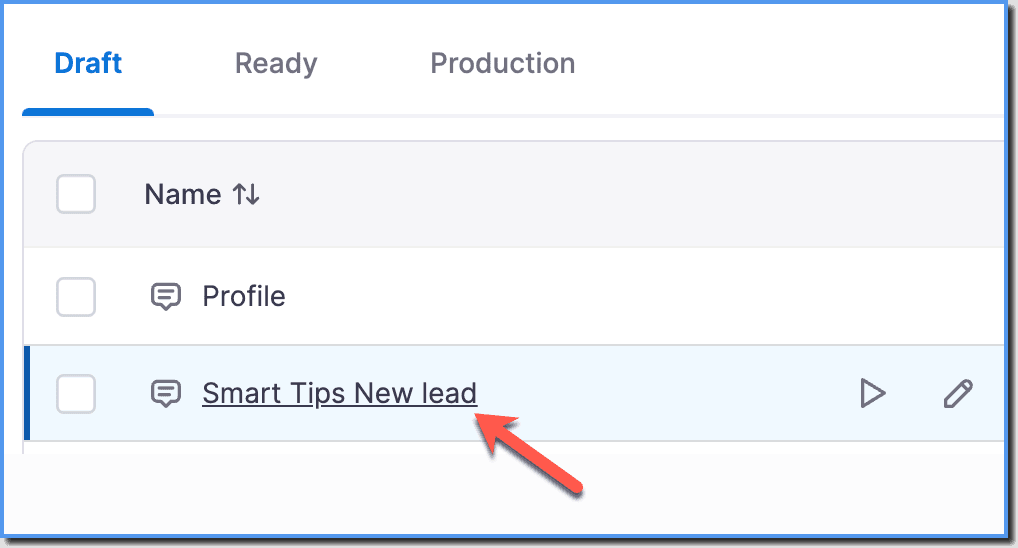
Click the Smart Tip Collection for which you want to download PDF.
-
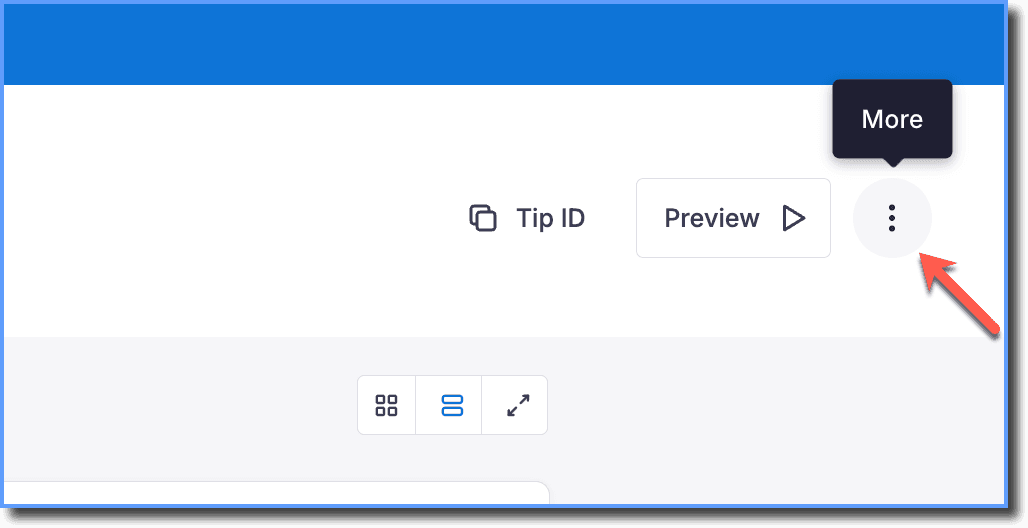
Click the More icon.
-
Click Download PDF.
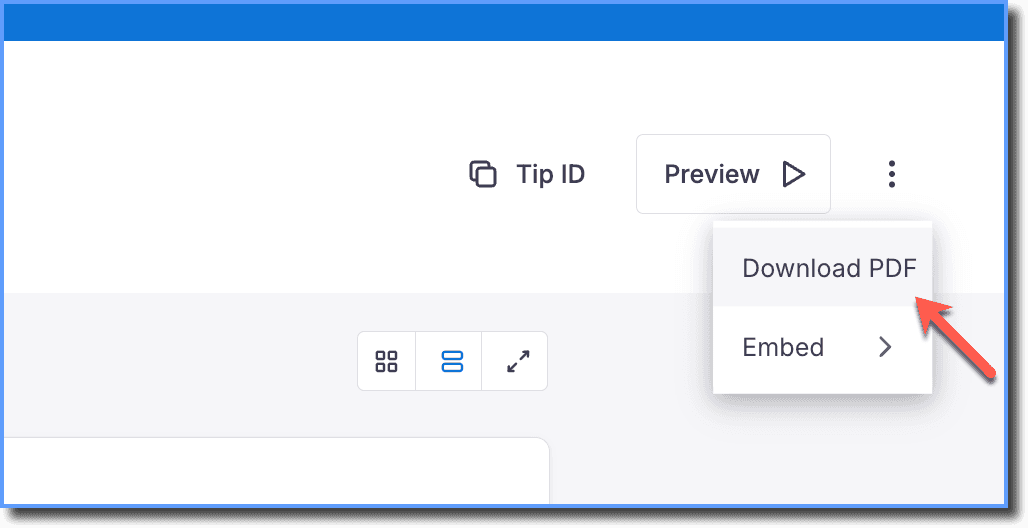
The PDF opens in a new tab, download the PDF by clicking the download icon.
- If you are using an image in the description field, then there are chances that some parts of the image may get cut off when exported as PDF.
- The end message displayed on the last page can have a maximum height of 650 pixels and a width of 570 pixels. Use the text size and the number of characters to ensure that your end message is within the limit to prevent any cut-off.