Self Help
Add an icon to Self Help
Whatfix enables you to add icons to the Self Help widget. Choose a default icon, such as a question mark, or a custom icon that matches other icons in your application.
Expand the following accordions for more details:
Add an icon to the Old Self Help
End-user experience: 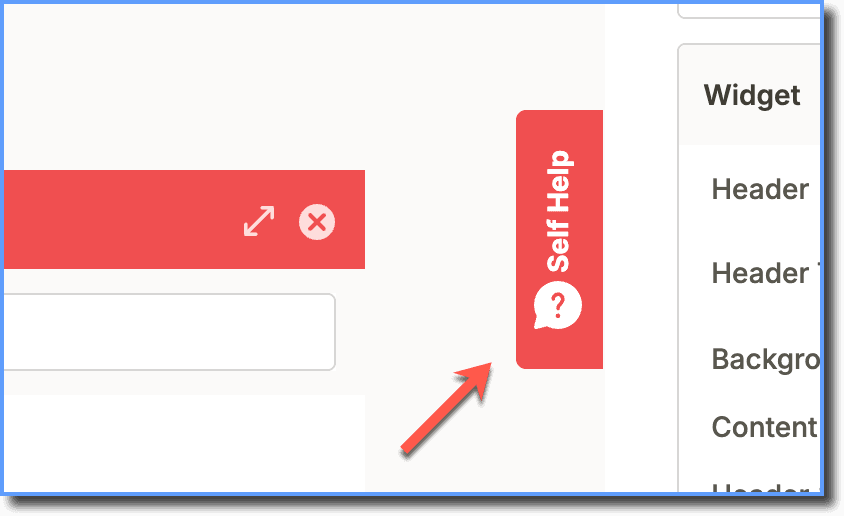
Use the following steps to add icons to your Old Self Help widget:
-
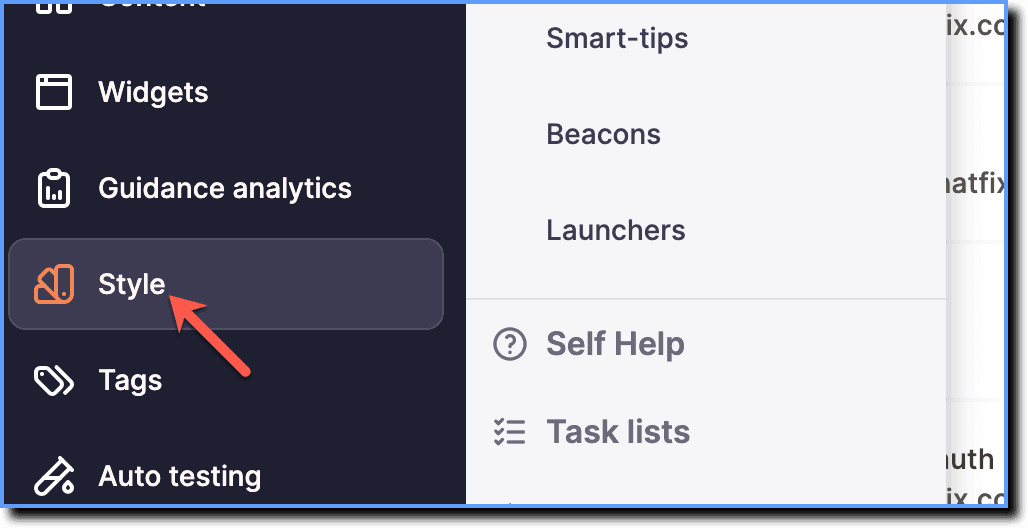
On the Whatfix Guidance dashboard, click Style.
-
Click Self Help.

-
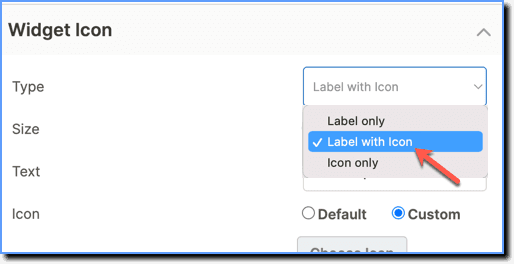
In the Appearance section, under Widget Icon, click the dropdown menu next to Type. Select either Label with Icon or Icon only based on your requirements.
-
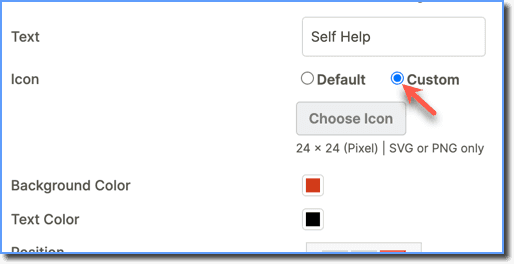
In the Icon section, choose the Custom option.
-
Click Choose Icon, then select the image you want to use from your device.
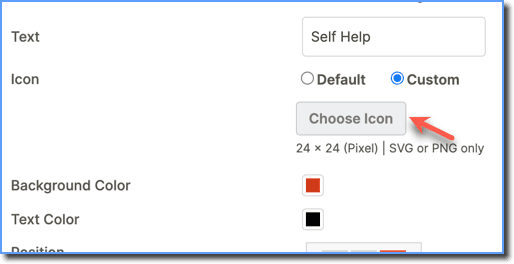
- Whatfix supports PNG and SVG formats for custom icons.
- The image resolution can be up to 24x24 pixels.
- The file size should be less than 25 KB.
- After uploading the image, click Save.
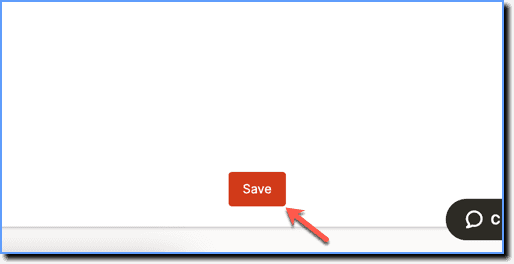
Once saved, you must push the changes made to Production so that the latest behavior reflects for end users.
Add an icon to the Improved Self Help
End-user experience: 
Use the following steps to add icons to your Improved Self Help widget:
-
On the Whatfix Guidance dashboard, click Style.
-
Click Self Help.
-
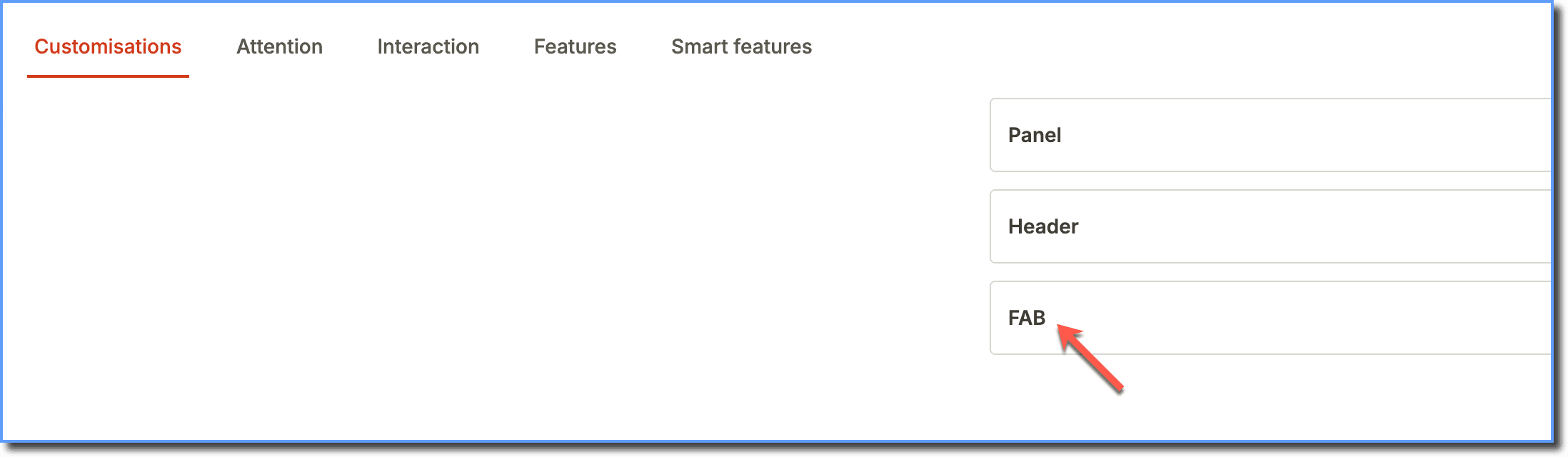
In the Customisations section, click FAB.
-
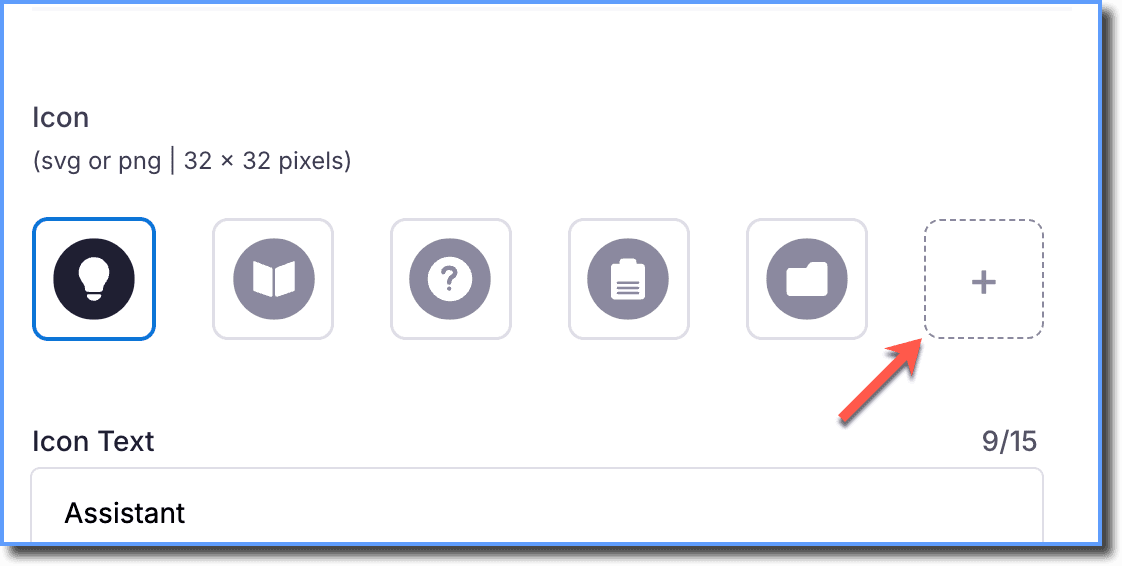
In the Icon section, click the + icon.
-
Select the image you want to use from your device.
- Whatfix supports PNG and SVG formats for custom icons.
- The image resolution can be up to 32x32 pixels.
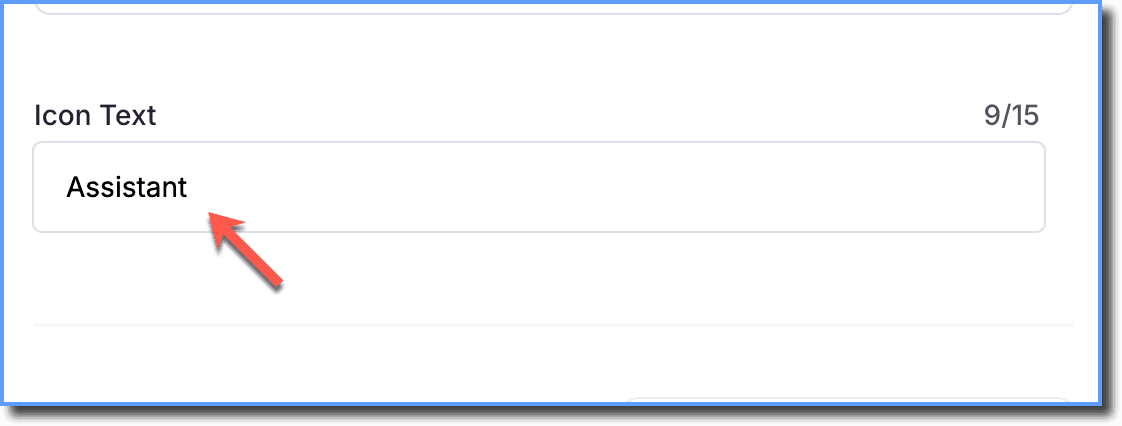
- Add a text for your icon. The text appears on hover over the FAB icon.
- Click Save.
Once saved, you must push the changes made to Production so that the latest behavior reflects for end users.