Cues
Delete a Cue
Whatfix enables you to delete Cues that are no longer useful. Delete a single Cue from the Cue collection or the entire Cue collection.
- You can only delete Cues in the Draft and Ready stages.
- When a copy of your content in Draft or Ready also exists in Production, deleting the Draft or Ready version does not affect the content in Production.
Expand the following accordions for more details:
Delete a Cue from a collection
Use the following steps to delete a Cue from a Cue collection:
- On the Whatfix Guidance dashboard, click Content.
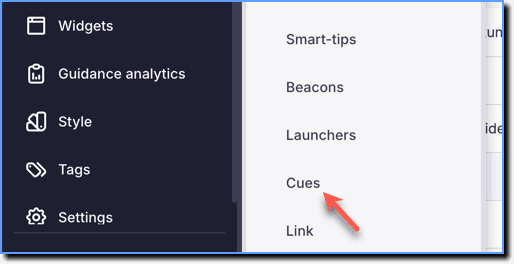
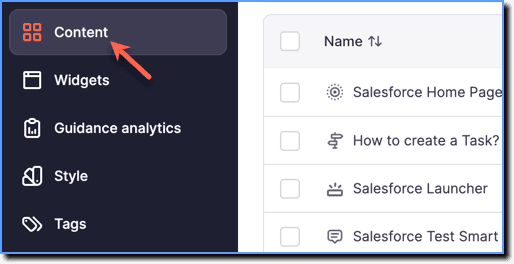 2. Click Cues.
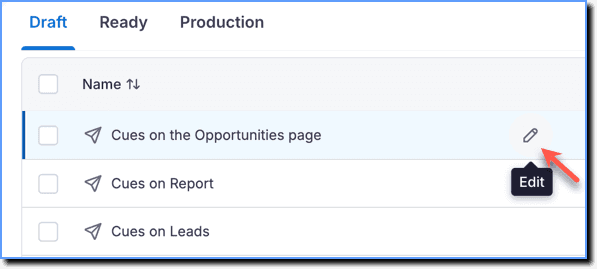
 3. Hover your cursor over the Cue collection, and then click the Edit icon.
- Go to the Cue you want to delete from the collection, and then click the Delete icon.
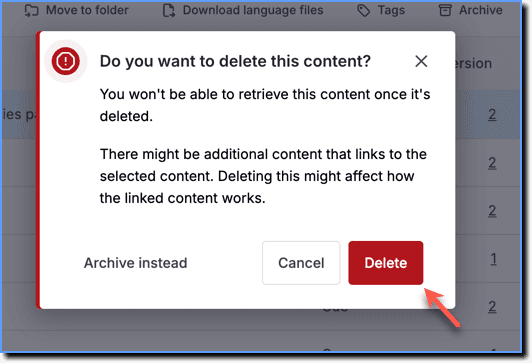
 2. In the confirmation dialog box, click Delete.
Delete a Cue collection
Use the following steps to delete a complete Cue collection:
- On the Whatfix Guidance dashboard, click Content.
2. Click Cues.
- Select the Cue collection you want to delete using the checkbox.
 2. Click Delete content.
 3. In the confirmation dialog box, click Delete.
Delete multiple Cue collections
Use the following steps to delete multiple Cue collections:
- On the Whatfix Guidance dashboard, click Content.
2. Click Cues.
- Select the Cue collections you want to delete using the checkboxes.
 2. Click Delete content.
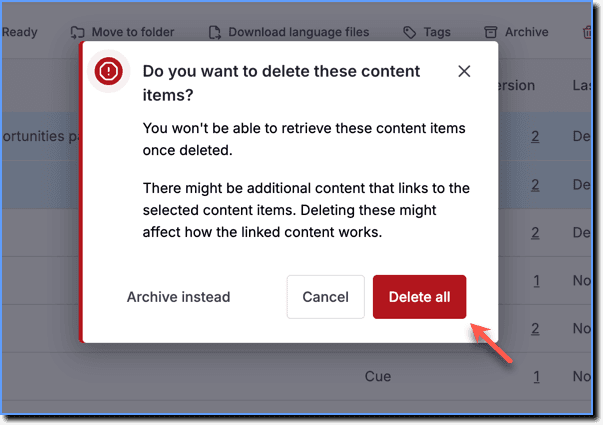
3. In the confirmation dialog box, click Delete all.
Cues are contextual, just-in-time nudges that appear within your end users’ flow of work to guide them toward helpful next steps.