Create Whatfix Mirror
Rename a Mirror Workflow or Simulation
Whatfix enables you to rename a Mirror Workflow or Simulation to keep your content clear and organized, which helps you to easily identify and manage your Workflows within a Simulation. You can rename a Workflow or Simulation from Whatfix Studio or the Whatfix Mirror dashboard.
- After you capture Mirror screens in Whatfix Studio, the corresponding Workflow appears at the top of the Project page.
- For more information about the Whatfix Mirror dashboard, see Overview of the Mirror Dashboard.
Expand the following accordions to rename a Mirror Workflow:
Whatfix Studio

Use the following steps to rename a Mirror Workflow with Whatfix Studio:
-
Launch Whatfix Studio on your application.

-
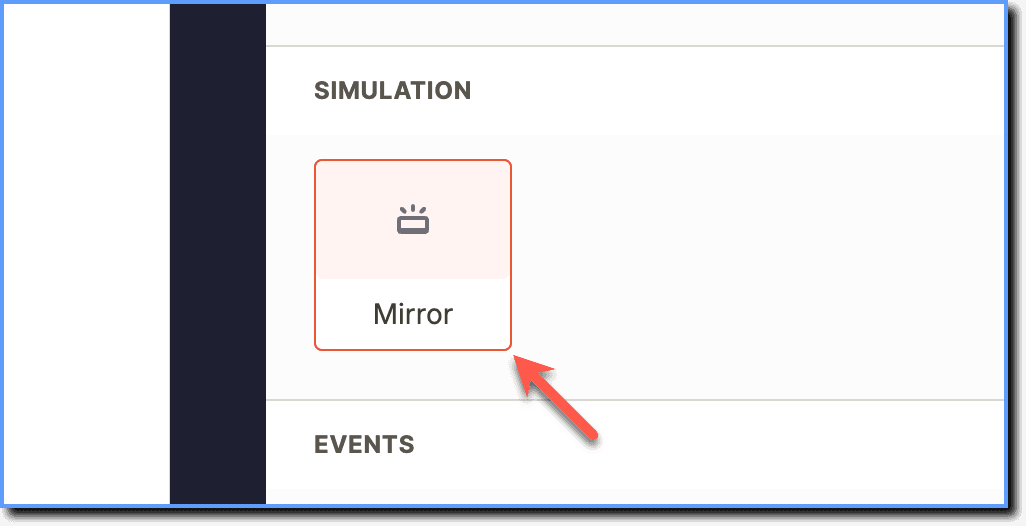
Click Mirror.
-
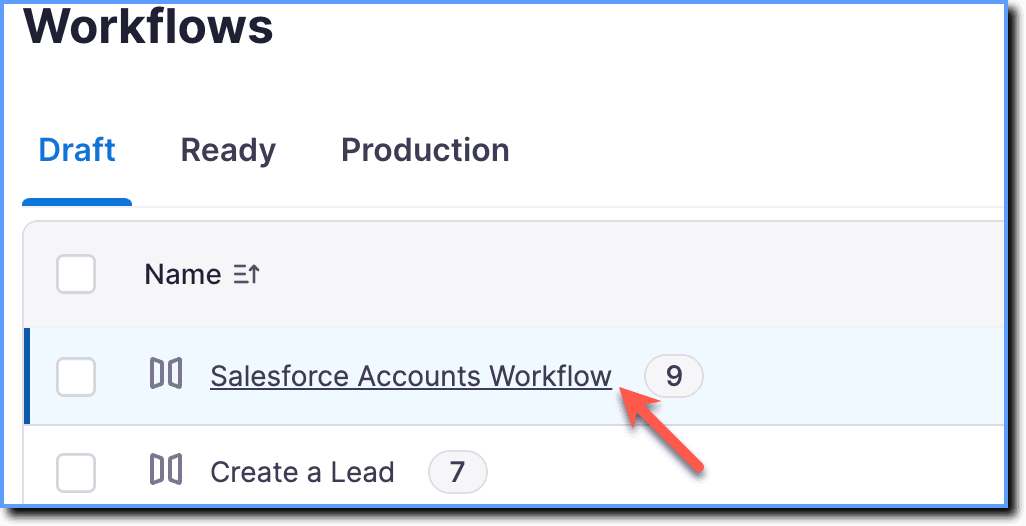
Go to the Workflow you want to rename, and then click the Edit icon.

-
Enter a new name for your Workflow.

-
Press the Enter key to save the changes.
Whatfix Mirror Dashboard

Use the following steps to rename a Mirror Workflow with the Whatfix Mirror dashboard:
- On the Whatfix Mirror dashboard, hover your cursor over the Workflow you want to rename.
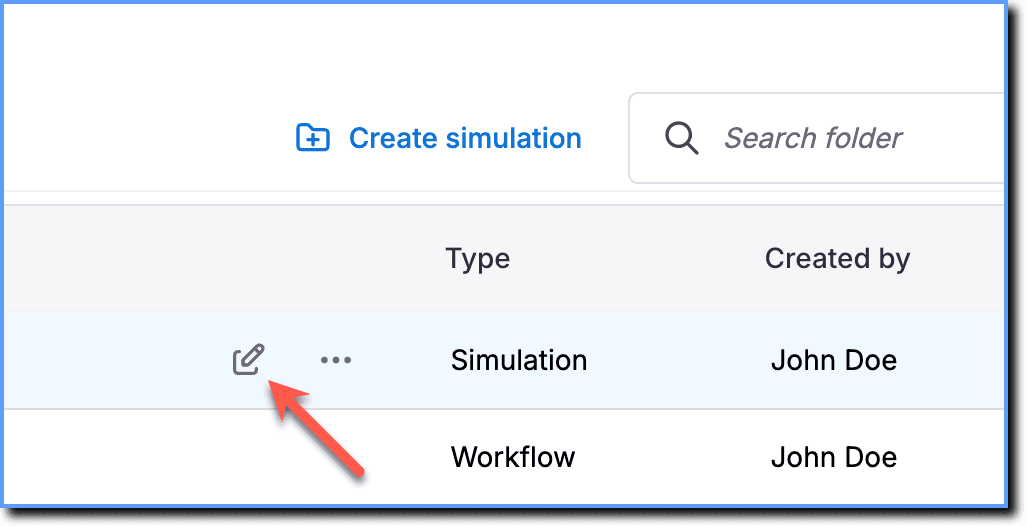
- Click the Rename workflow icon.
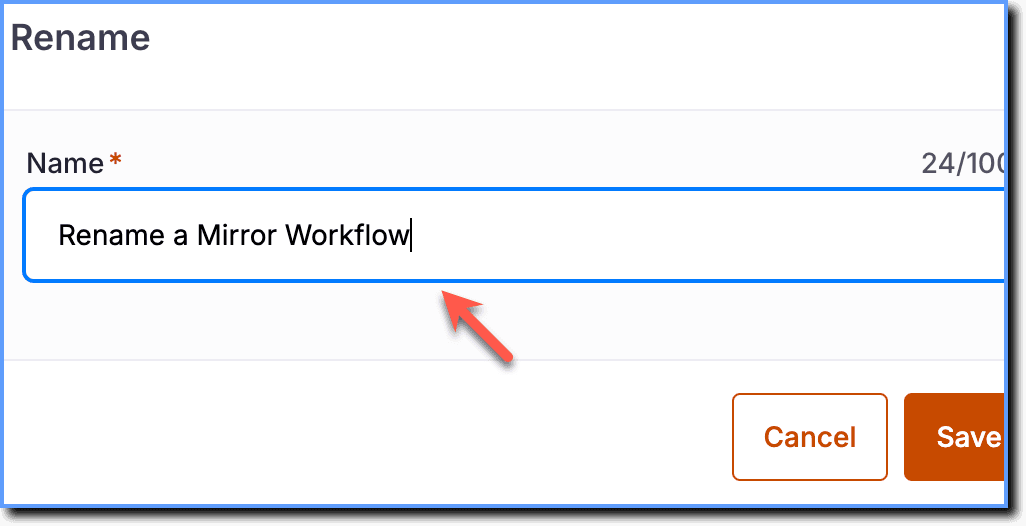
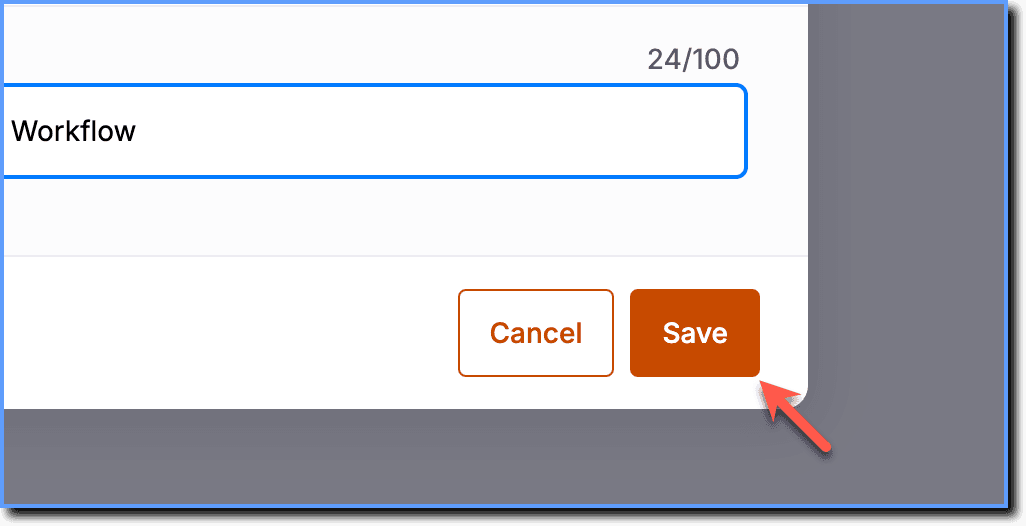
- Enter a new name for your Workflow.
- Click Save.
A sequence of captured mirror screens representing a specific user journey or process (e.g., "How to create a Lead in Salesforce?").
A feature that enables you to connect and link multiple Mirror Workflows to represent a complex user journey across an application or ecosystem. Workflows added to a simulation are automatically linked.