Overview of the Whatfix Mirror Dashboard
Access and Manage the Mirror Dashboard
Only users with Content Manager and Account Manager roles can access and view the Whatfix Mirror Dashboard. For more information, see How can I access the Whatfix Mirror dashboard? and Overview of the Whatfix Mirror Dashboard.
The Whatfix Mirror Dashboard enables you to view, rename, preview, edit, delete, duplicate, and manage Mirror Workflows and Mirror Simulations.
The Whatfix Mirror Dashboard consists of two parts:
Navigation Panel
The navigation panel comprises the Workspace Switcher, Workflows, Analytics and Settings.
| UI Label | Description | UI |
|---|---|---|
| Analytics | Whatfix’s built-in Analytics provides clear, visual insights into how your users interact with Workflows and Assessments. For more information, see Mirror Analytics. |  |
| Product Switcher | Switch between different products | 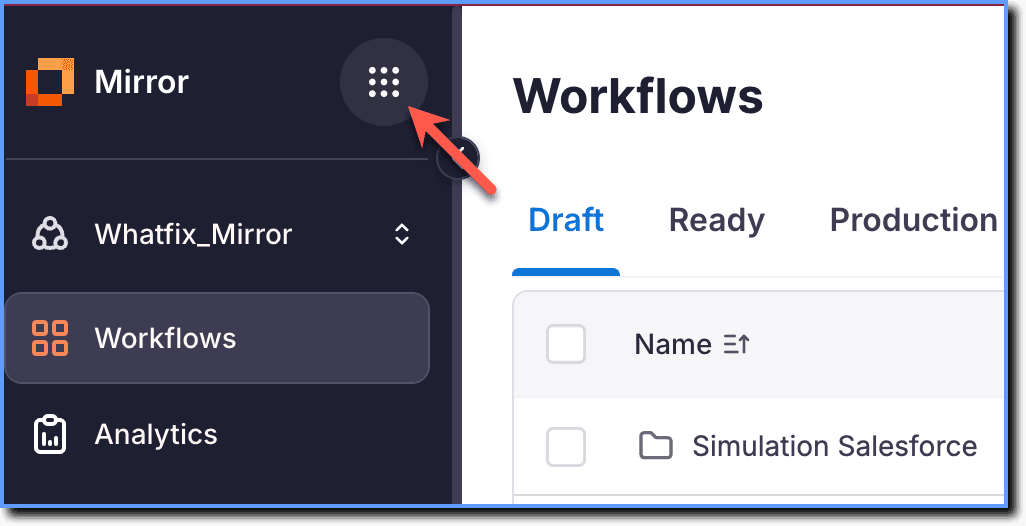 |
| Settings | Manage teammates, access audit logs, and more. |  |
| Workflows | View and manage all captured Workflows in your account. Move these Workflows into Simulations if required. For more information, see Understand Workflows and Simulations. | 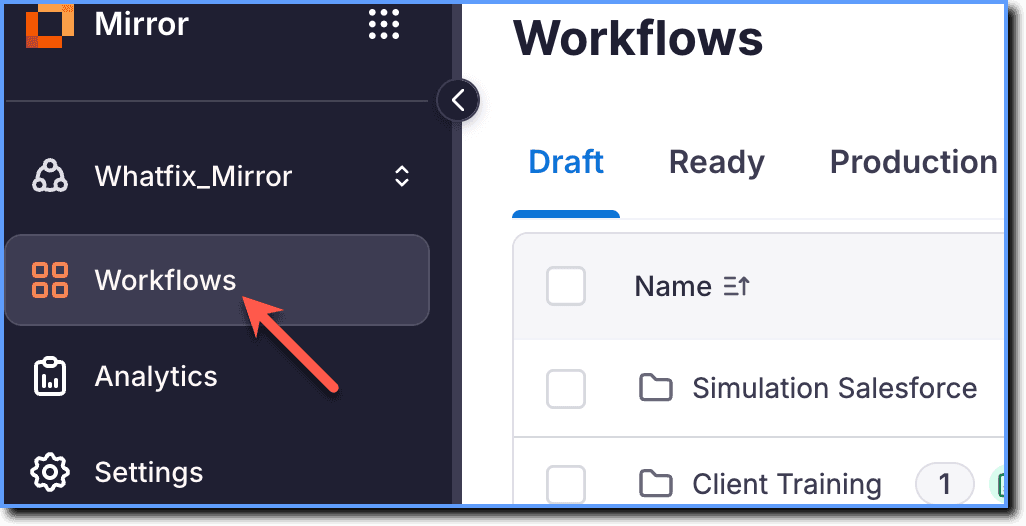 |
| Workspace Switcher | Switch between different accounts or enterprises (ENTs). |  |
Mirror Management Dashboard
The Mirror management dashboard helps you to track and manage the entire content lifecycle journey.
| UI Label | Description | UI |
|---|---|---|
| Add assessment | Use Add assessment to convert existing Simulations into Assessments that evaluate user proficiency in completing tasks without assistance. With Assessment Analytics, you can track performance metrics in the dashboard. For more information, see Assessments in Whatfix Mirror. |  |
| Create simulation | Use Create simulation to group related Workflows and create an interactive experience with automatic linking through Playground Mode. For more information, see Understand Workflows and Simulations and Understand Playground Mode. |  |
| Delete | Click Delete to remove a Workflow or Simulation from the dashboard. When you delete a Workflow or Simulation, your users will no longer have access to the deleted Workflow or Simulation. For more information, see Delete a Mirror Workflow. |  |
| Disable | Use Disable to turn off Playground Mode. When you disable Playground Mode, the links between Workflows in the Simulation disconnect, and each Workflow runs independently. For more information, see Disable Playground Mode. | 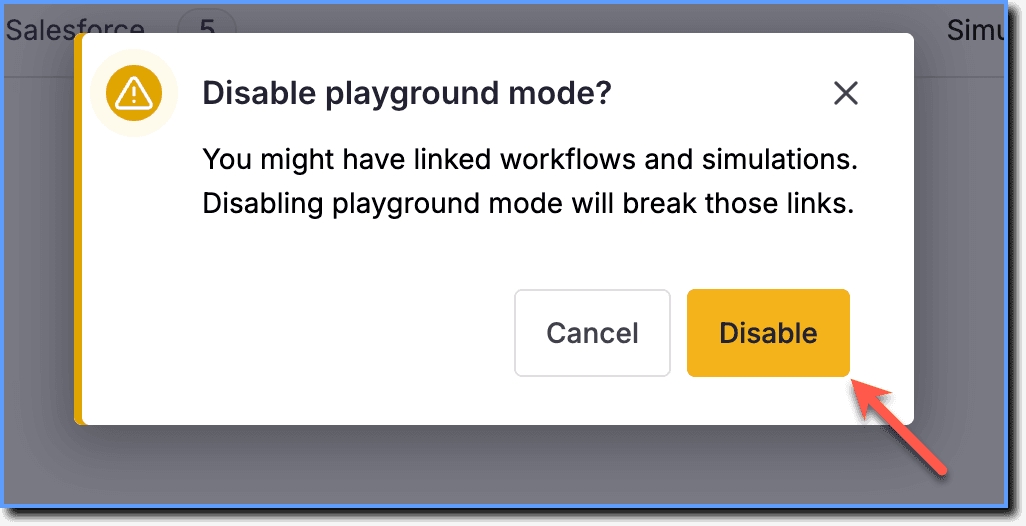 |
| Draft Stage Movement | Rename and move Workflows into Simulations in the Draft stage. For more information, see Rename a Mirror Workflow. |  |
| Click Send to Ready to move the selected Workflow or Simulation from the Draft to Ready stage. |  | |
| Duplicate | Use Duplicate to create a copy of a Workflow or Simulation on the Mirror Dashboard. For more information, see Duplicate a Mirror Workflow or Simulation. |  |
| Filter | Narrow down your search to a specific Workflow or Simulation. |  |
| Mirror Screen | Click the Full screen preview icon to preview the Mirror Screen and test how the Mirror screen appears for your end users. | 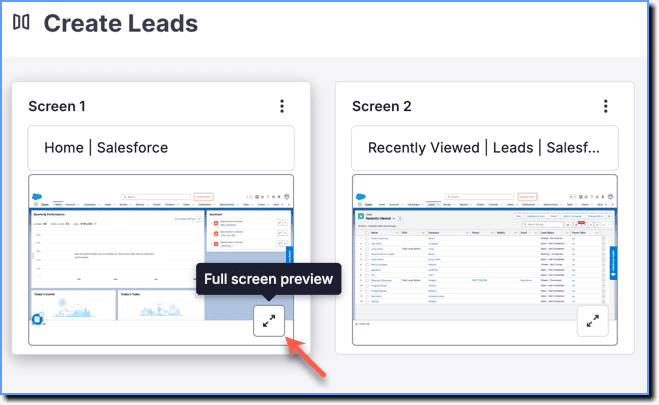 |
| Playground Mode | Use Playground Mode to automatically link Workflows within a Simulation to create a guided, interactive experience. For more information, see Understand Playground Mode. | 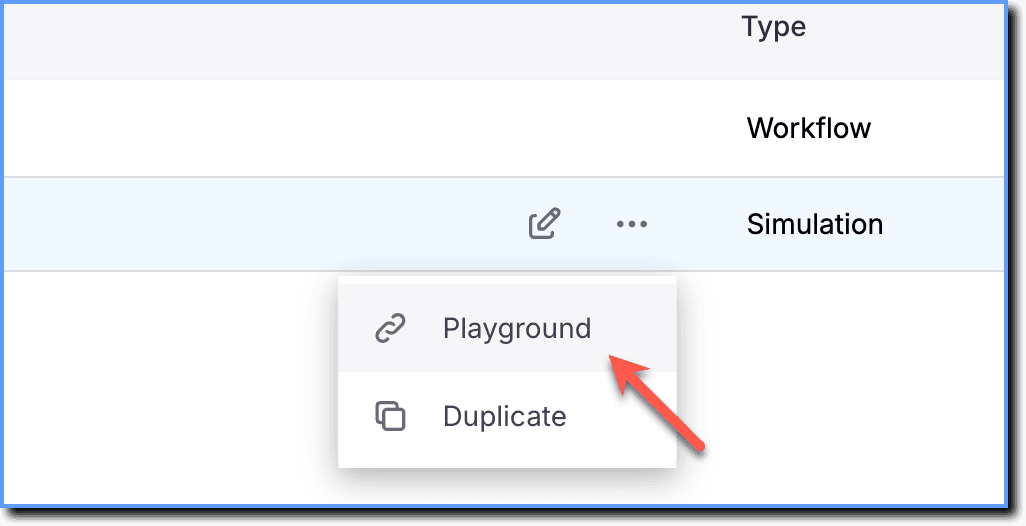 |
| Preview | Use Preview to review how a Workflow or Simulation appears before you publish it. For more information, see Preview a Mirror Screen and Preview a Mirror Simulation. |  |
| Preview assessment | Use Preview assessment to review the Assessment experience before sharing it with your end users. Verify screen order, element capture, and navigation flow without capturing analytics data. For more information, see Preview an Assessment. | 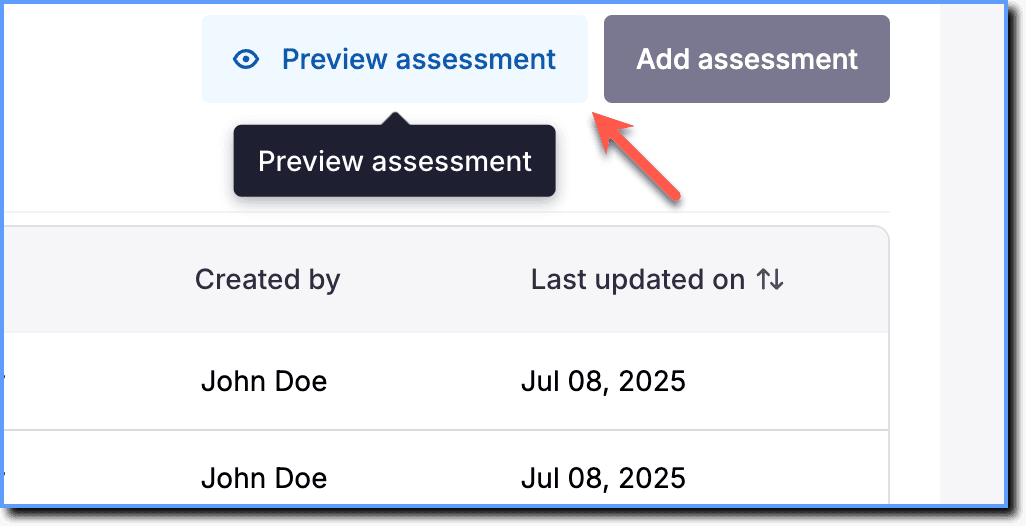 |
| Production Stage Movement | The Production stage helps you Share the Mirror Workflow or Simulation that is published for your end users. If you no longer want your end users to see a particular Workflow or Simulation, move it to the Draft stage by clicking Unpublish. |  |
| To edit and make changes to a Workflow that is already in Production, click Edit in Draft. | 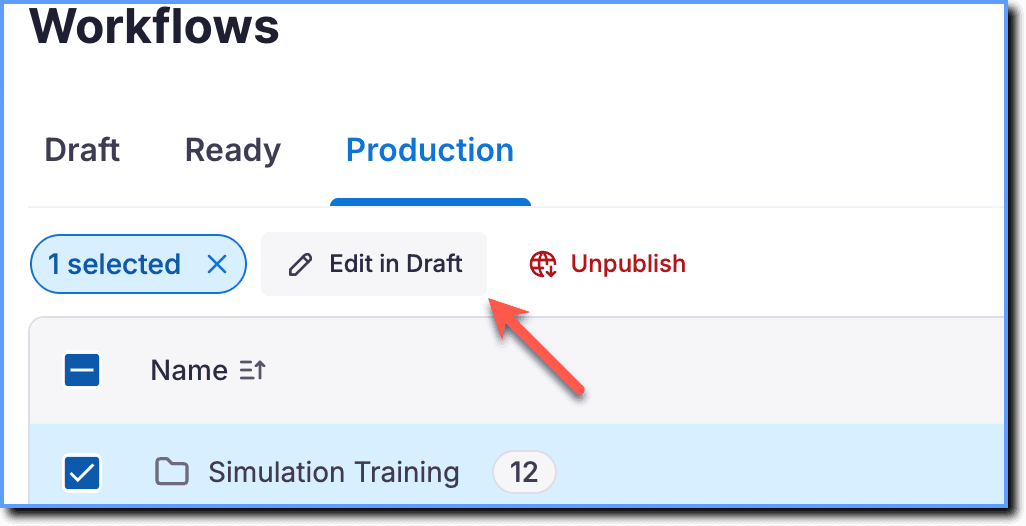 | |
| Whatfix creates a new version of the same Mirror Workflow in the Draft stage for you to edit and update. Your end users continue to see the published version of the Mirror Workflow. | 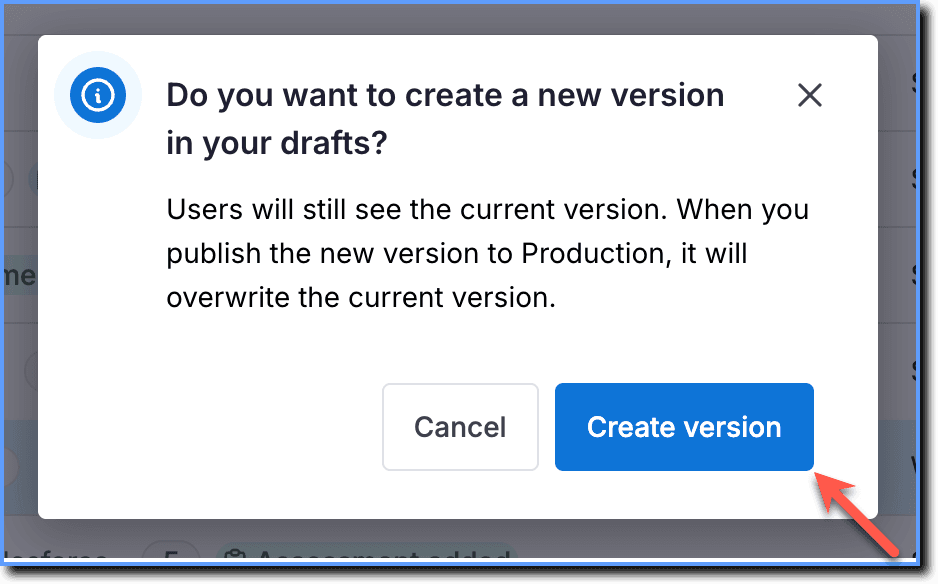 | |
| Ready Stage Movement | The Ready stage helps Account Managers to Rename workflow and Share the Mirror Workflows and Simulations that are ready for production. | 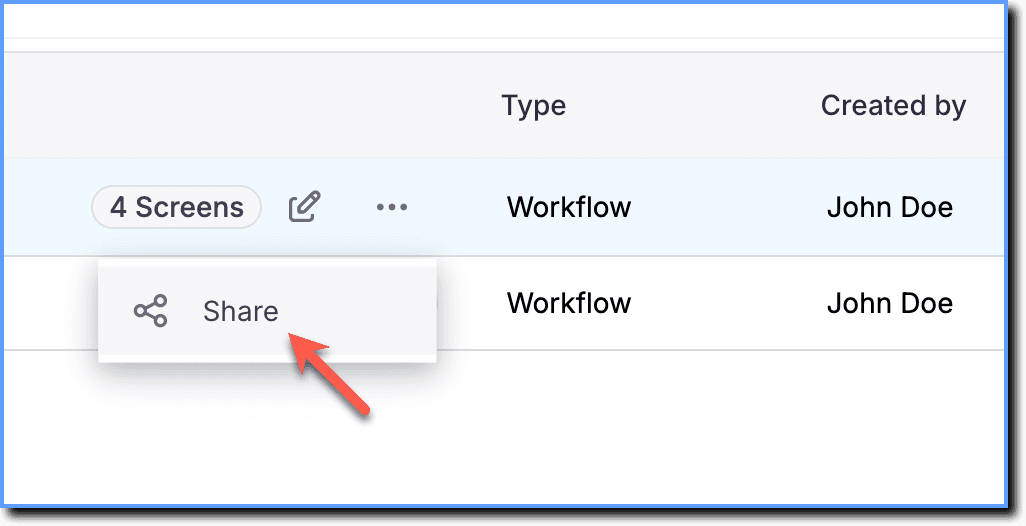 |
| If some Workflows are not ready for your end users, click Move to Draft to move them back to the Draft stage. |  | |
| Use Publish to publish reviewed and tested content. You must share the content to make it available to your users. For more information, see Publish Whatfix Mirror and Share Whatfix Mirror. | 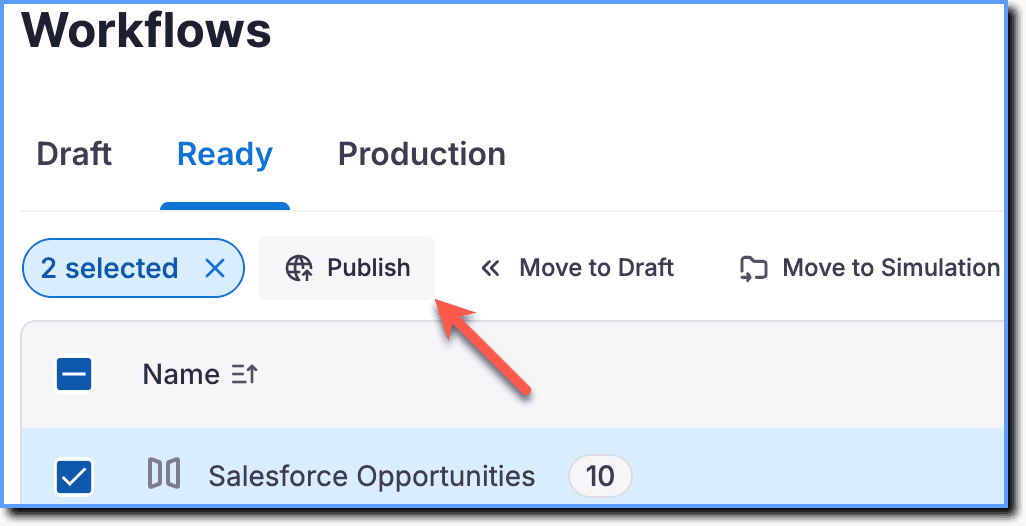 | |
| Search Bar | Use the Search Bar to find Workflows or Simulations within the selected stage. Mirror limits search results to that stage. |  |
| Table Settings | Use Table Settings to configure the rows and columns displayed on the page. | 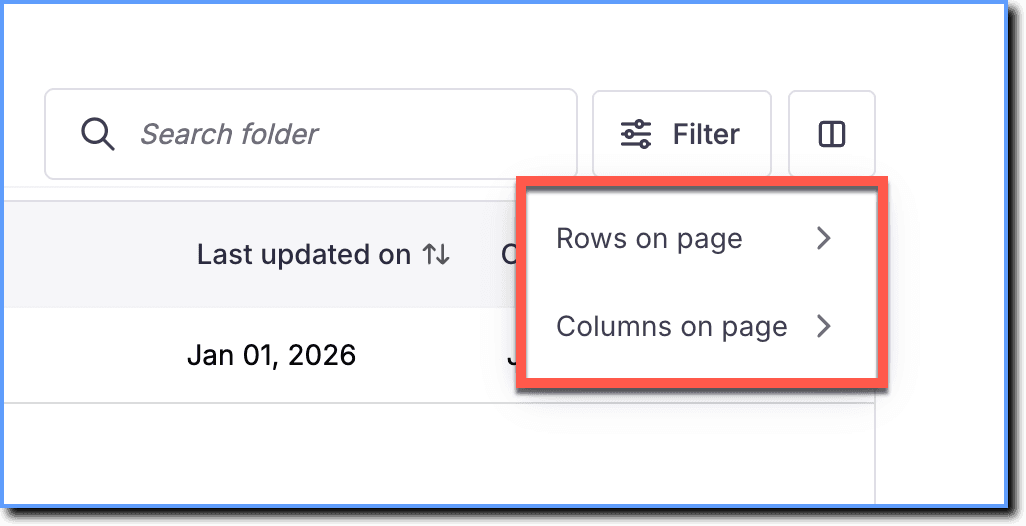 |
Whatfix Mirror is an application simulation software that provides an immersive and interactive simulation of any web application.
A sequence of captured mirror screens representing a specific user journey or process (e.g., "How to create a Lead in Salesforce?").
A feature that enables you to connect and link multiple Mirror Workflows to represent a complex user journey across an application or ecosystem. Workflows added to a simulation are automatically linked.
An interactive evaluation created by using existing Simulations to measure how proficiently end users complete tasks without assistance.
A mode within Simulation that facilitates the connection and interaction of workflows within the simulated environment. Playground mode is enabled by default.
A replica of an application screen captured based on a UI element.