Create Whatfix Mirror
Disable Playground Mode
Whatfix enables you to disable Playground Mode in a Simulation to prevent automatic linking between Workflows through Mirror Links. When you disable Playground Mode, each Workflow runs independently, and users must complete them in a defined sequence instead of freely switching between tasks. This is helpful when you require your users to complete tasks in a specific order, such as compliance or step-by-step training.
For example, in a Salesforce Simulation, users must first create an account before logging a case. This reflects how tasks typically flow in real applications, where one action depends on another. Disabling Playground Mode ensures users complete each step in the intended sequence.
- Whatfix enables Playground Mode by default when you create a Simulation.
- You can disable Playground Mode for Simulations only in the Draft and Ready stages.
Use the following steps to disable Playground Mode for a Simulation:
- On the Whatfix Mirror Dashboard, hover your cursor over the Simulation where you want to disable Playground Mode.
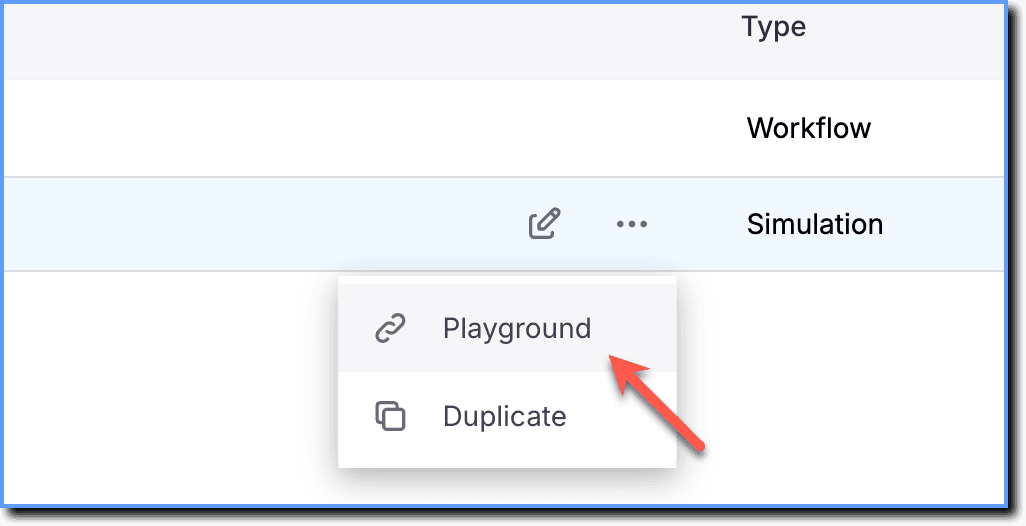
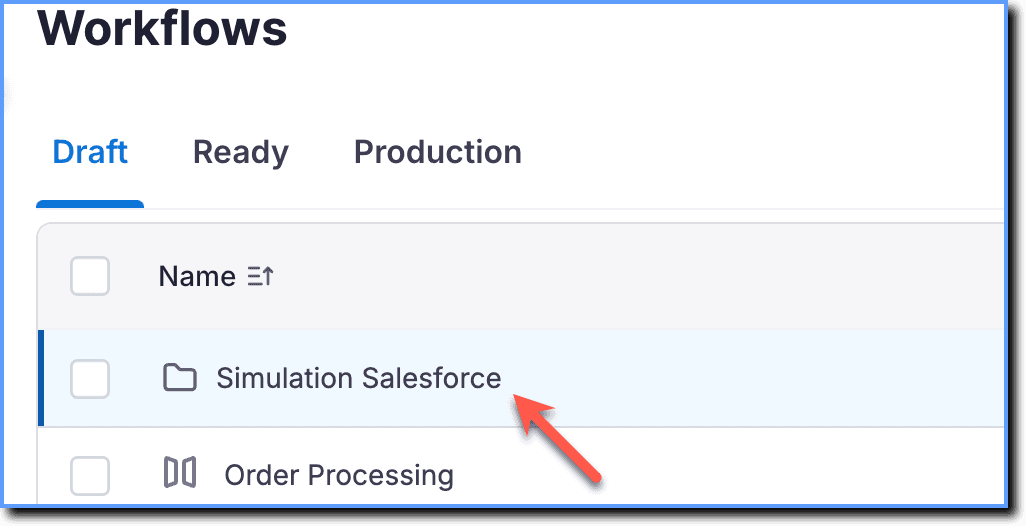 2. Click the More icon.
 3. Click Playground.
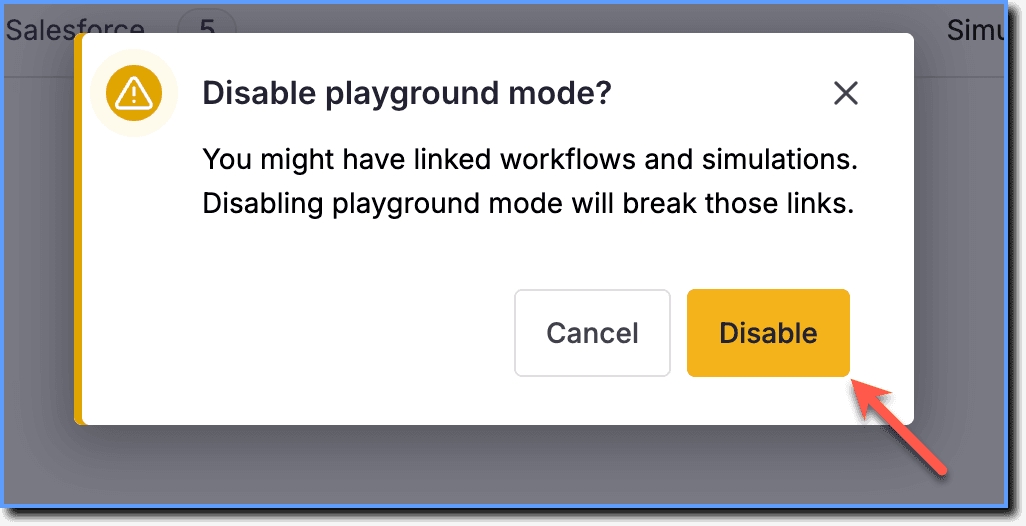
 4. Click Disable.
- Preview the Simulation to confirm that users can access only one Workflow at a time when Playground Mode is disabled. For more information, see, Preview a Mirror Simulation.
- If you need to re-enable Playground Mode for the Simulation, you can do so when required. For more information, see Re-enable Playground Mode.
A mode within Simulation that facilitates the connection and interaction of workflows within the simulated environment. Playground mode is enabled by default.
A feature that enables you to connect and link multiple Mirror Workflows to represent a complex user journey across an application or ecosystem. Workflows added to a simulation are automatically linked.
A sequence of captured mirror screens representing a specific user journey or process (e.g., "How to create a Lead in Salesforce?").
A Mirror link redirects users to different Mirror pages. Links are automatically created between Mirror screens while they are being captured. Mirror also enables you to manually link Mirror screens.