Create Whatfix Mirror
Create a Mirror Workflow
Whatfix Mirror enables you to create a Mirror Workflow for user training and onboarding. A Mirror Workflow is an interactive simulation of your web application built as a sequence of captured screens that defines the steps learners follow.
Mirror captures these screens as you interact with your application and links them in sequence. Learners then interact with the Workflow to complete tasks in a controlled environment, and Whatfix highlights the element they need to interact with at each step to guide them through the simulation.
For example, you can create a Mirror Workflow of your CRM (Customer Relationship Management) application and train learners on how to create and manage leads, without the risk of modifying actual records in the live application.
Before you begin capturing Mirror Screens, ensure Smart Context is configured on your application. This is required for using Whatfix Simulations effectively. If you plan to include Workflows within a Simulation, Whatfix uses Smart Context to automatically identify and link Workflows in the Simulation.
Use the following steps to create a Whatfix Mirror:
-
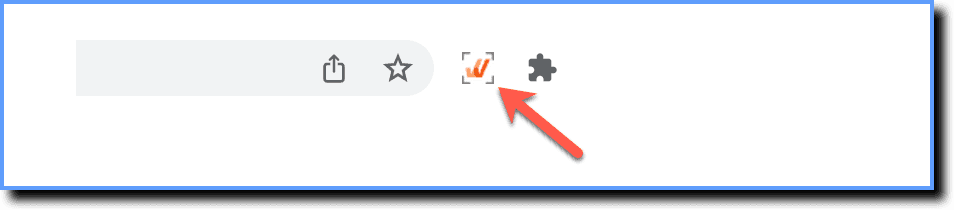
Launch Whatfix Studio on your application.
-
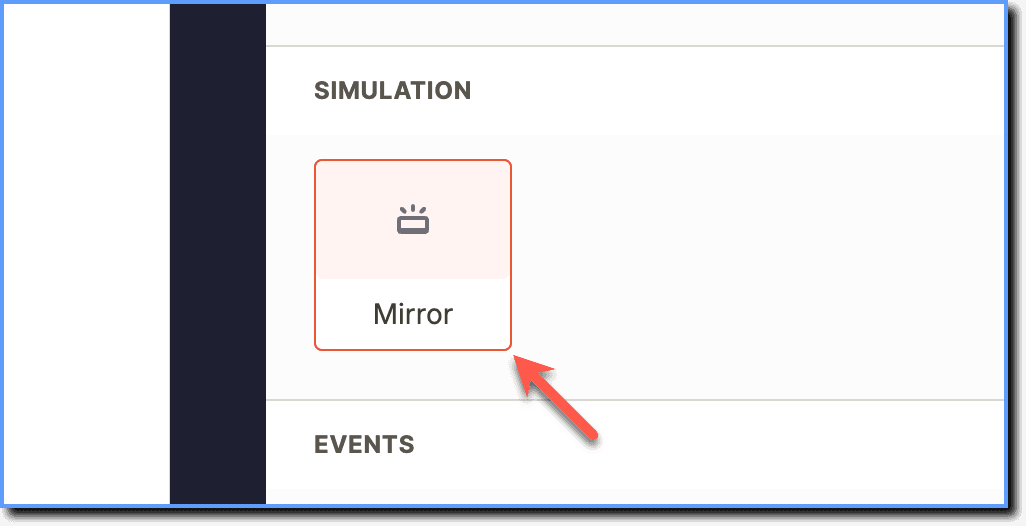
Click Mirror.
-
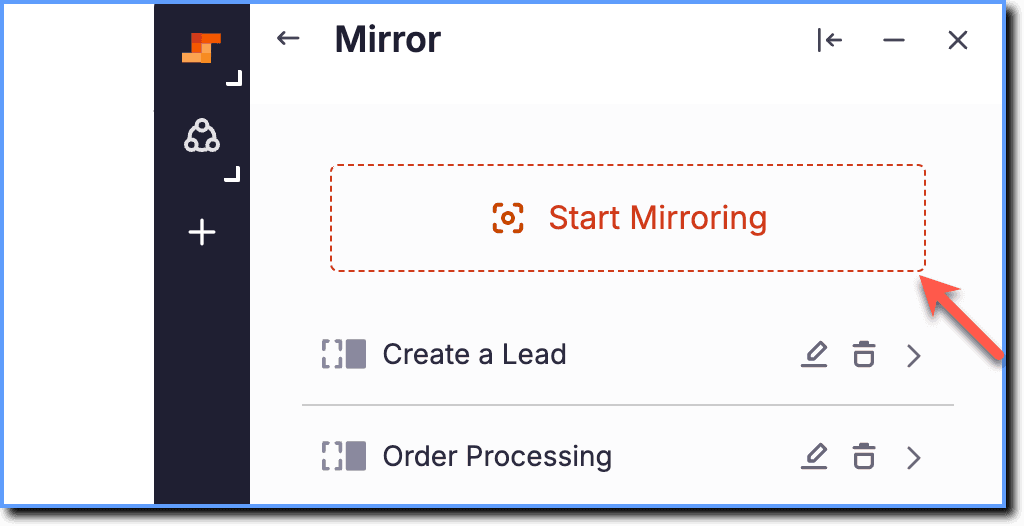
Click Start Mirroring.
Mirror captures all content visible on the screen, which might include personal or confidential information. To prevent exposing this data, redact sensitive content before you capture a Mirror Screen. For more information, see Whatfix Security Overview and Data Privacy and PII Handling in Mirror.

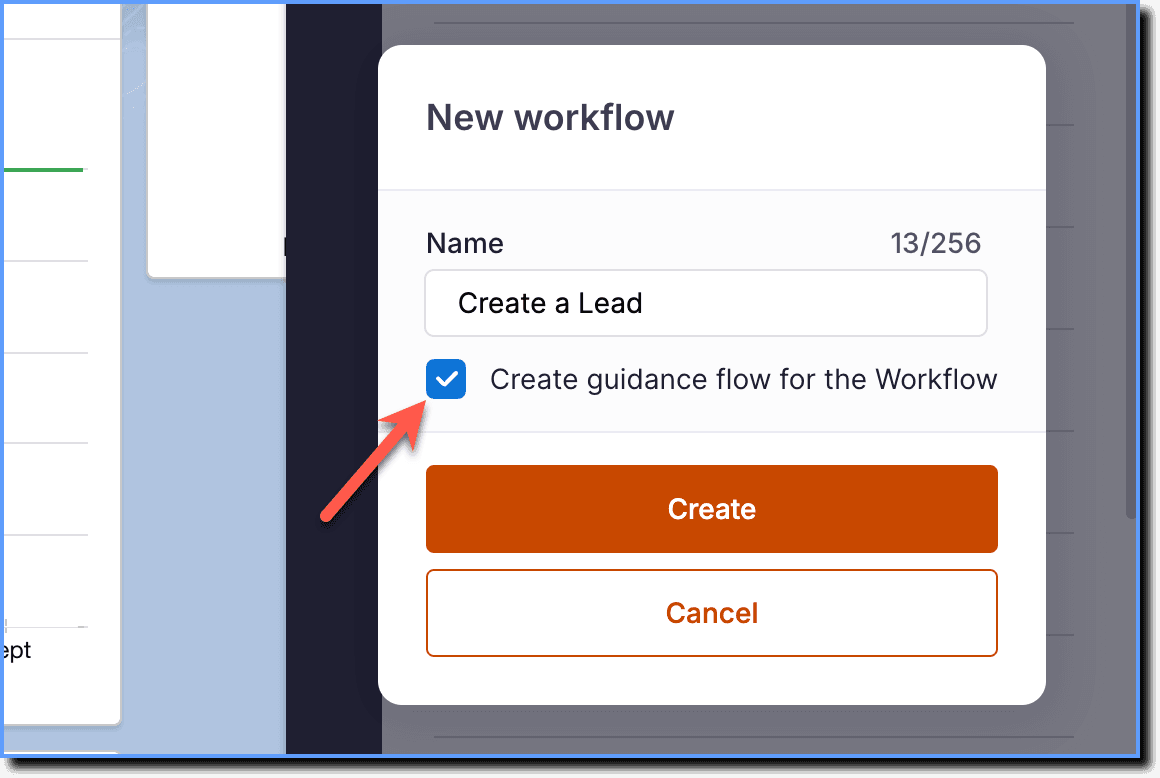
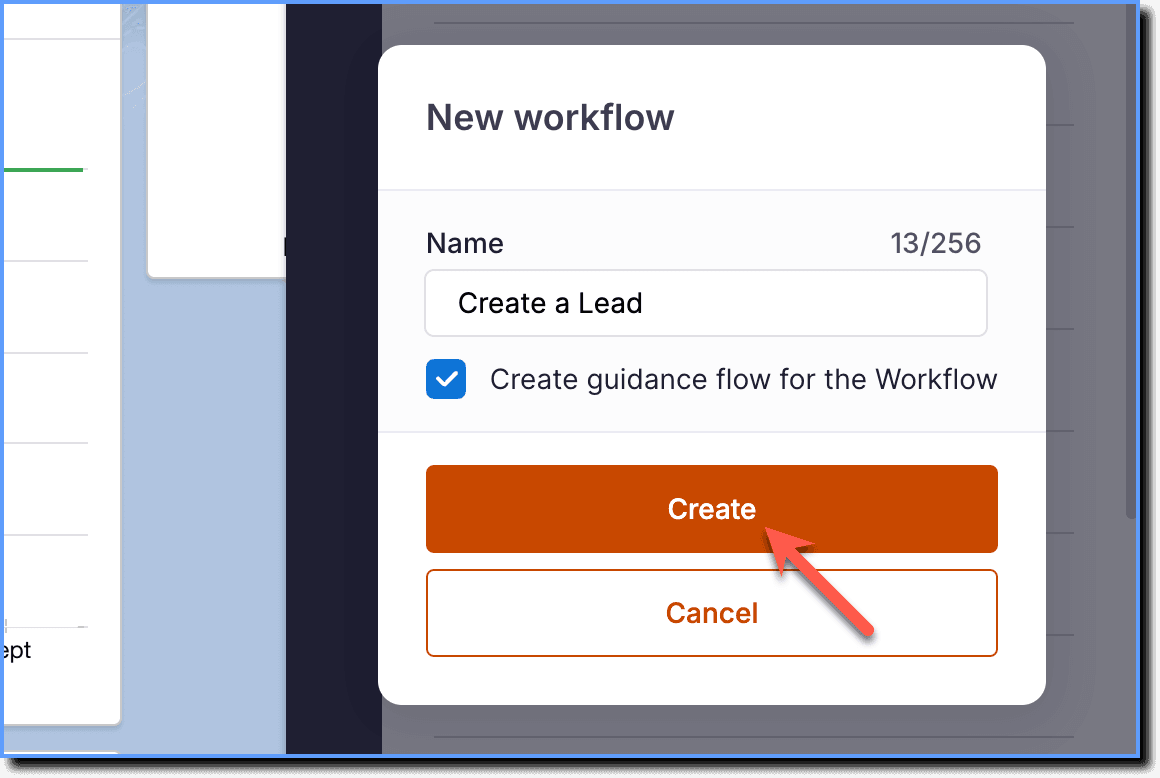
- Enter a name for your Workflow.

By default, the Create guidance flow for the Workflow checkbox is selected. This ensures a Flow is created automatically for your Workflow. The Flow replicates the captured steps, and you can publish it for end-user guidance. For more information, see Auto Flow Creation.
- Click Create.
- Select the UI element to capture the required screen.
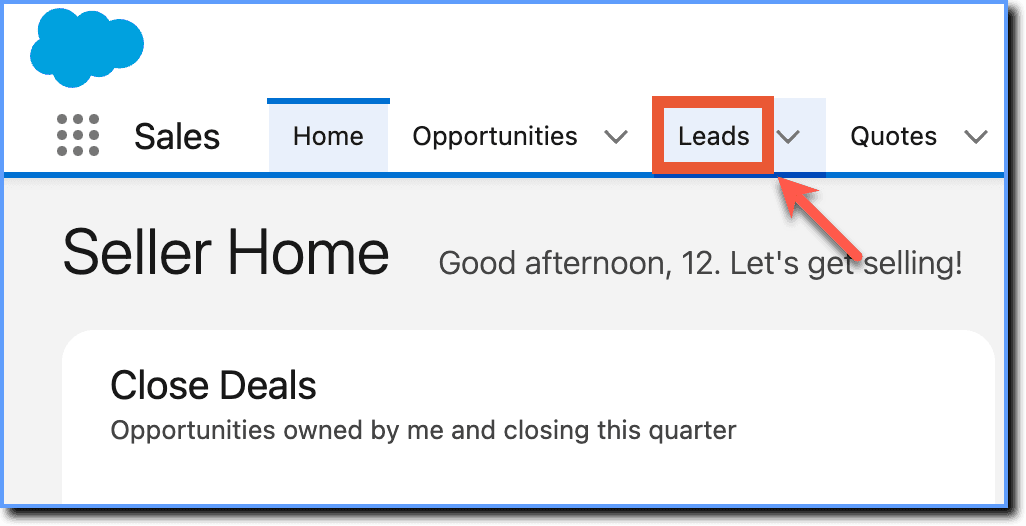
- Whatfix automatically organizes and links the captured Mirror screens within your Mirror Workflow and continues capturing screens as you progress.
- To define the flow of your content, select the relevant UI elements and perform the Workflow steps you want to train your learners on.
- Go to the next step you want to capture, and then repeat step 6.
Whatfix enables you to add additional screens to an existing Workflow. This helps when you identify additional steps in the Workflow that require user guidance after the initial capture. If you want to add additional screens, click Add more screens. For more information, see Add a Mirror Screen to a Mirror Workflow.
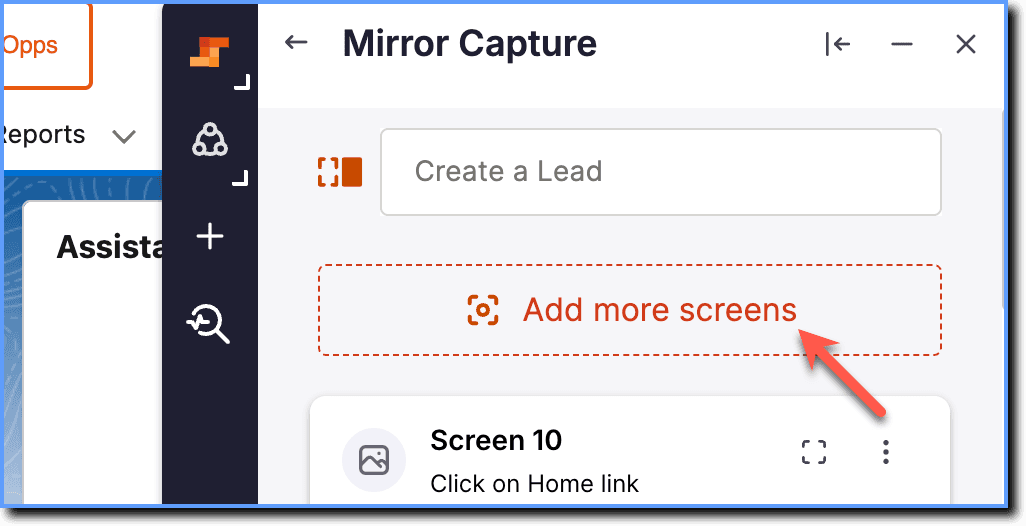
- When you select a UI element, Whatfix interacts with the live application to define the capture area. This might trigger navigation or an action in the application, which is expected behavior.
- Whatfix supports non-linear navigation. Based on your requirement, you can capture multiple UI elements on the same screen so learners can take different paths through the simulation. For example, if a task can be completed in more than one way, you can capture each option so learners can choose the path they want to follow. For more information, see Manually Link a Mirror screen and Understand Playground Mode.
- After you have captured the screens, click the Done icon.
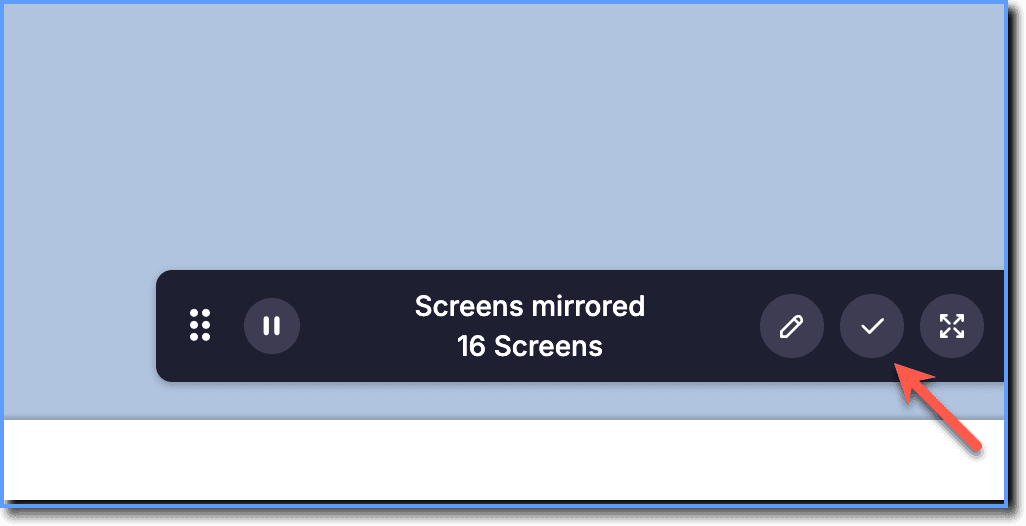
When you click the Done icon, all the captured Mirror Screens are saved within the Mirror Workflow.
- Click the Back icon to return to the Mirror Workspace in Whatfix Studio.
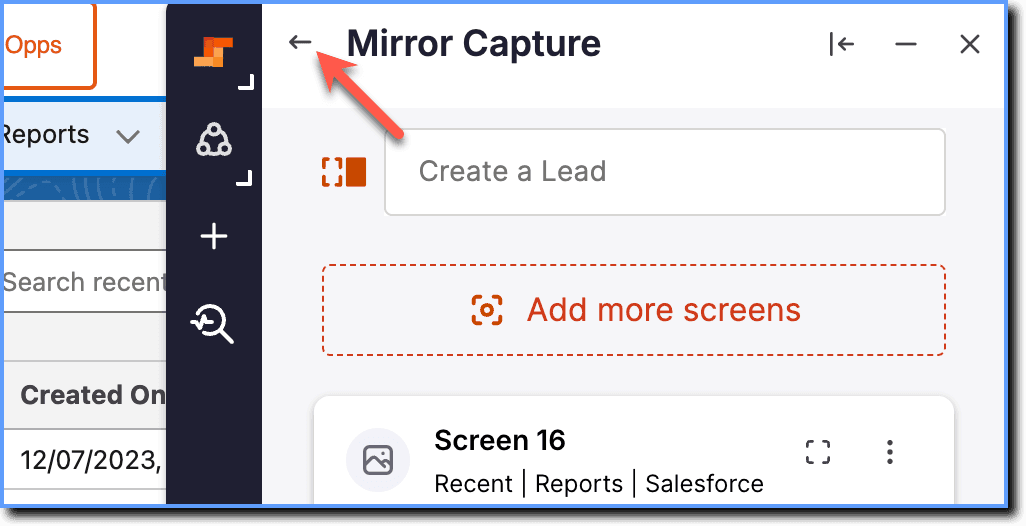
The Mirror Workflows that you create appear in the Draft stage of the Whatfix Mirror Dashboard. Workflows that are in Ready and Production are not visible on Whatfix Studio. For more information, see Overview of the Whatfix Mirror Dashboard.
- After you create a Mirror, preview the Mirror to ensure your Workflow functions as required. For more information, see Preview a Mirror.
- Add or recapture Mirror screens and linking in the Workflow as required. For more information, see Add a Mirror Screen to a Mirror Workflow and Recapture a Mirror Screen.
- Share the Mirror to make it accessible to your learners. To share a Mirror Workflow through a Learning Management System (LMS), export it as a SCORM package. For more information, see Share Whatfix Mirror and Export a Mirror Workflow as a SCORM Package.
Whatfix Mirror is an application simulation software that provides an immersive and interactive simulation of any web application.
A replica of an application screen captured based on a UI element.
A feature that enables you to connect and link multiple Mirror Workflows to represent a complex user journey across an application or ecosystem. Workflows added to a simulation are automatically linked.
A sequence of captured mirror screens representing a specific user journey or process (e.g., "How to create a Lead in Salesforce?").
The central location within Whatfix Studio where all Mirror Workflows are accessed and managed.
Whatfix Studio is a browser plug-in that enables you to create various types of Whatfix content, such as Flows, Smart Tips, Beacons, and so on. The plug-in can be installed on Google Chrome and the new Microsoft Edge browsers.
SCORM stands for Sharable Content Object Reference Model. SCORM packages enable you to share web-based learning with ease and reuse it across different eLearning platforms.