Assessments in Whatfix Mirror
Share an Assessment
Whatfix enables you to share an Assessment with your users to evaluate whether they can perform tasks independently after completing training. When you share the Assessment, the link opens a real-time, interactive experience without any visual cues or DAP Guidance.
For example, you can share an Assessment that simulates a customer support workflow so your learners can demonstrate their ability to resolve a support ticket independently.
When you share an Assessment, Whatfix provides a Unified Mirror Link. The link remains the same as the Assessment moves across dashboard stages. For more information, see Unified Mirror Links and Understand Whatfix Dashboard Stages.
- You can share Assessments only in the Ready and Production stages.
- By default, when you create a Simulation, Playground Mode is enabled and applies to the Assessment. To follow a fixed, linear flow in the Assessment, disable Playground Mode before you share the Assessment. For more information, see Disable Playground Mode and Re-enable Playground Mode.
- To share an Assessment through a Learning Management System (LMS), export it as a SCORM package. For more information, see Export an Assessment as a SCORM Package.
Use the following steps to share an Assessment:
- On the Whatfix Mirror Dashboard, click Production.
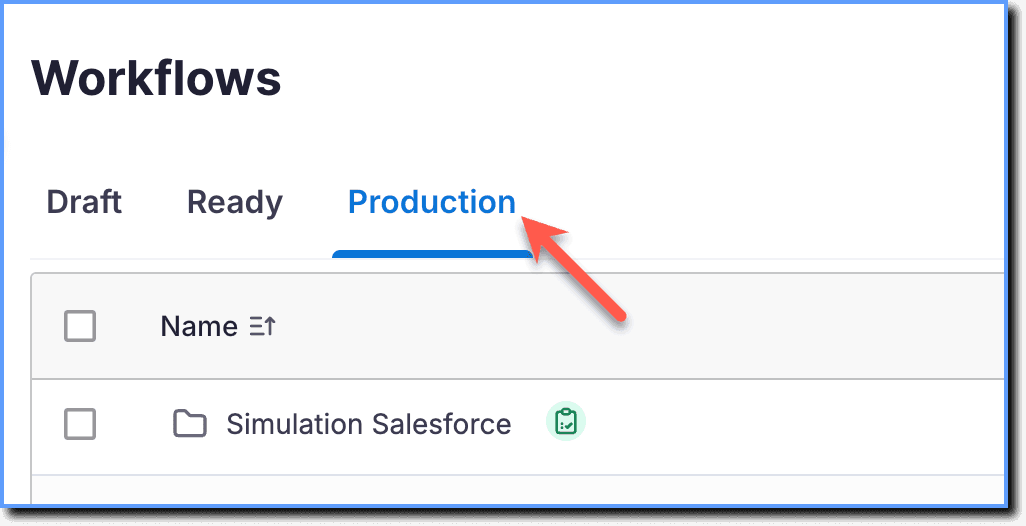 2. Hover your cursor over the Assessment that you want to share.
 3. Click the More icon.
 4. Click Share.
 5. Click the Open icon.
 6. Select the required Language Variant you want to share. For more information, see Multi-Language Support in Mirror and Create Language Variants in Mirror.
 7. Select the Assessment checkbox to include the Assessment in the link.
 8. Click Copy, and then share the Assessment link with your learners

- When you share an Assessment in the Production stage, Whatfix generates insights to track your end users’ performance. For more information, see Assessment Analytics.
- To share Assessments in the Draft or Ready stage, follow the same steps in the respective stage. Use the Draft and Ready stage to share Assessments for internal review and validation. Mirror does not capture or display analytics for Assessments shared in the Draft or Ready stages.
An interactive evaluation created by using existing Simulations to measure how proficiently end users complete tasks without assistance.
In-app content types such as Flows, Smart Tips, Beacons, and Pop-ups that guide users through tasks.
A single URL that provides access to Mirror content, such as Mirror Workflows, Mirror Simulations, Assessments, and AI Roleplays, across the Draft, Ready, and Production stages. The URL remains the same as the content moves between stages.
A feature that enables you to connect and link multiple Mirror Workflows to represent a complex user journey across an application or ecosystem. Workflows added to a simulation are automatically linked.
A mode within Simulation that facilitates the connection and interaction of workflows within the simulated environment. Playground mode is enabled by default.
SCORM stands for Sharable Content Object Reference Model. SCORM packages enable you to share web-based learning with ease and reuse it across different eLearning platforms.
A version of the default language variant captured in a different language. Language variants are stored within the same workflow and share the same stage.