Create Whatfix Mirror
Preview a Mirror Screen
Whatfix Mirror enables you to preview a specific Mirror Screen you capture. This functionality helps you verify the accuracy of interactive elements and assess the overall quality of your user training simulations. You can preview a Mirror screen from Whatfix Studio and the Whatfix Mirror Dashboard.
For example, if you capture a Mirror screen with a drop-down menu that contains additional options you want your users to see, use Preview to verify whether the Mirror screen displays all the options in the expanded state of the drop-down.
Expand the following accordions to Preview a Mirror screen:
Whatfix Studio
Use the following steps to preview a Mirror Screen with Whatfix Studio:
-
Launch Whatfix Studio on your application.
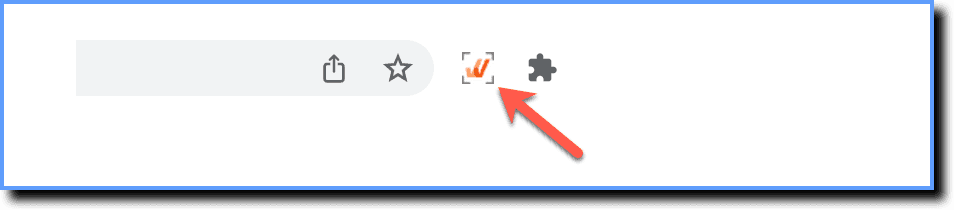
-
Click Mirror.
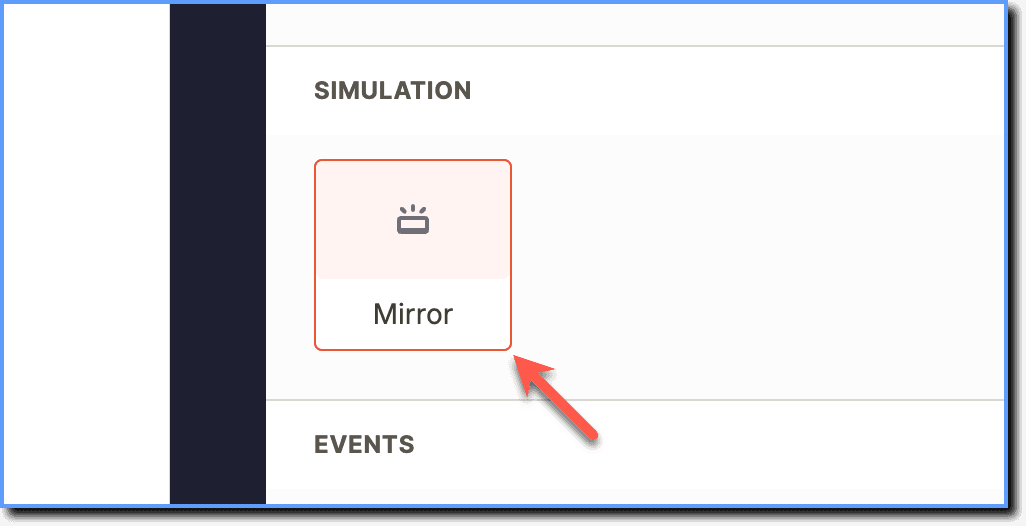
-
Click the Mirror Workflow.
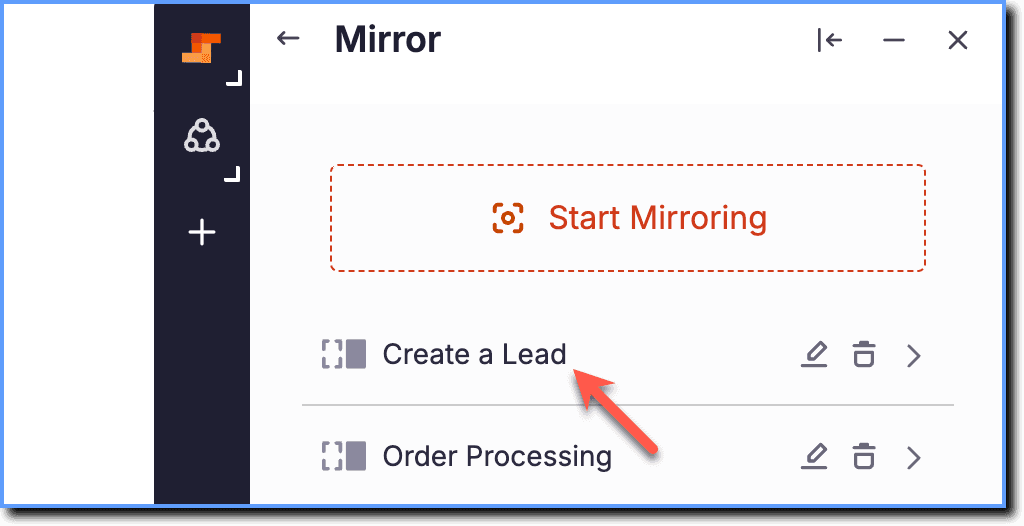
-
Click the More icon of the Mirror Screen you want to preview.
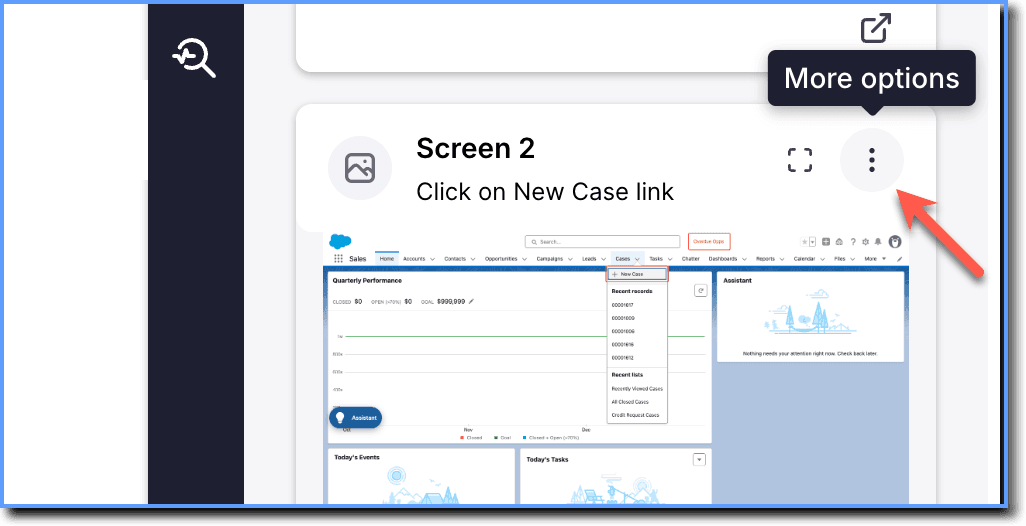
-
Click Preview.

Note:
- Use Preview in Whatfix Studio to manually link the previewed screen to other screens within the Mirror Workflow. For more information, see Manually link a Mirror screen.
- Additionally, you can mask or hide sensitive information on the previewed screen. For more information, see Edit text on a Mirror screen and Blur an image on a Mirror screen.
Whatfix Mirror Dashboard
Use the following steps to preview a Mirror Screen with the Whatfix Mirror dashboard:
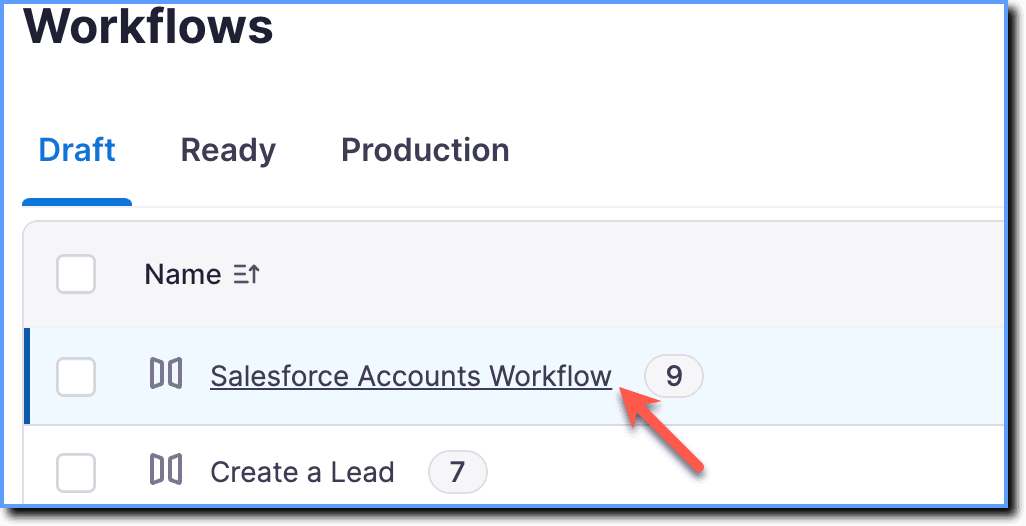
- On the Whatfix Mirror dashboard, click the desired Workflow.
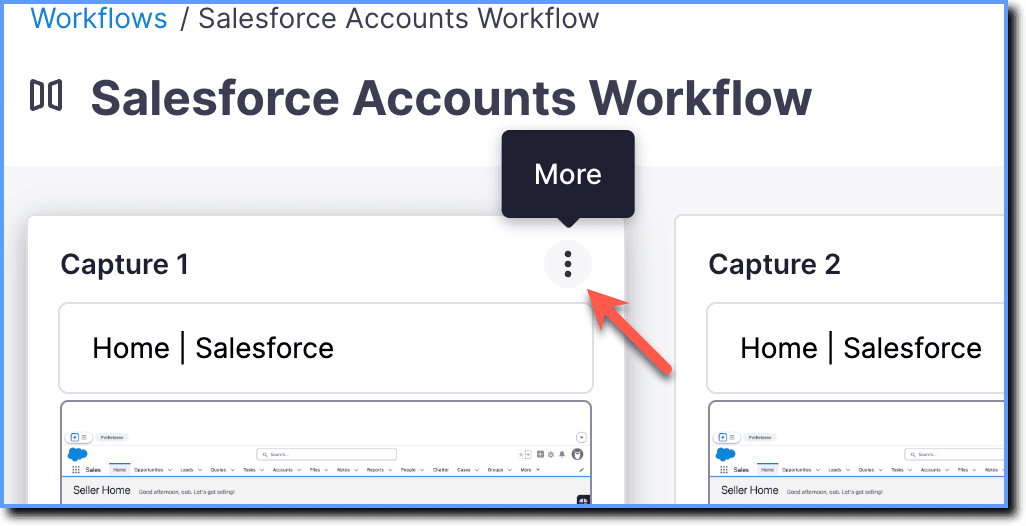
- Click the More icon of the Mirror screen you want to preview.
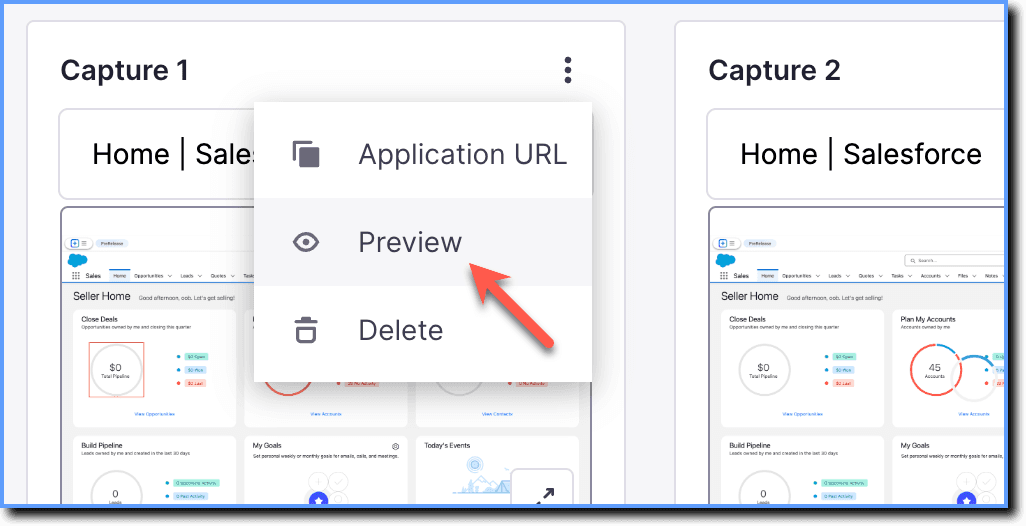
- Click Preview.
Note:
For more information about the Whatfix Mirror Dashboard, see Overview of the Mirror Dashboard.
Whatfix Mirror is an application simulation software that provides an immersive and interactive simulation of any web application.
A replica of an application screen captured based on a UI element.
Whatfix Studio is a browser plug-in that enables you to create various types of Whatfix content, such as Flows, Smart Tips, Beacons, and so on. The plug-in can be installed on Google Chrome and the new Microsoft Edge browsers.