Mirror Analytics
Workflow Analytics
The in-built Mirror Analytics on the Whatfix Mirror Dashboard displays valuable insights into user engagement and performance, empowering you to make data-driven improvements.
The Analytics section enables you to:
- Track how users interact with your workflows, including who's accessing them and how often.
- Identify where users drop off or struggle, emphasizing areas that need attention.
- Use the insights to refine your simulations, improve learning outcomes, and boost training.
Mirror Analytics
The Mirror Analytics is designed with two main sections:
Mirror Usage
Mirror Usage provides a high-level overview of how users interact with your workflows. You can view the following metrics in the Mirror Usage tab:
- Unique Users: The number of individuals who accessed at least one Workflow.
- Workflow Usage: A chart that displays workflow usage trends over a certain duration.
- Most Played Workflows: A tabular view of the most popular workflows based on unique users.
- Average Completion Rate: A visual representation of the percentage of users who complete a workflow.

Proficiency
Proficiency displays additional metrics on user engagement, such as which users completed a workflow and which users did not start a workflow. You can view the following metrics in the Proficiency tab:
- Unique Users Who Completed a Workflow: The number of users who completed a workflow.
- Usage Status: A chart that shows the ratio of completed versus abandoned workflows.
- Most Played/Completed/Abandoned Workflows: Tabular (default) view of workflows based on user interactions, providing insights into engagement and areas where users might be struggling.

Filter Workflow Analytics
The Mirror Dashboard enables you to visualize and interpret data with filters, such as Event filters and User filters.
Use the following steps to add filters: 1. Click Analytics.  2. Click Workflows.
 3. You can choose to view Mirror Usage or Proficiency metrics.
 4. Click the Menu icon.
 5. Click Filter.
 6. Based on your requirements, choose a filter.
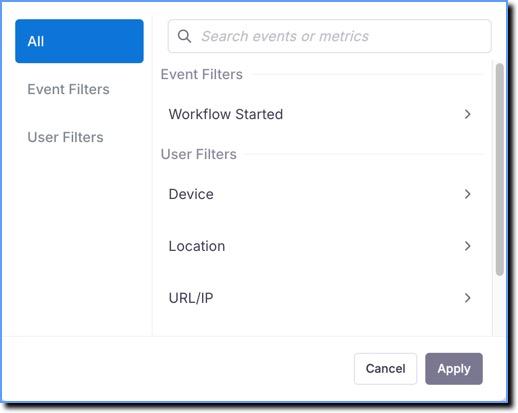
For example, you want to view engagement data for a particular Workflow. Perform the following to view the details:
A. Click Workflow Started.  B. Click Workflow name.
 C. Select a Workflow.

- Click Apply.
