New Visibility Rules Use Cases
Show Pop-ups in succession
Consider that you are creating an interactive debugging wizard for your application. The wizard presents a series of Pop-ups in succession, guiding end users through troubleshooting steps based on different choices they can make on the preceding Pop-up. Each Pop-up offers two options: one to proceed with additional guidance and another to exit the wizard. For example, if a user encounters an issue and selects try this solution, the next Pop-up provides further instructions or options. If the user chooses to exit, the wizard closes and returns them to the previous screen. This decision-tree approach enables users to interactively navigate tailored solutions.
Here’s how you can achieve this use case.
Step 2: Link Pop-ups to show in succession
Step 1: Create the Pop-ups
Create the Pop-up as required. For more information on how to create a Pop-up, see Create a Pop-up.
Ensure that each Pop-up contains buttons that can be linked to other Pop-ups. For example, if Pop-up A has two choices, Start wizard and Close wizard, add a button for each option in the Pop-up.
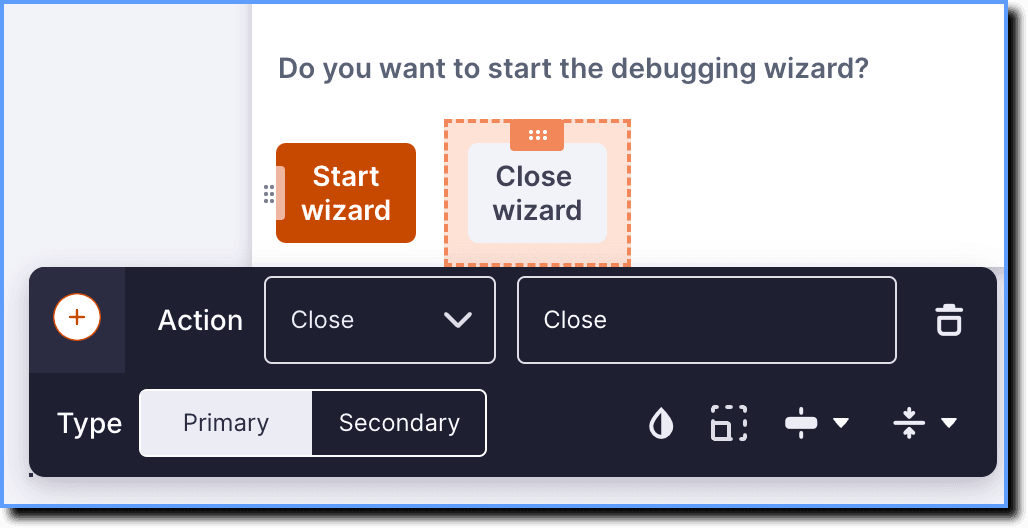
Whatfix enables you to link Pop-ups based on user performing actions such as skipping or closing the Pop-up. To display Pop-ups in succession, ensure that there’s a Skip, Close, or both options for each Pop-up. For example, to configure Pop-up A, set the following button actions:
- For the Start wizard button, set Skip.
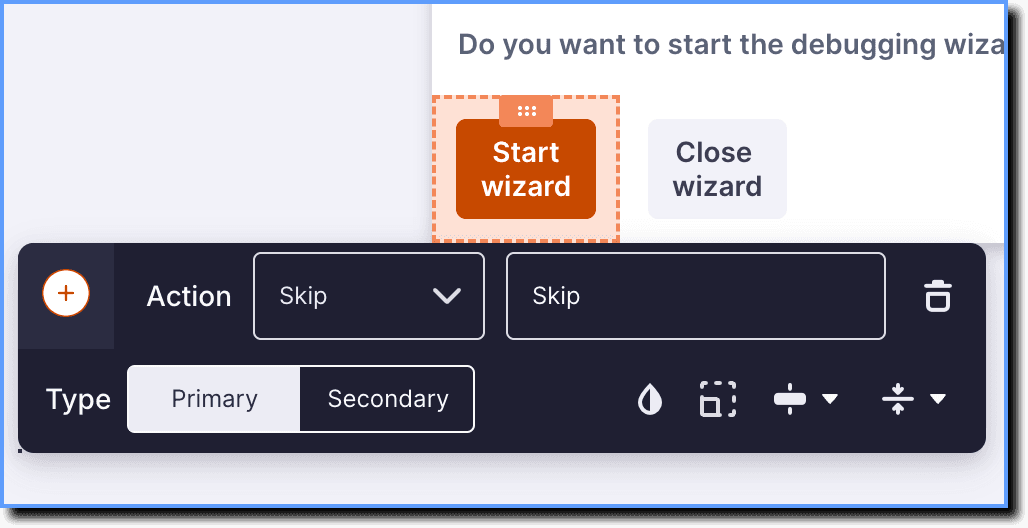
- For the Close wizard button, set Close.
Step 2: Link Pop-ups to show in succession
Once you have created the Pop-ups, use the following steps to link them to show in succession:
Configure the first Pop-up with the general when, where, and who Visibility Rules. For example, if Pop-up A is the first Pop-up with a date range based Visibility Rules, then the following steps are applicable for Pop-up B and the ones that follow.
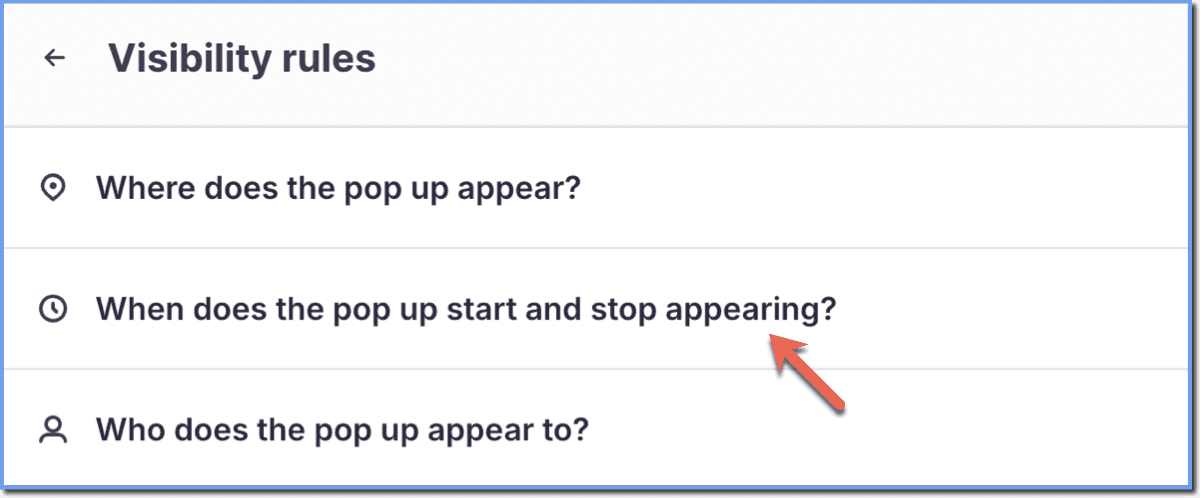
- In the Visibility Rules section for your Pop-up, click When does the pop up start or stop appearing?
- From the What causes the pop up to appear? dropdown, select Events related to Whatfix content.
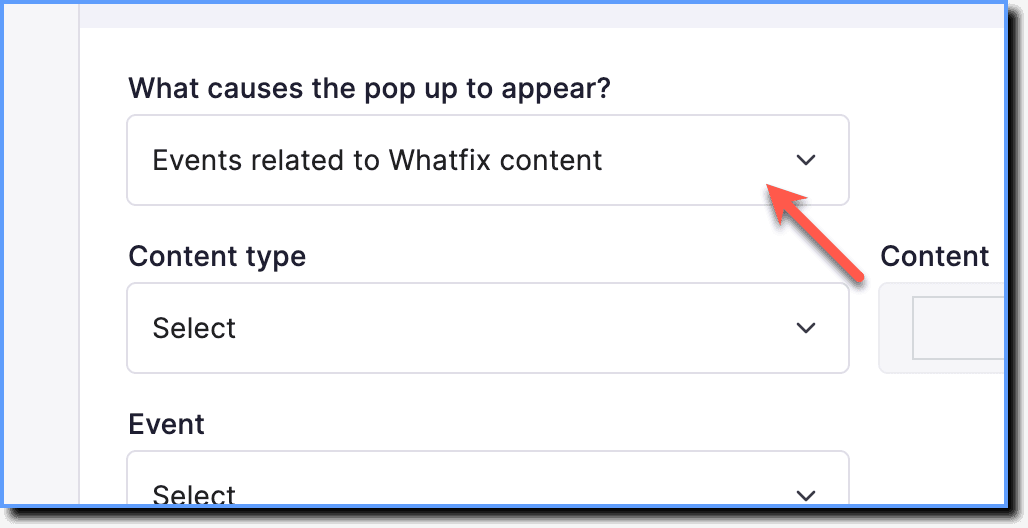
When the Events related to Whatfix Content condition is selected, all other Visibility Rules become unavailable.
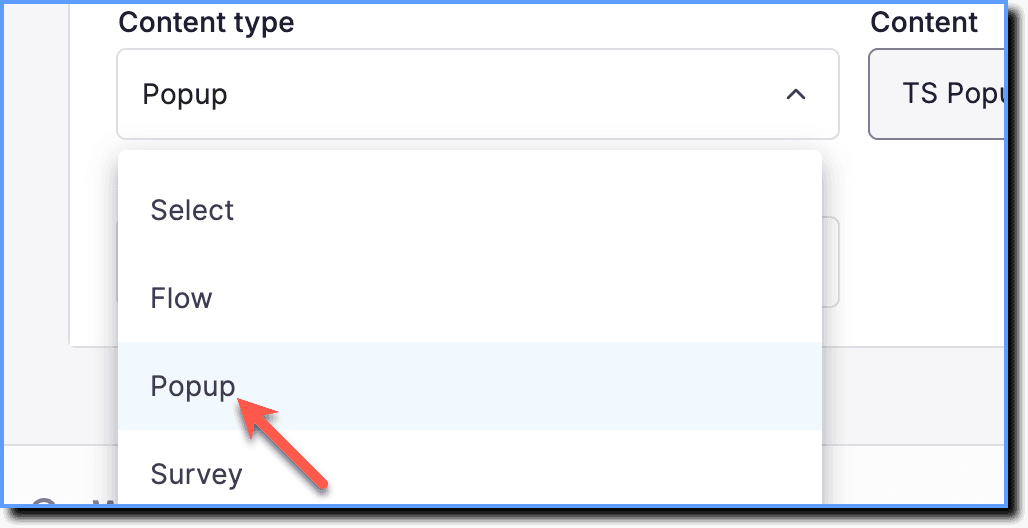
- From the Content type dropdown, select Popup.
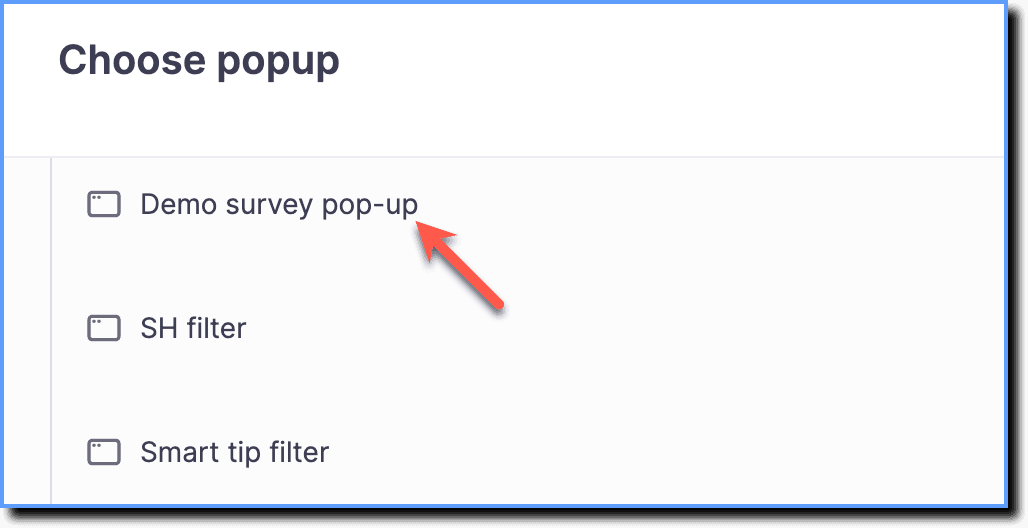
- Select the previous Pop-up that triggers the current one. For example, select Pop-up A while you are configuring Pop-up B.
- From the Event dropdown, select User skips the popup.
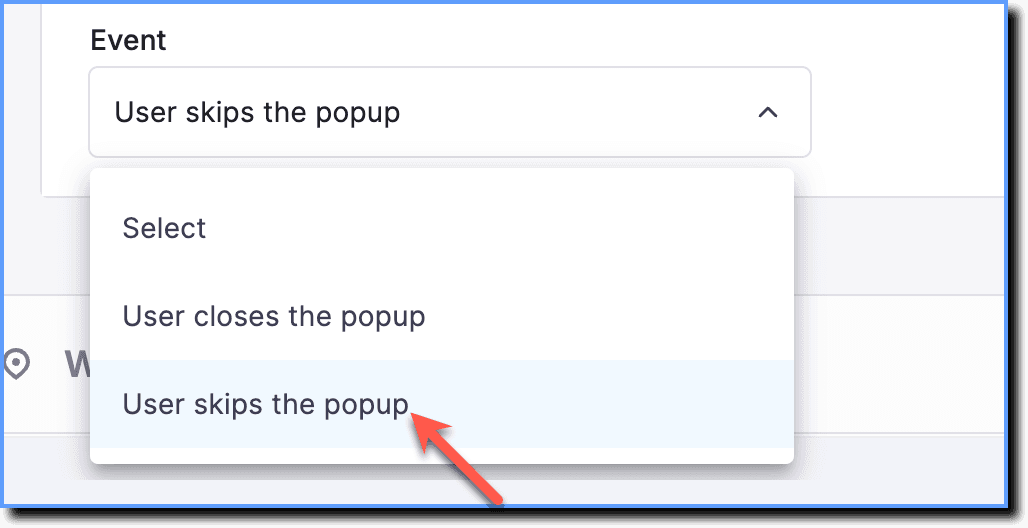
Select User closes the popup if you want the next Pop-up to show up when the user either clicks the close button or the close icon.
- Click Save.
- Make any other edits as needed in the Pop-up, then click Save.