New Visibility Rules Use Cases
Show a Pop-up once daily for N days
Consider that you want to promote a limited-time offer to your end users. You want to display a Pop-up once a day for five days to maximize the exposure, but without overwhelming the end users with repetitive messages.
This approach ensures that the Pop-up appears once a day on the end user's first visit to the application during the five-day campaign period. Even if the end user visits the application multiple times within a day, the Pop-up appears only once.
With the existing Visibility Rules, when a Pop-up is shown only once daily within a specific date range, end users who miss visiting the application during that timeframe do not see the Pop-up. This can lead to missed opportunities for engagement and conversions. However, if the date range for the Pop-up is set for longer than intended, some end users might see the Pop-up more number of times.
The new Visibility Rules enable you to show the Pop-up once every day for a specific number of occurrences. This provides a more precise and effective way to control Pop-up visibility, ensuring that end users see the Pop-up exactly as intended.
Use the following steps to show a Pop-up once daily for N days:
- Create the Pop-up based on your requirements. For more information, see Create a Pop-up.
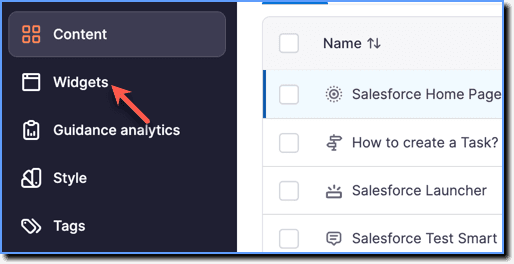
- Go to the Whatfix Guidance Dashboard, click Widgets.
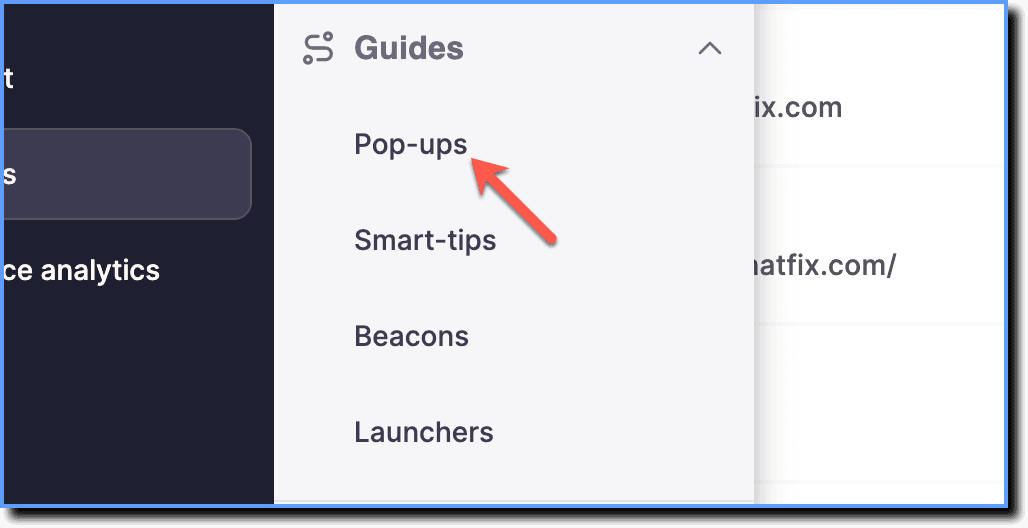
- Click Pop-ups.
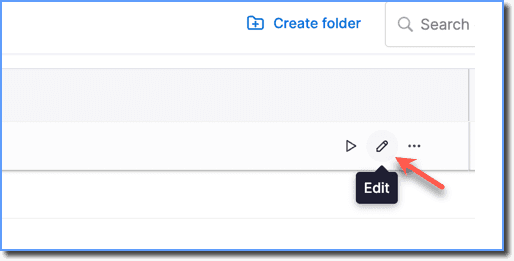
- Hover your cursor over the Pop-up segment that you want to configure, and then click the Edit icon.
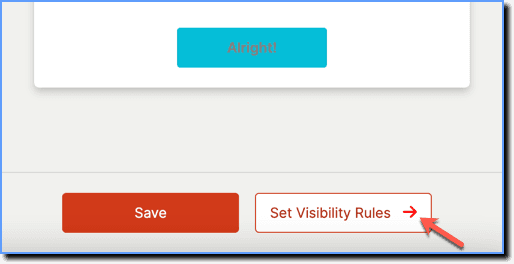
- Click Set Visibility Rules →.
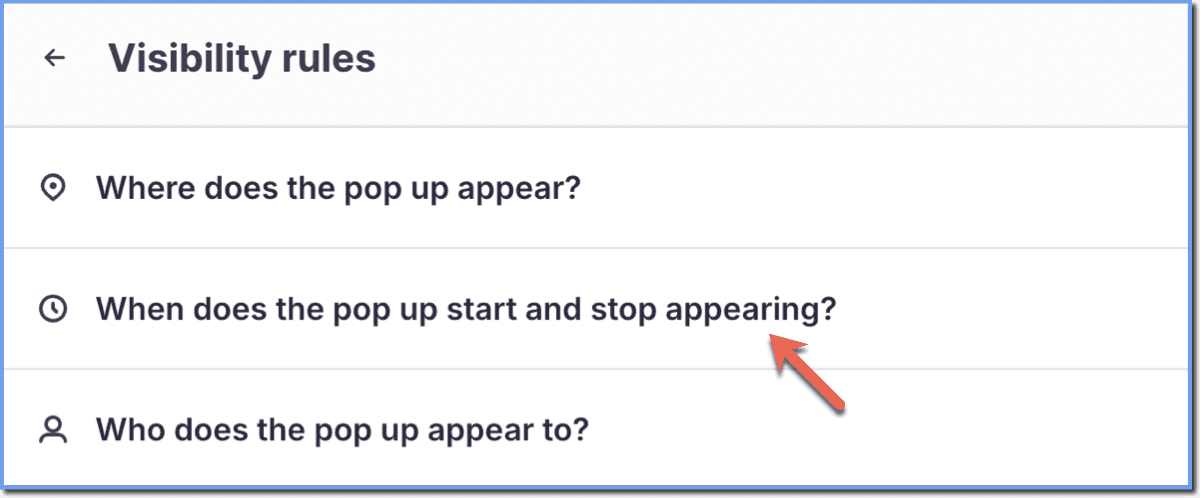
- In the Visibility rules section, click When does the pop up start and stop appearing?
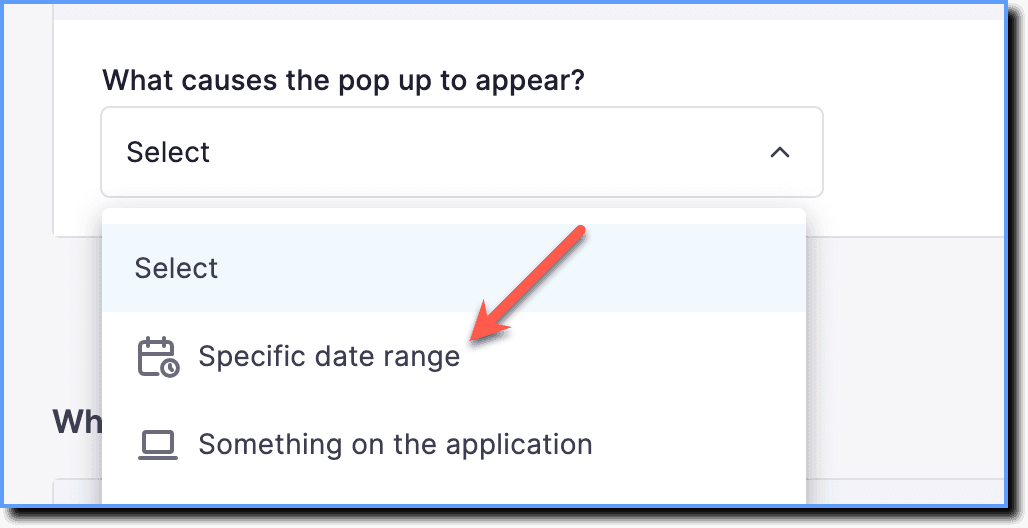
- From the What causes the pop up to appear? dropdown, select Specific date range.
- Enter Start date, Start time, End date, and End time. This ensures that the Pop-up doesn't appear longer than intended.
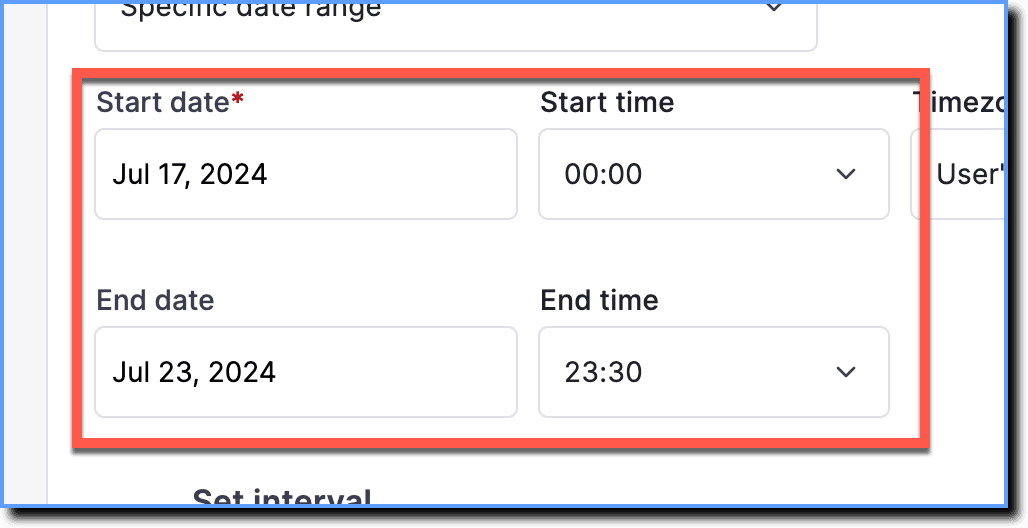
- Ensure that you add an End date and End time for your widget to prevent any content failure.
- The Start and End times determine when your widget starts and stops showing. To configure a time duration during which your widget shows up every day, use the Set interval option. For more information, see Show content based on a specific date.
- Enable the Set repeat toggle.
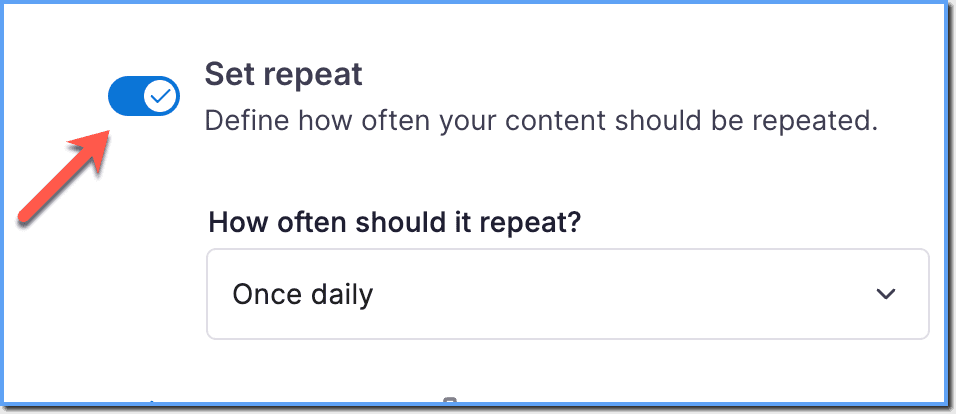
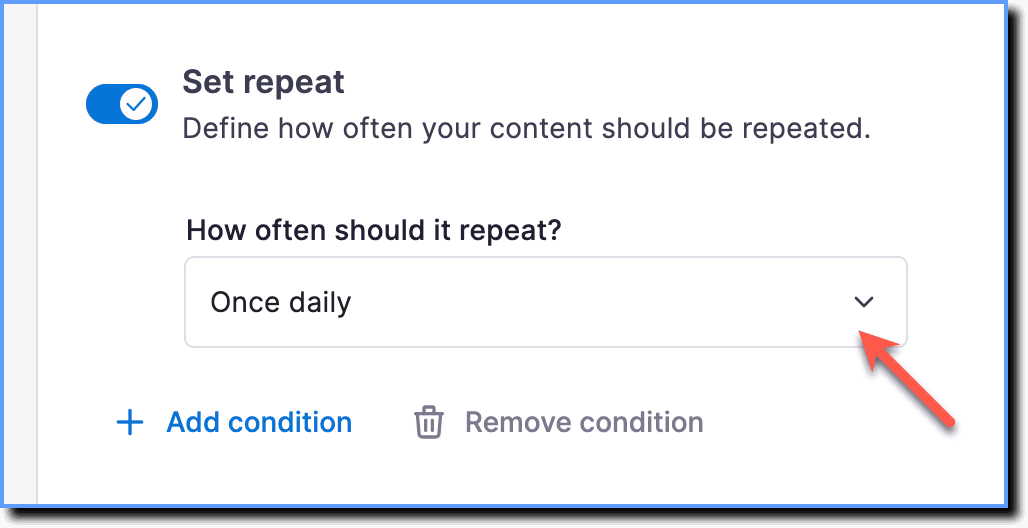
- Using the How often should it repeat? dropdown, select Once daily.
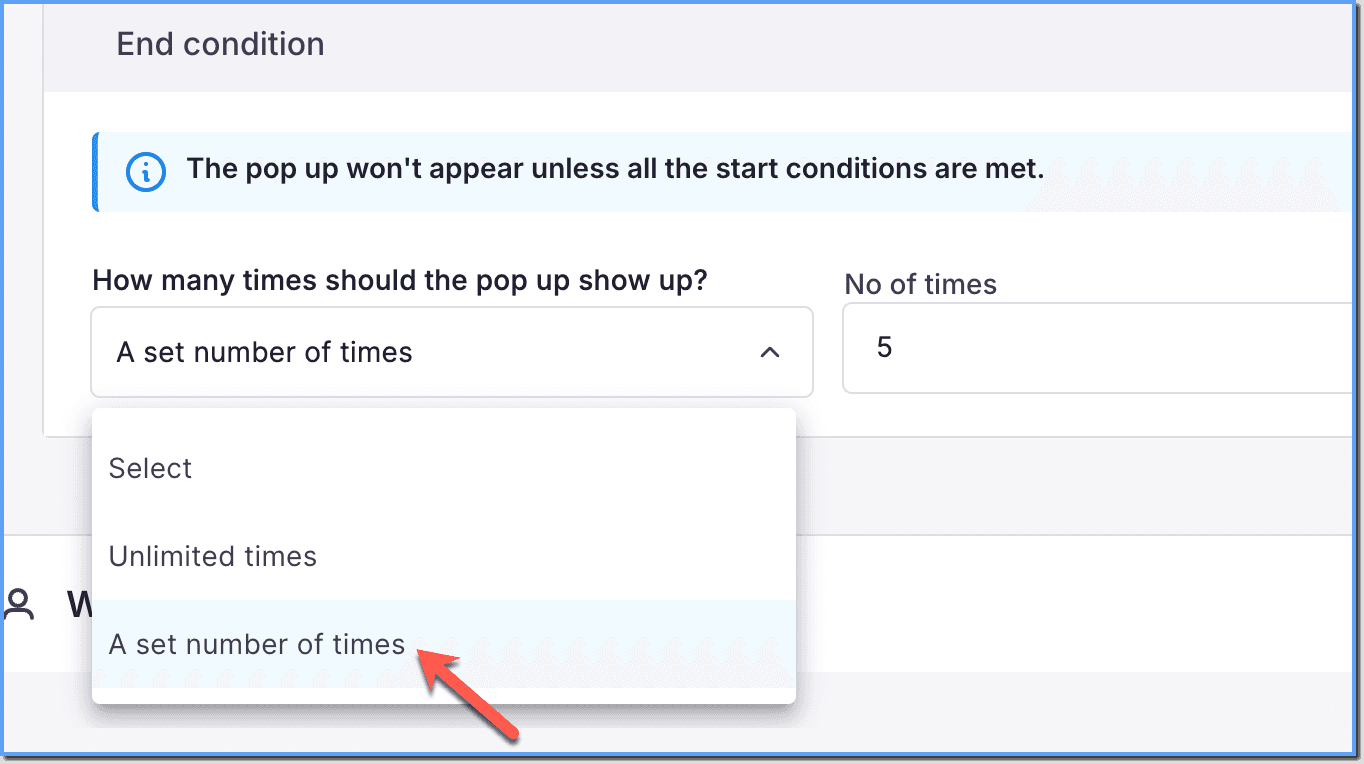
- Under End condition, select A set number of times from the How many times should the pop up show up? dropdown.
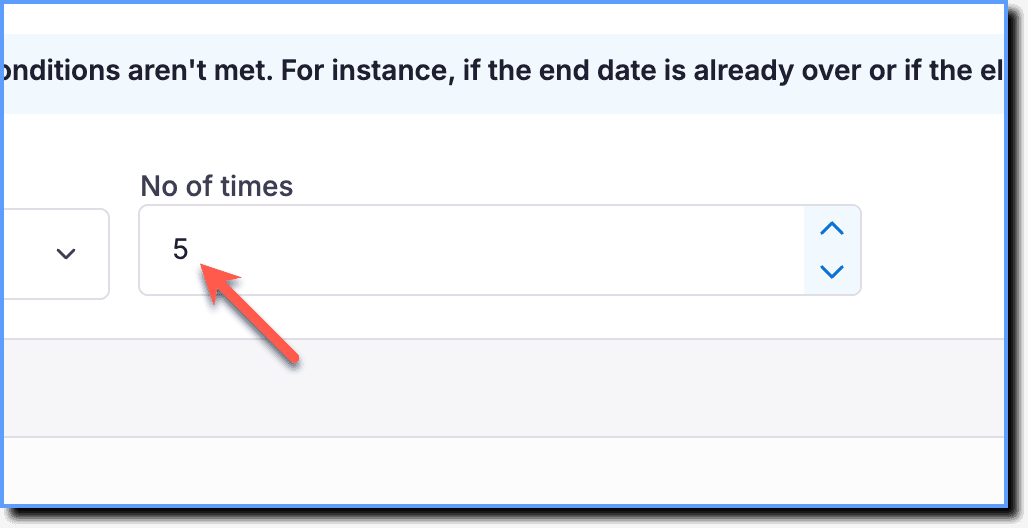
- In the No of times field, enter the number of times you want to show the Pop-up.
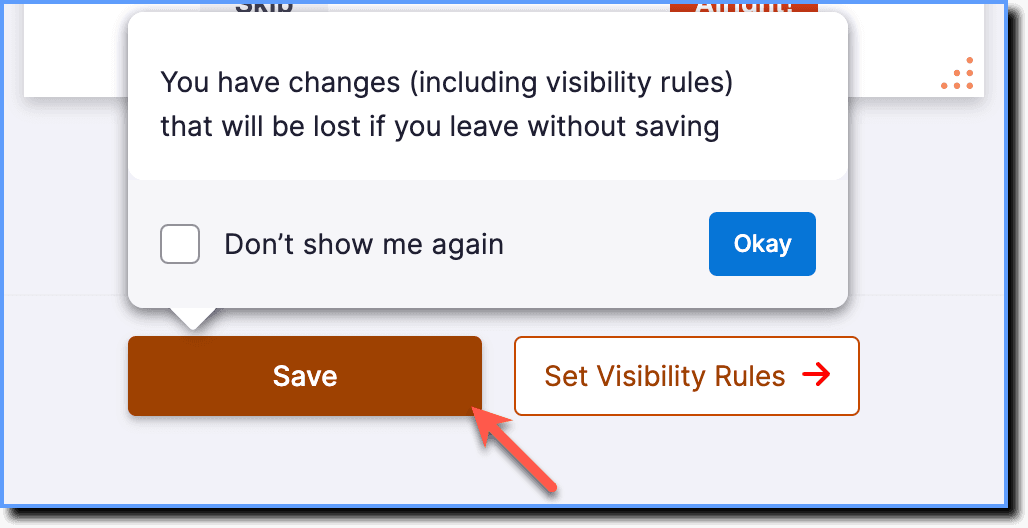
- Click Save.
- Make any other edits as required in the Pop-up, and then click Save.