Task List
Delete a Task List
Whatfix enables you to delete a Task List segment that is no longer required. Delete a single Task List segment or multiple segments at once.
Note:
- You can only delete Whatfix content and widgets in the Draft and Ready stages.
- When a copy of your content in Draft or Ready also exists in Production, deleting the Draft or Ready version does not affect the content in Production.
Delete a Task List segment Delete multiple Task List segments
Delete a Task List segment
Use the following steps to delete a Task List segment:
-
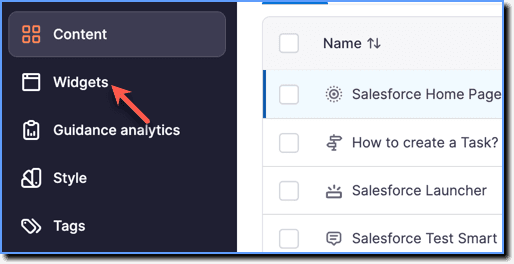
On the Whatfix Guidance dashboard, click Widgets.
-
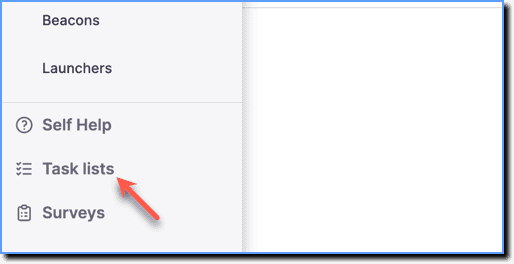
Click Task lists.
-
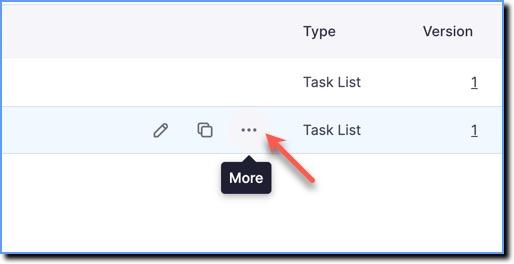
Hover your cursor over the Task List segment you want to delete, then click the More icon.
-
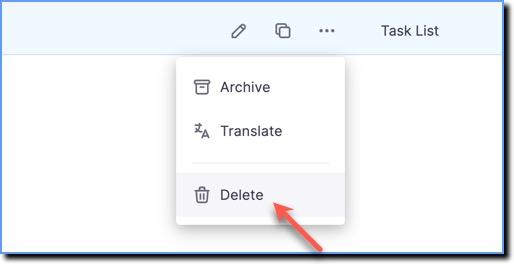
Click Delete.
-
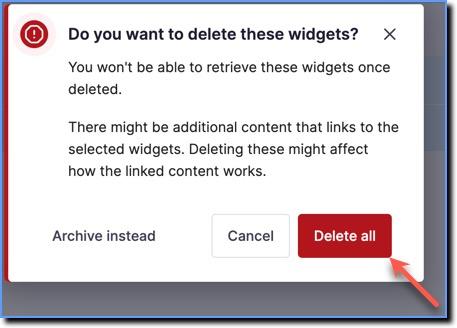
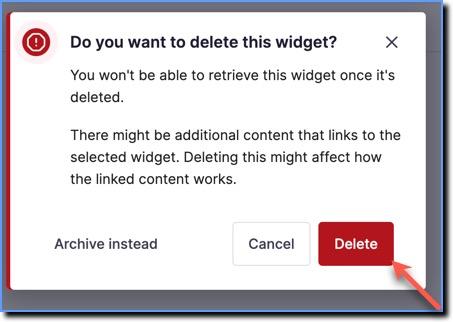
In the confirmation dialog box, click Delete.
Delete Multiple Task List segments
Use the following steps to delete multiple Task List segments:
-
On the Whatfix Guidance dashboard, click Widgets.
-
Click Task lists.
-
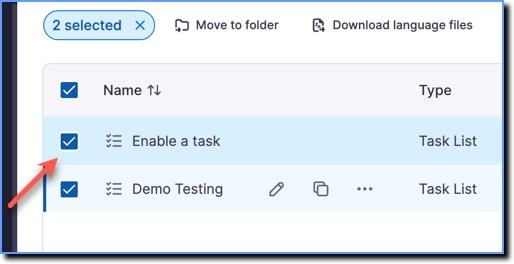
Select the Task List segments you want to delete.
-
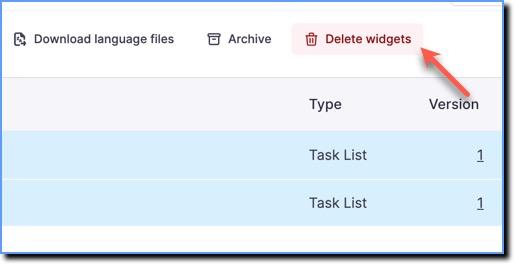
Click Delete widgets.
-
In the confirmation dialog box, click Delete all.