Task List
Add a Flow to Task List
Whatfix enables you to add a Flow to a Task List to display content to your end users.
The following GIF demonstrates how a Flow selected from the Task List opens in the application.
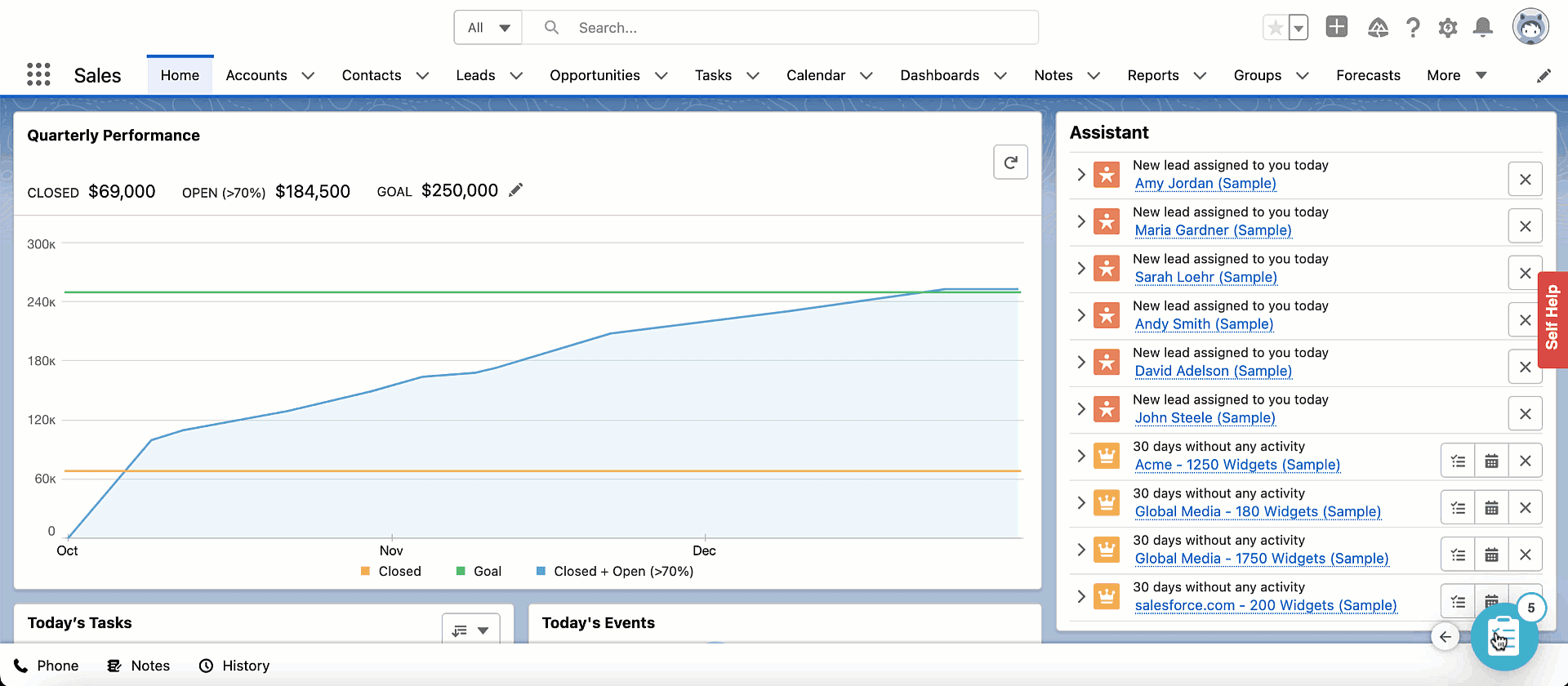
Use the following steps to add a Flow to a Task List:
-
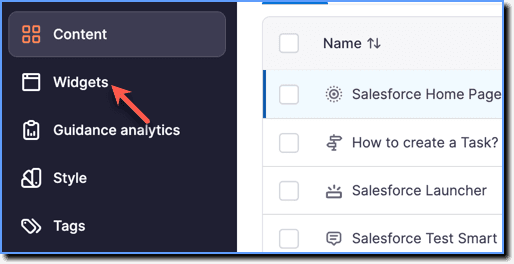
On the Whatfix Guidance dashboard, click Widgets.
-
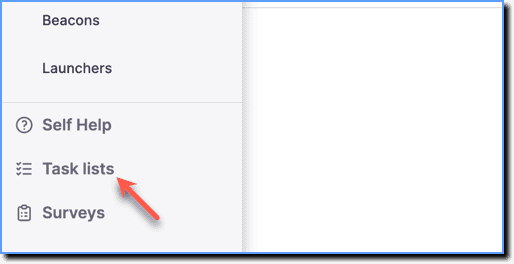
Click Task lists.
-
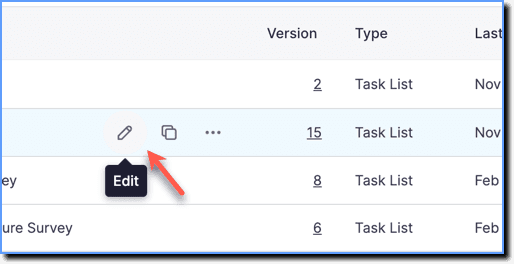
Go to the required Task List segment, and then click the Edit icon.
-
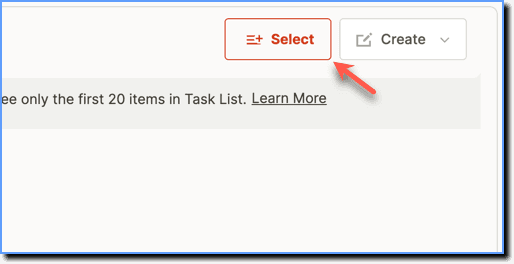
Click Select.
-
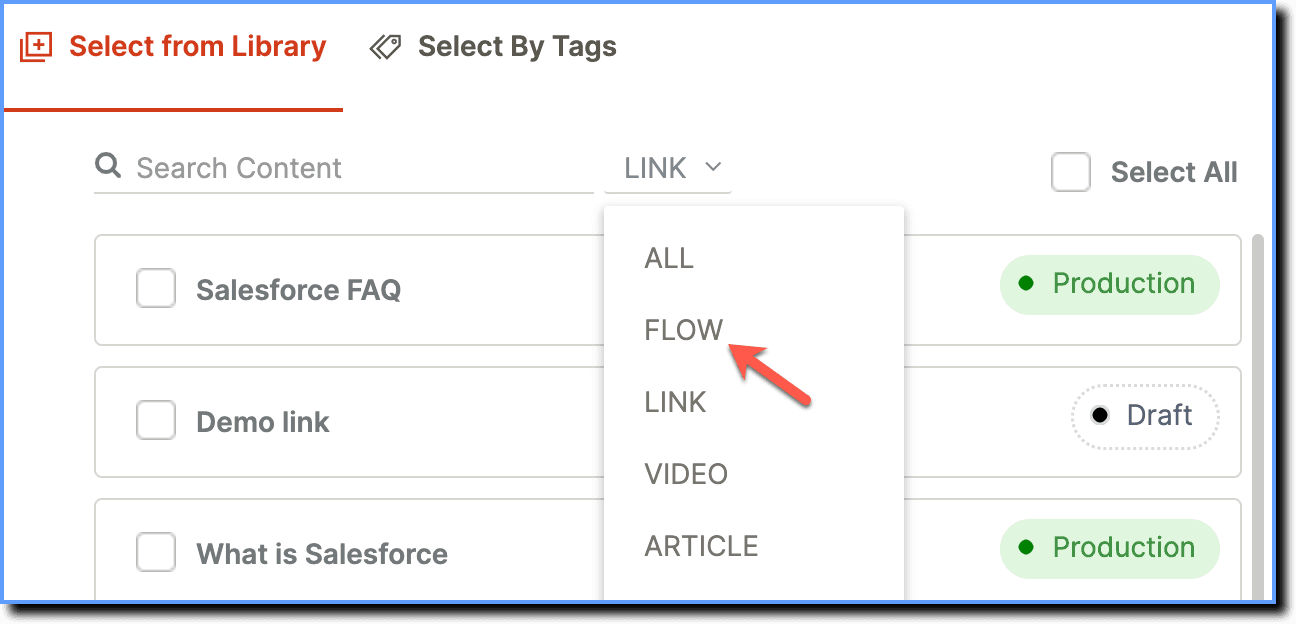
Set the filter to FLOW.
-
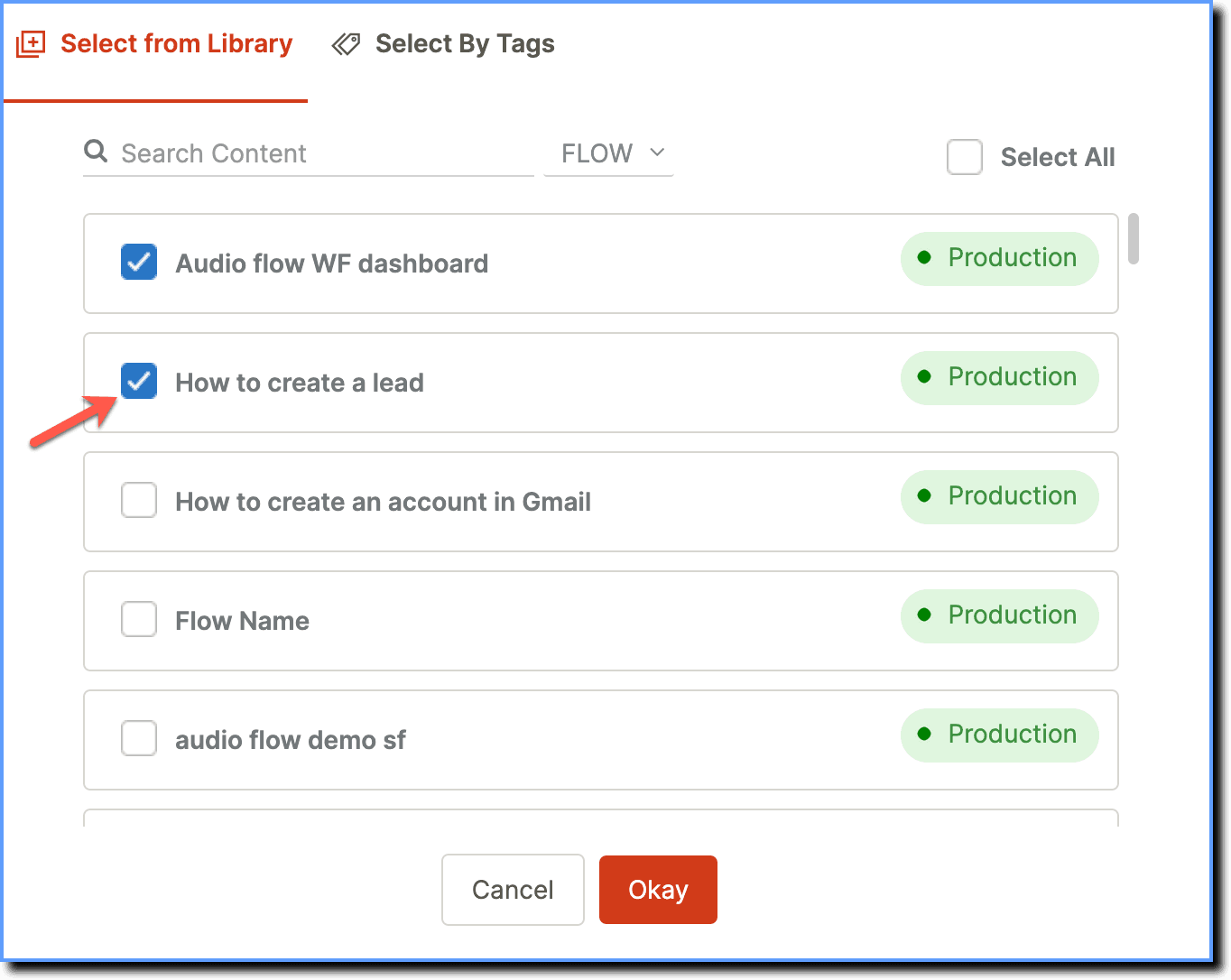
Select the desired Flows, then click Okay.
-
Click Save.