Task List
Add a Survey to a Task List
Add a Survey to a Task List by creating a link for the Survey from the Whatfix dashboard and adding the link to the Task List.
Step 1: Create a link for the Survey Step 2: Add the link to Task List
Create a Link for the Survey
Use the following steps to create a link for your Survey:
-
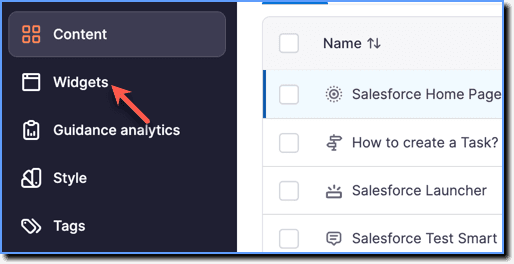
On the Whatfix Guidance dashboard, click Widgets.
-
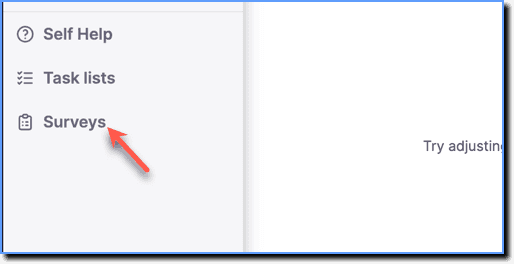
Click Surveys.
-
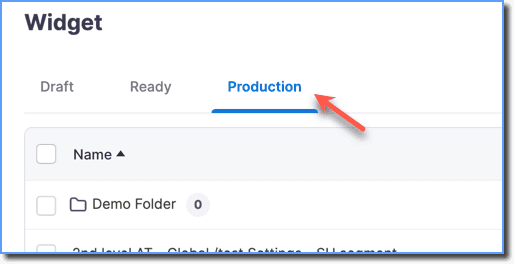
Click the Production tab.
-
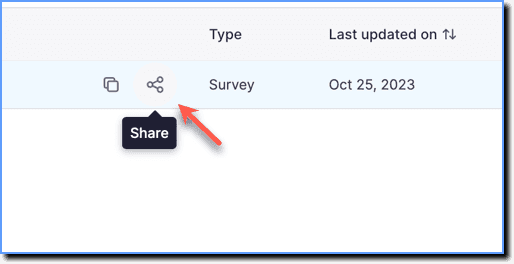
Hover your cursor over the required Survey, and then click the Share icon.
Note:
The Share icon only appears for Surveys in the Production stage.
- Click Add as link in Whatfix.
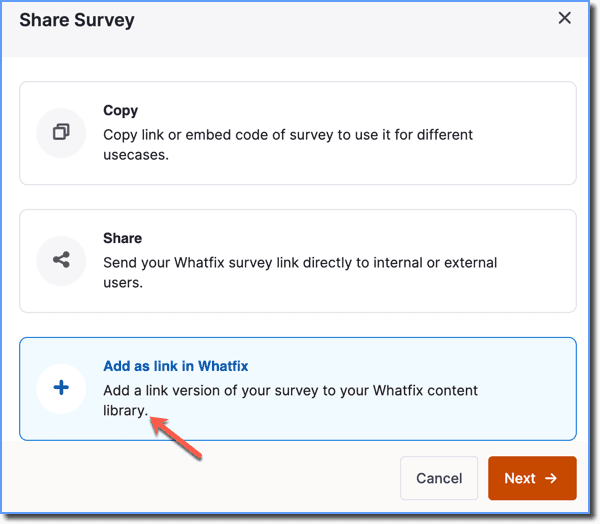
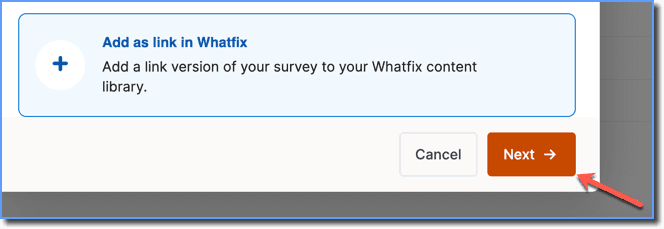
- Click Next.
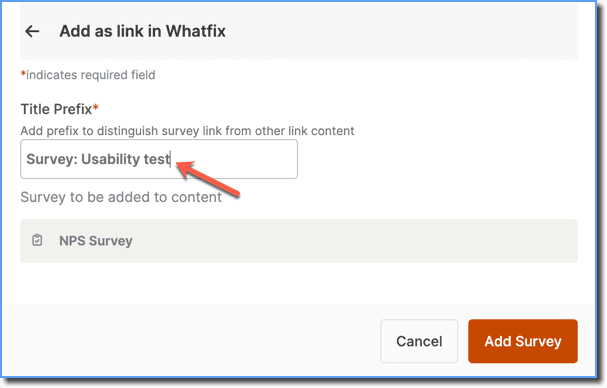
- Enter a Title Prefix.
Info:
The prefix title distinguishes the Survey link from other links on the dashboard. 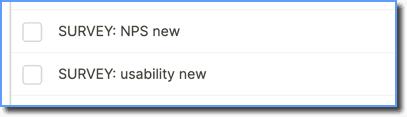
- Click Add Survey.
Info:
View the link that you just created in the Draft stage of the Dashboard.
Add the link to Task List
Use the following steps to add the link to Task List:
-
On the Whatfix Guidance dashboard, click Widgets.
-
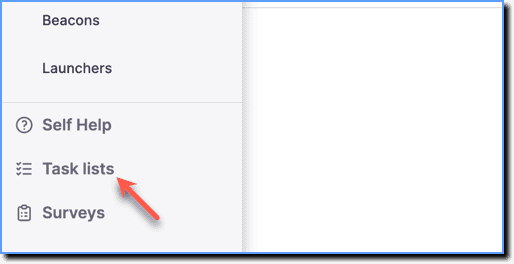
Click Task lists.
-
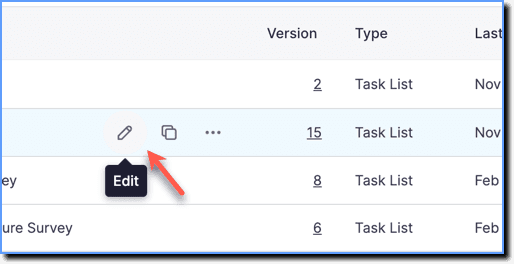
Go to the required Task List segment, and then click the Edit icon.
-
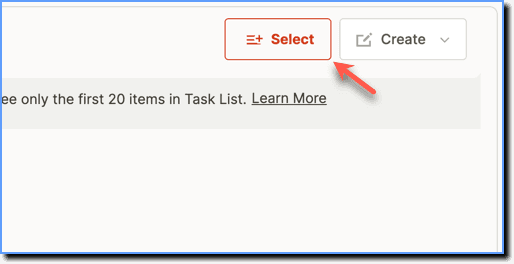
Click Select.
-
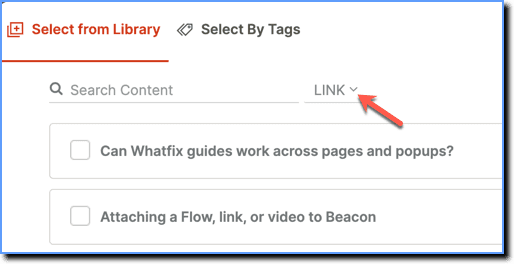
Set the filter to LINK.
-
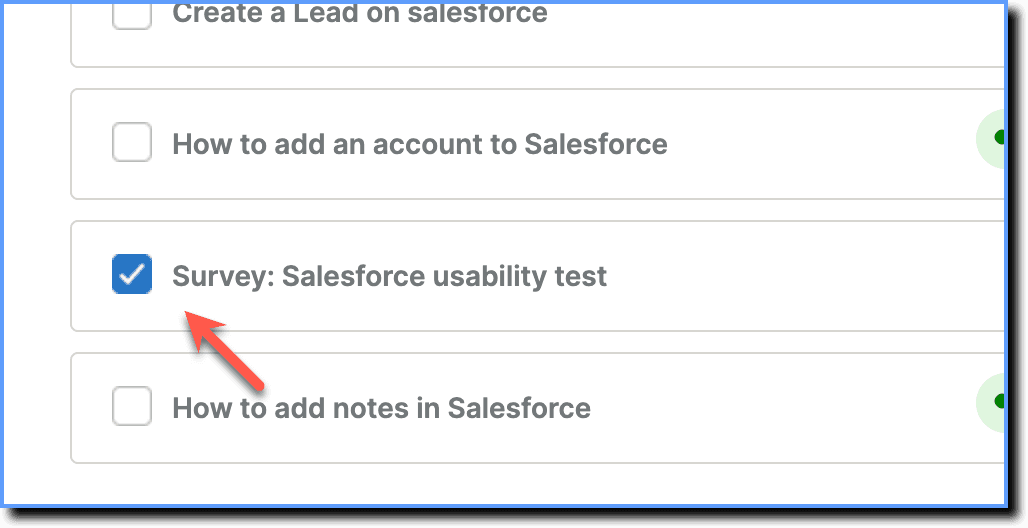
Select the Survey Link
-
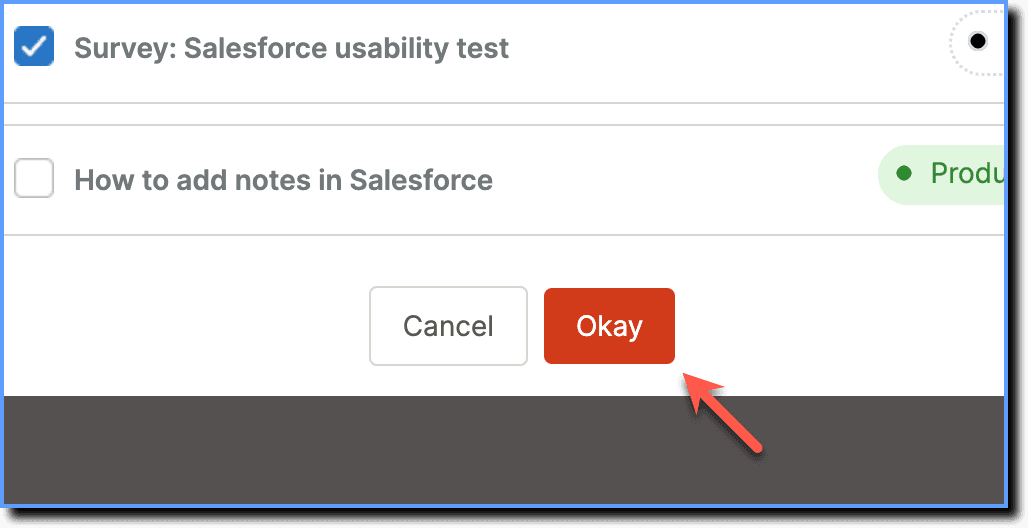
Click Okay
-
Click Save.