Debugging
Debug a Flow failure
If a Flow does not work as expected after launch, use Whatfix debugging commands to identify why a particular step failed.
You may need to debug a Flow failure in the following scenarios:
- Flow does not run correctly
- Flow tooltip flickers or appears at different position
- Flow could not detect the element for the next step
- Flow steps skip while you run the Flow
Debug a Flow Failure
Follow these steps to debug a Flow failure:
- Launch the Flow you want to debug.
- Play the Flow until it fails.
- Open your browser's Developer Tools.

- Go to the Console tab.
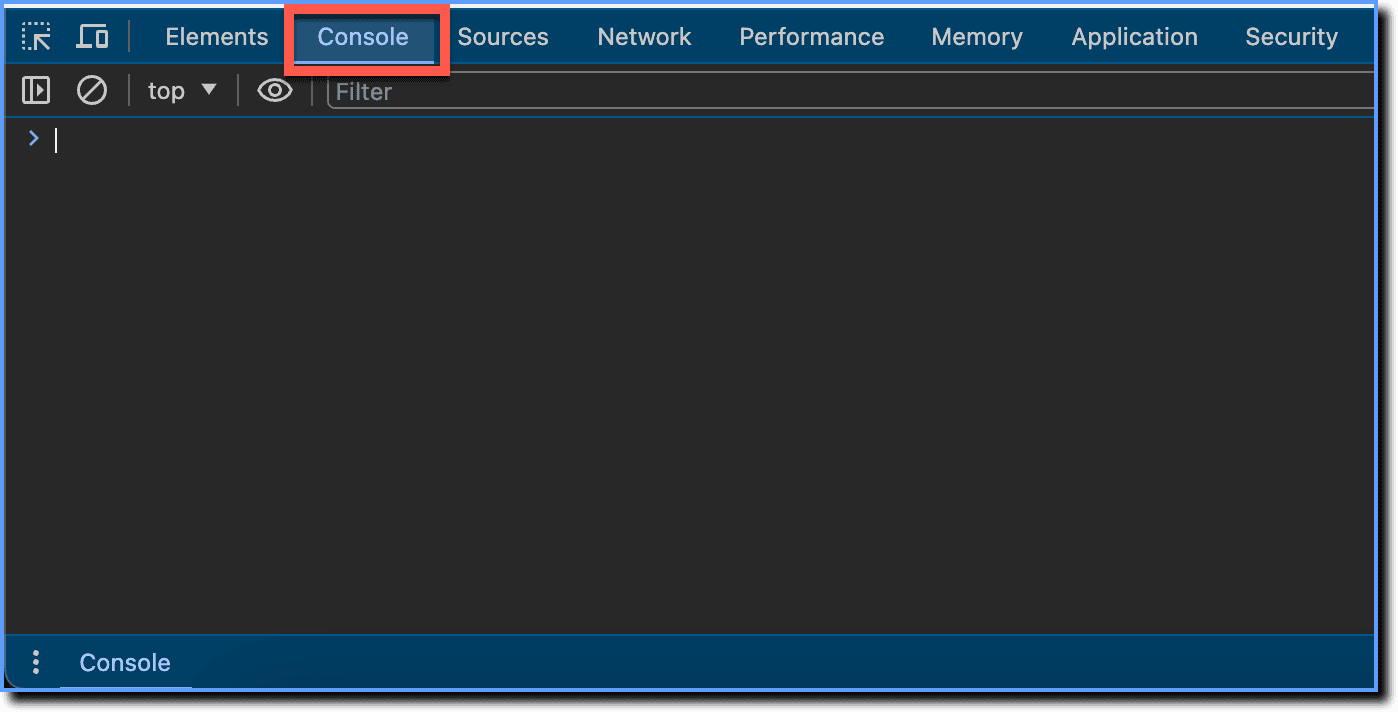
- Type the following command in the Console and press Enter:
_wfx_debug_finder('flow');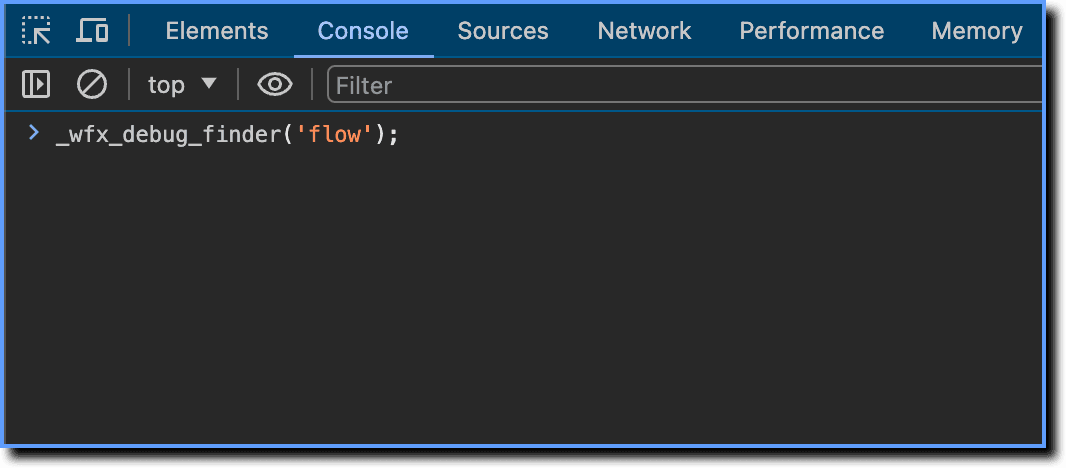
Info
The _wfx_debug_finder(); command returns debug logs for all content loaded on the page. To view logs for a specific content type, specify the content type as a parameter in the command.
- Click Finder Summary Logs to expand the details.

The output displays the Flow ID and step numbers in the following format: <Flow ID>:<Step Number>.
2. Click the failed step number to view its details. 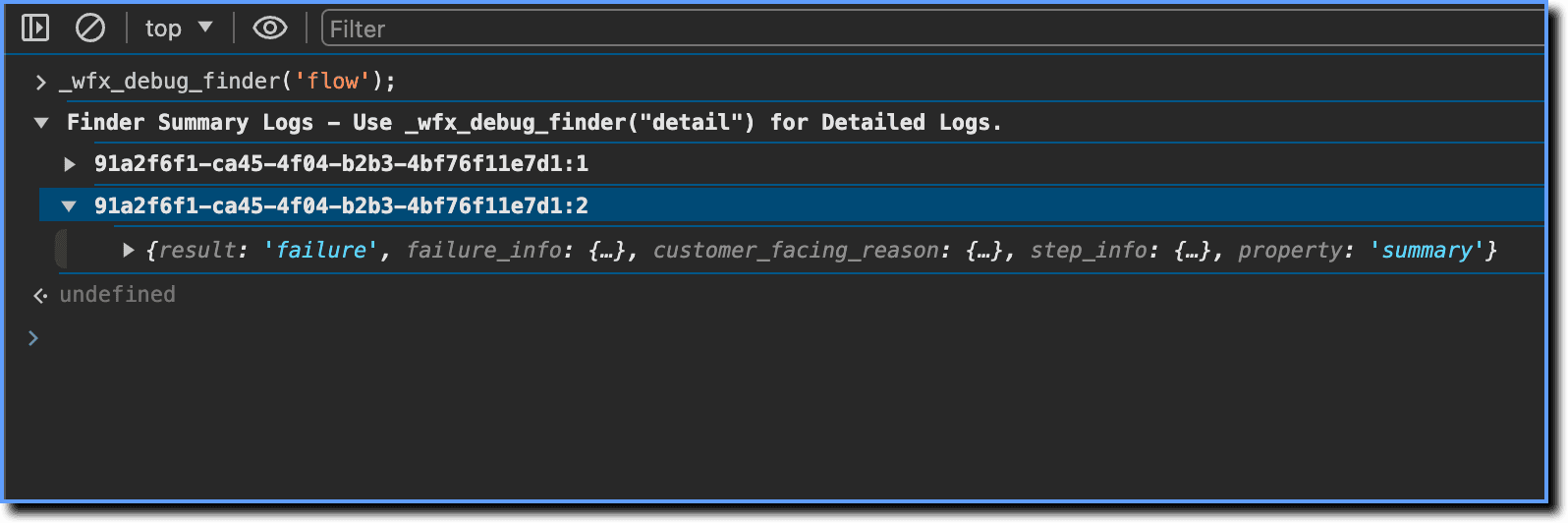
The step object contains fields that help you identify the cause of the Flow failure.
Determine Whether a Flow Step Succeeded or Failed
Check the result field to determine whether the step succeeded or failed. 
View a Summary of the Failure
Check the customer_facing_reason field to view a summary of the issue and a recommended resolution. 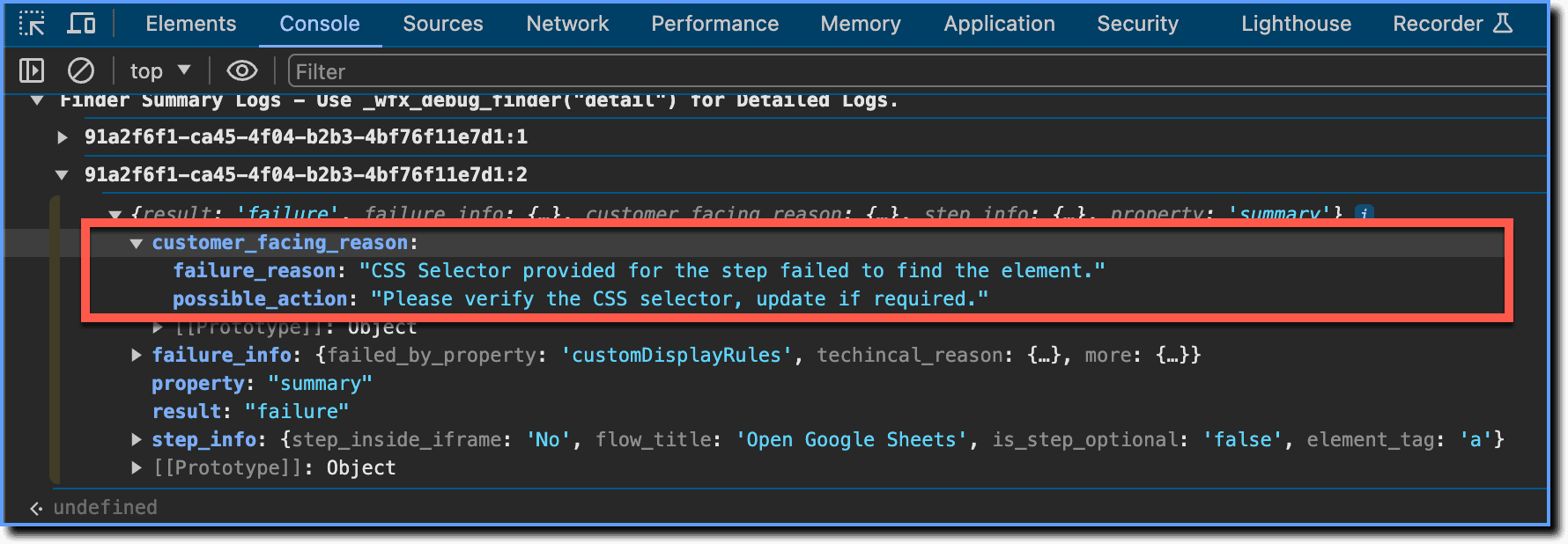
This field contains the following sub-fields:
- failure_reason: Identifies the reason the step failed.
- possible_action: Recommends an action to resolve the issue.
The following table lists common failure reasons and their recommended actions:
| failure_reason | possible_action |
|---|---|
| Display rules provided for the step failed to find the element. | Verify the display rule and update it if necessary. |
| CSS Selector provided for the step failed to find the element. | Verify the CSS selector and update it if necessary. |
| Step is not created on the page where the flow was played. | Check whether previous steps navigate to the correct page before the failed step. |
| Smart Detect configuration issue. The trusted HTML property defined in the configuration could not be found. | Contact Support for help fine-tuning the Smart Detect configuration. |
| Whatfix cannot find the original element that was selected when the content was created. | Ensure that the element is visible to users and verify that the Flow navigation is correct. |
| Whatfix could not find the element because one or more properties captured during content creation have changed. | Reselect the element to resolve the issue. |
View Information About a Flow Step
Check the step_info field. 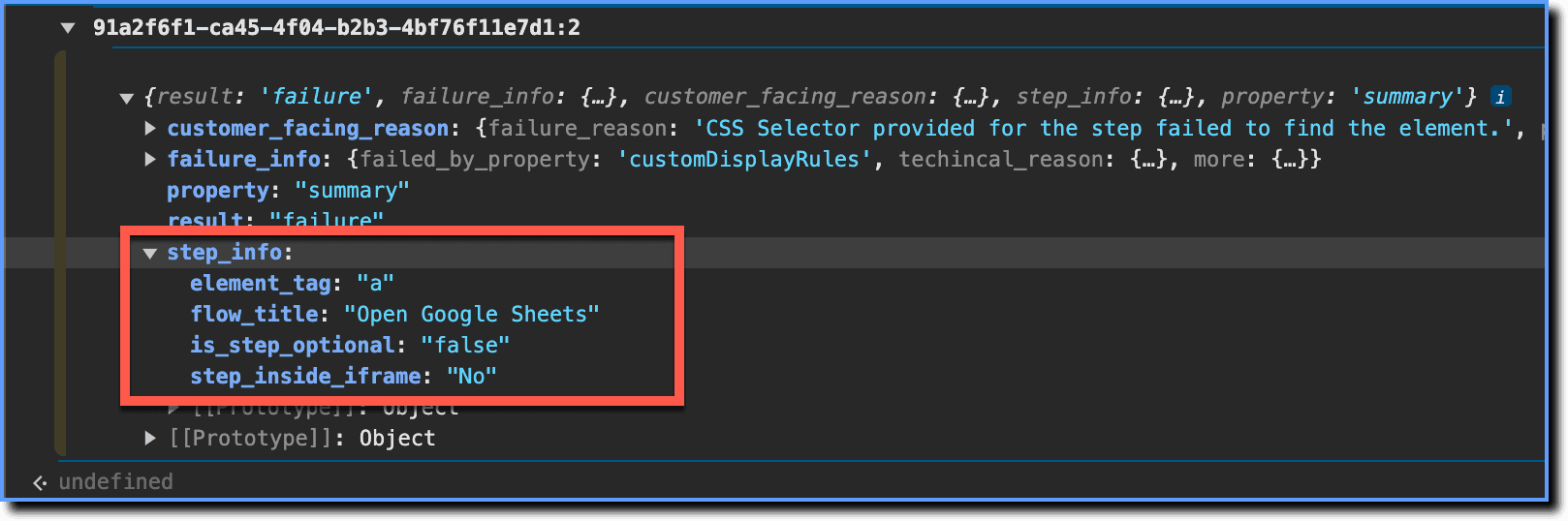
This field contains the following sub-fields:
- element_tag: The HTML tag of the element the Flow step is latched to.
- flow_title: The title of the Flow.
- is_step_optional: Indicates whether the Flow step is optional or not.