Configure Global Settings using Technical Configurations
Set Z-Index for Whatfix Content
What is z-index property?
In CSS, the z-index property controls how the HTML elements are arranged or layered over each other. It defines the order of overlapping HTML elements. Elements with a higher index are placed on top of elements with a lower index.
The z-index property takes an integer value. For example, if you have two elements with a z-index of 0 and 1, the element with a z-index of 1 shows in front of the element with a z-index of 0.
Whatfix enables you to set the desired z-index for Whatfix elements. For example, if some underlying application element appears over Whatfix tooltips, you can set a much higher z-index value for Whatfix elements to ensure it shows up on top.
Z-index need not be a specific integer value. Any large integer, like 9999, ensures that the Whatfix content shows on top of the underlying application. If you want to use a specific z-index for any reason, reach out to your application developer for more information.
Use the following steps to set z-index for Whatfix content:
-
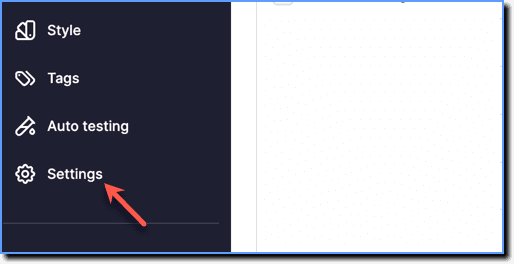
On the Whatfix Guidance dashboard, click Settings.
-
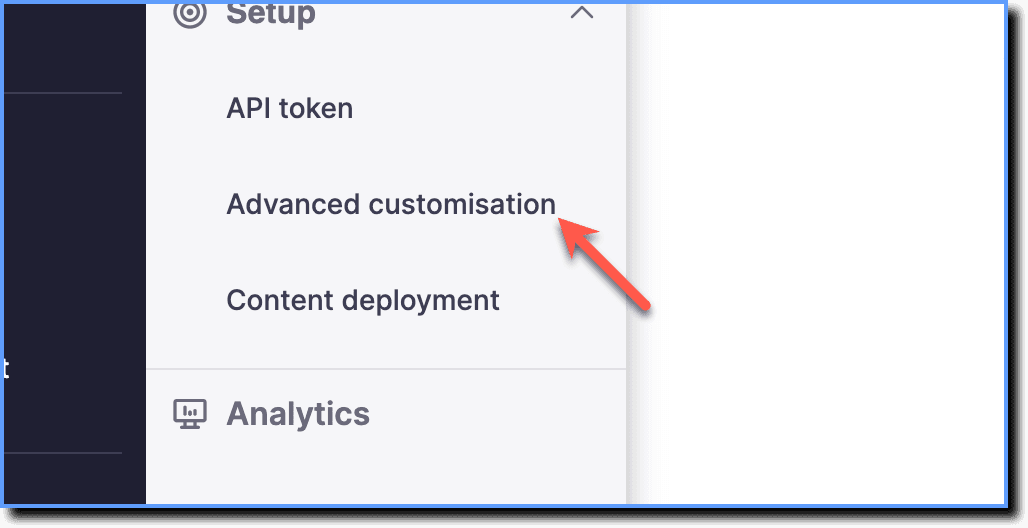
Click Advanced customisation.
-
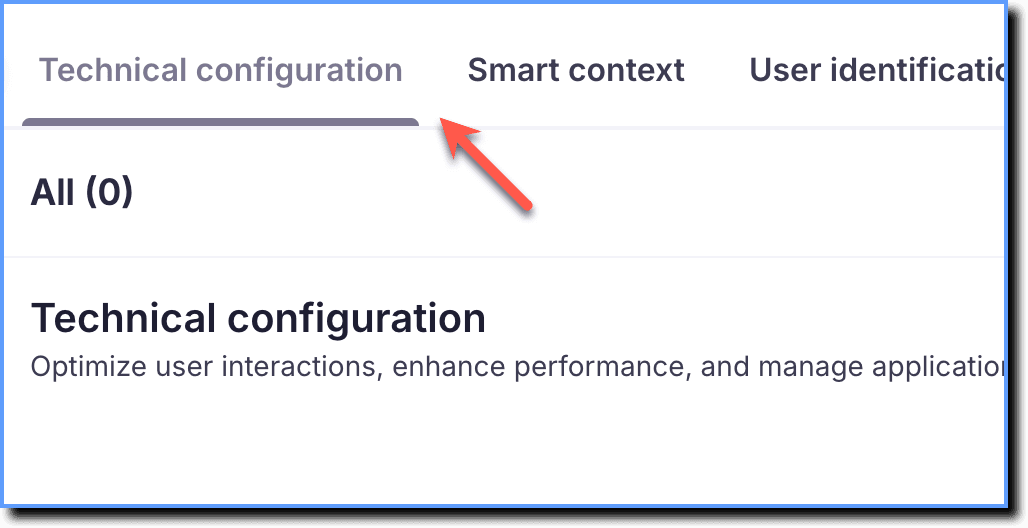
Click Technical configuration.
-
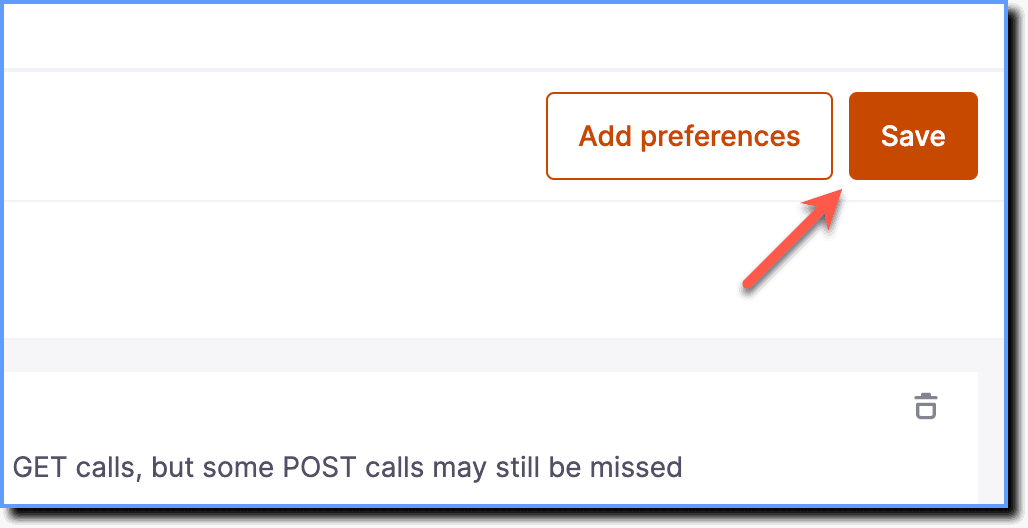
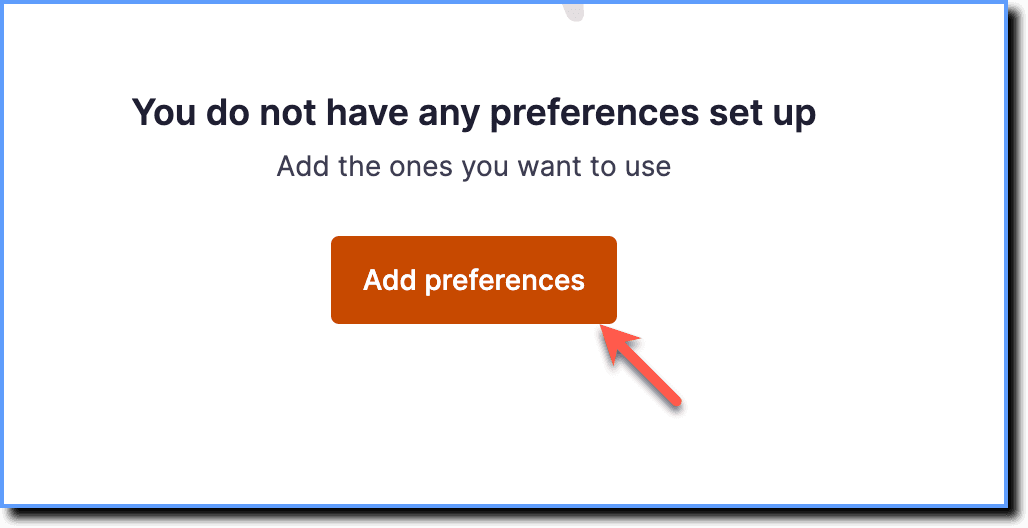
Click Add preferences.
-
Click Common Properties.

-
Select the Z Index checkbox.

-
Click Add.

-
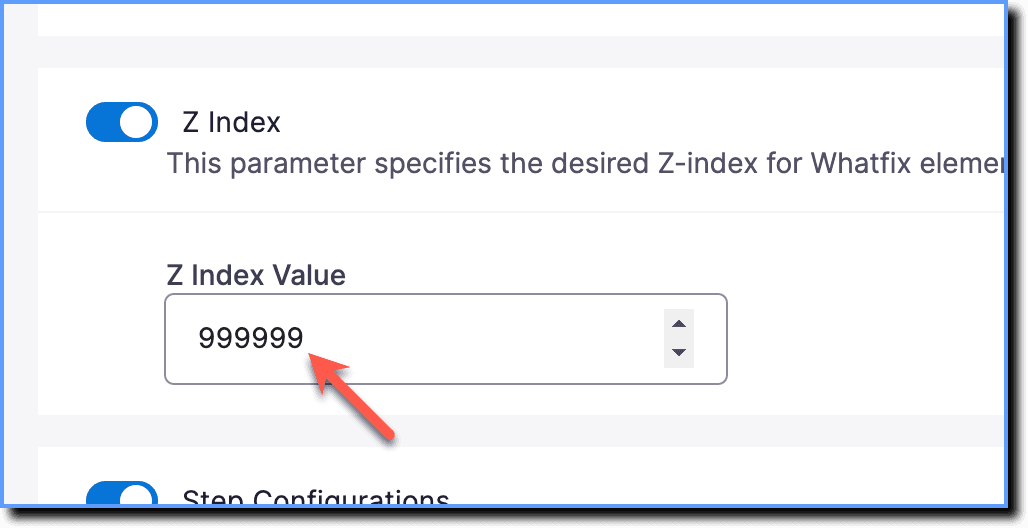
In the Z Index Value field, enter the desired value.
-
Click Save.