Configure Global Settings using Technical Configurations
Understand Content Throttling in Whatfix
Content Throttling is a Beta feature. To enable this feature, contact your Customer Success Manager or support@whatfix.com.
Content Throttling enables you to keep your application responsive when a Whatfix Content item slows it down. When a content item crosses a performance threshold, Whatfix disables only that content, only for the affected users, in the session where the issue occurs. All other Whatfix content keeps working for the affected users and for all your other users.
For example, a Smart Tip on your checkout page takes too long to evaluate for some of your users, and the page starts to lag for them. Whatfix disables that Smart Tip for those users in that session. Their Self Help, Flows, and other Smart Tips keep working, and your other users see no difference.
- Content Throttling works at the content level and never disables Whatfix as a whole.
- Content Throttling applies only to the live experience of your users and doesn't apply in Preview Mode.
Why Content Throttling Matters
Previously, when a single content item slowed down your application, it was hard to tell whether Whatfix, a specific content item, or the application itself caused the issue. To protect your application, you had to disable Whatfix for all your users and wait for a fix. An issue in one content item removed Whatfix for every user, including users who had no issue.
The comparison shows how a slow content item affects your users and your content with and without Content Throttling:
| Area | Without Content Throttling | With Content Throttling |
|---|---|---|
| Affected users | The page lags until you disable Whatfix. | Whatfix disables only the slow content item for affected users. All other Whatfix content remains available during the session. |
| Other users | All Whatfix content becomes unavailable when you disable Whatfix. | All Whatfix content remains available to other users. |
| Rest of your content | The content stays unavailable until you re-enable Whatfix. | All other Whatfix content continues to work as expected. |
How Content Throttling Works
Content Throttling runs without any action from you while your users work. Whatfix follows this sequence on your application:
- Whatfix checks how its content performs on your application against performance thresholds.
- Whatfix identifies the specific content item that causes a performance issue.
- Whatfix disables that content item only for the affected users in the session where the issue occurs.
The performance thresholds set the maximum evaluation time for each type of condition on a content item:
| Condition | Threshold |
|---|---|
| Element-based or Finder condition | 100 ms |
| Any other Visibility Rule condition | 10 ms |
Whatfix treats a content item as the cause of a performance issue when any of its conditions crosses its threshold. For example, a Smart Tip whose Finder condition takes 120 ms crosses the 100 ms threshold.
Enable Content Throttling
After Whatfix makes Content Throttling available for your account, you can enable it with a preference in the Technical configuration section of the Whatfix Guidance Dashboard.
Use the following steps to enable Content Throttling:
-
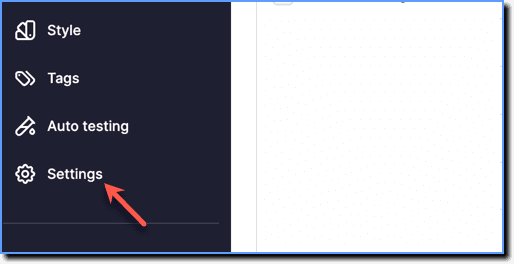
On the Whatfix Guidance dashboard, click Settings.
-
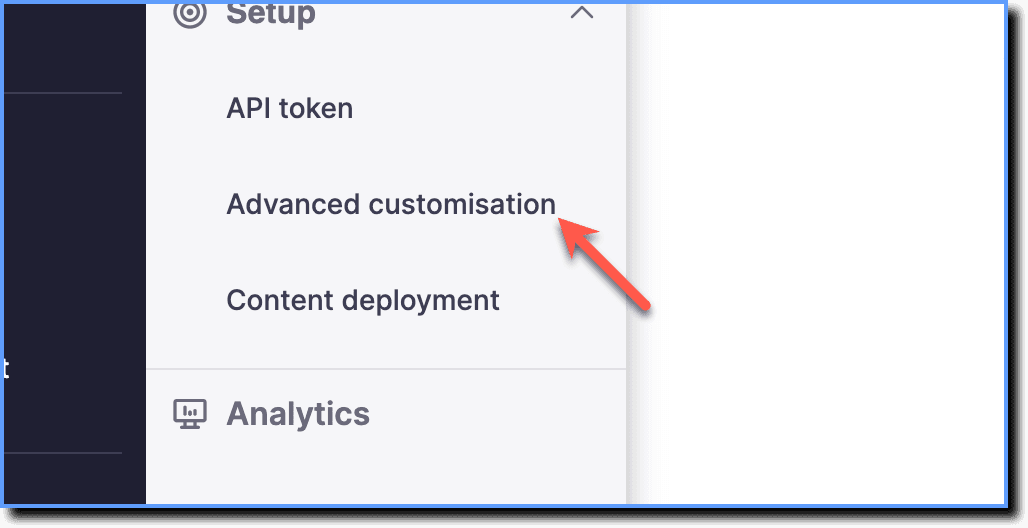
Click Advanced customisation.
-
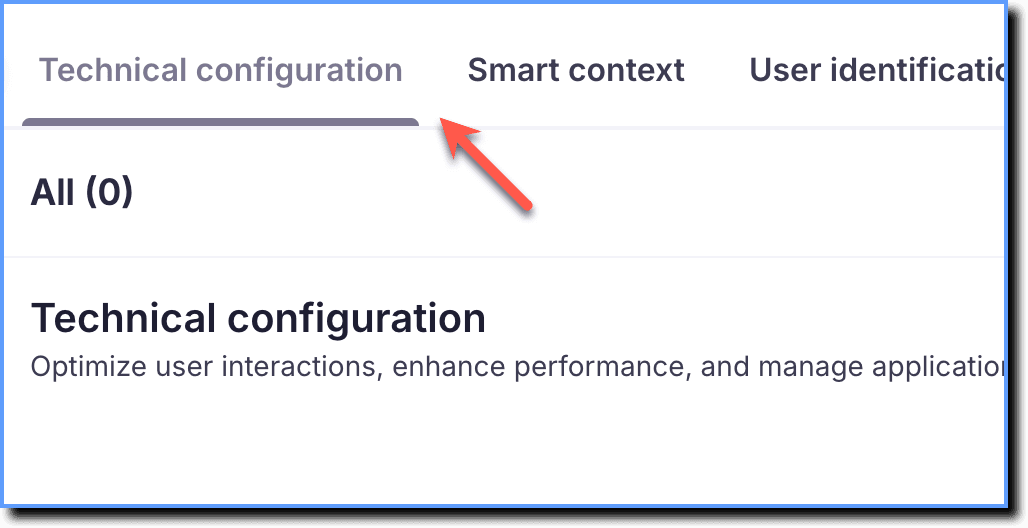
Click Technical configuration.
-
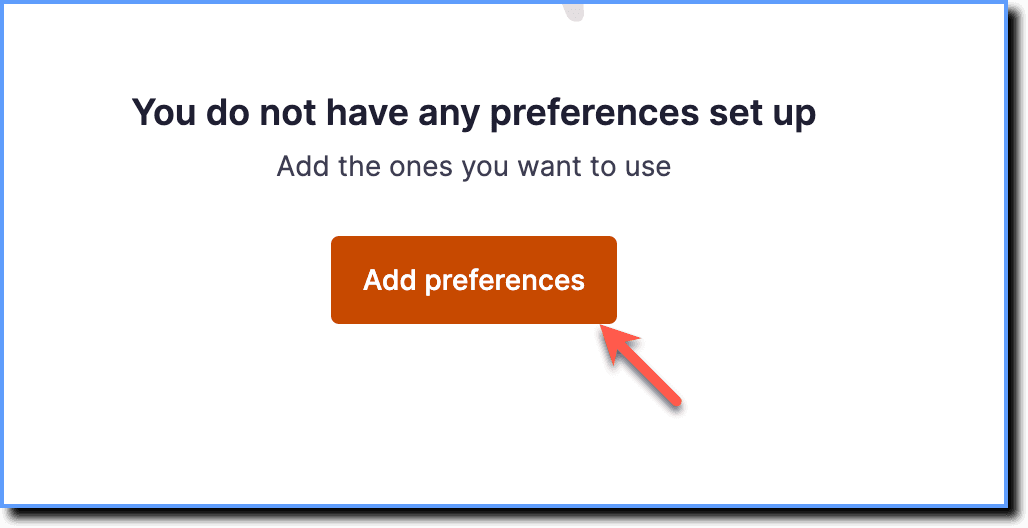
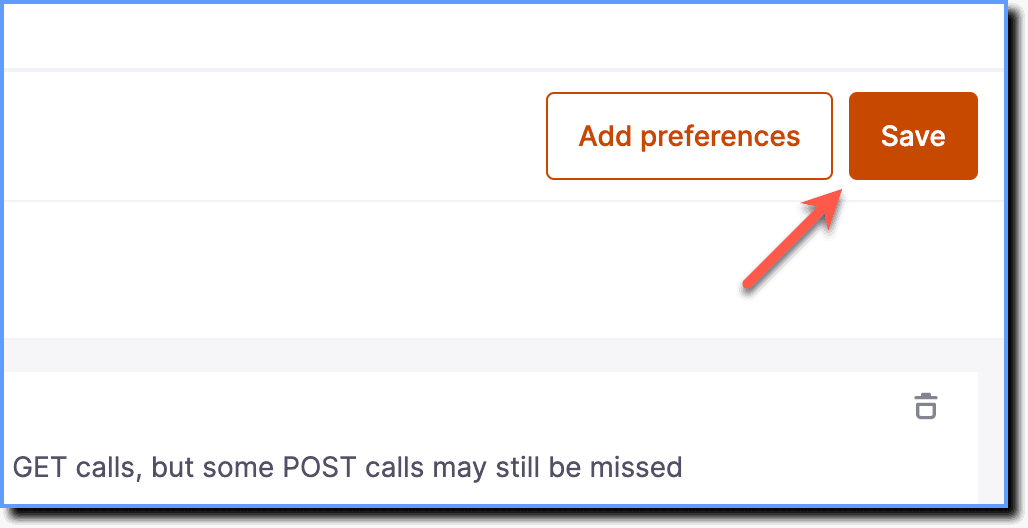
Click Add preferences.
-
Click Common Properties.
 2. Select the Auto-disable content causing performance impact checkbox.
 3. Click Add.
 4. Click Save.
After you save the preference, publish the changes to apply the preference to your users.
Content Throttling and Diagnostics
Content Throttling and Diagnostics serve different purposes at different stages of the content lifecycle. With Diagnostics, you can find slow content before it reaches the Production stage. Content Throttling limits the effect of slow content on your users once your content is live.
The following table compares Diagnostics performance data and Content Throttling by applicability, purpose, and function:
| Area | Diagnostics Performance Data | Content Throttling |
|---|---|---|
| When to use | Before you publish your content to Production | While your users interact with the live application |
| Purpose | Shows evaluation times and threshold breaches to help identify slow content | Limits the impact of slow content on affected users |
| Function | Provides performance data to help you identify and fix slow content | Disables slow content for affected users in the session where the issue occurs |
To check the performance of your content yourself before you publish it to Production, export the content performance data from Diagnostics.
For more information, see Export and View Content Performance Data in Diagnostics.
The feature release stage in which functionality is made available to a limited group of users for testing and feedback. Beta features are generally stable but may still undergo changes before becoming Generally Available (GA).
Your Customer Success Manager (CSM) is your direct contact for features involving specific customer agreements, such as using AI features.
A responsive interface refers to a website or application’s ability to automatically adjust its layout, design, and interactions based on screen size and device type. A responsive interface ensures a seamless user experience by optimizing readability, navigation, and usability across desktops, tablets, and mobile devices.
Whatfix Content includes Flows, Images, Videos, PDFs, Articles and Links.
The maximum time a condition on a content item can take to evaluate before Content Throttling disables the content for affected users.