General
Can Whatfix capture the CSS selector of an element?
Yes, Whatfix captures the CSS selector of an element using Whatfix Studio in two scenarios:
- While adding a Branching rule to a Flow step.
- While adding a Display Rule to content.
Use the following steps to capture the CSS Selector using Whatfix Studio:
Capture CSS Selector while Branching
- Launch the Whatfix Studio, create a Flow, and then click the branching icon.
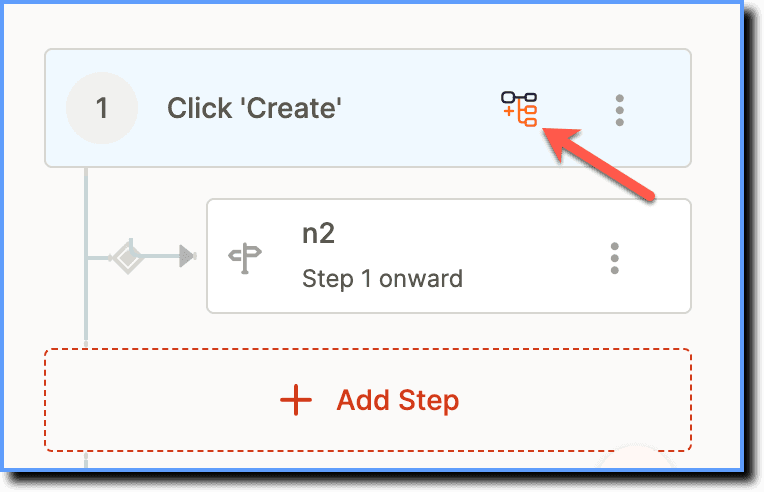
For more information, see Add a branch to a Flow
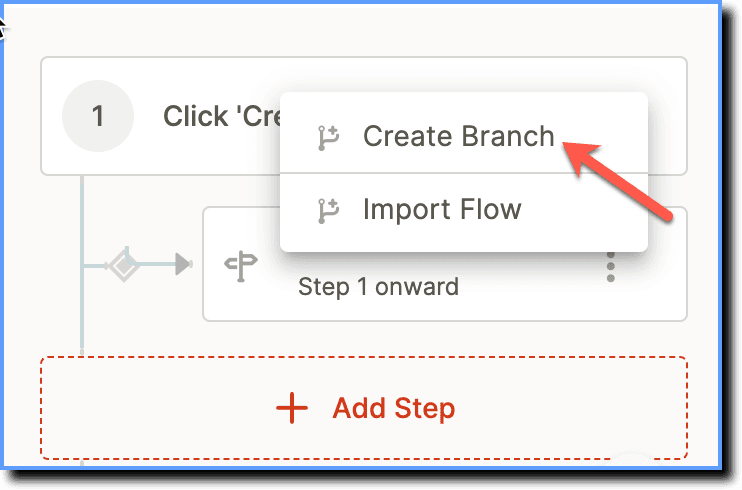
- Click Create Branch.
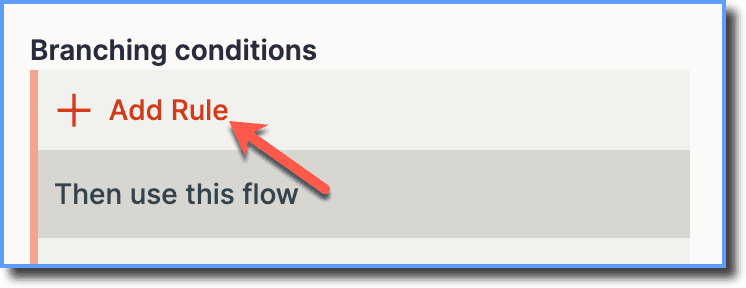
- Under Branching conditions, click Add Rule.
- Select Action Element Is rule using the dropdown.
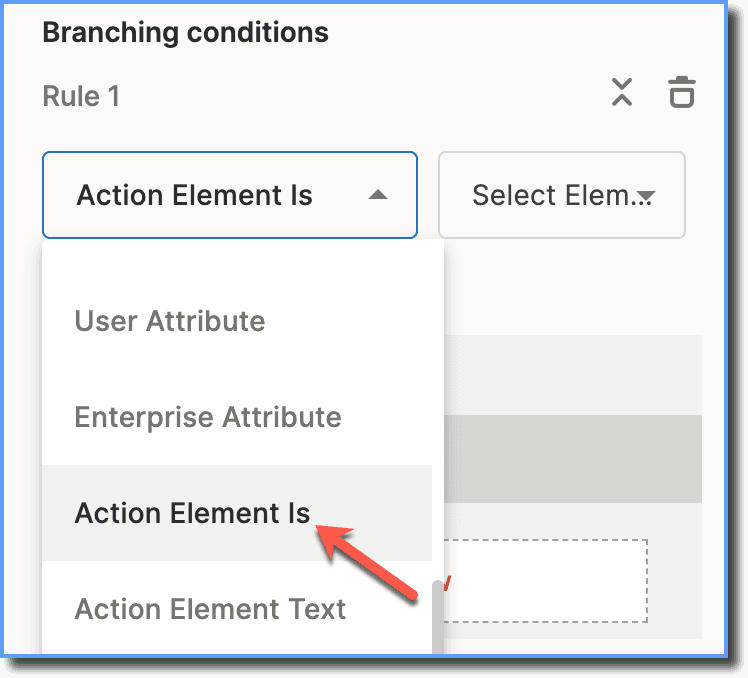
- Select the Select Element option from the dropdown instead of CSS Selector.
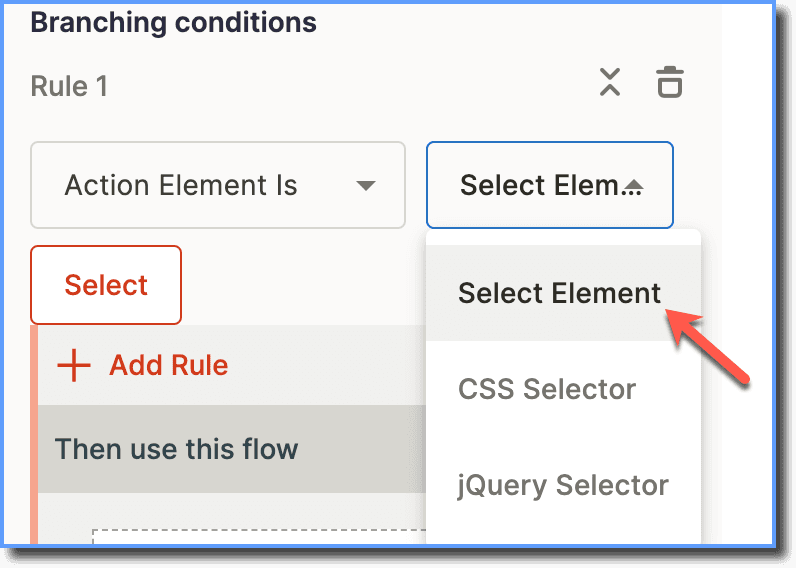
- Click Select.

- Click the element for which you want to find a CSS Selector in the application's UI.
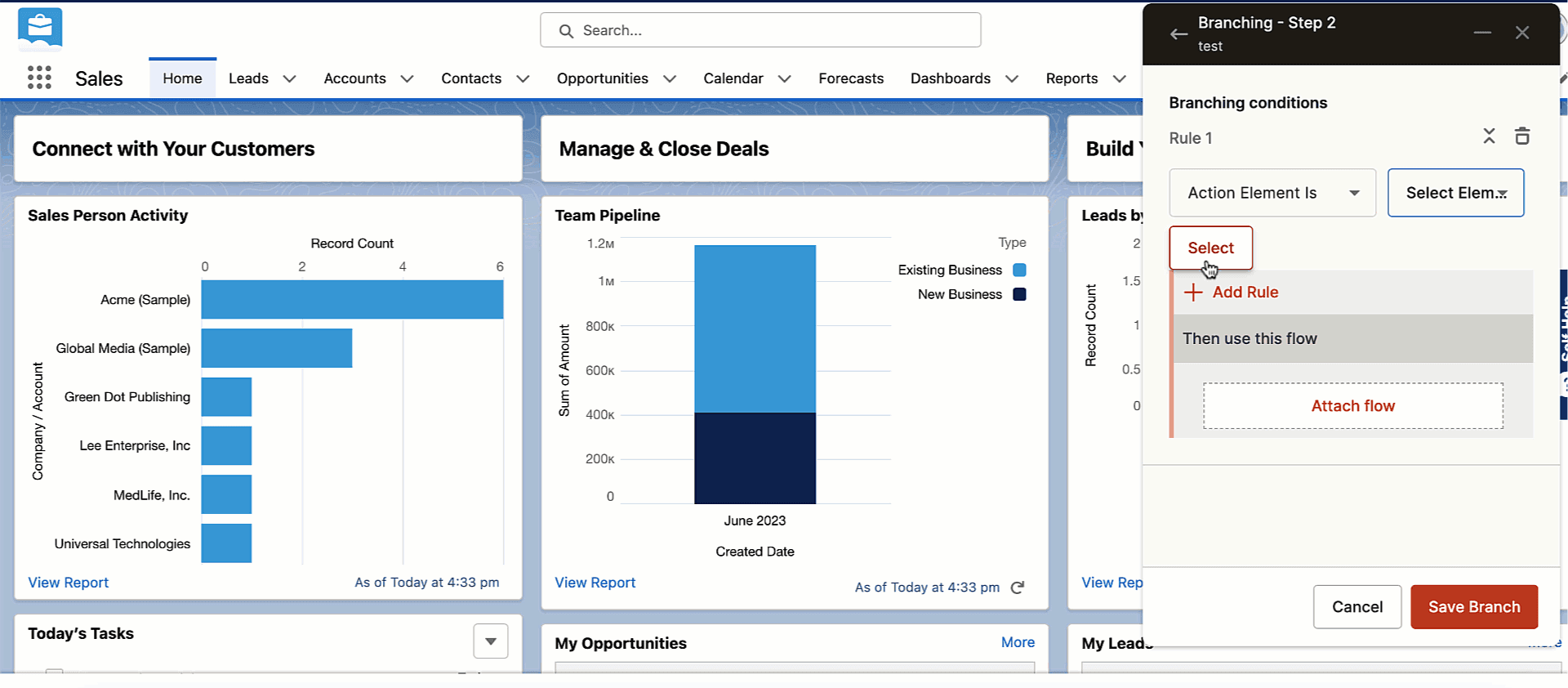
- Whatfix captures the CSS Selector of the element automatically.
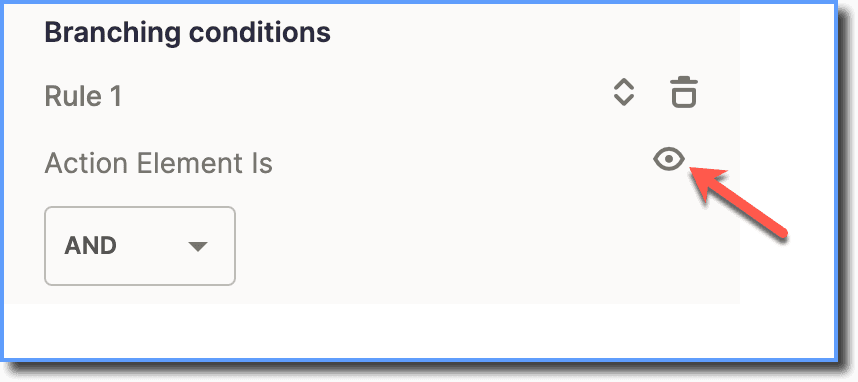
- To verify the selected element click the View icon.
Capture CSS Selector while configuring Display Rules
- Launch Whatfix Studio, create the content, and then go to the ADVANCED OPTIONS section.

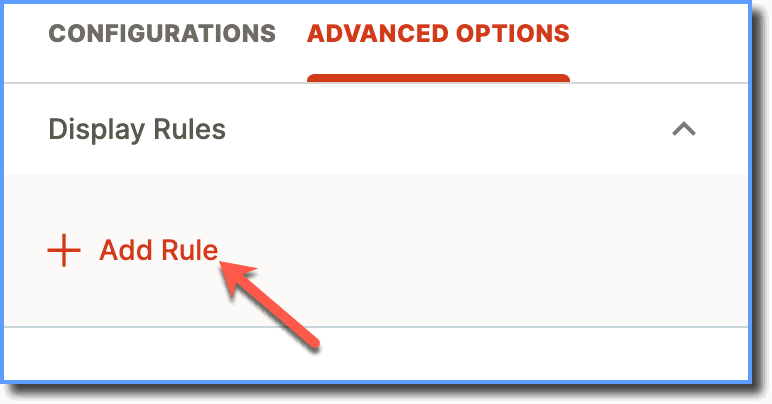
- Expand the Display Rules dropdown, and then click Add Rule.
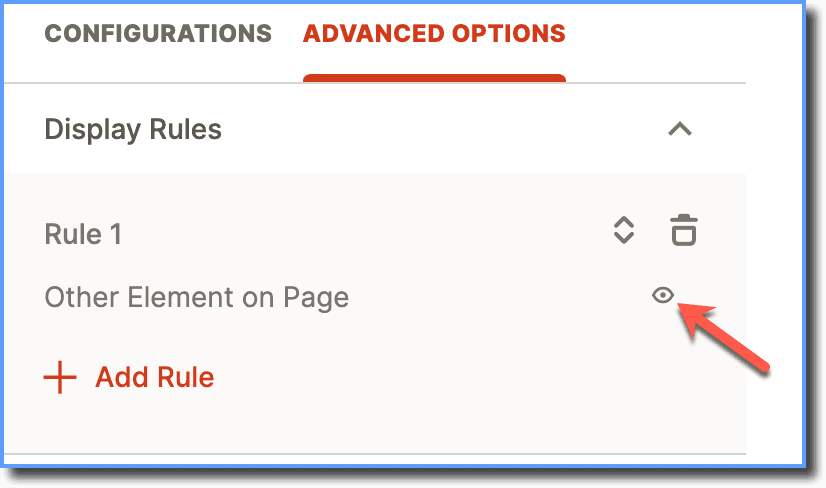
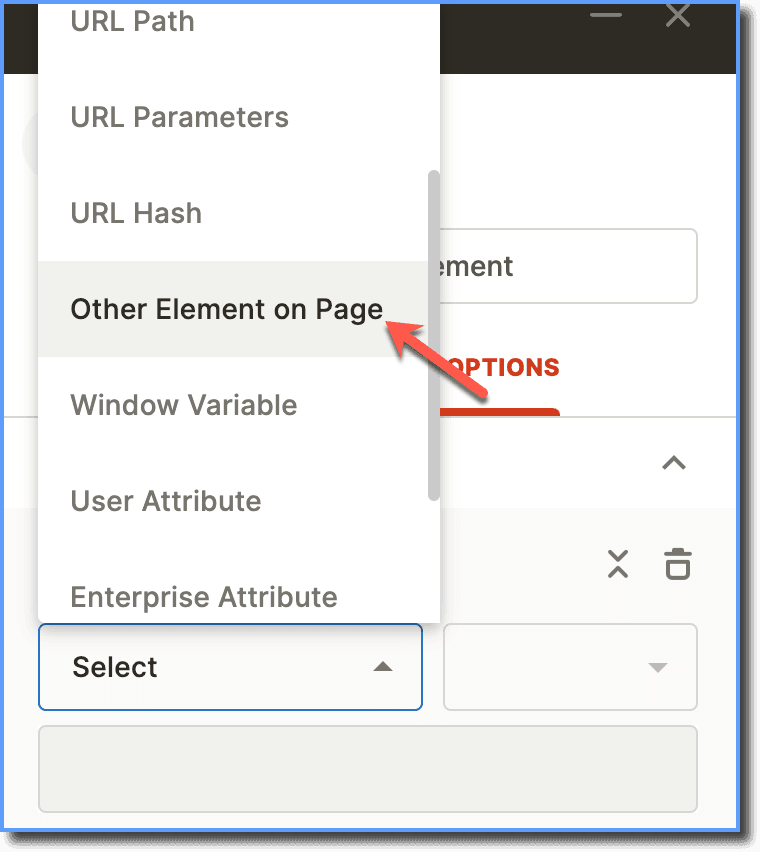
- Select the Other Element on Page option from the dropdown.
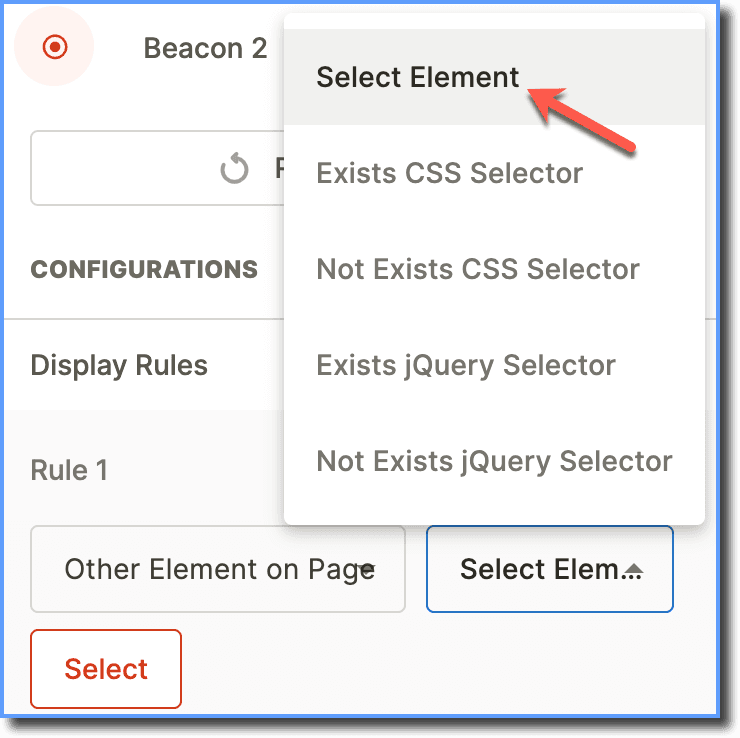
- Select the Select Element option in the dropdown instead of CSS Selector.
For more information, see Other Element Is condition as a Visibility Rule.
- Click Select.

- Click the element for which you wish to find a CSS Selector in the application's UI.
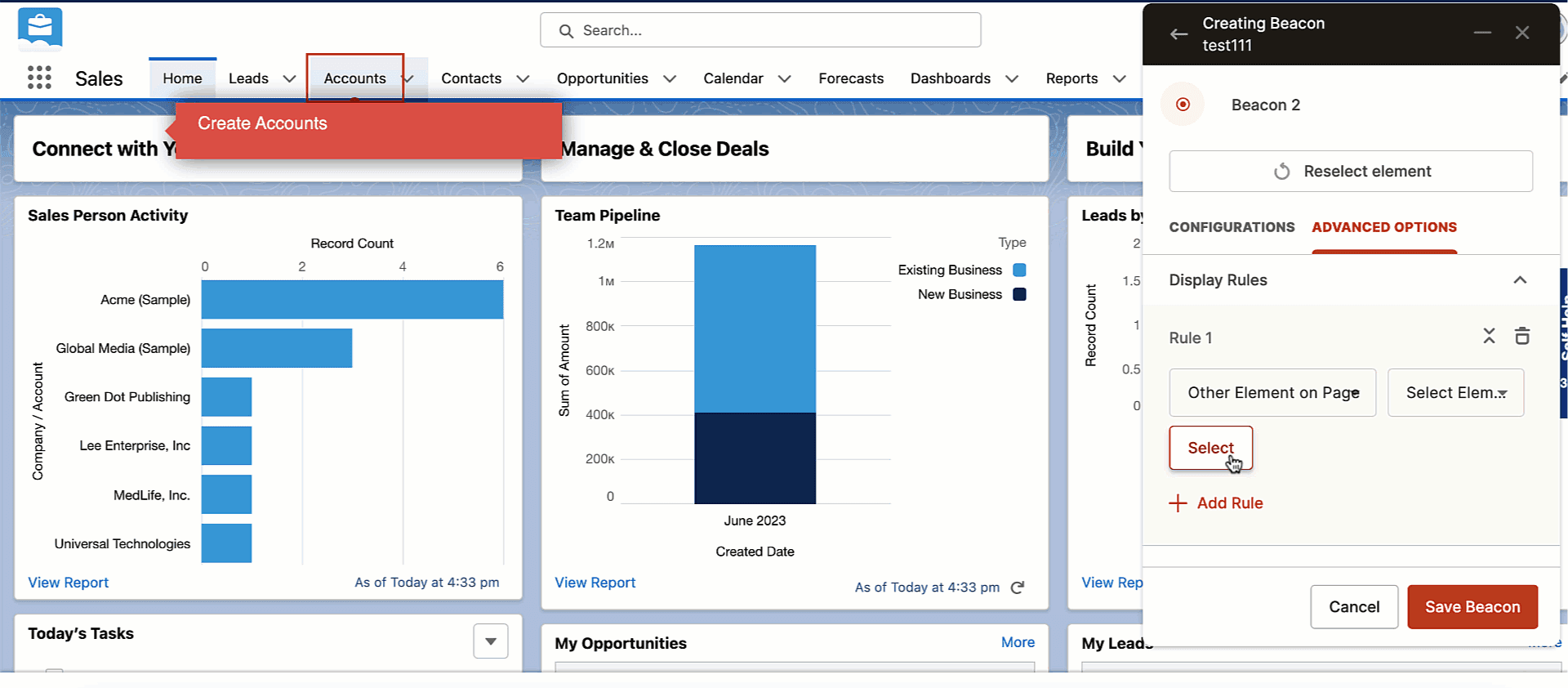
- Whatfix captures the CSS Selector of the element automatically.
- To verify the selected element, click the View icon.