Microsoft System Center Configuration Manager (SCCM)
Deploy a SCCM Application using PowerShell
The following steps, for example, show how you can create an application to install the Whatfix extension on Edge using a PowerShell script.
Expand the following accordions to create an application and distribute the Whatfix extension:
Step 1: Create an application
The following example shows the steps to create the Whatfix extension on Chrome using a Powershell script:
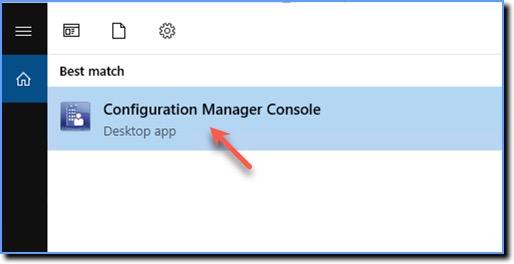
- On your Windows system, open the Configuration Manager Console.
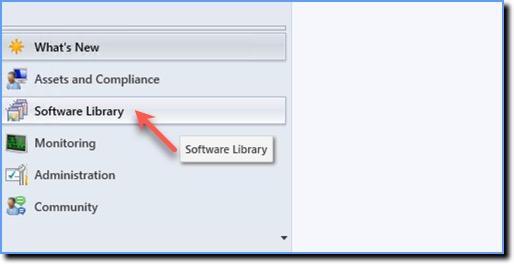
- Click Software Library.
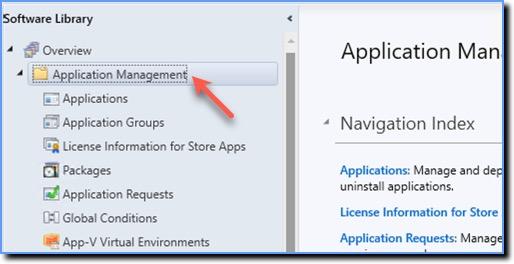
- Expand Application Management.
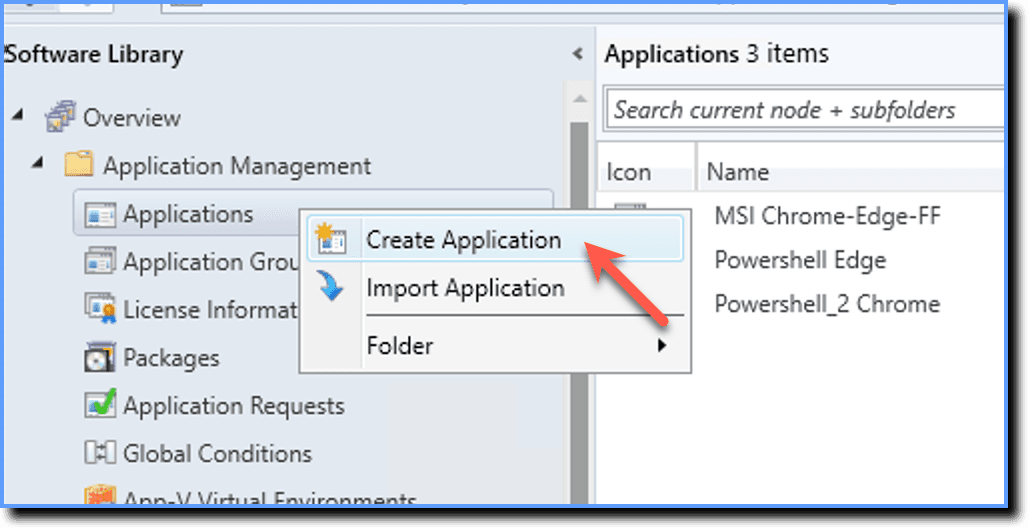
- Right-click Applications, and then click Create Application.
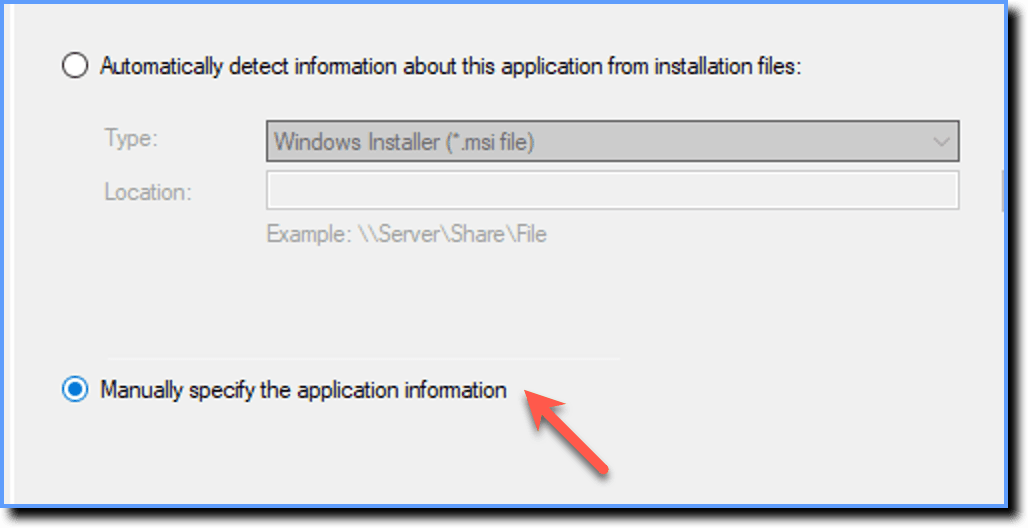
- In the Create Application Wizard, select Manually specify the application information option.
- Click Next.
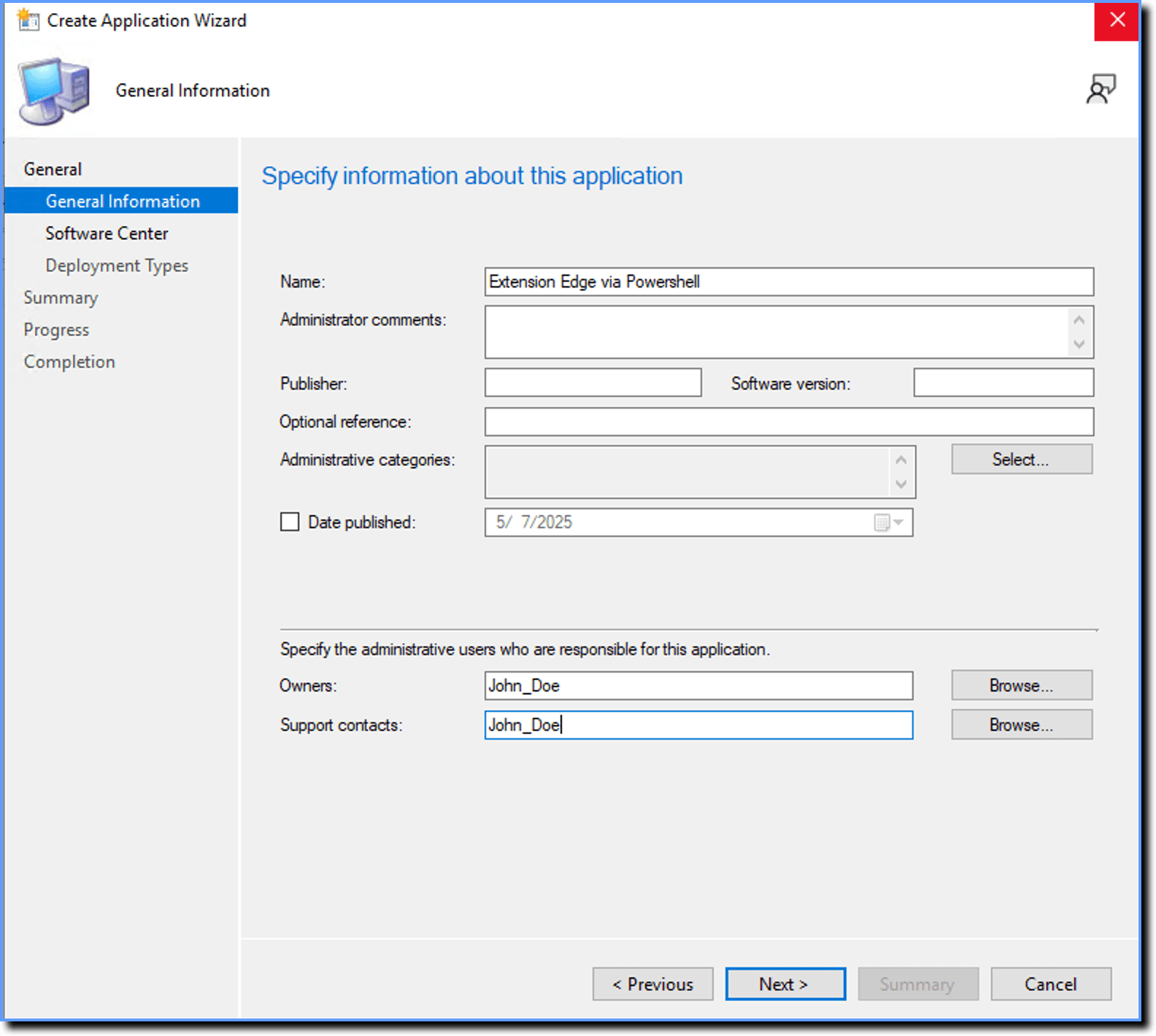
- Enter the information about the application that you are creating and then click Next.
- Click Next.
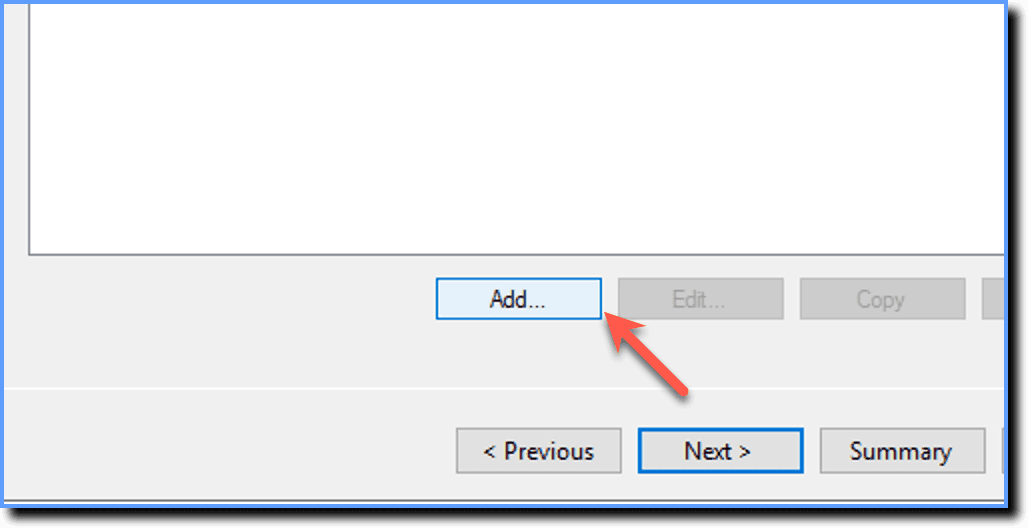
- Click Add. In this step you need to add the script installer.
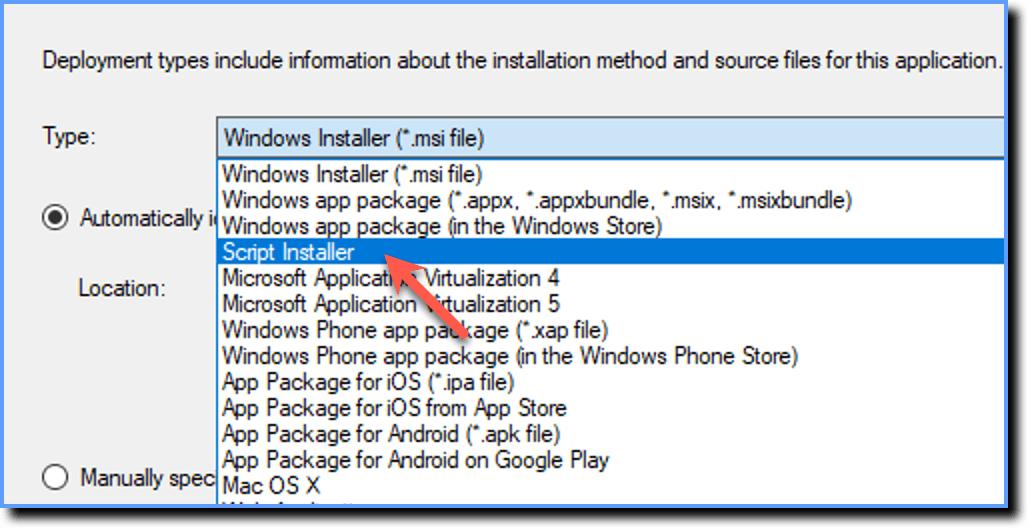
- In the Type dropdown, select Script Installer.
- Click Next.
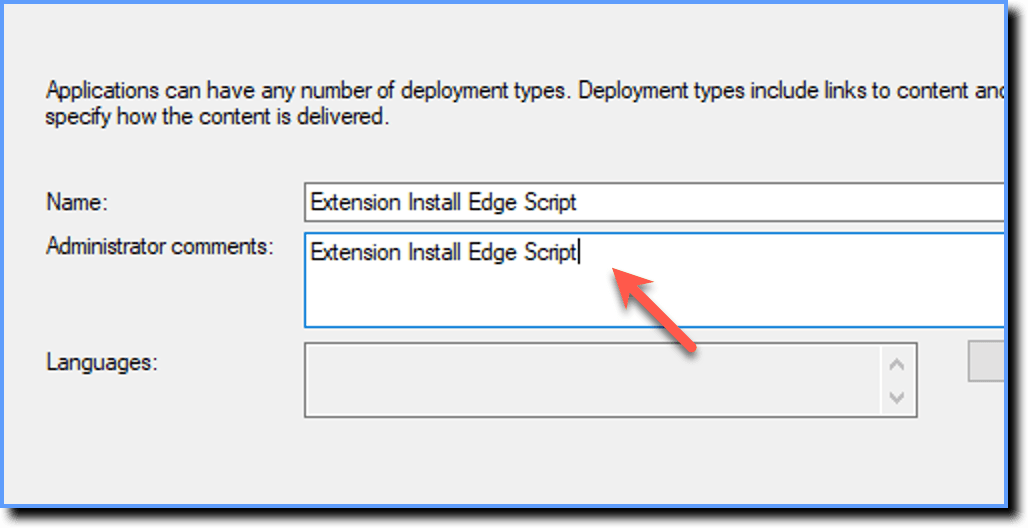
- Enter the details in the Name and Administrator comments fields.
- Click Next.
- Click Browse and select the path to the deployment content. For example,
\\wfx-sccmps01\Whatfix Packages\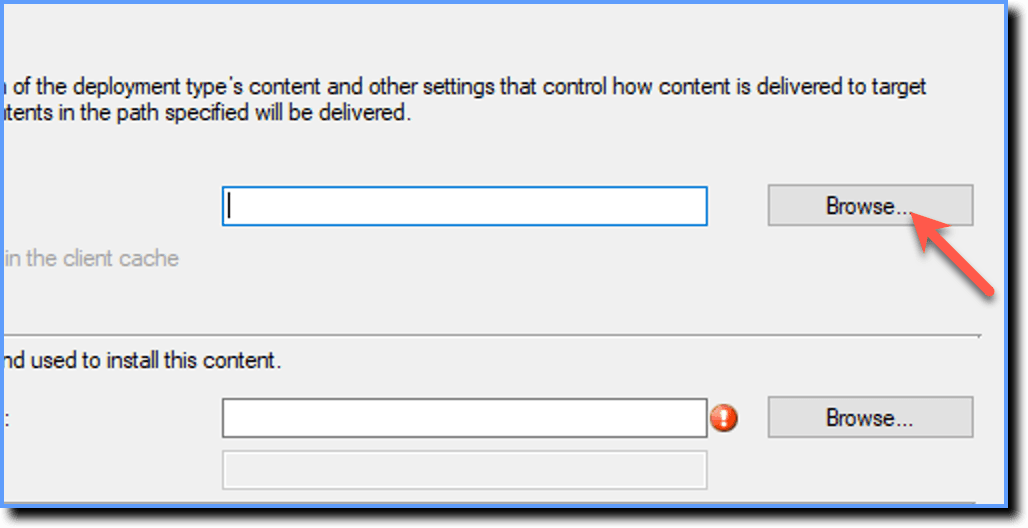
A folder must be created in the primary site server where you download and save the PowerShell script. In this step, select the location of the source folder. For example, \\wfx-sccmps01\Whatfix Packages\Powershell.
- In the Installation program field, enter the following code to install the extension for the Edge browser:
powershell.exe -executionpolicy bypass -file "Whatfix-ExtensionInstall.ps1" -Browser Edge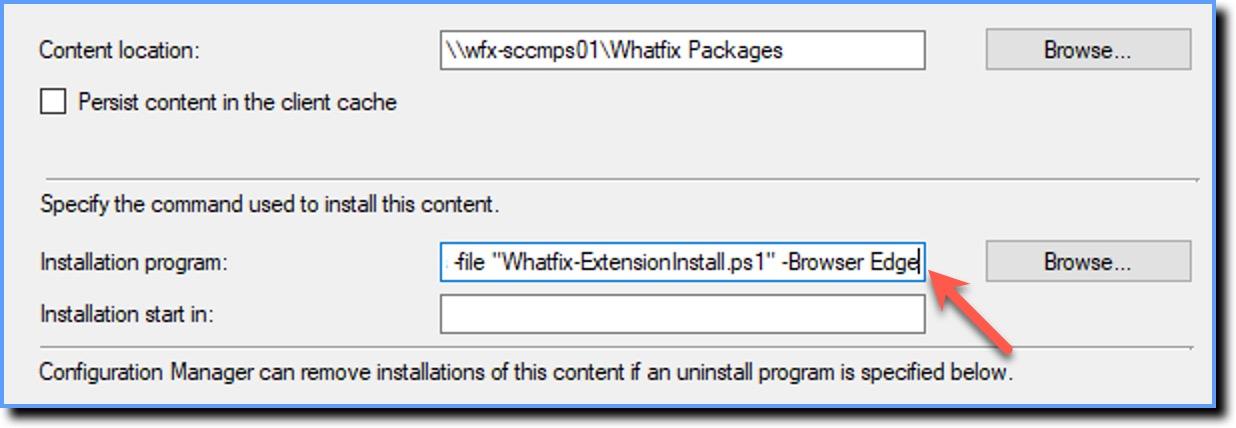
If you want to install the extension on the Chrome browser using Powershell, enter the folowing command: powershell.exe -executionpolicy bypass -file "Whatfix-ExtensionInstall.ps1" -Browser Chrome
- In the Uninstall program field, enter the following code to uninstall the extension for the Edge browser:
powershell.exe -executionpolicy bypass -file "Whatfix-ExtensionInstall.ps1" -Browser Edge -Remove True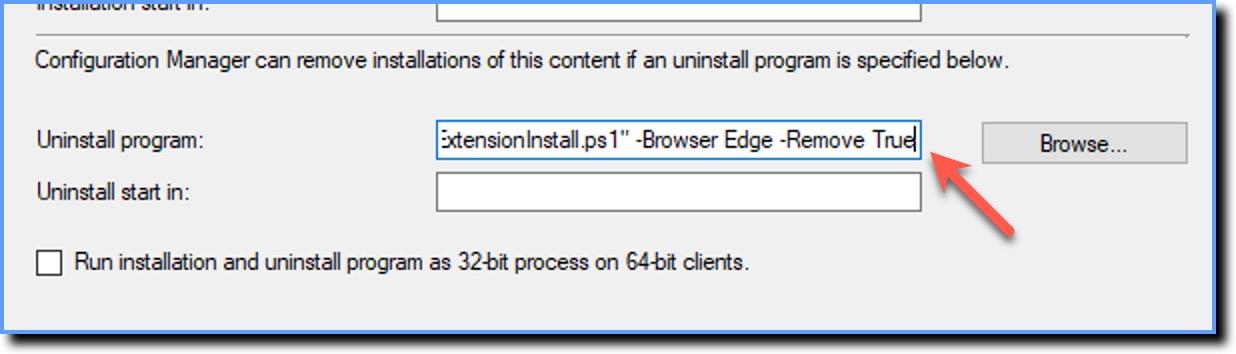
If you want to uninstall the extension on the Chrome browser using Powershell, enter the folowing command: powershell.exe -executionpolicy bypass -file "Whatfix-ExtensionInstall.ps1" -Browser Chrome -Remove True
- Click Next.
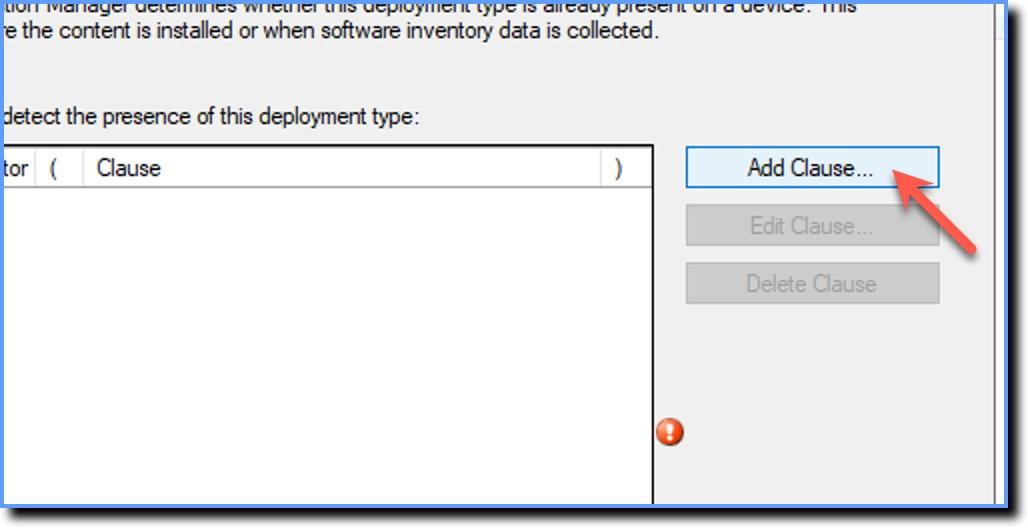
- Click Add Clause.
- In the De****tection Rule window, change the Setting Type to Registry.
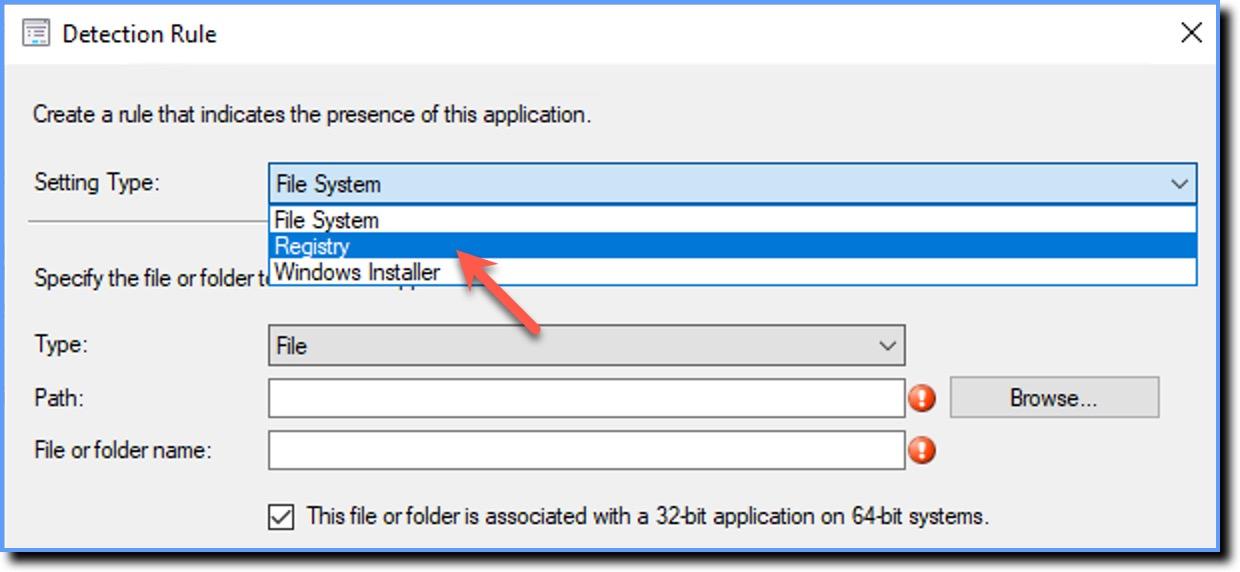
In the Detection rule window, you need to configure a success criteria so that a deployment is successful.
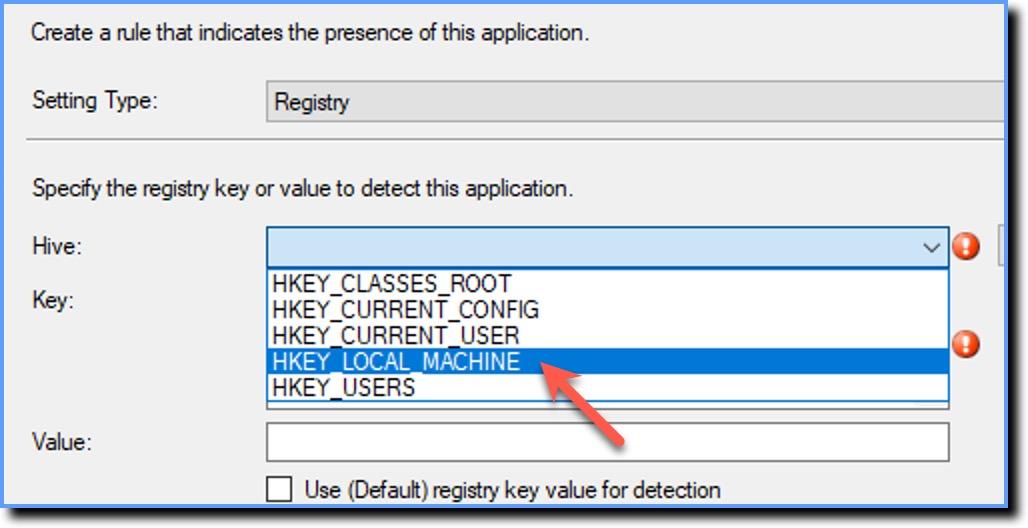
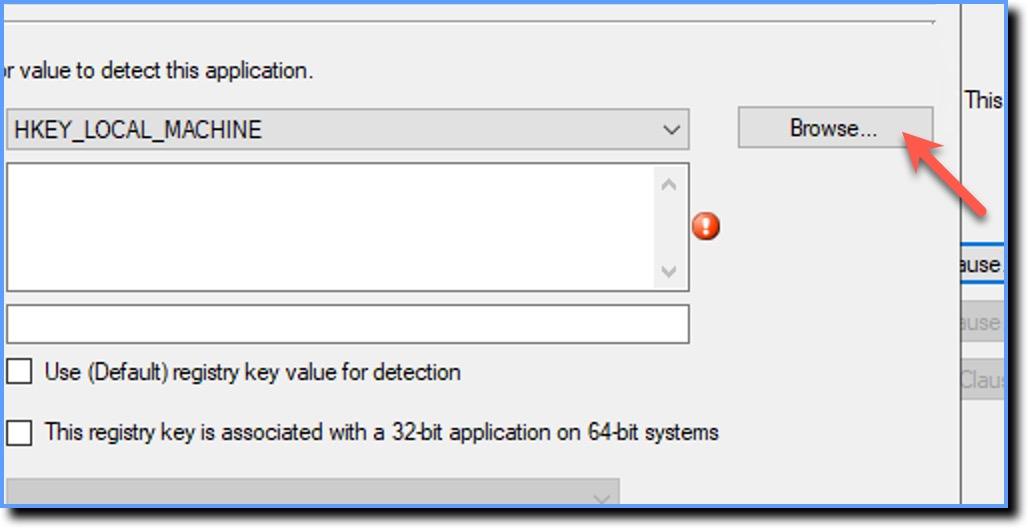
- Select HKEY_LOCAL_MACHINE from the Hive dropdown.
- Click Browse.
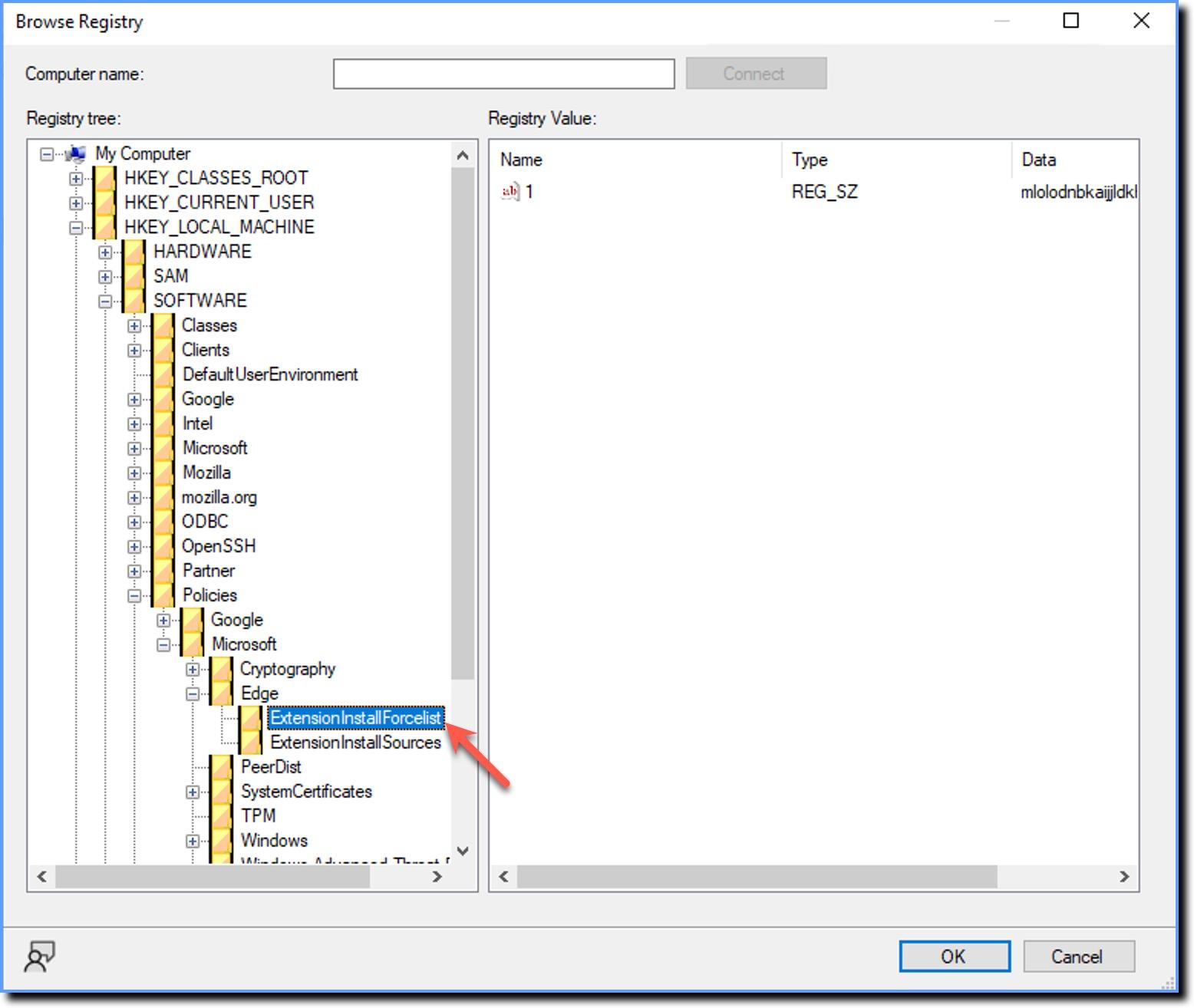
- In the Browser Registry window, go to to the following path HKEY_LOCAL_MACHINE → SOFTWARE → Policies → Edge → ExtensionInstallForcelist.
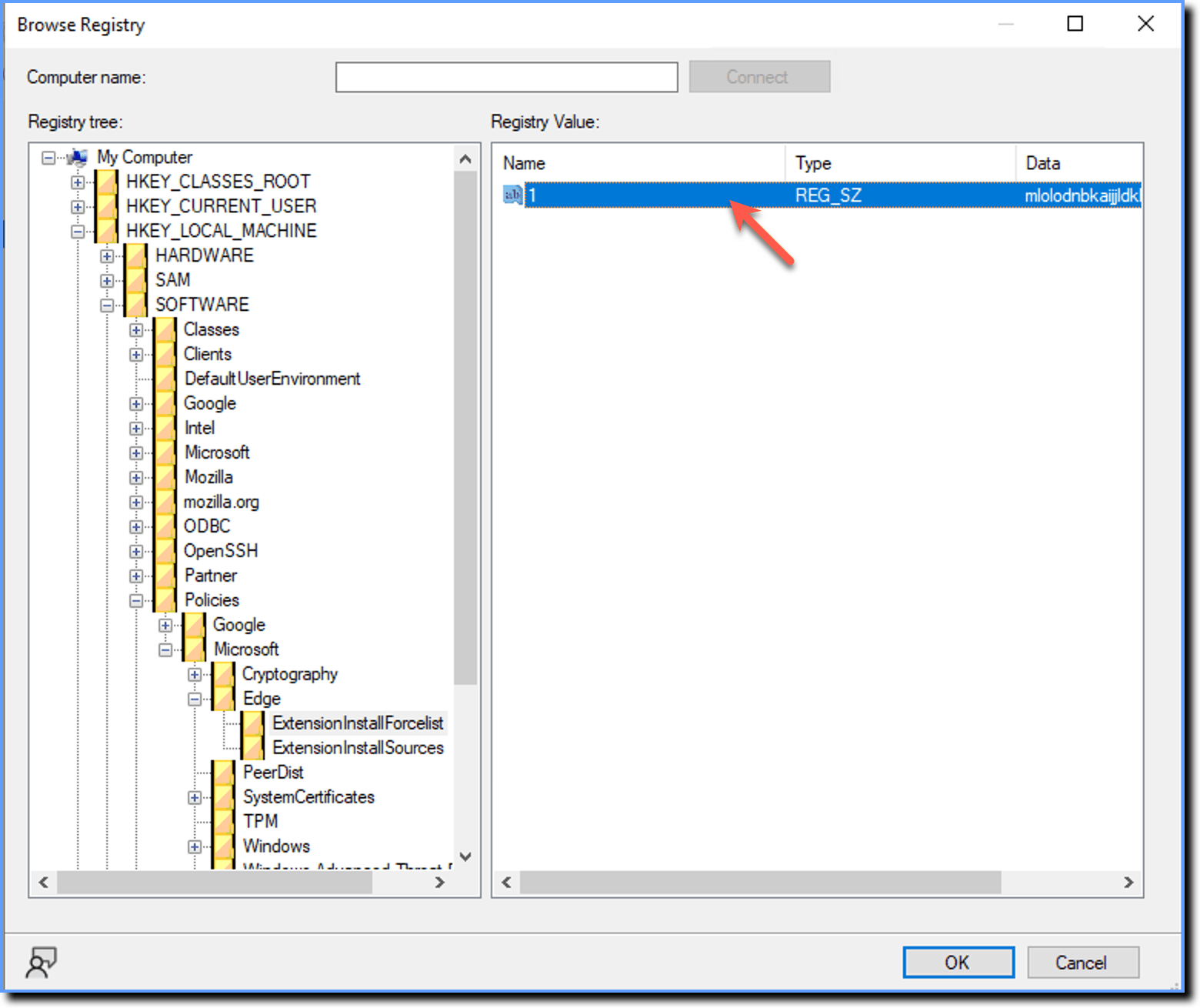
- Double-click the Registry Value as shown below.
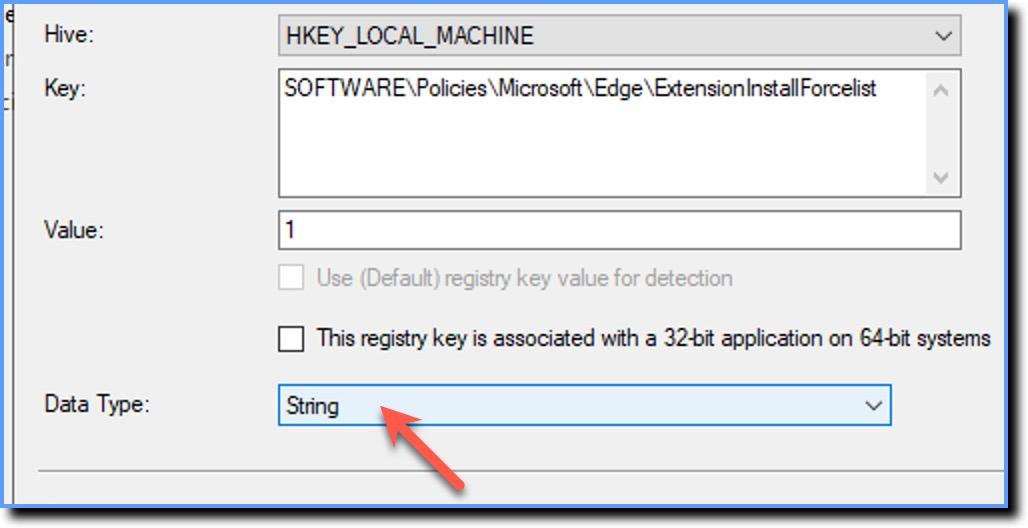
- Select Data Type as String, and then click Ok.
- Click Next.
- In the User Experience tab, select the fields as shown below (Recommended): Installation behavior: Install for system Logon requirement: Whether or not a user is logged in Installation program visibility: Hidden Maximum allowed run time (minutes): 120 Estimated installation time (minutes): 0
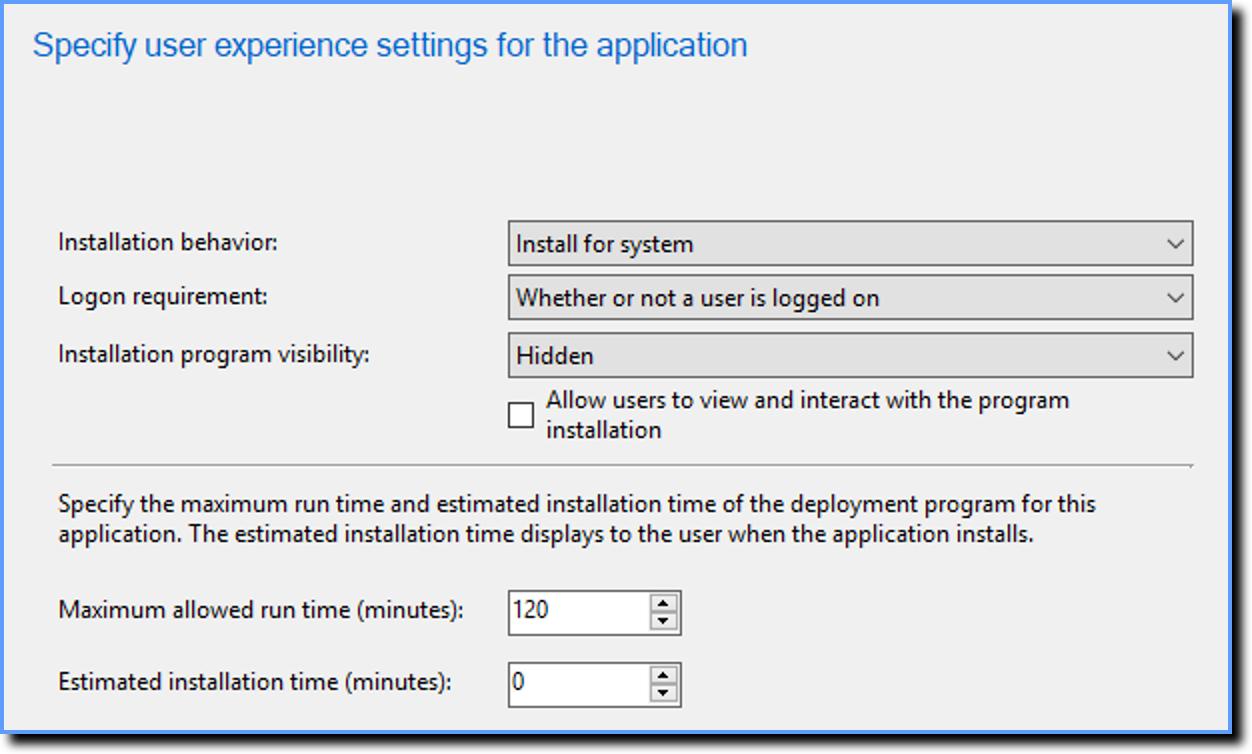
- Click Next.
- Verify the summary of the application, and then click Next. This creates the deployment configuration for the application.
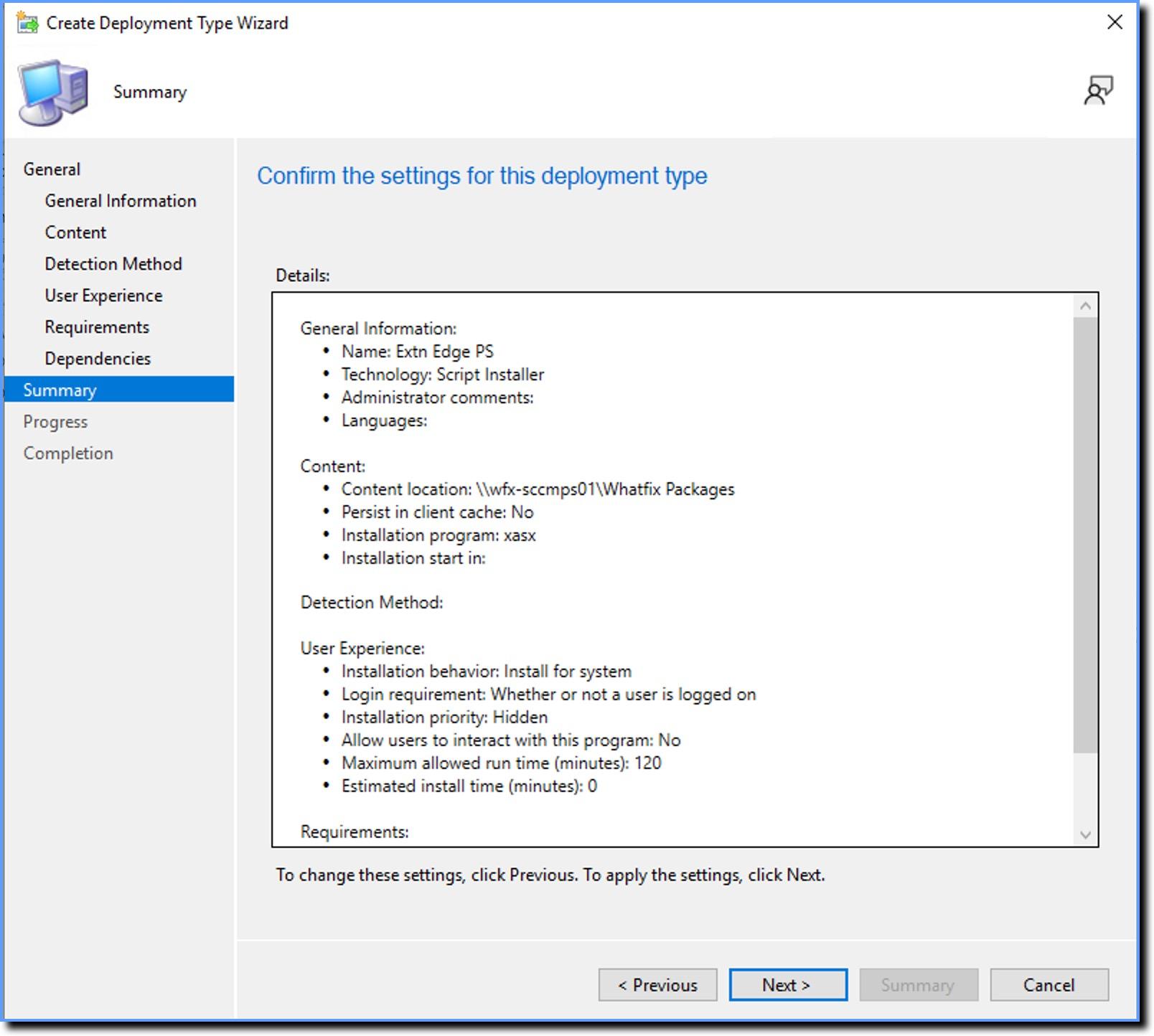
- You are redirected to the Create Application Wizard window. Click Next to view the changes in the Summary tab.
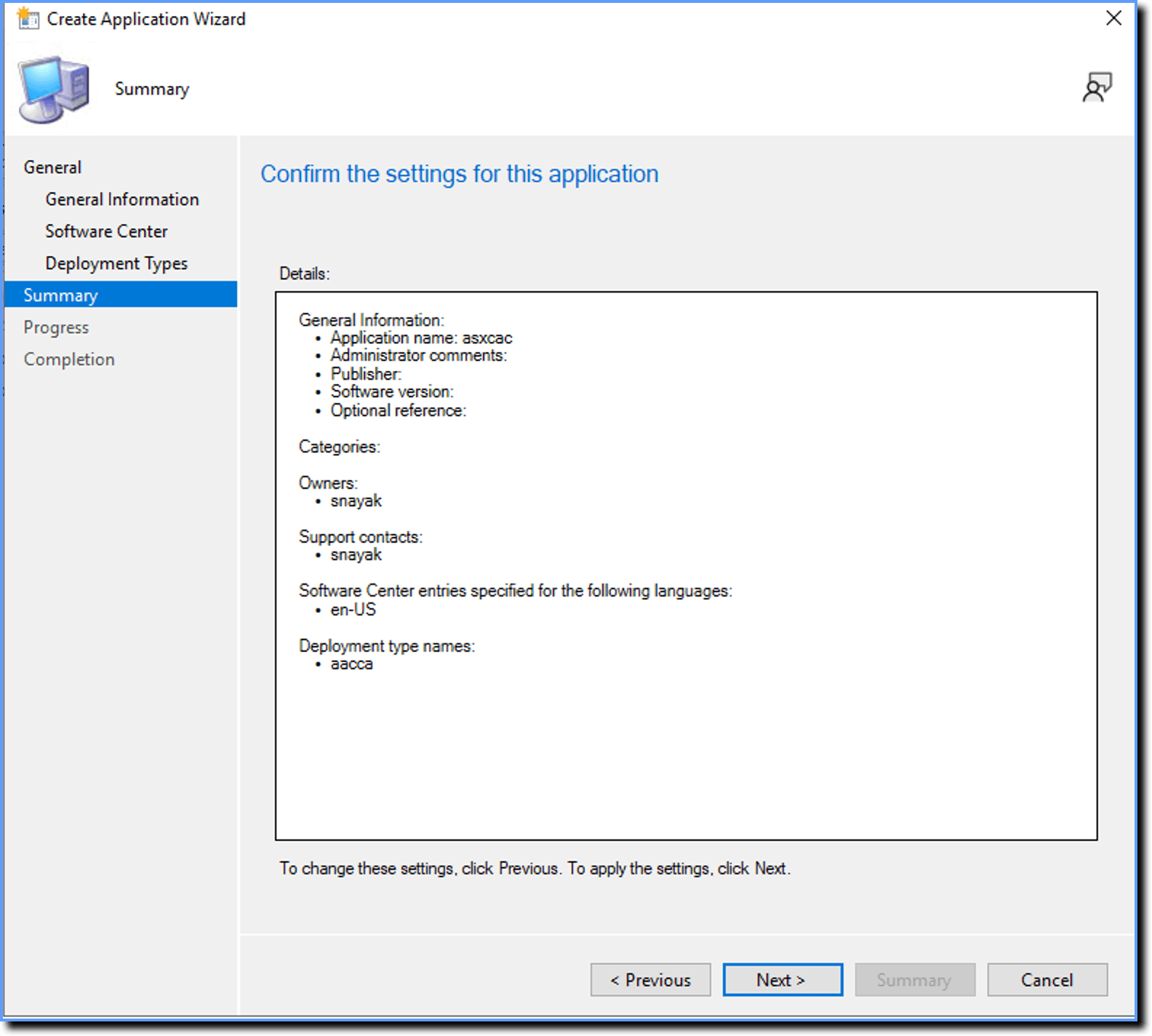
- Click Next. This completes the creation of the Application.
The Completion tab displays the status once the application is successfully created. 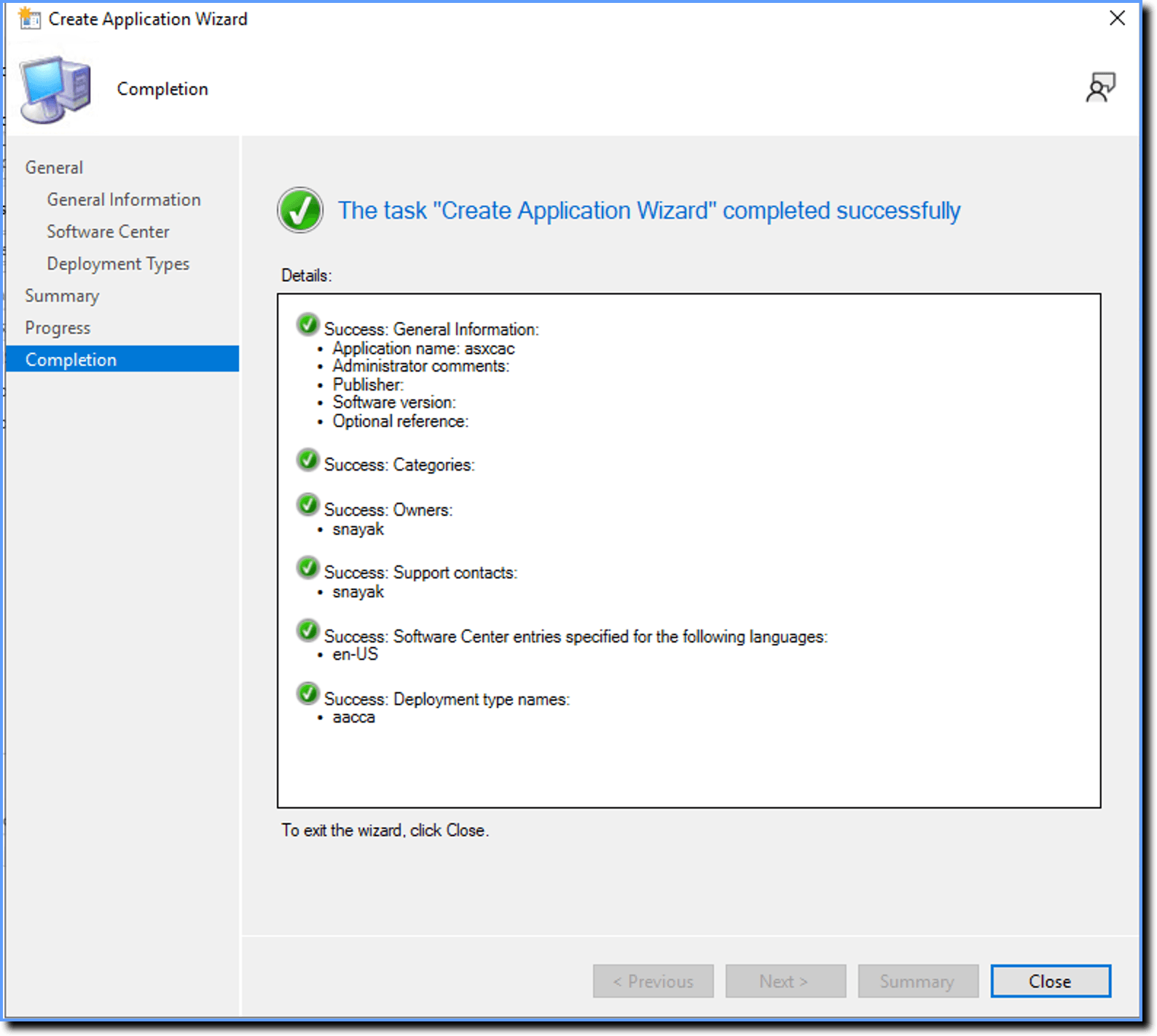
Step 2: Distribute the application
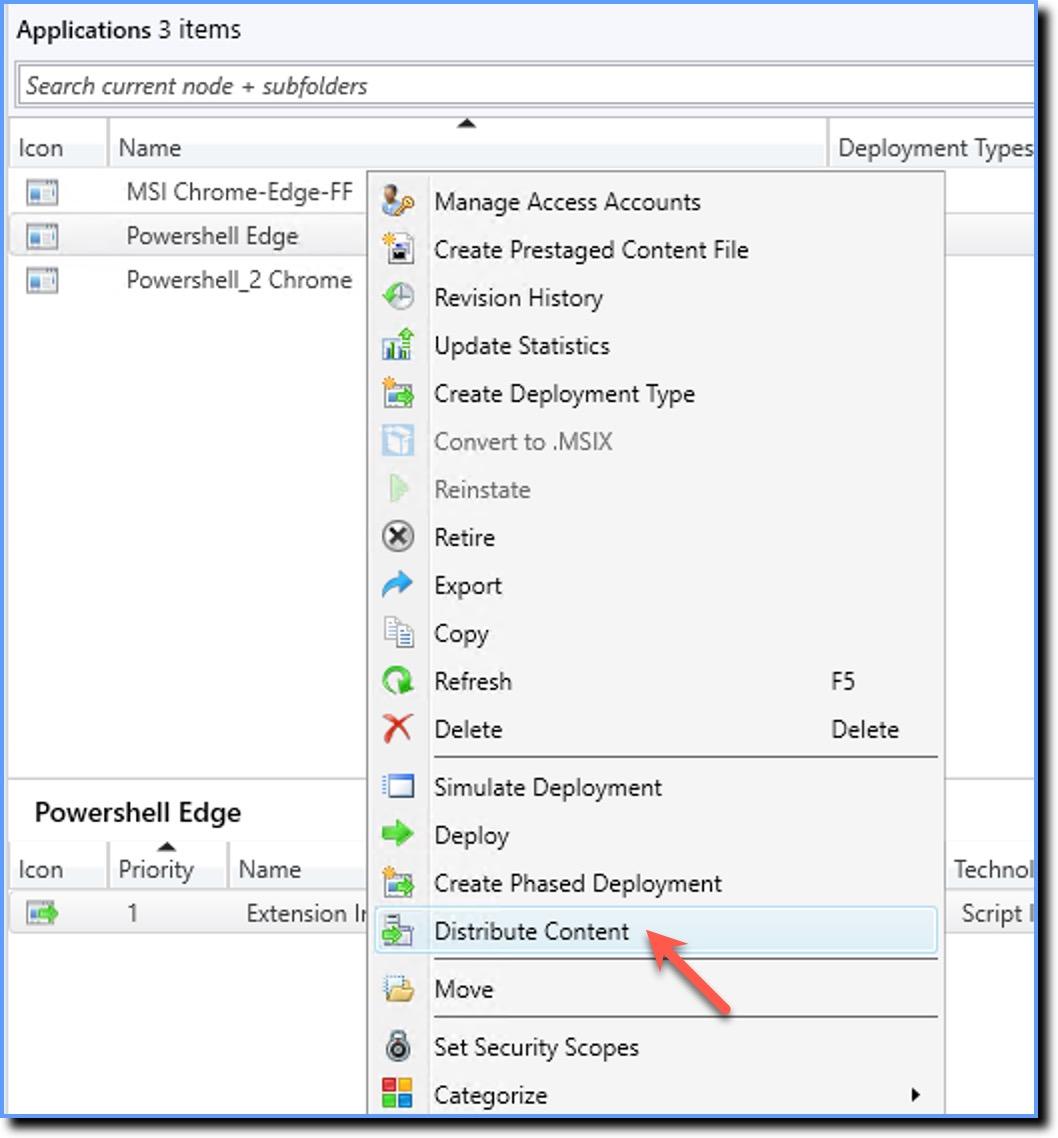
After you have created the application, you must distribute the content to your end users system. Use the following steps to distribute the Whatfix extension:
- Right-click the application you created in Step 1, and then click Distribute Content.
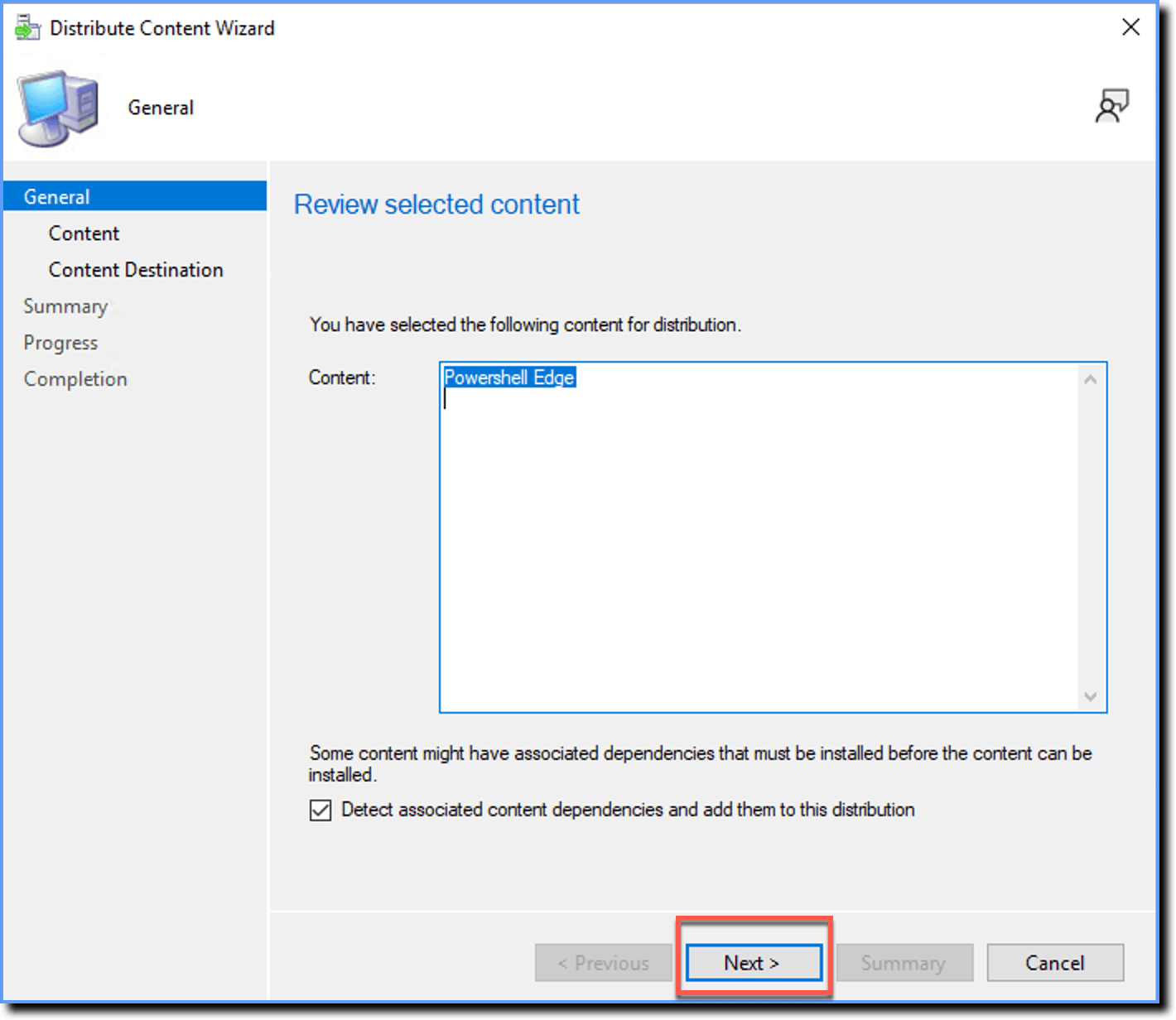
- Click Next.
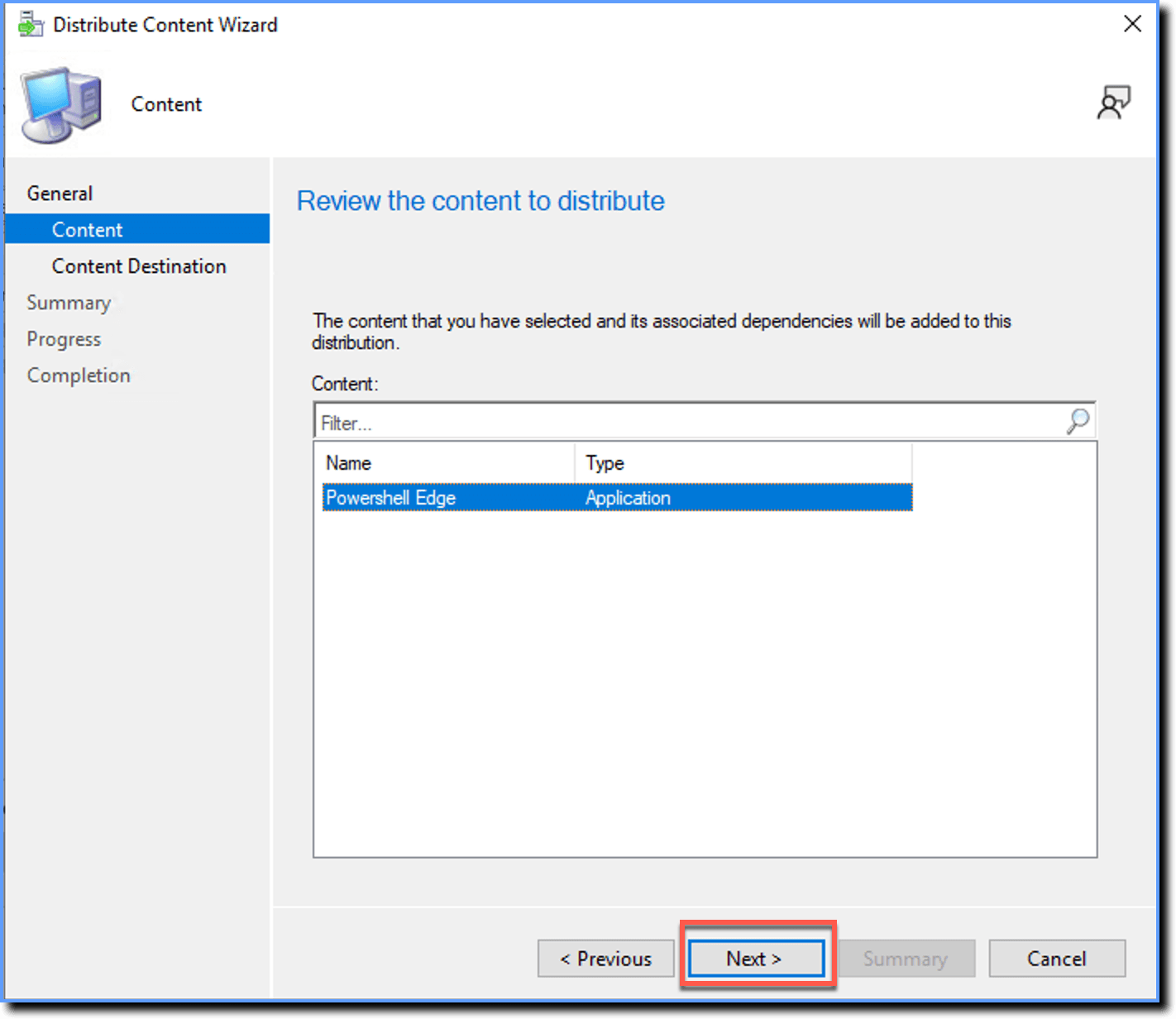
- Click Next.
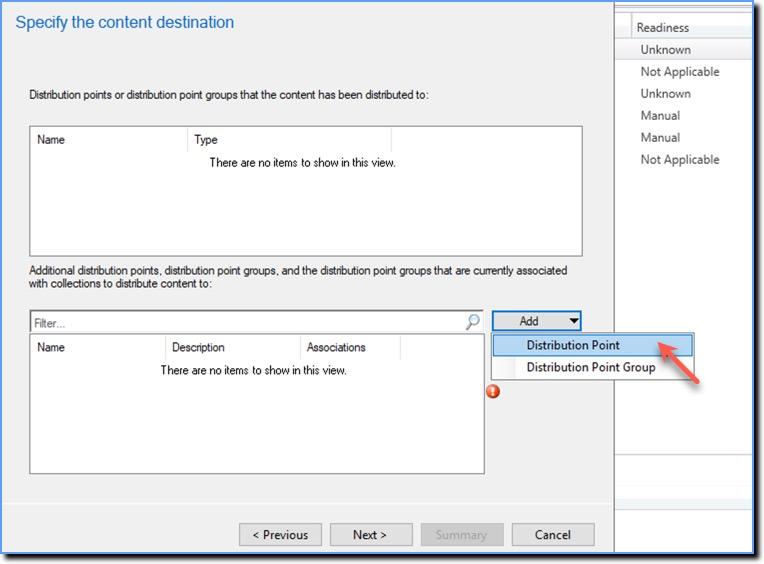
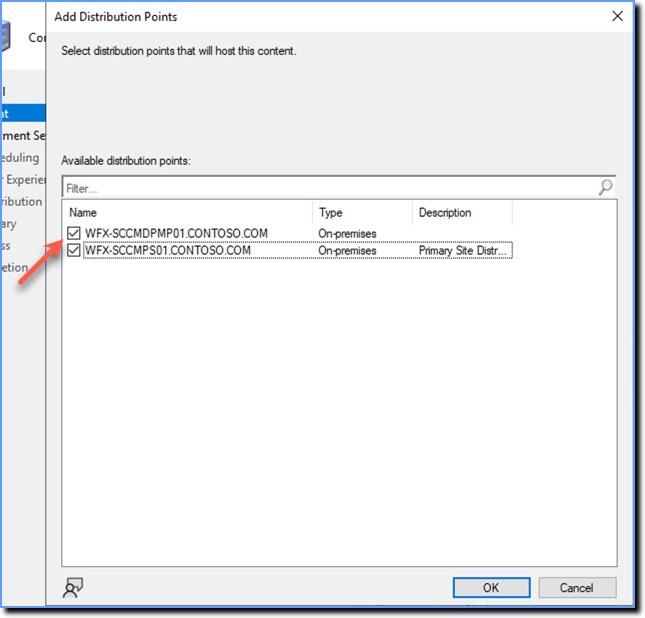
- Expand the Add dropdown, and then click Distribution Point. A distribution point is a server where the applications are hosted.
- Select the Distribution Points that hosts the Application, and then click Ok.
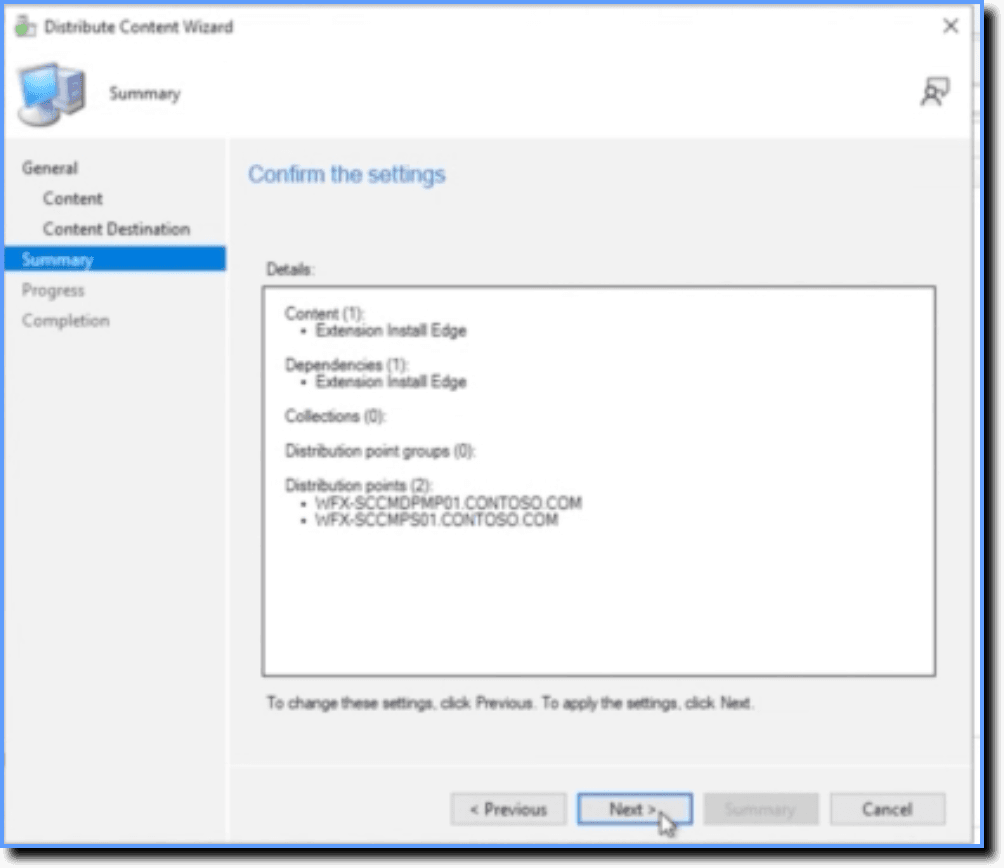
- Review the changes, and then click Next.
Step 3: Deploy the application
Use the following steps to deploy the Whatfix extension:
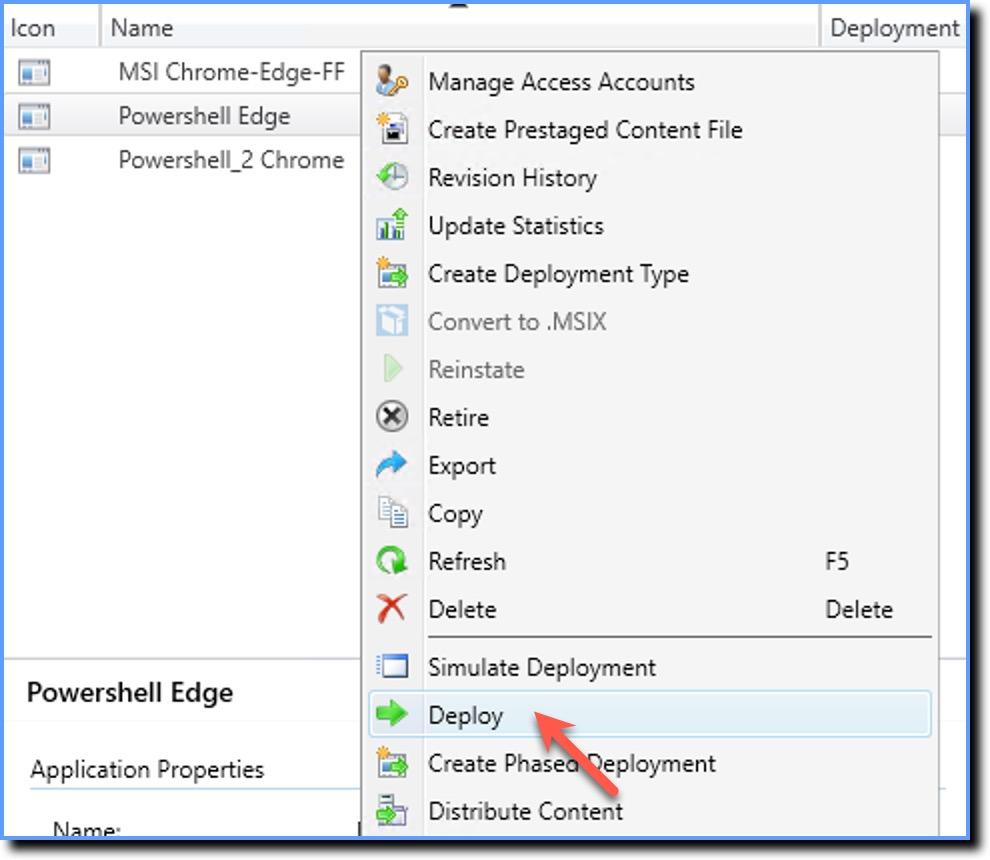
- Right-click the application, and then click Deploy.
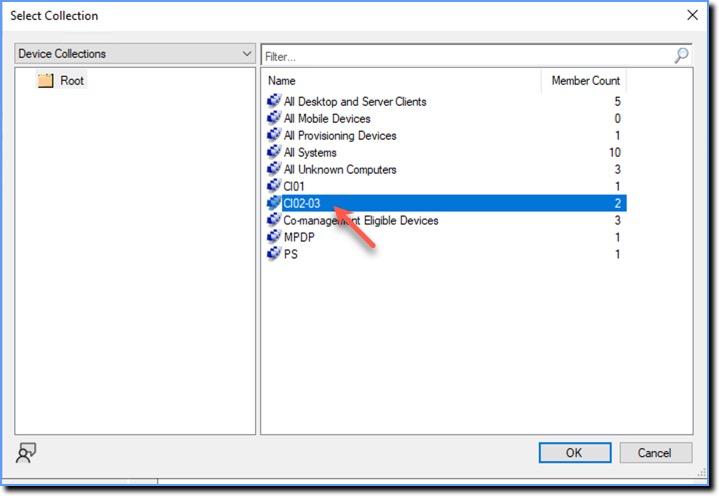
- Click Browse.
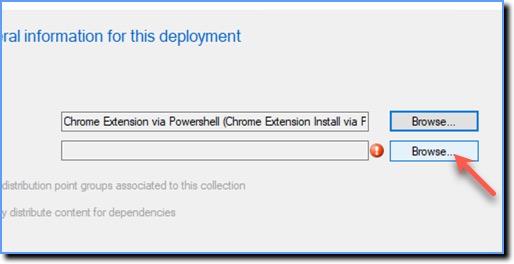
- Select a Collection, and then click Ok. A Collection is a group of devices on which you want to deploy the extension.
- Click Next.
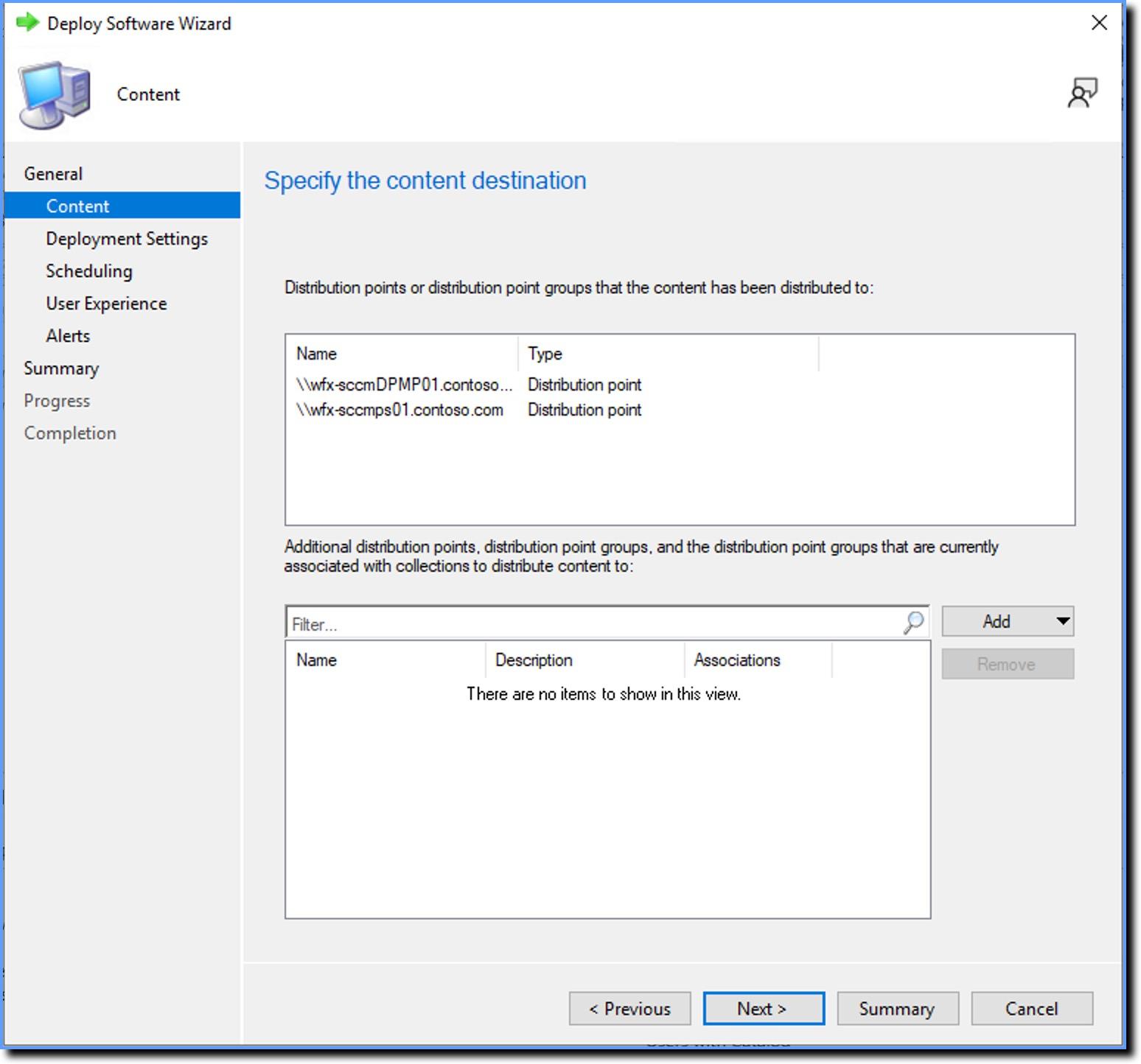
- The distribution points are automatically added. Click Next.
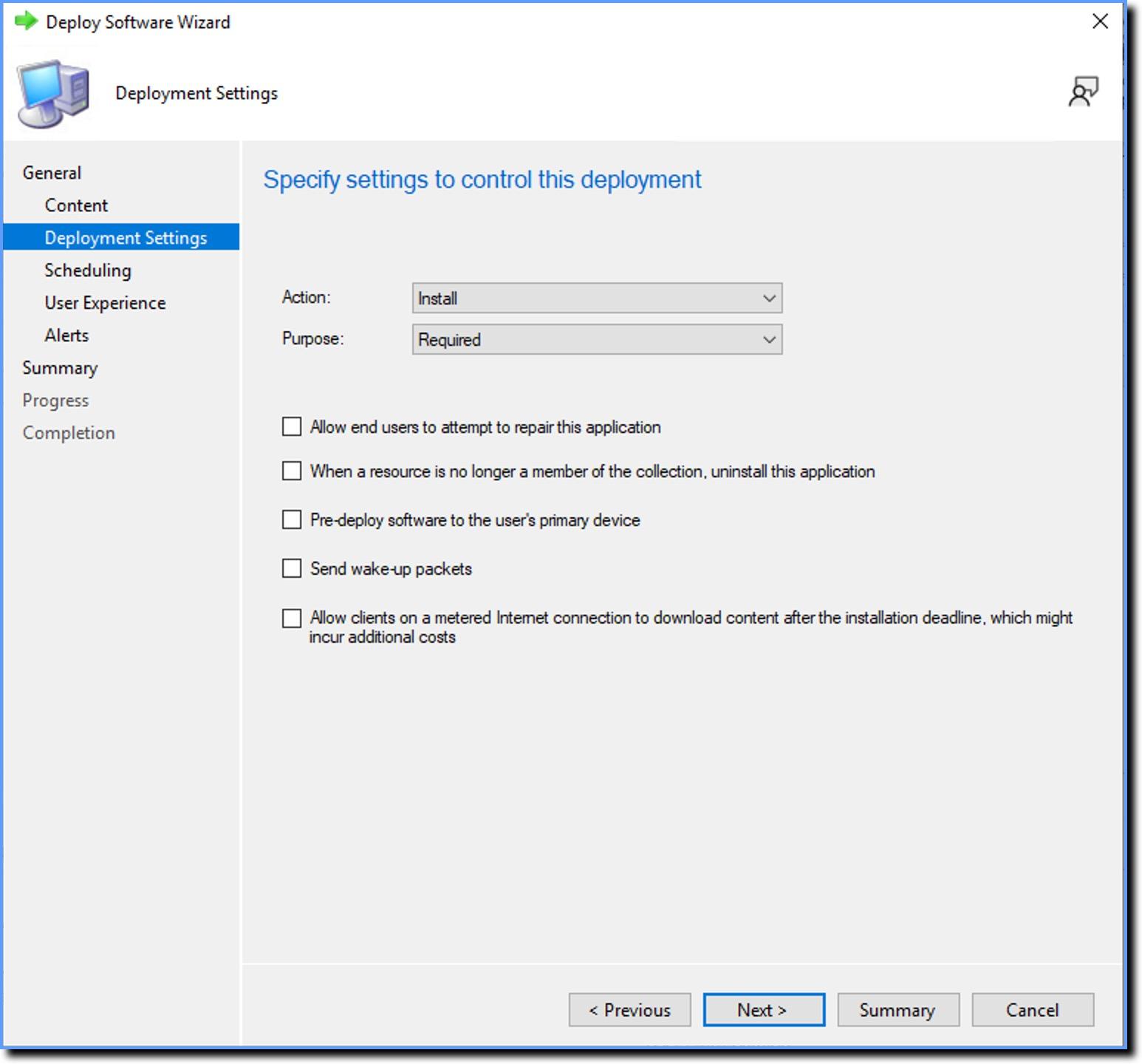
- In the Deployment Settings tab, set the Purpose to Required, and the other settings as follows:
- Click Next.
- In the Scheduling tab, click Next.
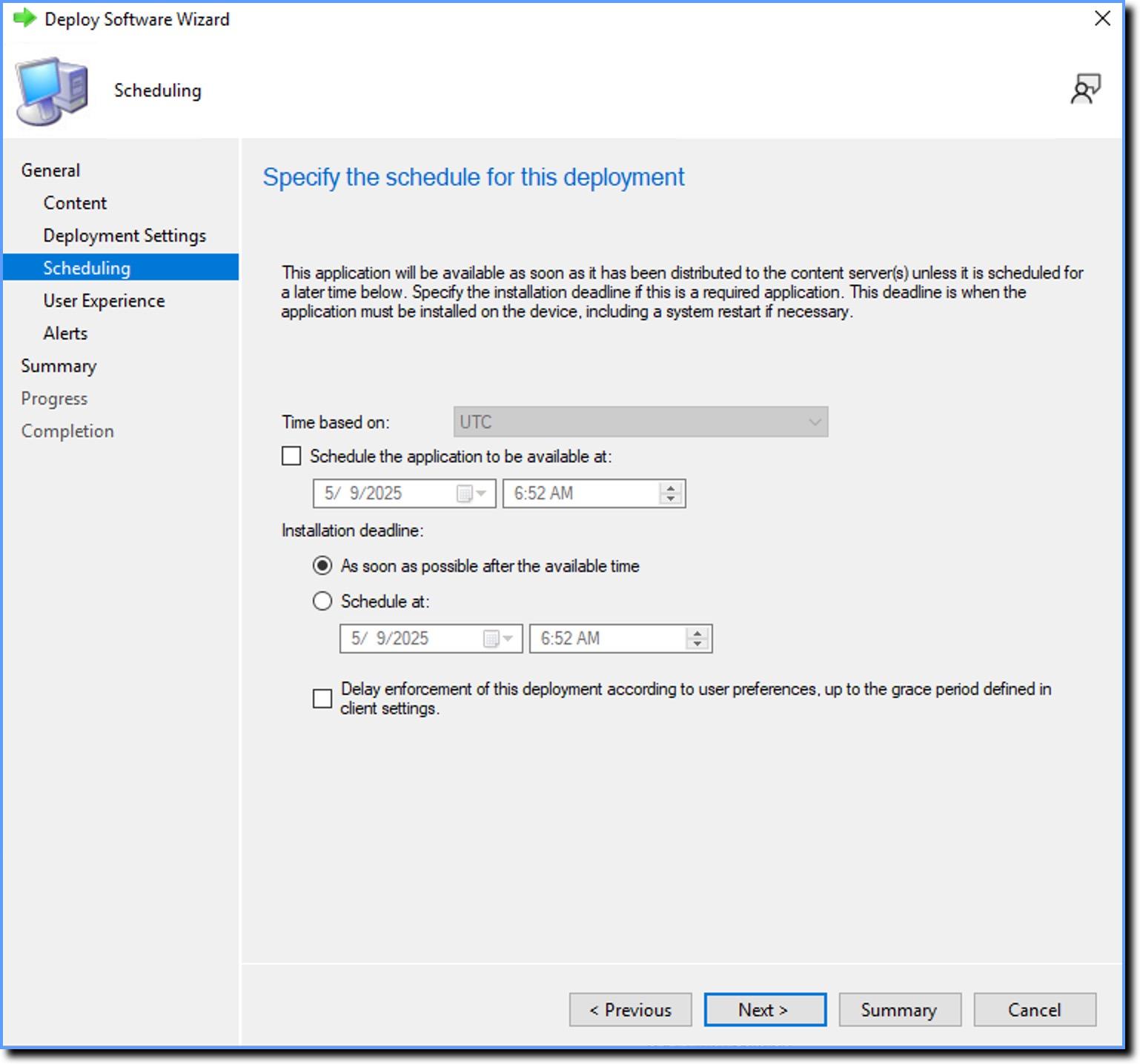
- Select the options as shown below, and then click Next.
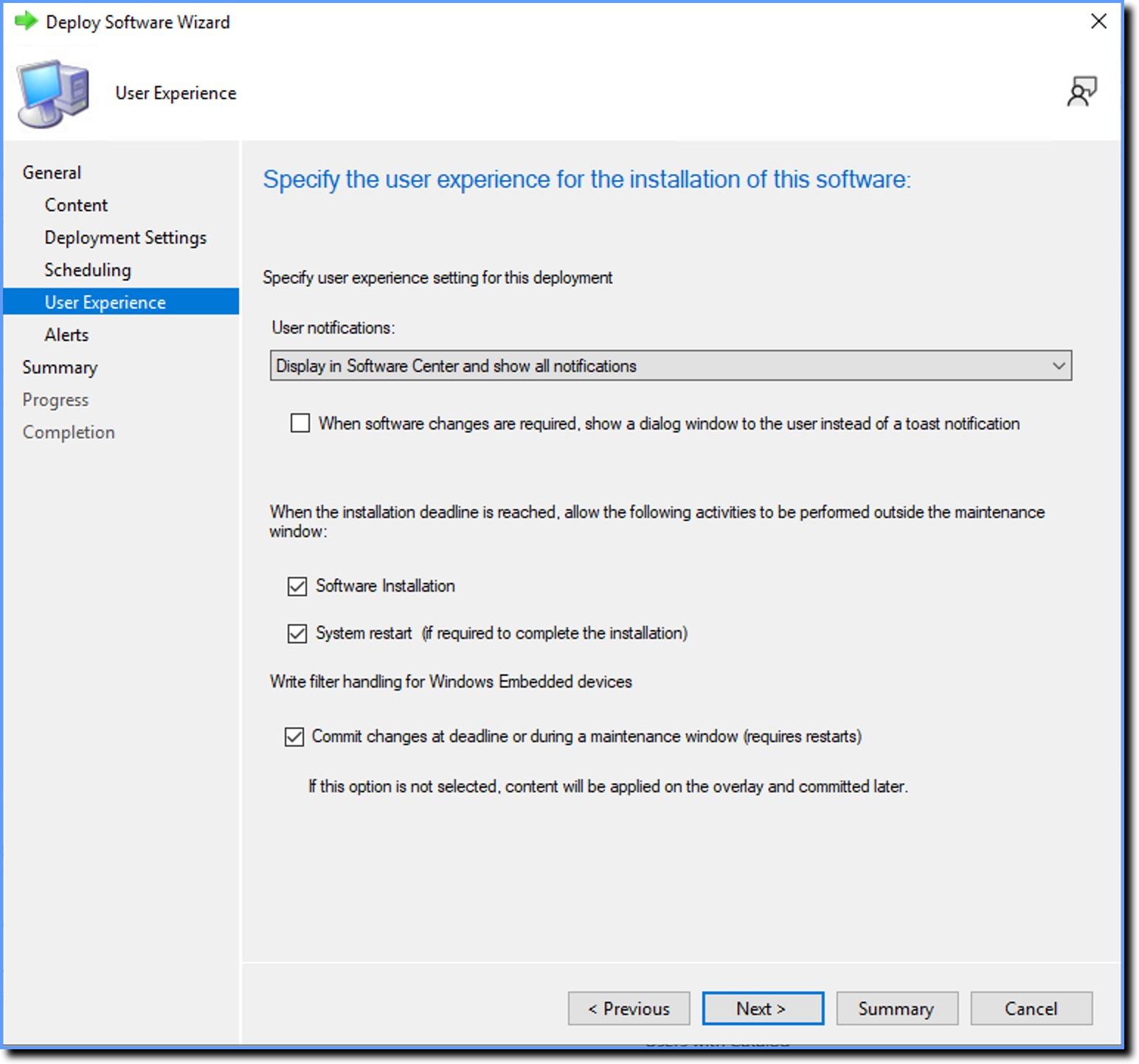
- Verify the changes in the Summary tab, and then click Next. The wizard starts deploying the extension.
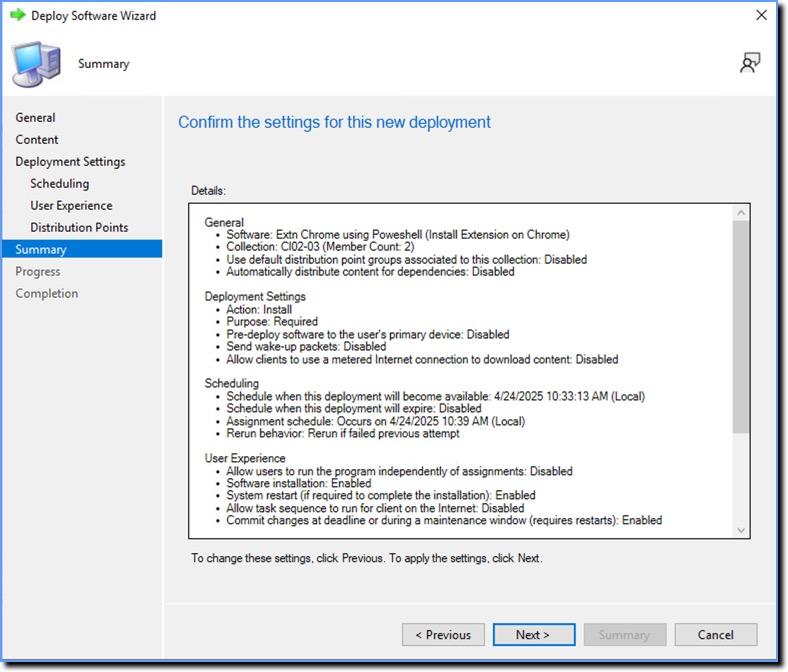
The Completion tab displays the following message if the Application is deployed successfully: 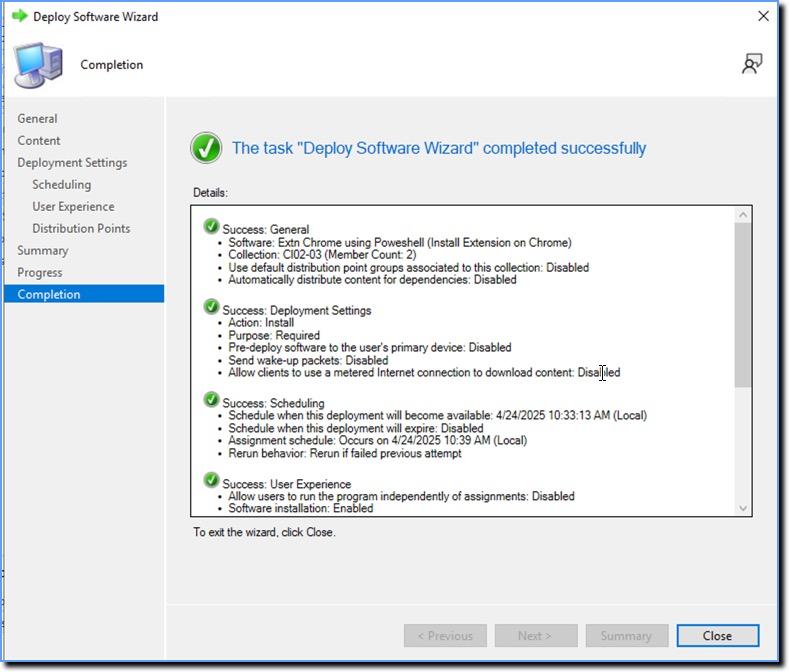
Step 4: View the distribution status of the application
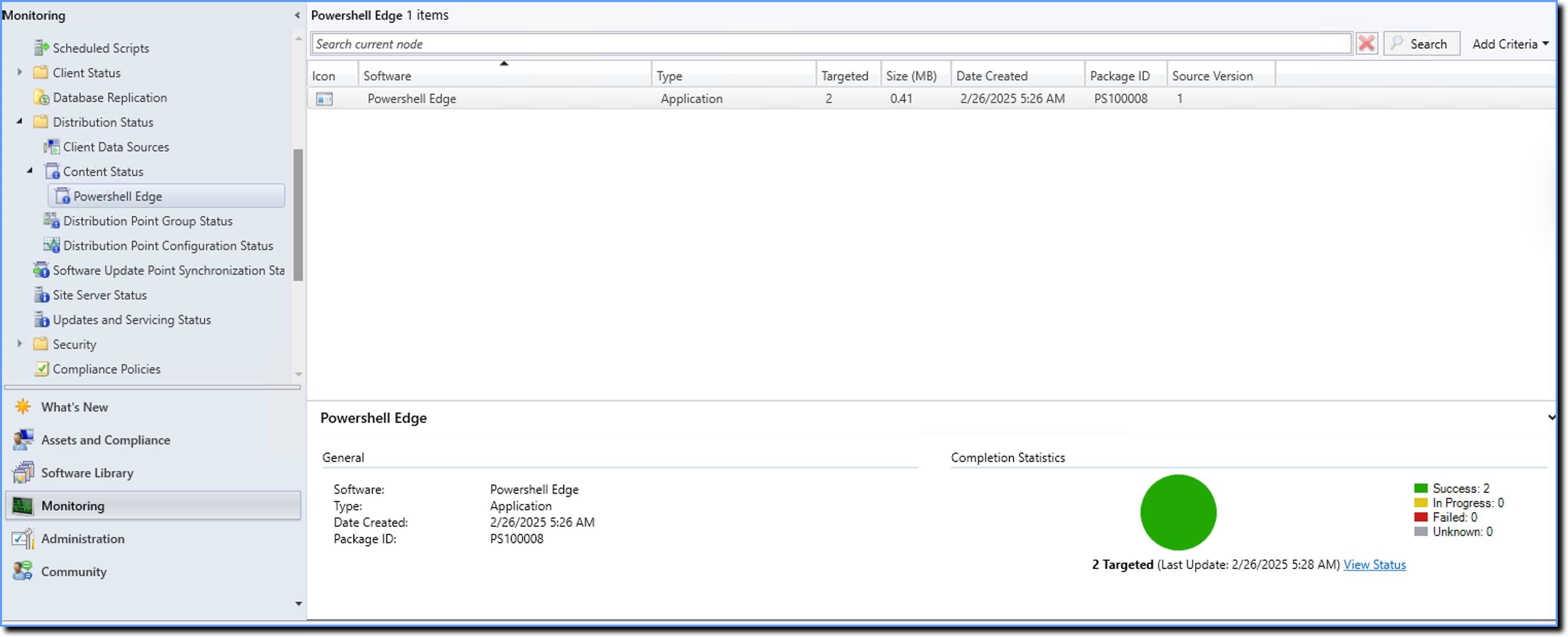
Use the following steps to check the status and other details of your application:
- Select the application that you want to check the status of.
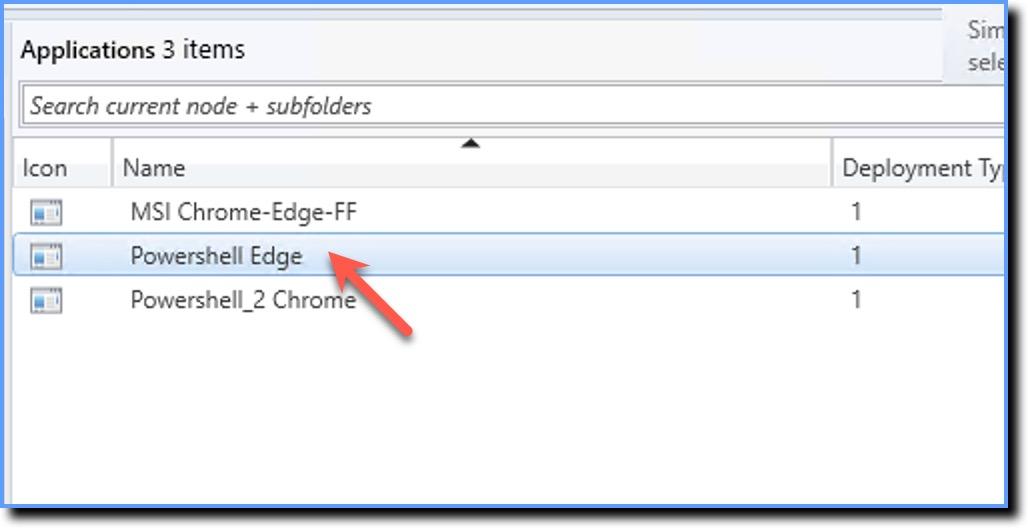
- In the Summary tab, click Content Status. You are redirected to the Monitoring section.

- The Monitoring section displays the status details of the application.
To know more about the deployment status of your application, see View SCCM Deployment Status.