Microsoft System Center Configuration Manager (SCCM)
Create an Uninstall Program using MSI
SCCM enables you to create a Program to uninstall the Whatfix extension deployed on your end users’ devices.
Use the following steps to create an uninstall SCCM Program using MSI:
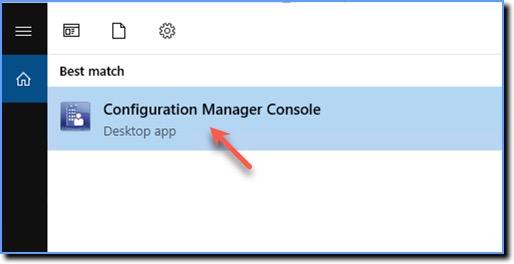
- On your Windows system, open the Configuration Manager Console.
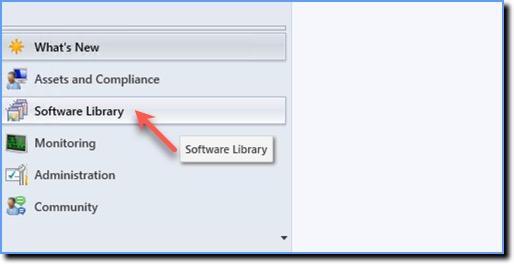
- Click Software Library.
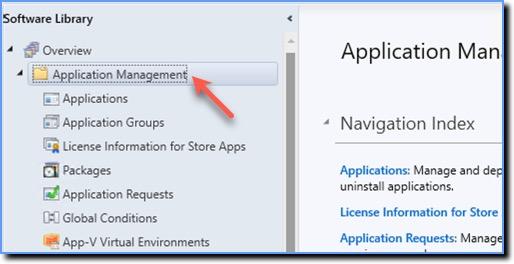
- Expand Application Management.
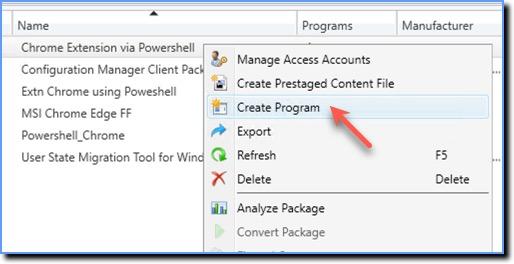
- Right-click the MSI Package you just created, and click Create Program.
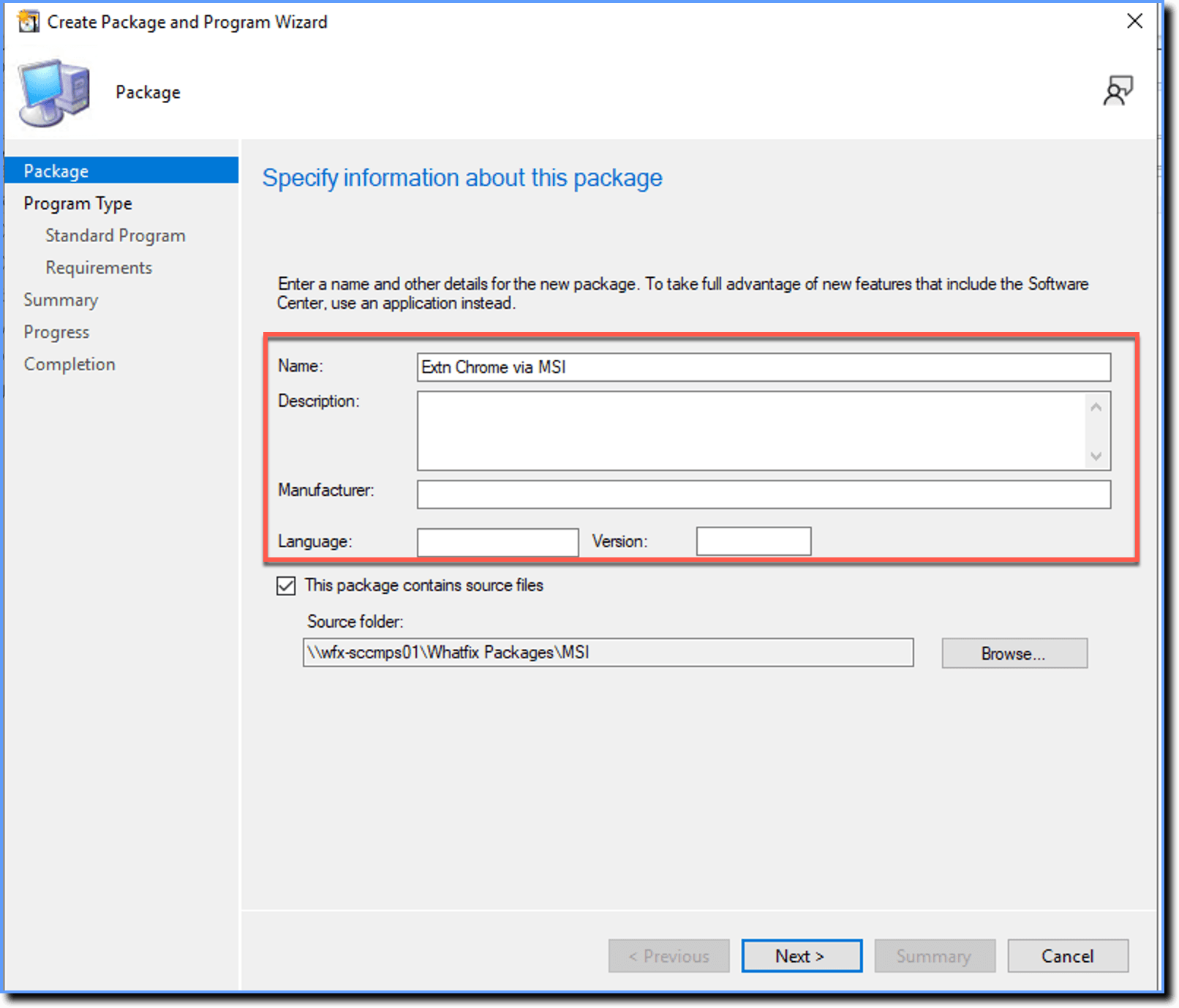
- In the Create Package and Program Wizard, specify a name and other information.
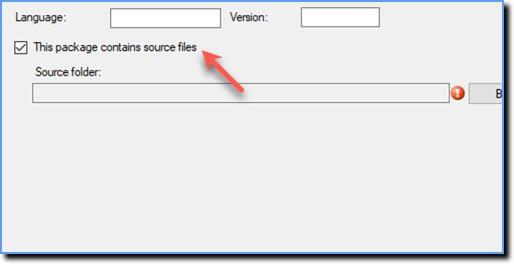
- Select the This package contains source files checkbox.
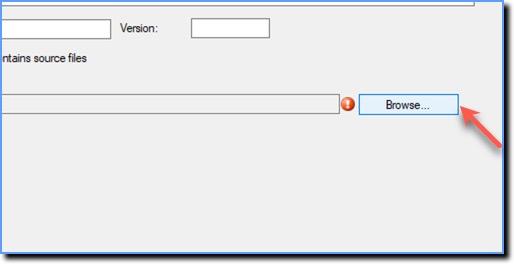
- Click Browse.
- In the Set Source folder window, select Network path (UNC name), and then click Browse once again.
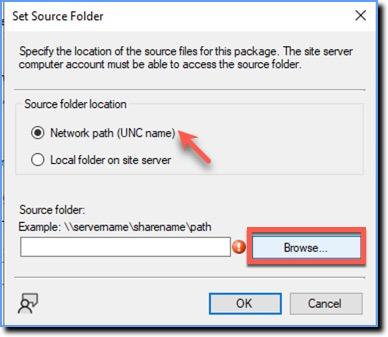
- Select or enter a source path and then click Ok. For example
\\wfx-sccmps01\Whatfix Packages\MSI.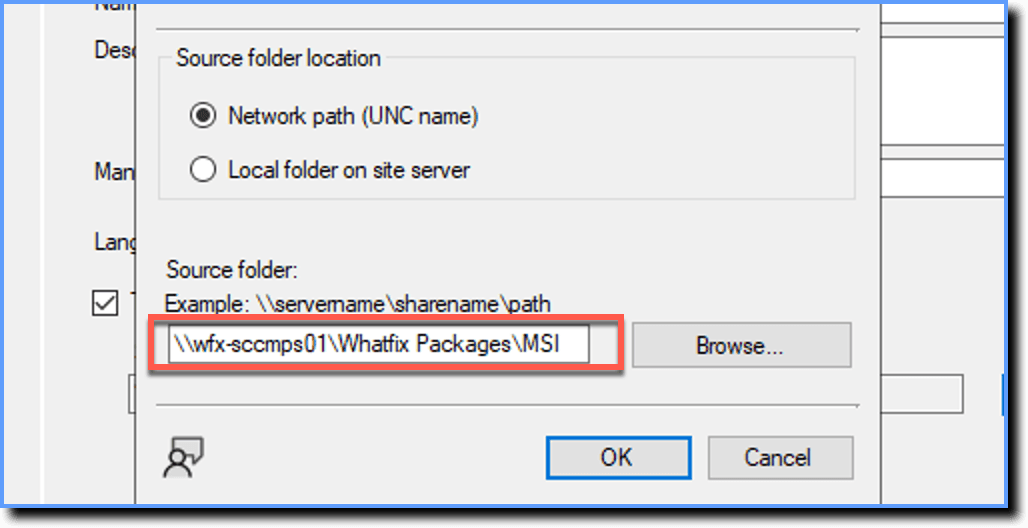
A folder should be created in the primary site server where you save the powershell script. In this step, select the location of the source folder. For example, \\wfx-sccmps01\Whatfix Packages\MSI.
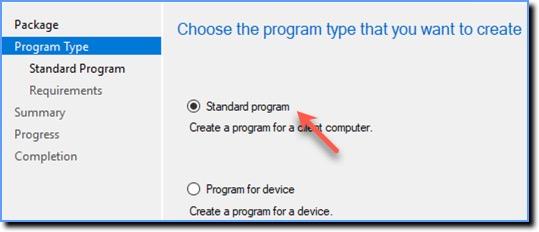
- Select Standard program.
- Click Next.
- In the Specify information about this standard program section, enter the following information for each field: - Name (Example): Uninstall Extn Chrome Edge FF via MSI - Command line:
msiexec /x "Demo_Extension1740466720277.msi" /qn- Run: Hidden - Program can run: Whether or not a user is logged in - Drive mode: Runs with UNC name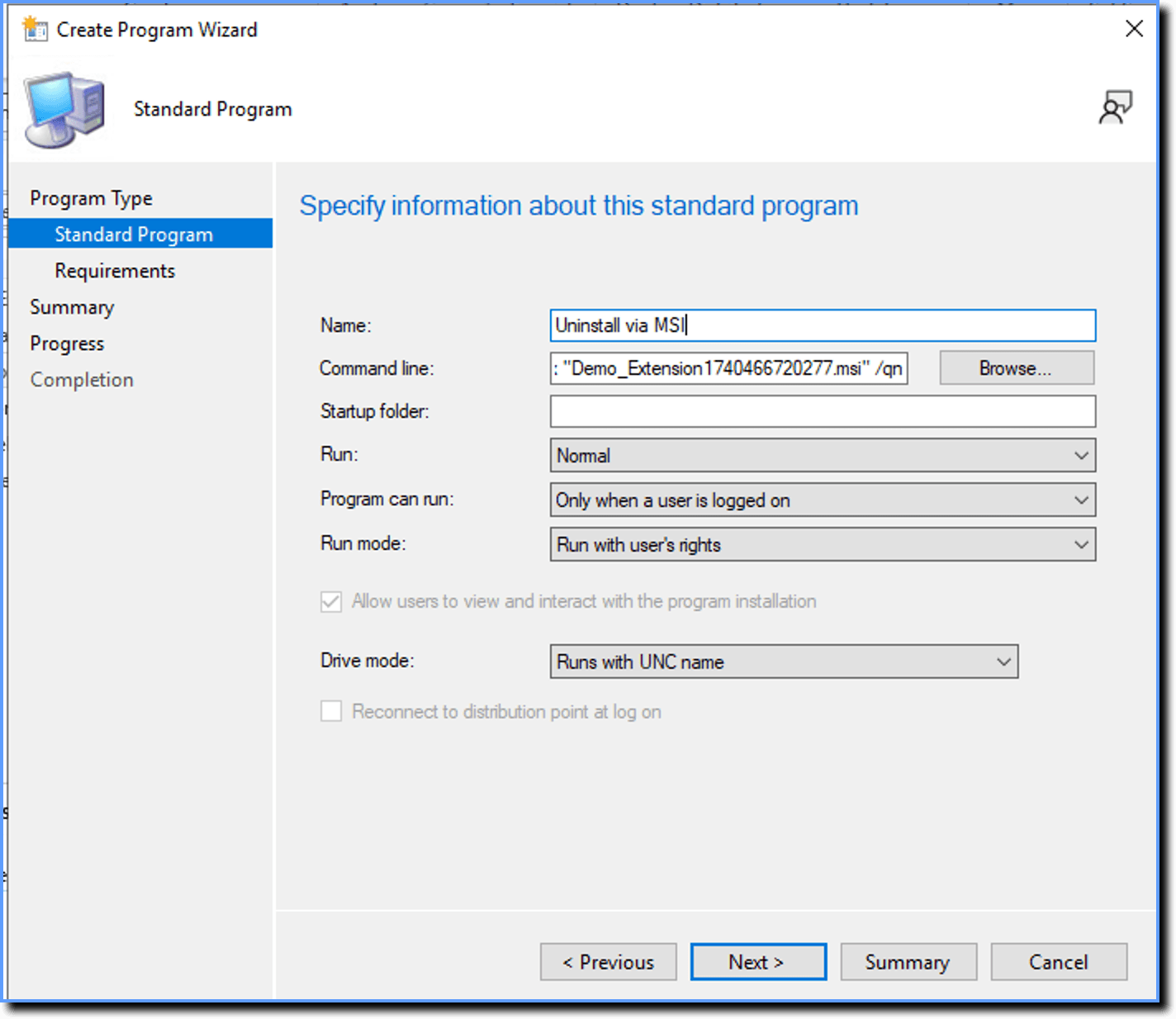
- Click Next.
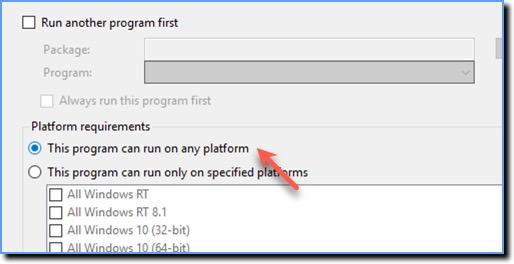
- Select This program can run on any platform.
- Click Next.
- Click Next.
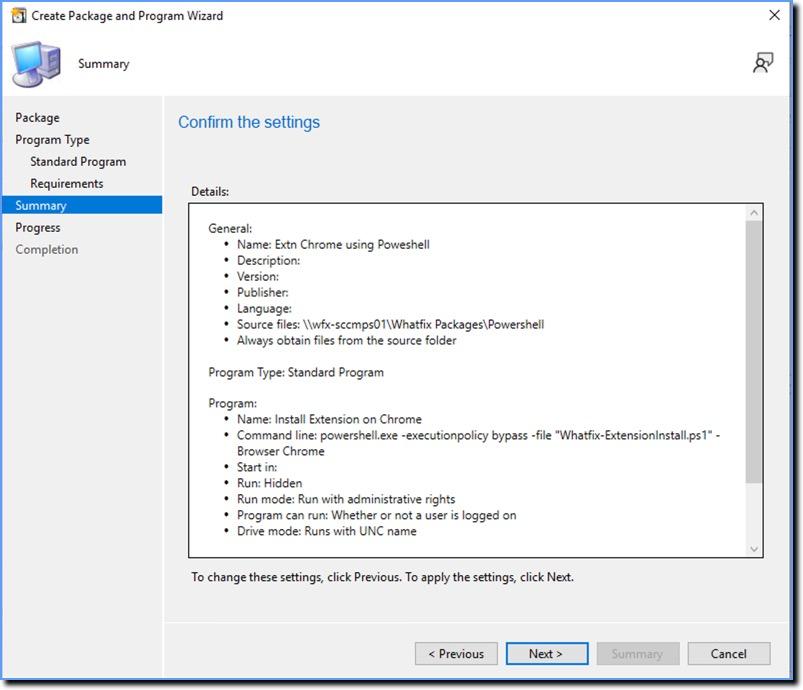
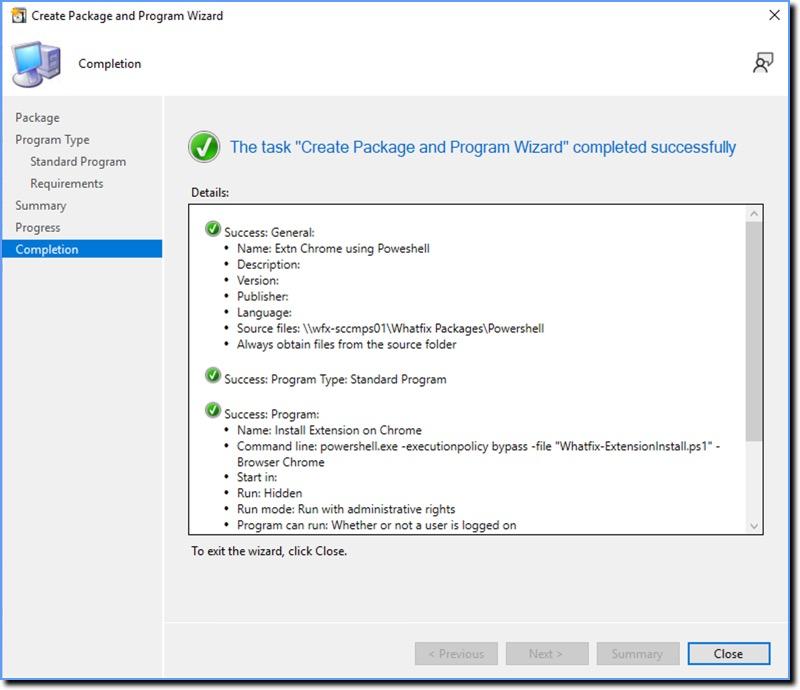
The Completion section displays the following message if the Package is created successfully: