Quick Capture Flows
Define step completion rules in Flows
Step Completion Rules in a Flow helps you define when Whatfix must stop displaying one step and then show the next step of the flow. For example, users move to the next step when they click the next button, on refreshing the page, on selecting an option from a dropdown menu, and more.
Use the following steps to define step completion rules:
-
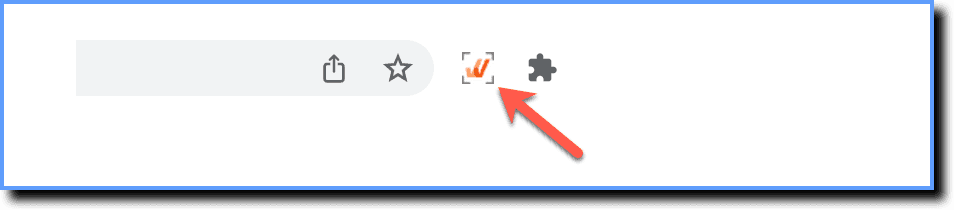
Log in to the application where you want to create content, and then launch the Whatfix Studio.
-
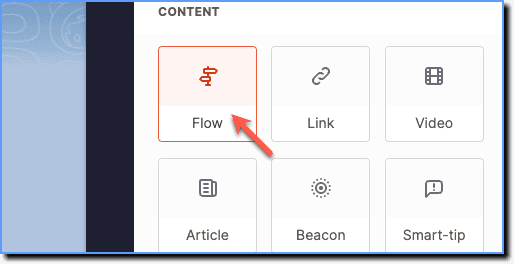
Click Flow.
-
In the Studio toolbar, select a capture mode.

Note:
- Free floating step is currently Beta. Contact support@whatfix.com for more information.
- For more information on different capture modes, see Quick Capture Modes.
-
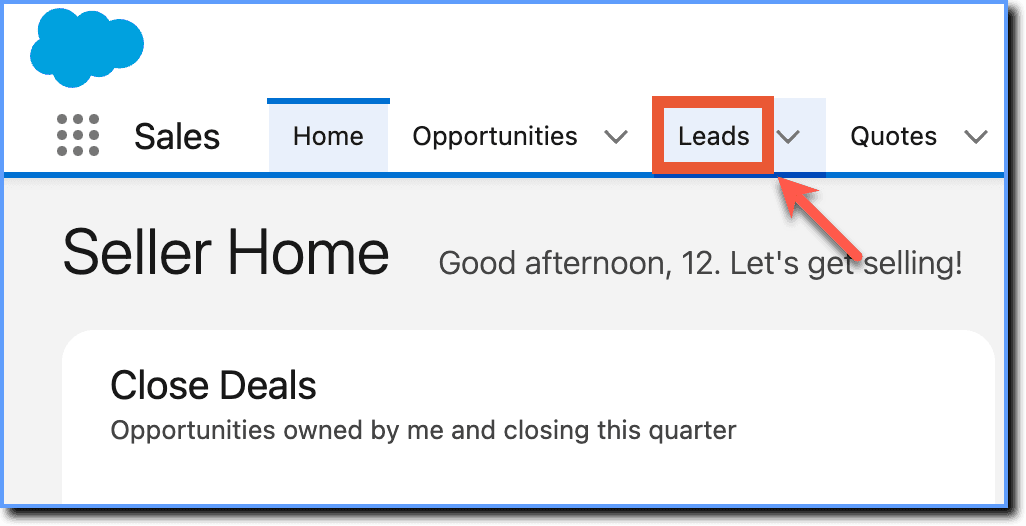
Click the desired elements on the application page.
-
After you have captured the required steps, click Done.

-
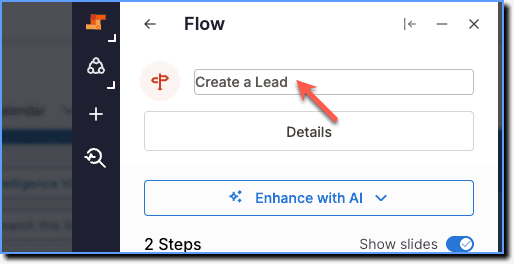
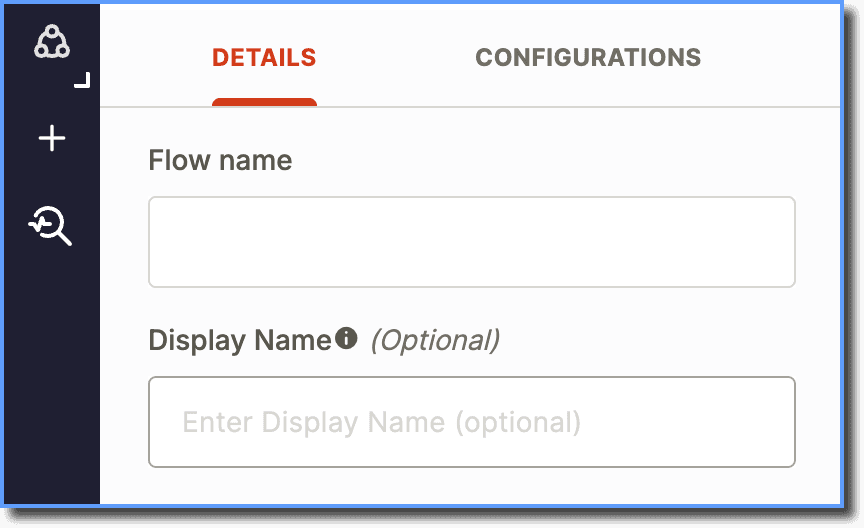
Enter the name of the Flow.
Info:
- Whatfix enables you to add a Display Name for your end users. Use the Content Name for internal tracking, such as region, role, module, or release codes. Users then see the Display Name in the Self Help, Task List widgets, Hub, Flow Automation Popups and Exports. For more information, see Add a Display Name to Whatfix Content.
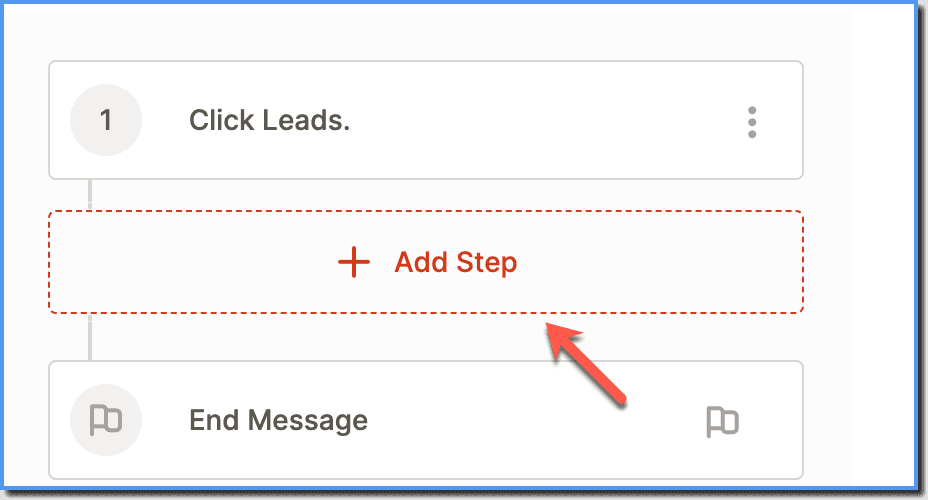
- To capture additional steps, click Add Step.
-
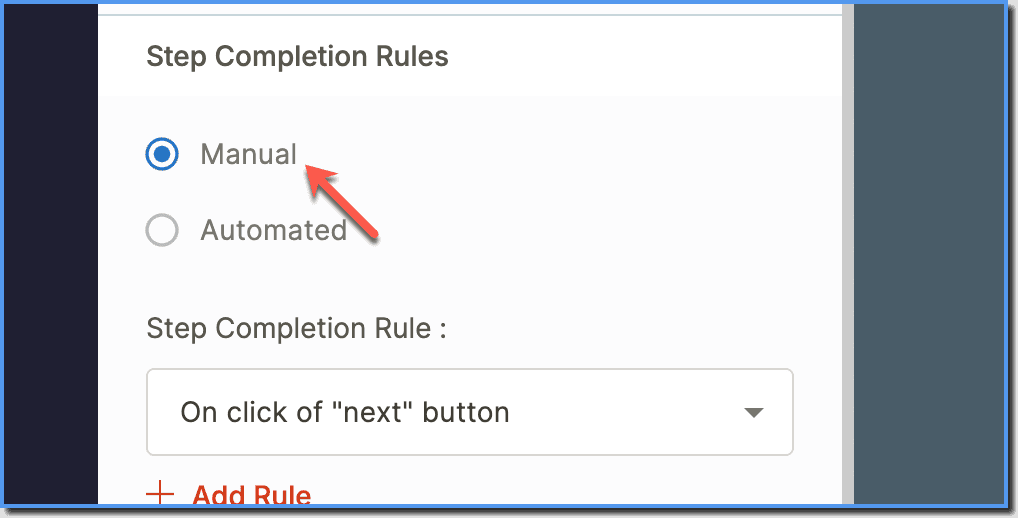
Under the Configurations tab, scroll down to the Step Completion Rules section and select Manual option.
-
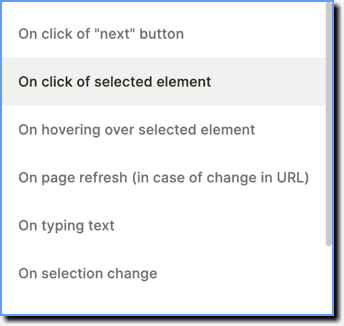
Select the desired rule from the dropdown menu.
-
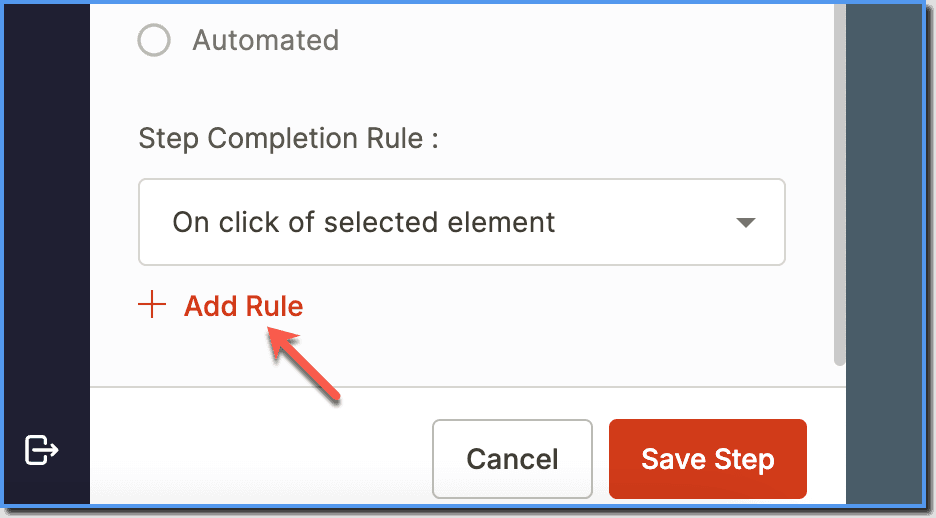
To add additional rules, click the Add Rule button and select the desired rule.
-
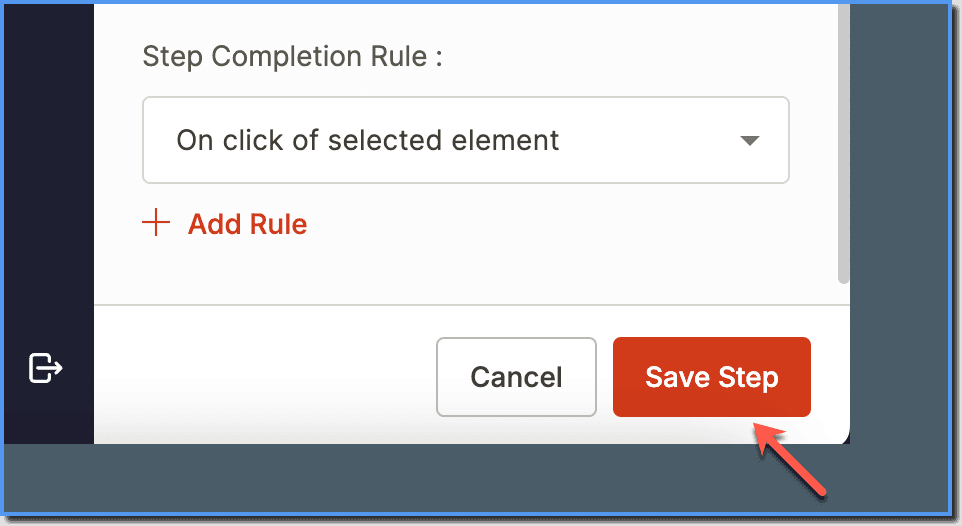
Click Save Step to finish creating the step, and then continue creating the Flow.
The Step Completion Rules for Free-floating step type are of only two types: 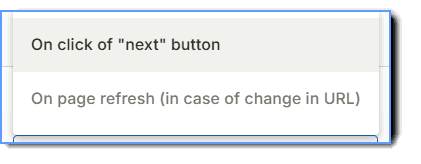
What does the step type mean?
| On click of “next” | On page refresh (in case of change in URL) |
|---|---|
| The next step is displayed when the "next" button in the tooltip is clicked. This is used when users have to select multiple options using a checkbox or in text fields, and then move to the next step after giving inputs. | The next step is displayed when the users refresh the page. This is used in payment pages after successful payment where the page automatically refreshes. |
Expand the following accordion(s) for more details:
List of step completion rules in Flows
| Rule | Description |
|---|---|
| On click of “Next” button | The next step is displayed when the "next" button in the tooltip is clicked. This is used when users have to select multiple options using a checkbox or in text fields, and then move to the next step after giving inputs. |
| On click of selected element | The next step is displayed when the users click the selected element. This is used when the tip is created on a clickable button, link or HTML element. The flow expects the user to click on the element to move to the next flow step. |
| On hovering over selected element | The next step is displayed when the users hover the cursor over the selected element. |
| On page refresh (in case of change in URL) | The next step is displayed when the users refresh the page. This is used in payment pages after successful payment where the page automatically refreshes. |
| On typing text (for text boxes) | The next step is displayed when the users stop typing for a couple of seconds. This is used on text boxes where users enter values like sign up page, login page, and any other pages where users input is required. |
| On selection change | The next step is displayed when users click the selected element in a drop-down or set of options. This is used when users are expected to click an element in a drop-down (in the collapsed state) or from a given set of options. |
| On Right Click of Mouse | The next step is displayed when users do a right-click on the mouse. This is used when users are expected to click an option after right-clicking on a page. |
| On Keyboard - Enter, Tab, or Esc | The next step is displayed when users click Enter, Tab, or Esc keys on the keyboard. |
| On click of another element | On click of another element is a Flow step completion rule that helps a step to advance when a user interacts with a secondary UI element instead of the one the tooltip is anchored to. The rule supports non-linear workflows and complex layouts where multiple elements on an application page perform the same action. This ensures that regardless of which path the user chooses, the Flow recognizes the successful action and proceeds to the next step without breaking. For more information, see How does On click of another element rule work in Flows? > [!WARNING] > Note: > > On click of another element is currently Beta. Contact support@whatfix.com for more information. |
Find a Step completion rule using an action
The step completion rules that are available are automatically limited by the kind of step completion rule you select. We've done this to limit the scope for errors that result in flow failures.
| Action | Suggested Step Completion Rule |
|---|---|
| Selecting an element in a drop-down | On selection change |
| Selecting an option from a set of options | On selection change |
| Clicking a button | On click of selected element |
| Clicking an icon, text, or any element | On click of selected element |
| Selecting multiple options using checkbox | On click of next button |
| Entering value in a text or number field | On click of next button |
| Selecting an element in a drop-down that opens automatically when the cursor is hovered over it | On hovering over selected element |
| Select an option after doing a right-click on mouse | On Right Click of Mouse |
| Closing a pop-up using the Esc key | On Keyboard - Esc |
| Saving the form using the Enter key | On Keyboard - Enter |
Combination of Step Completion Rules
The step completion rules that are available are automatically limited by the kind of step completion rule you select. We've done this to limit the scope for errors that result in flow failures.
| Step Completion Rules | Combination of Rules |
|---|---|
| On click of "next" button | On click of selected element |
| On hovering over selected element | |
| On typing text | |
| On selection change | |
| On Right Click of Mouse | |
| On Keyboard - Enter | |
| On Keyboard - Tab | |
| On Keyboard - Esc | |
| On click of selected element | On click of "next" button |
| On Keyboard - Enter | |
| On hovering over selected element | On click of "next" button |
| On Keyboard - Tab | |
| On page refresh (in case of change in URL) | NA |
| On typing text | On click of "next" button |
| On Keyboard - Enter | |
| On Keyboard - Tab | |
| On selection change | On click of "next" button |
| On Keyboard - Enter | |
| On Right Click of Mouse | On click of "next" button |
| On Keyboard - Enter | On click of "next" button On click of selected element On typing text On selection change |
| On Keyboard - Tab | |
| On Keyboard - Esc |
If there is a "default" selection (pre-selected value) while selecting a dropdown element, a change in selection is mandatory for step completion.
The feature release stage in which functionality is made available to a limited group of users for testing and feedback. Beta features are generally stable but may still undergo changes before becoming Generally Available (GA).