Embed Videos in Pop-ups
Embed a Youtube video
This article helps you in embedding a youtube video in a Whatfix Pop-up using Embed code
Whatfix enables you to embed YouTube videos to any Pop-up template to deliver more information to your users. For more information on Whatfix Pop-up templates, see Choose the pop-up template.
Adding Youtube video in a Pop-up is a 2-step process.
Step 1: Get the YouTube video URL
Use the following steps to get the video URL from a Youtube video:
- Go to the YouTube video that you want to add in the Pop-up.
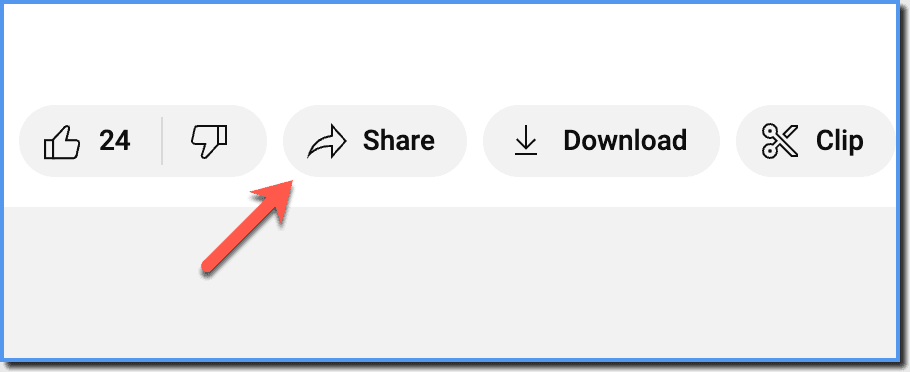
- Click Share.
- Click Copy to copy the video URL.
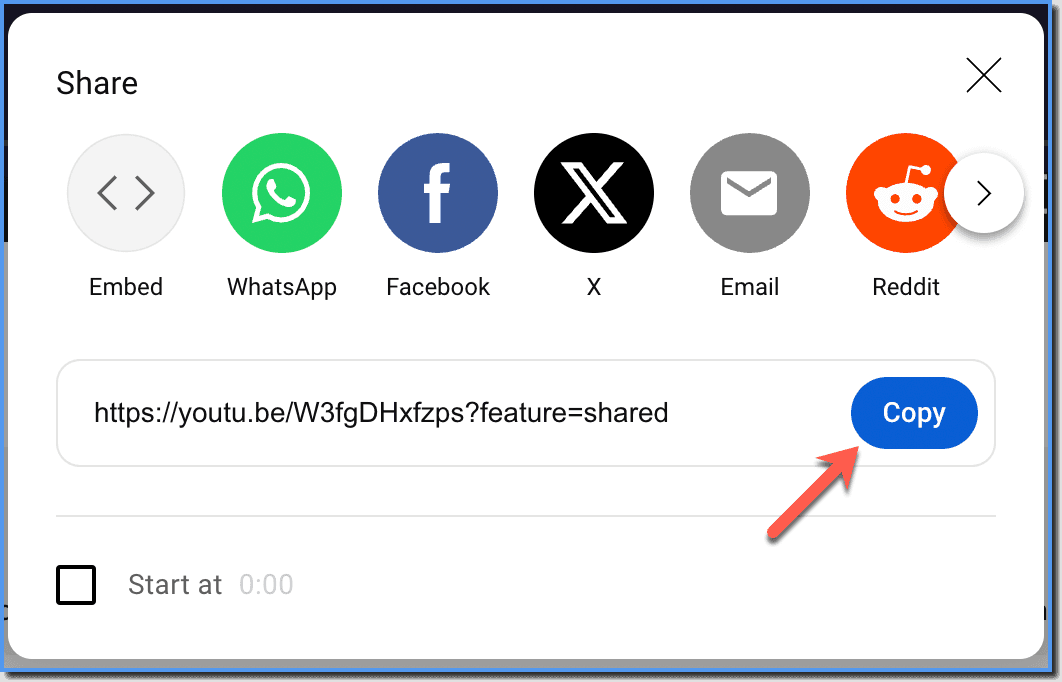
A Link copied to clipboard message is displayed.
Step 2: Insert a YouTube video using the Visual Editor
- You cannot embed videos hosted on file sharing websites like Google Drive, Dropbox, and more using the URL method. You need a published video's URL from your authorised video channel (Youtube, Vimeo, and more) to embed videos to Whatfix Pop-up templates. In case, you want to embed a video link hosted on Google Drive, try Embedding a video hosted on Google Drive using Embed code
- If the Pop-up is shown in a secure webpage (https) and if the video is hosted on a non-secure website (http), then the video is displayed as a broken link to the end users.
The Visual Editor enables you to add a video to the Pop-up template directly using the UI.
Use the following steps to embed a video URL in a Pop-up using the Visual Editor:
-
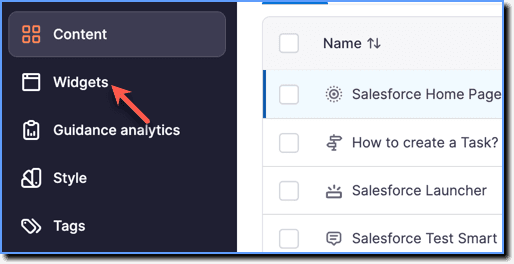
On the Whatfix Guidance dashboard, click Widgets.
-
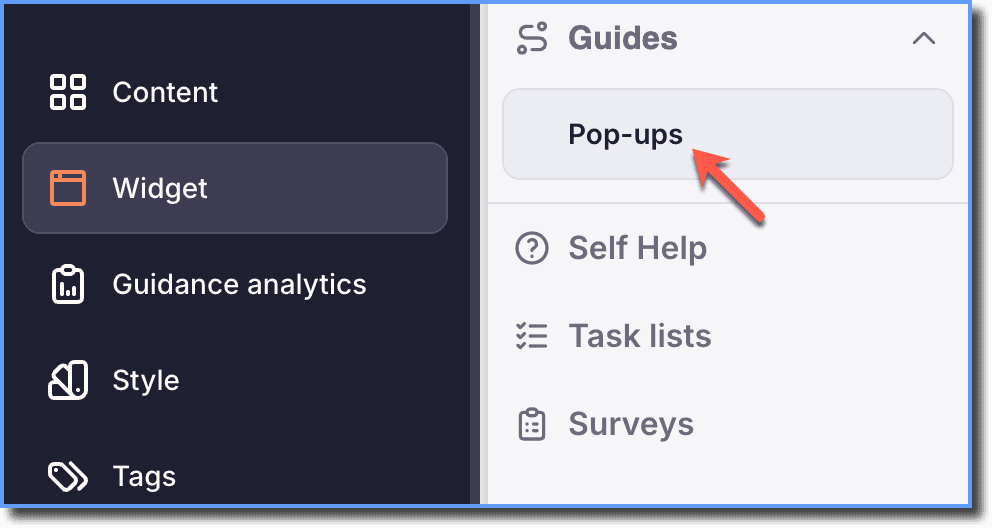
Click Pop-ups.
-
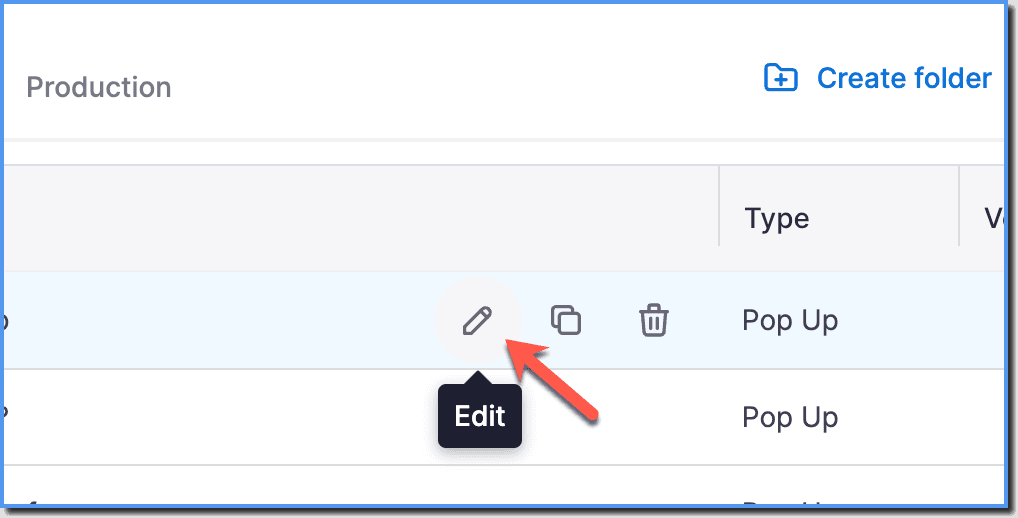
Hover your cursor over the Pop-up segment you want to configure, and then click the Edit icon.
-
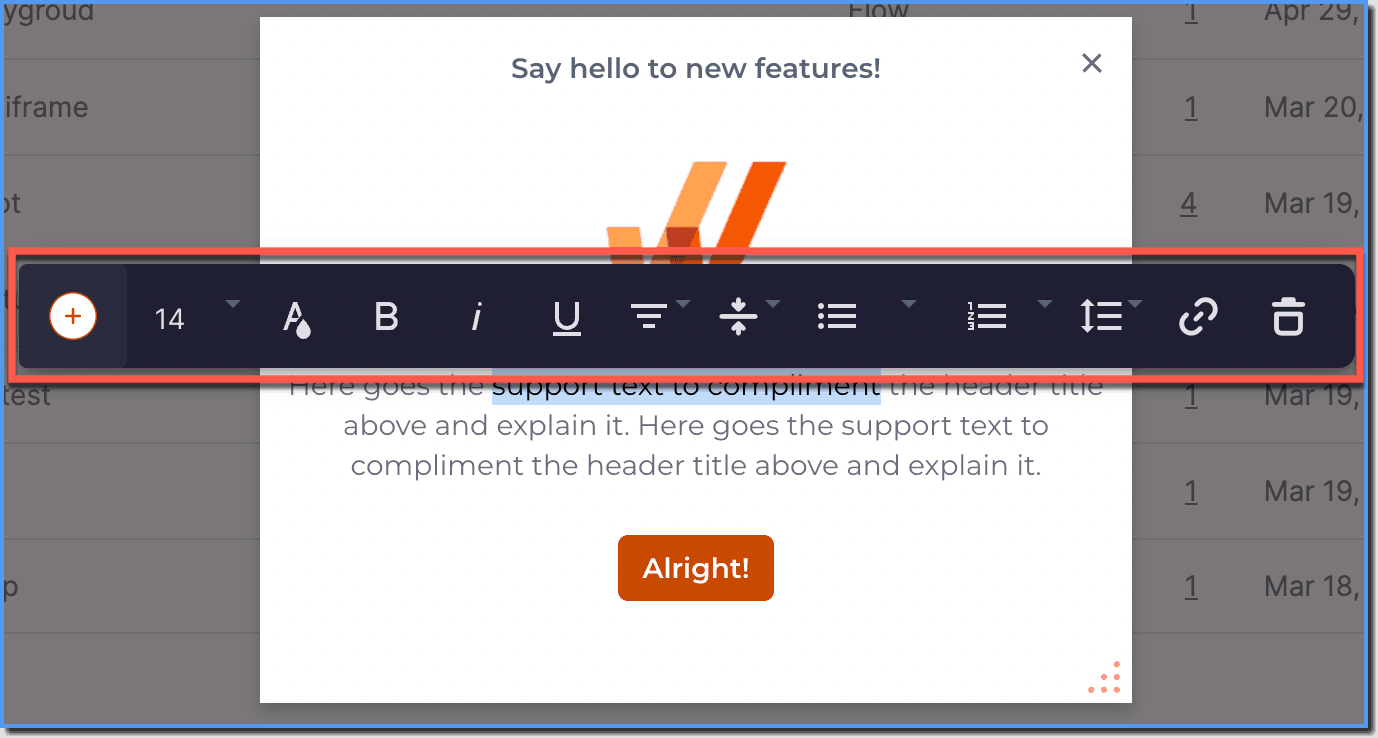
In the Description section, place the cursor where you want to add the video and double-click to open the Rich Text Editor.
-
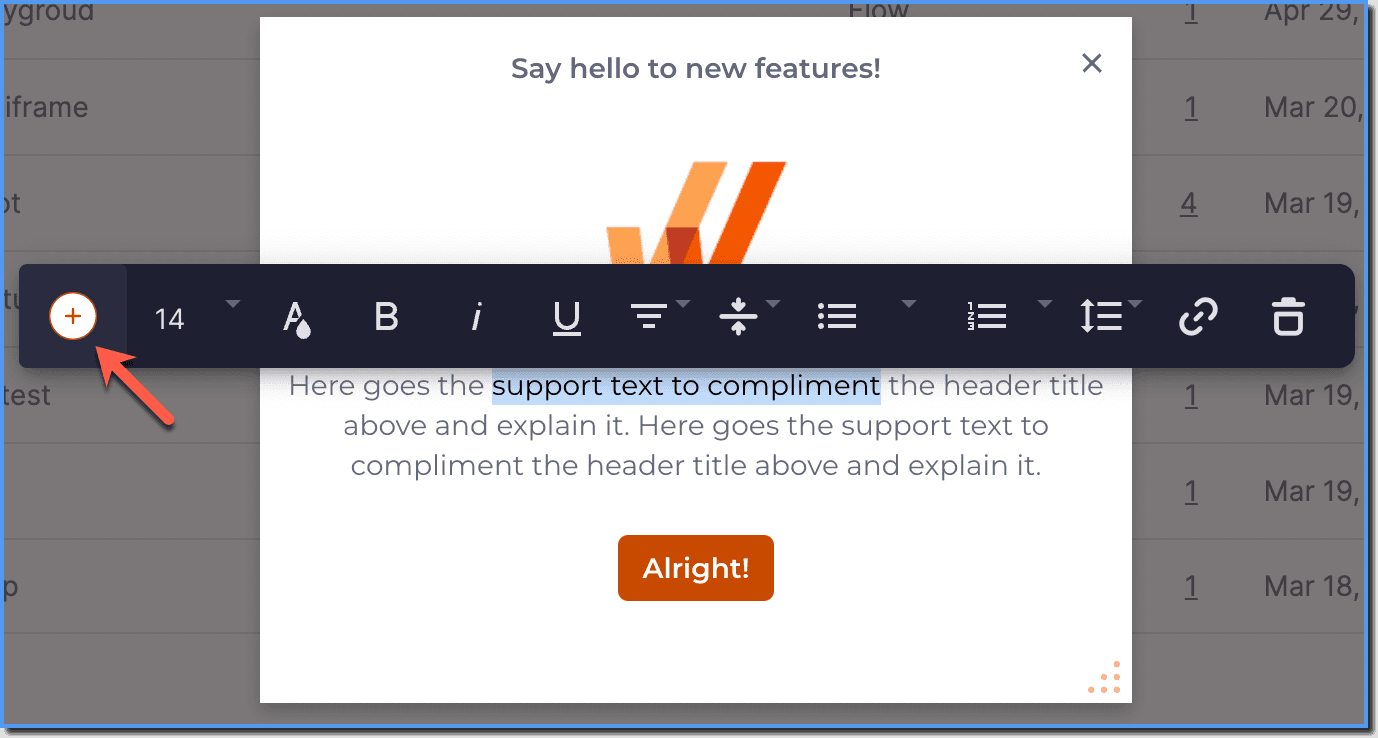
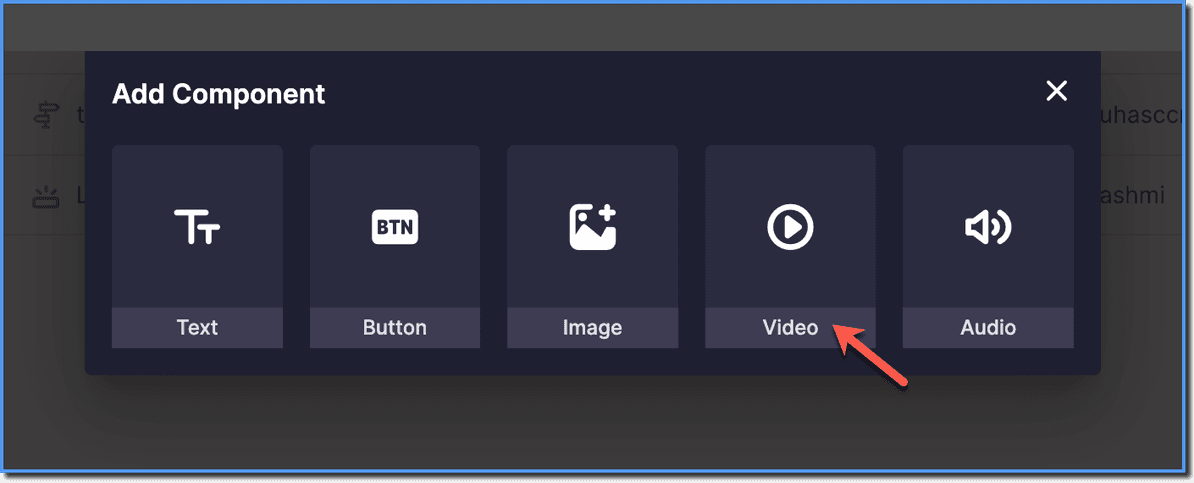
Click the + icon. The Add Component dialog box opens.
-
On the Add Component dialog box, click Video.
-
Paste the video URL.
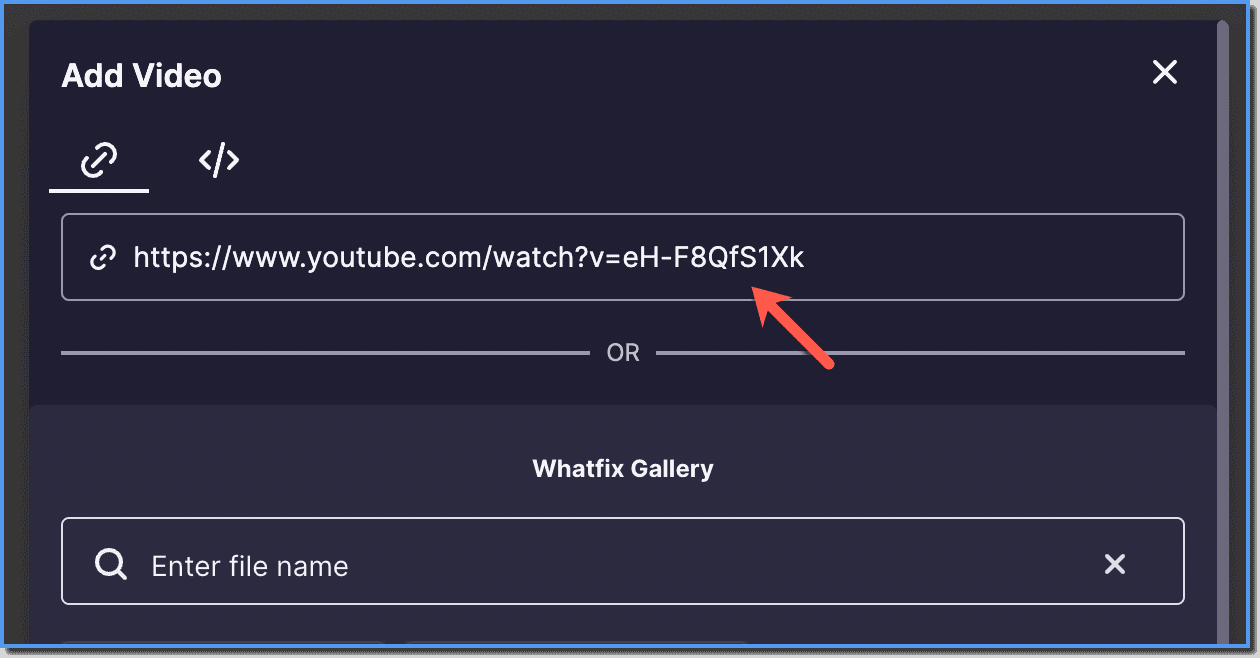
The video URL must contain https if the Pop-up is displayed on a secure webpage.
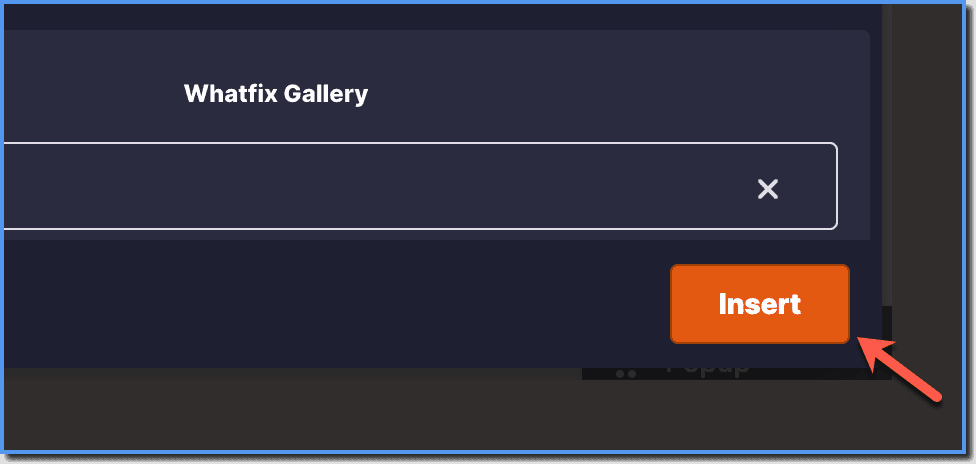
- Click Insert.
- Using the Drag and Drop feature, move or re-position the video around the Pop-up.
- Using the Drag Handlers the video can be moved or re-positioned both vertically (column-wise) and horizontally (row-wise).
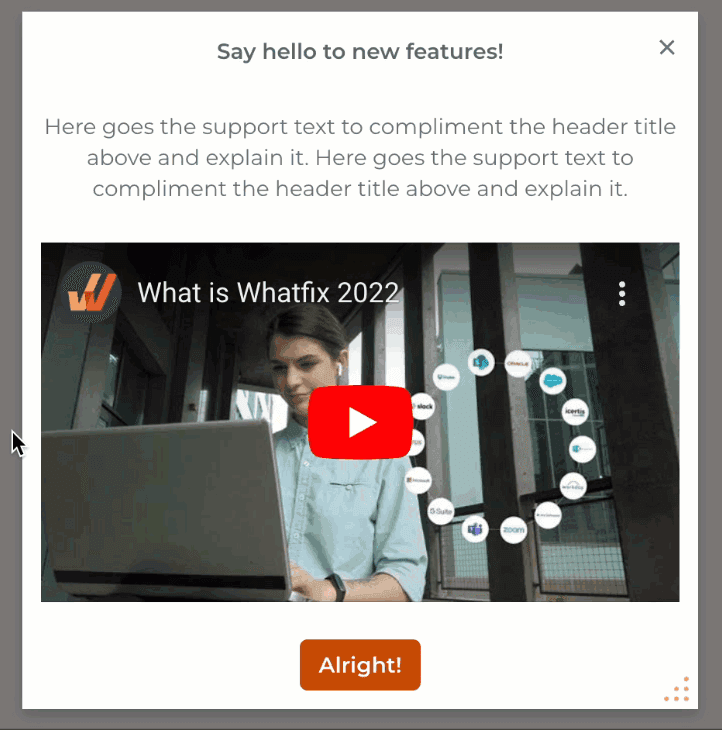
When you make changes to the Pop-up using the Drag Handlers, you may not be able to undo certain changes. In that case, you may need to re-create the Pop-up. For more information, see Can I undo the changes made with the Drag Handlers?
- Once the video is added, click Set Visibility Rules →.
- Set the visibility rules for the Pop-up to appear. For more information on the different conditions that can be used in Visibility rules, see Visibility Rules.
- Click Edit Pop-up or Finish later depending on your preference.
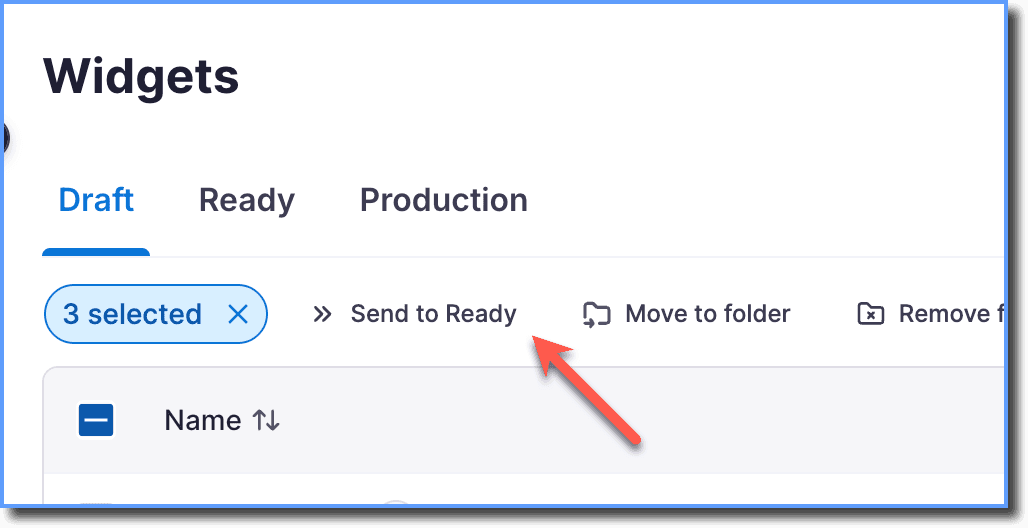
- Once you have set Visibility Rules, select the Pop-up using the checkbox, and then click Send to ready.
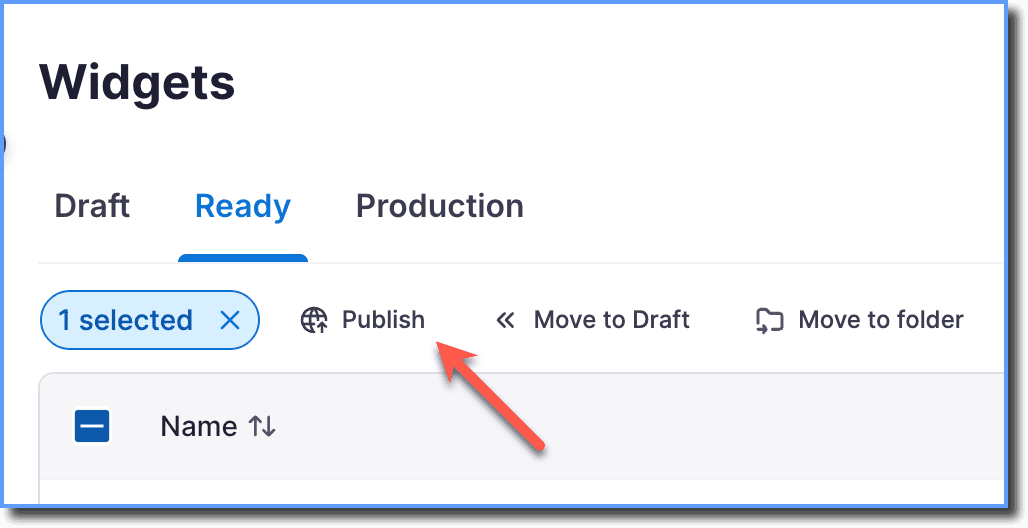
- Go to the Ready stage, and then click Push to production.