Pop-Ups
Attach URL to a Pop-up
A Pop-up can trigger URL to open links, articles, survey forms, registration forms, and more.
Use the following steps to attach URL to a Pop-up through the Dashboard using Visual Editor:
-
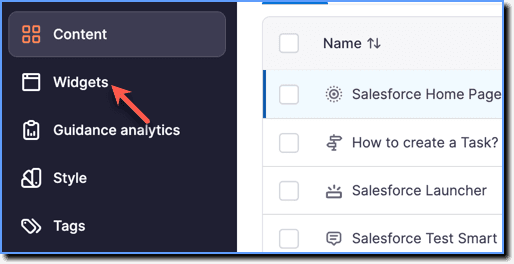
On the Whatfix Guidance dashboard, click Widgets.
-
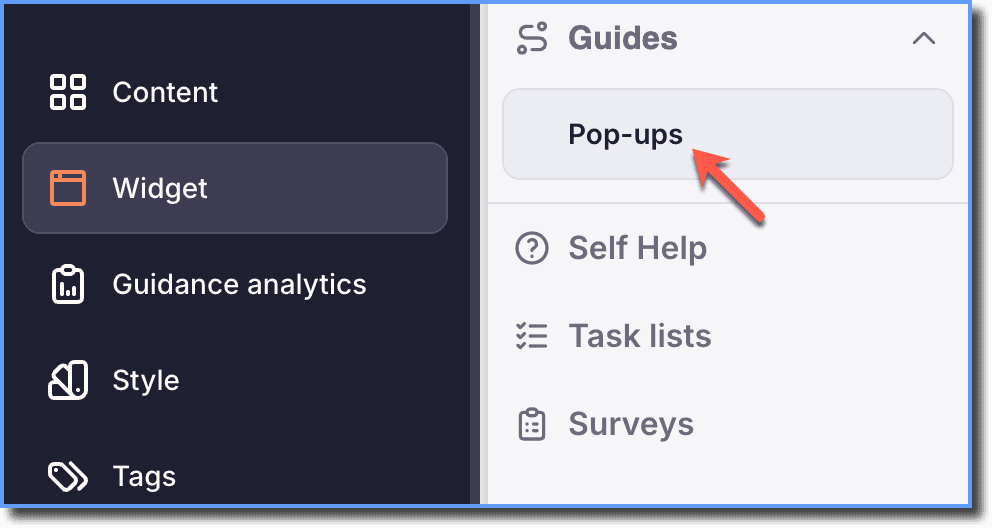
Click Pop-ups.
-
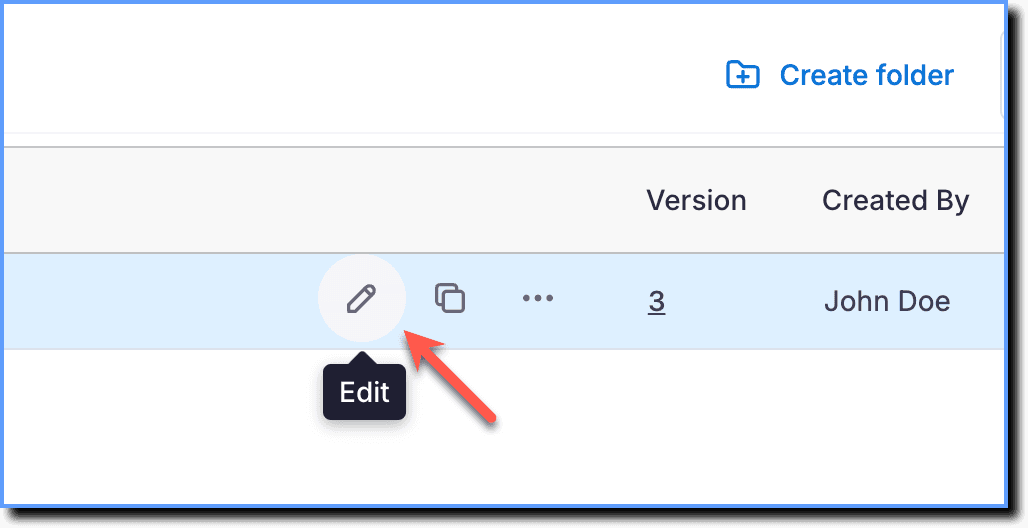
Hover your cursor over the Pop-up segment you want to configure, and then click the Edit icon.
-
On the Pop-up template, edit the Title and Description for your Pop-up.
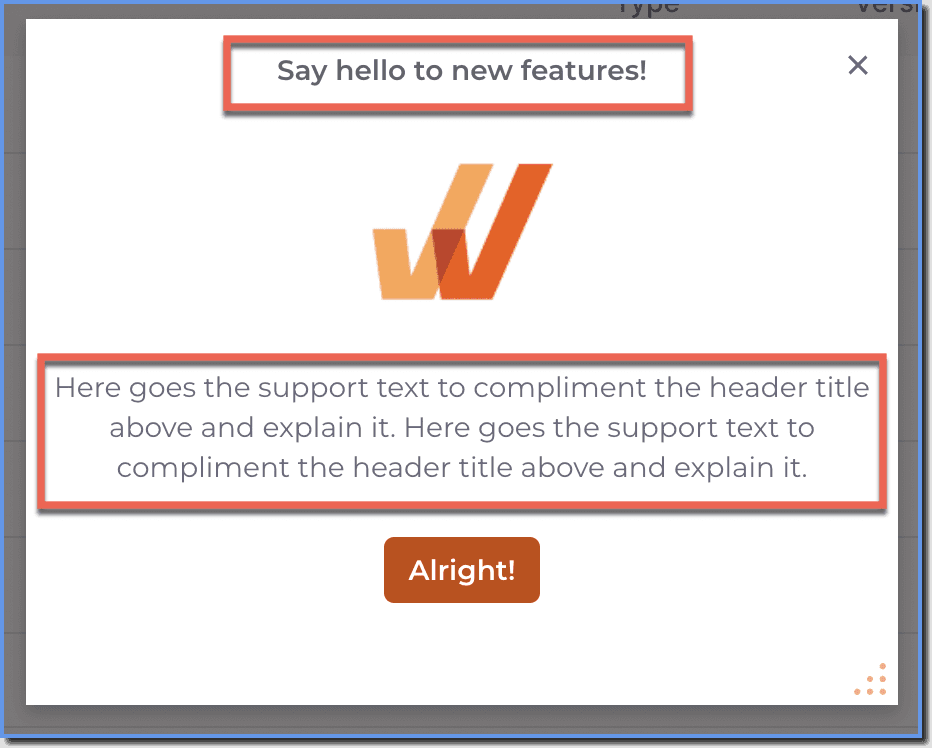
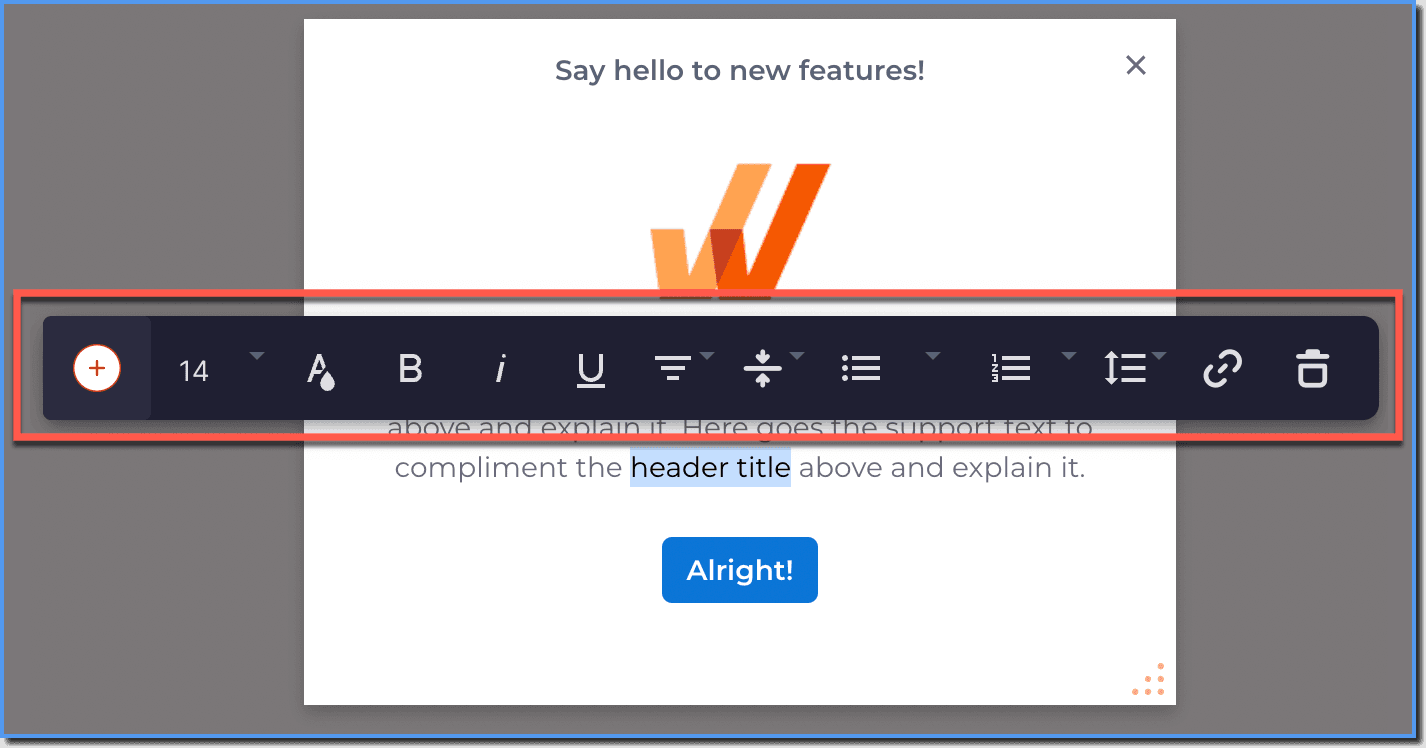
To customize and align the text, hover your cursor over any text and then double-click to open the Rich Text Editor.
For more information on Rich Text Editor, see Add Rich Text content inside a Pop-up.
- On the Pop-up template, edit the Button Name for your Pop-up.
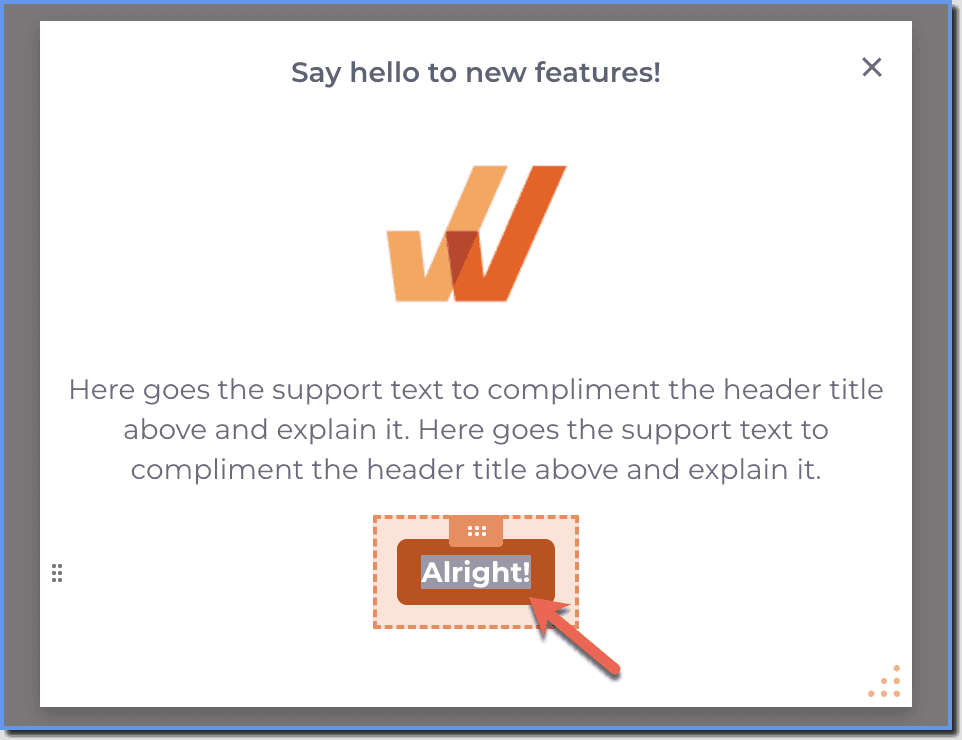
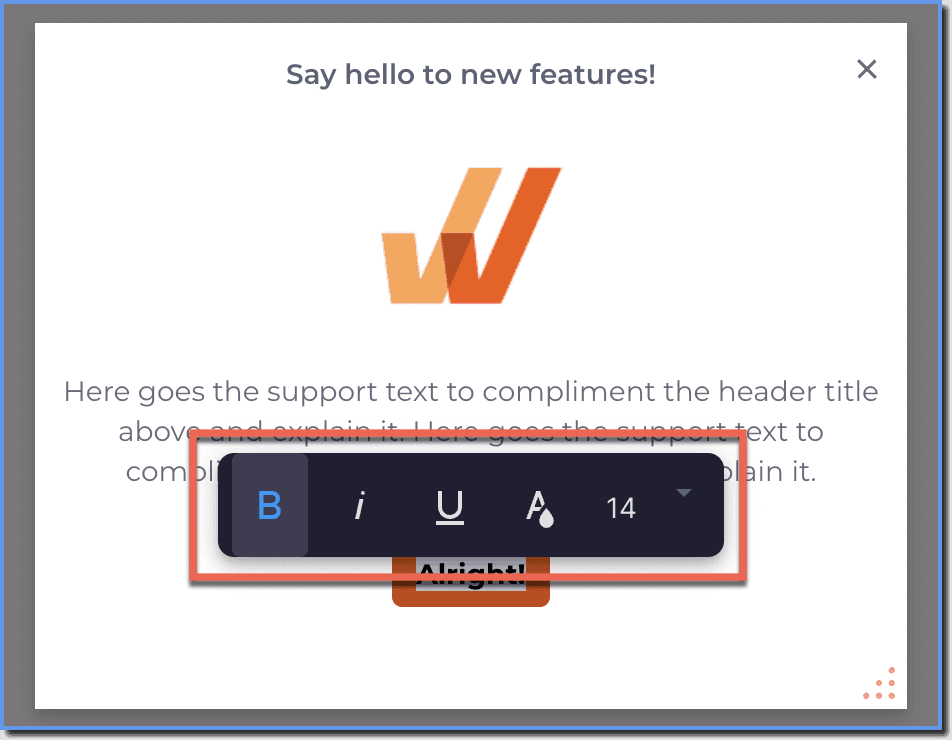
To customize the Button text, hover your cursor over any text and then double-click to open the Rich Text Editor.
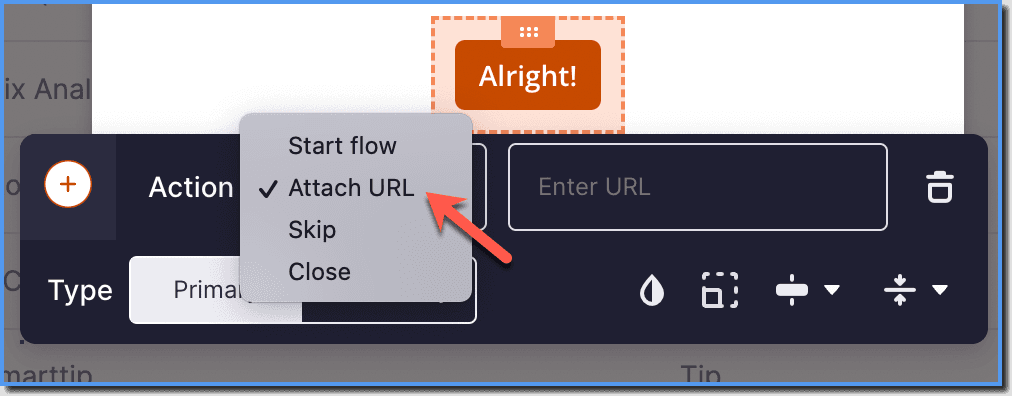
- To attach the URL, hover your cursor over the button and click to open the Button Configuration Menu.
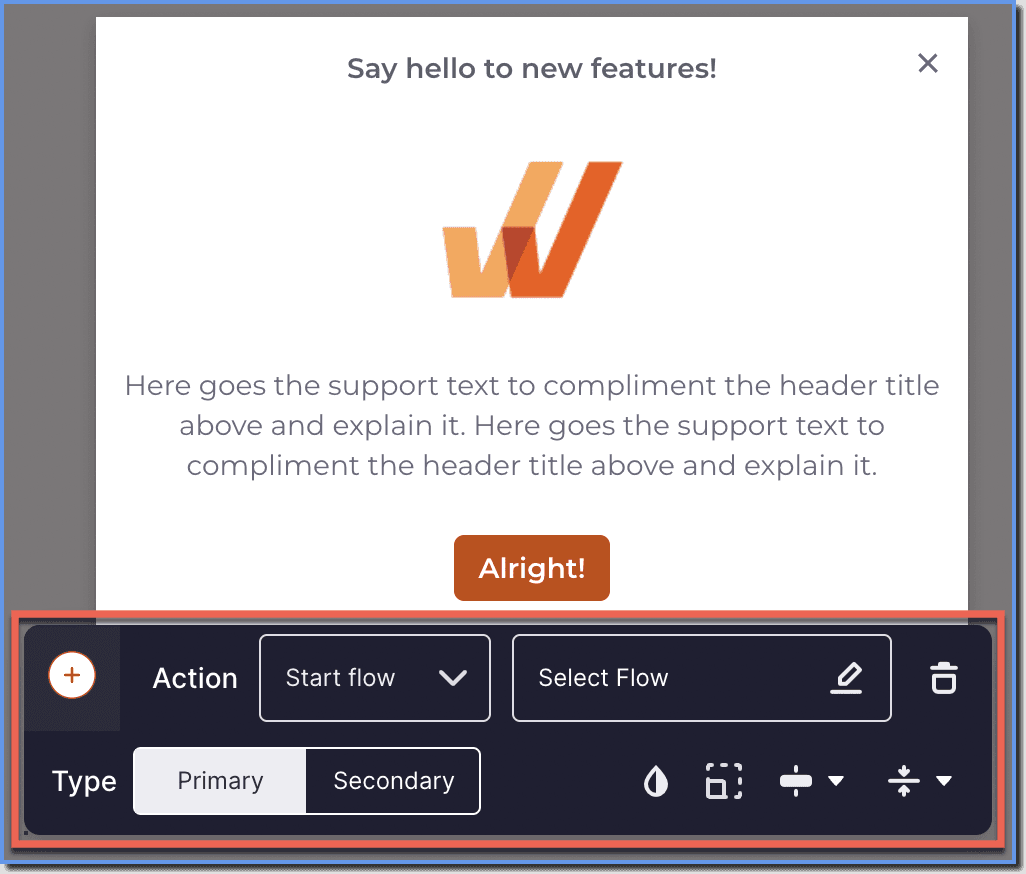 2. Next to Action, select the Attach URL option from the dropdown.
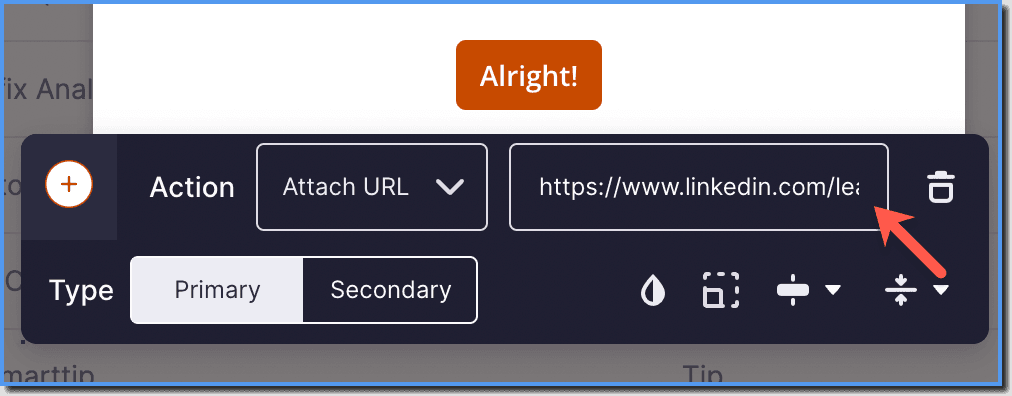
 3. Paste the copied URL in the Enter URL field.
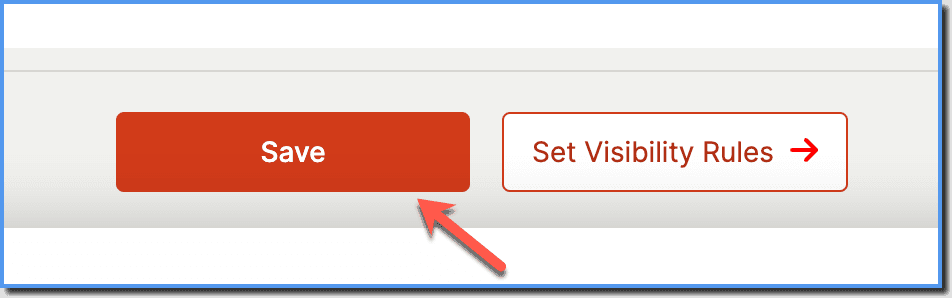
 4. Once you are done creating the Pop-up, click Save.
The Whatfix Rich Text Editor enables you to format content using multiple options. It also enables you to link and include multimedia content.