Create Whatfix Desktop Content
Visibility and Display Rule Conditions
Overview
Visibility Rules: Used to define where and to whom you want to display the widgets (Self Help, Task List, Pop-ups, Beacons and Smart Tips). Visibility Rules can only be configured while creating segments on the Whatfix Dashboard.
Display Rules: Used to define when to show the tooltips based on the conditions met. Also, some conditions let you define where you want to show the tooltips. Display Rules can be configured while creating Whatfix Content (Flows, Smart Tips, Beacons) on the Editor or after creating on the Whatfix Dashboard.
List of available Visibility and Display Rule conditions
The following table lists all the conditions that can be used when configuring Visibility Rules to segment widgets or Display Rules to show the Tooltips. These rules determine where and when Whatfix content is displayed on your application.
NoteSome Visibility Rules, like Role Tags, Page Tags and User Actions, are not supported on Whatfix Desktop.
| Condition | Description | Example |
|---|---|---|
| Other Elements on Page (Visibility Rule) | If you want to identify a page based on the presence of a particular element (other than the one selected by you) on your application page, you can use this condition. The values passed to this condition are CSS selectors. Some of the attributes you can use with Other Elements on Page > Exists CSS Selector are, - is_enabled - is_offscreen - value_pattern etc. | is_enabled: You can choose to display a widget like a Beacon or Smart Tip on a page only if an element on the page can be clicked by the user (like a Button). is_offscreen: You can display a Popup on a page only if a certain element is offscreen. For example, if a page has a dropdown menu, a Popup is shown to users only if the dropdown has not been opened by the user and is thus not visible on the page. value_pattern: You can show different widgets, like Smart Tips and Flows, to users who enter particular terms in search boxes etc.  Your title goes hereYou can use apps like Microsoft Accessibility Insights, FlaUI, etc. to find out the attribute values associated with the elements on your desktop applications. For more information, contact support@whatfix.com |
| Window Variable (Visibility Rule) | You can uniquely identify a page of a desktop application using the Window Variable. For more information, see Finding the window variable values for Visibility Rules. | You can show a Task List when a user opens the main page of MS Teams, a Self Help tab when they Go to the Calendar page, and a Popup when they open the Chat page. 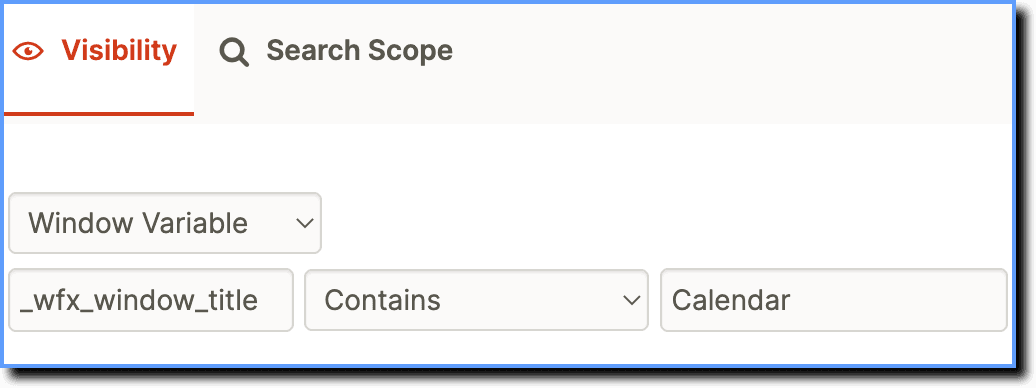 |
| Selected Element Is (Display Rule) | You can uniquely identify an element of a desktop application by defining the CSS selector of the selected element using the Selected Element Is rule. | You can display a Beacon over Button on your desktop application, like Teams, Slack etc.  |
| Selected Element Text (Display Rule) | You can uniquely identify an element of a desktop application using its text. Choose the Selected Element Text rule and enter the text coded in the element. | You can display a Smart Tip over the Chat option on your desktop application. 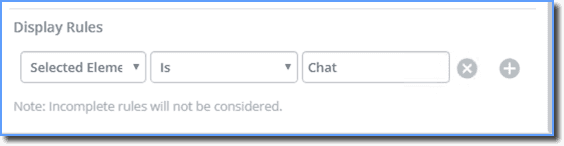 |
Supported Operators
| Operator | Description |
|---|---|
| Equals | For an exact match |
| Not Equals | Doesn't equal the value |
| Contains | Set value is present anywhere in the value of the condition (Check for strings) |
| Not Contains | Set value is not present anywhere in the value of the condition |
| Starts With | Set value is at the beginning of the value of the condition |
| Ends With | Set value is at the end of the value of the condition |
| Exists | Set value is available (or true) |
| Not Exists | Set value is not available (or false) |
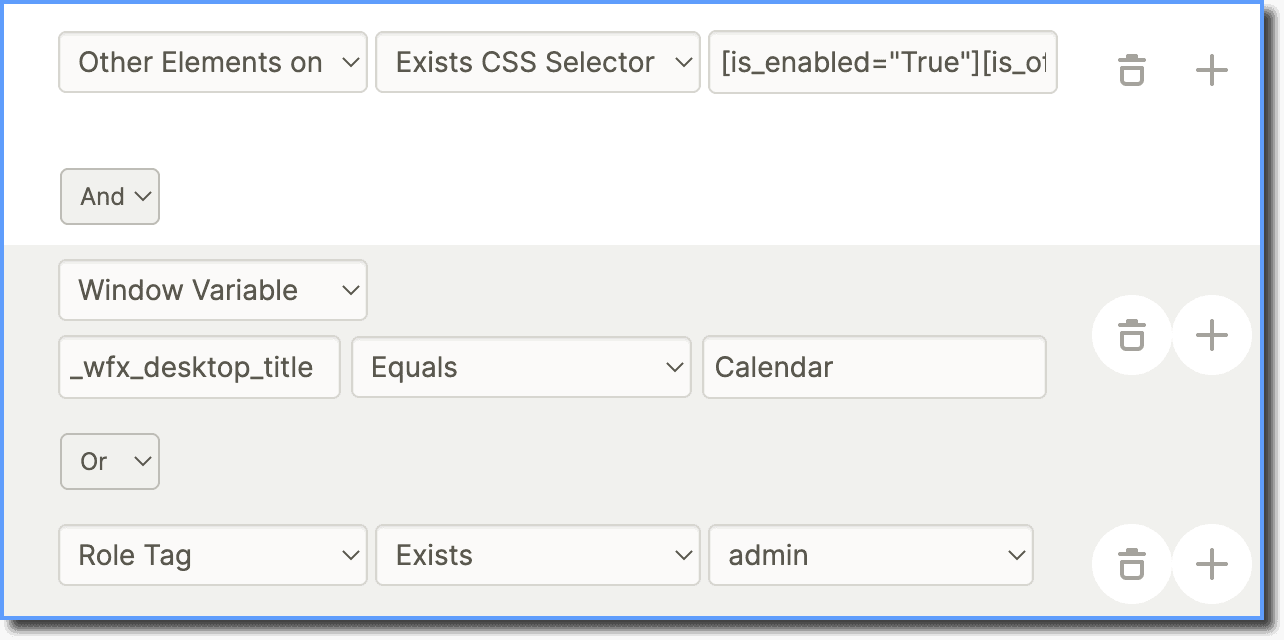
Your title goes hereWhile setting up display rules for your widgets, you can use the AND/OR settings for conditions. You can use these conditions as a combination as well.
- To show content that has all the rules associated with it, use the AND operator.
- To show content that has at least any one of the associated rules, use the OR operator.
Use Cases
Display a widget on a specific page of an application
When configuring the Visibility rules in a widget,
- Under the Visibility section, select Window Variable.
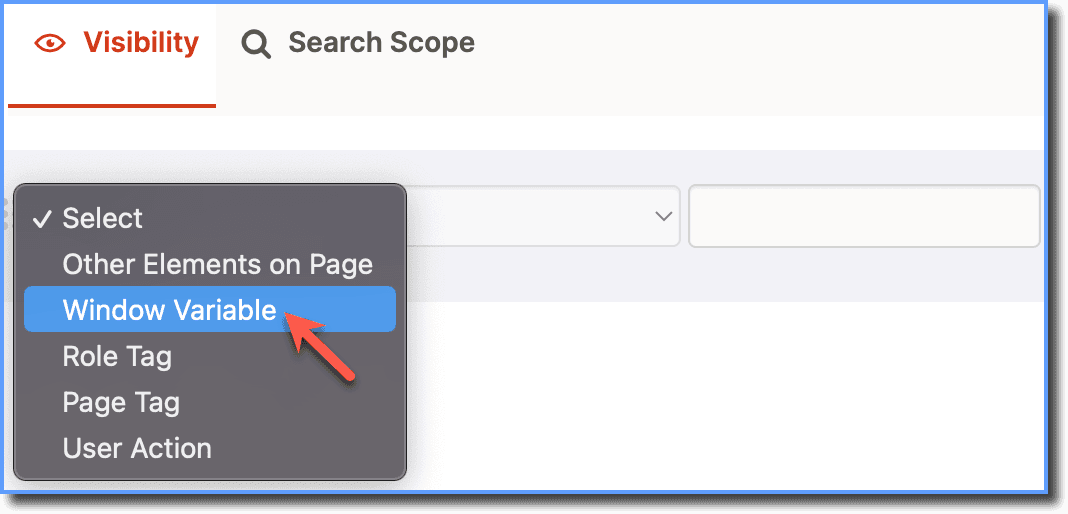
- Enter the variable name as _wfx_window_title.

- Under the Operators section, select Contains.
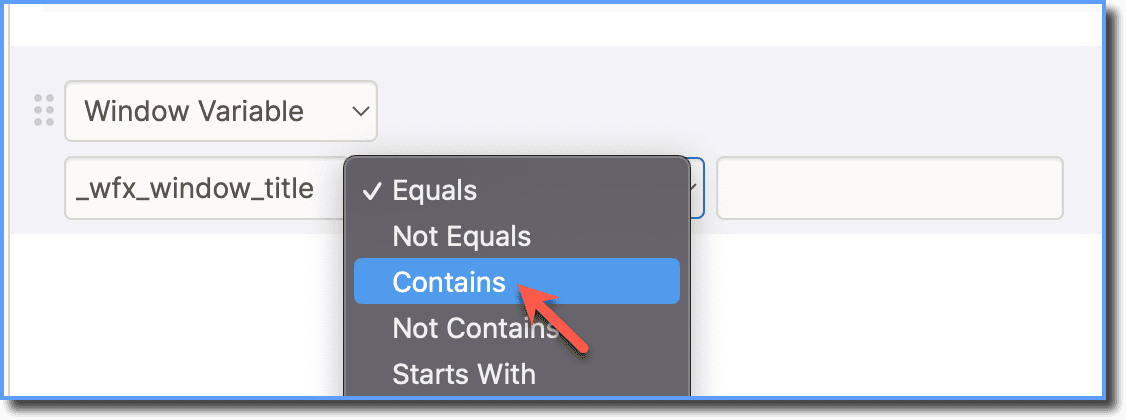
- Enter the title of the page where you want to display the widget. For more information about how to use the Window Variable, see Finding the window variable values for Visibility Rules.
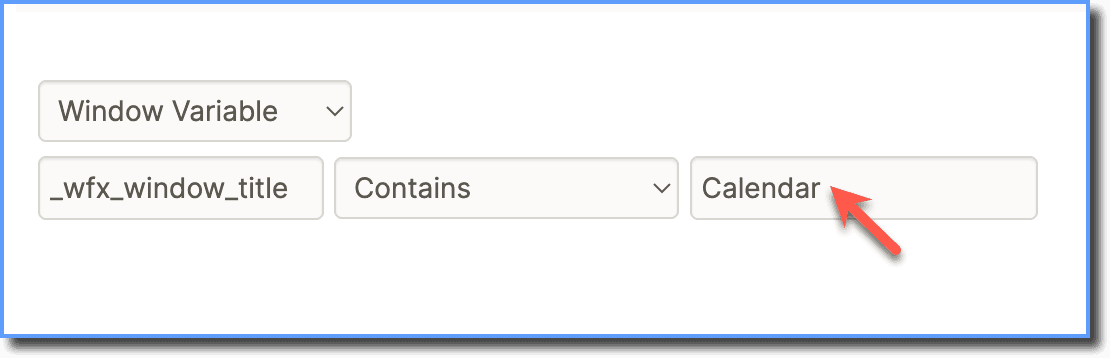
- Click Save.
Display a widget on all the pages across the application except one
When configuring the Visibility rules in a widget,
- Under the Visibility section, select Window Variable.
- Enter the variable name as _wfx_window_title.
- Under the Operator section, select Not Equals.
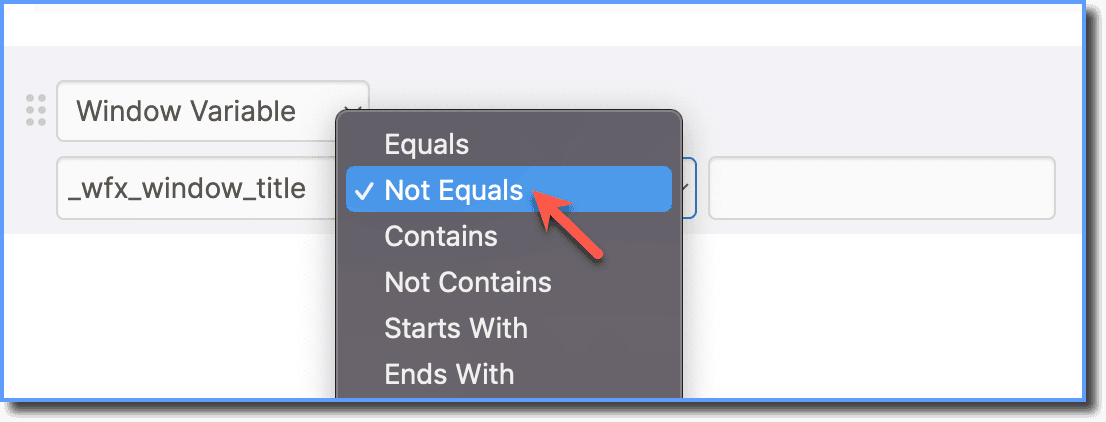
- Enter the title of the page you don't want the widget to appear on. For more information about how to use the Window Variable, see Finding the window variable values for Visibility Rules.
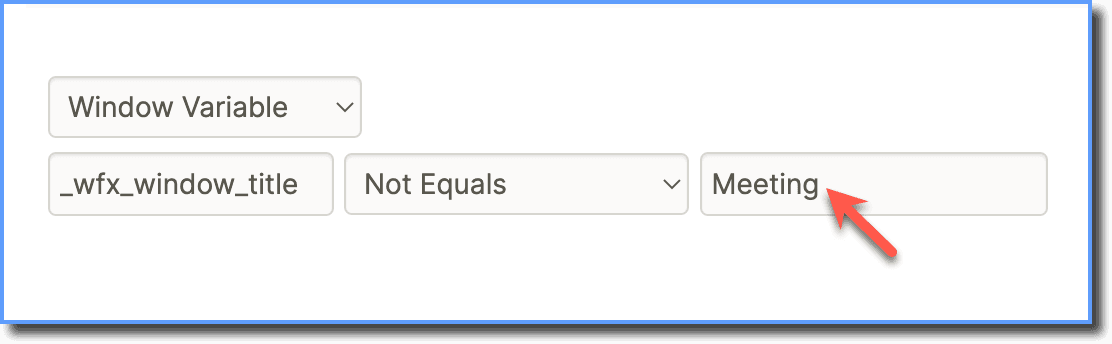
- Click Save.