New Visibility Rules for Content
New Visibility Rules for Smart Tips in Studio
Display Rules are now available as New Visibility Rules and Element Precision Rules in Studio.
New Visibility Rules enable you to control where, when, and to whom a Smart Tip is displayed. Whatfix enables you to configure the new Visibility Rules using Studio at the Smart Tip level. When you configure the new Visibility Rules in Studio, the rules apply only to that specific Smart Tip. It enables you to create a more personalized and dynamic experience for each Smart Tip.
The following table lists all the conditions used while configuring the Visibility Rules for Smart Tips. These conditions determine when, where, and to whom Smart Tips are to be displayed on your application.
| Clause | Visibility Rule Condition | Corresponding Previous Display Rule Condition | Description |
|---|---|---|---|
| When does the smart tip start appearing? | Specific date range | NA | Show the Smart Tip if the current date and time fall within the specified range. |
Something on the application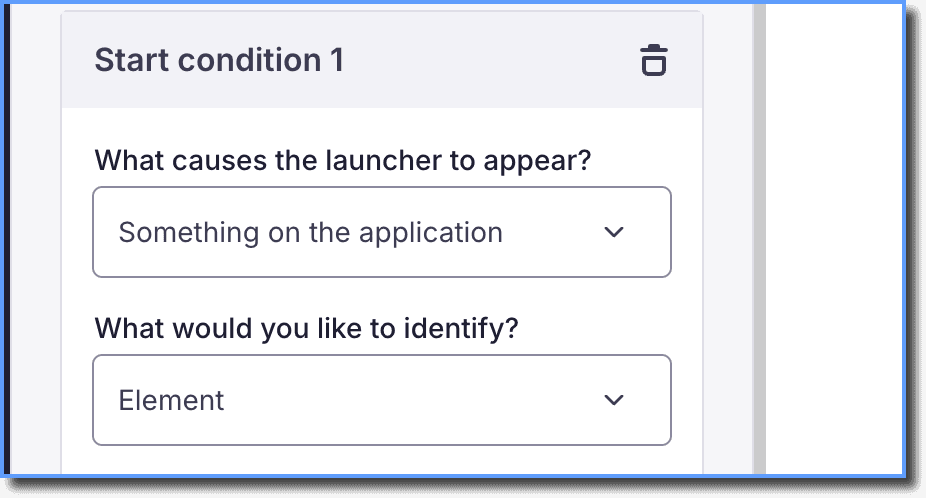 | Other Element on Page | Show the Smart Tip based on the presence of a specific element on the page. | |
User performing an action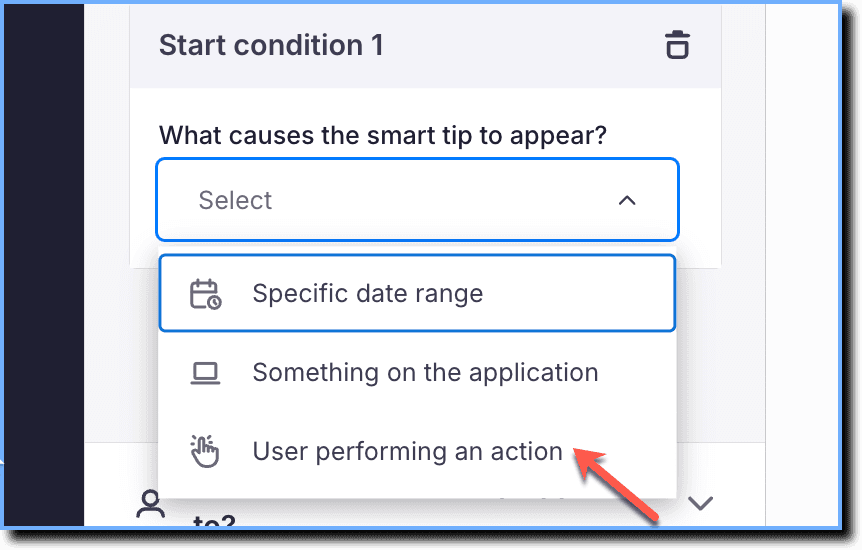 | Based on user action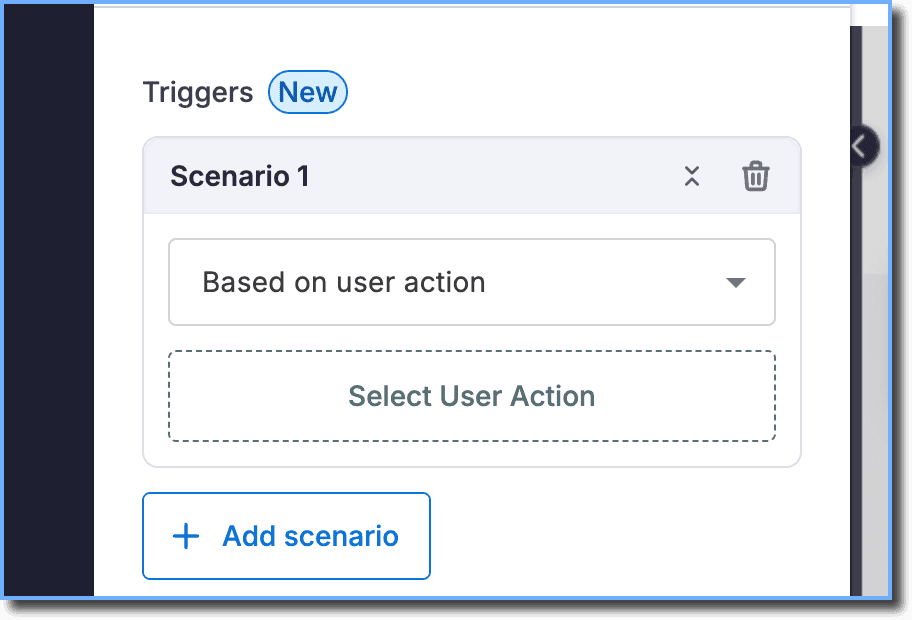 | Previously available under Smart-tip Triggers, User performing an action rule enables you to show a Smart-tip when end users interact with a specific element on your application. | |
| Where does the smart tip appear? | URL | URL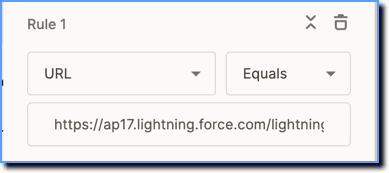 | Show the Smart Tip when the current page URL matches the specified URL. |
Domain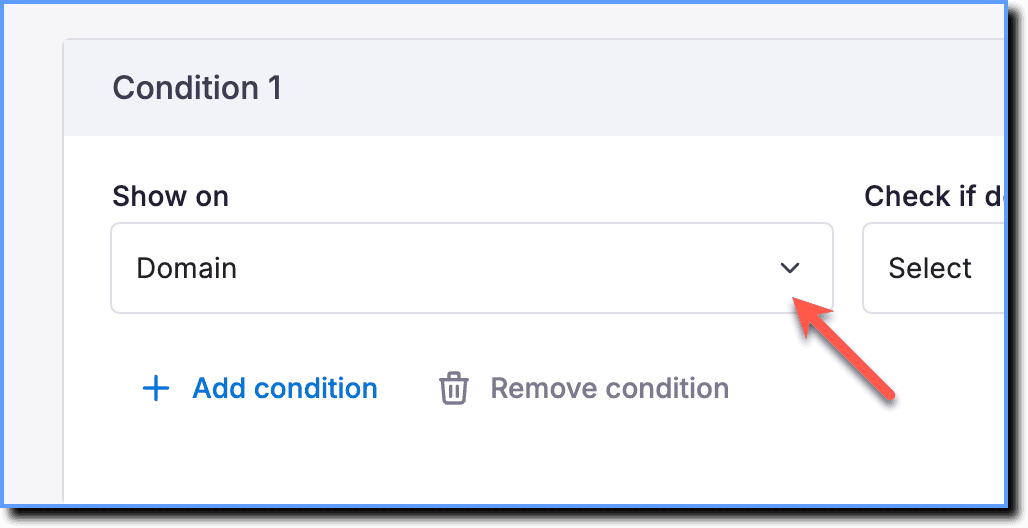 | URL Hostname  | Show the Smart Tip when the domain of the current page matches the configured domain. | |
URL path 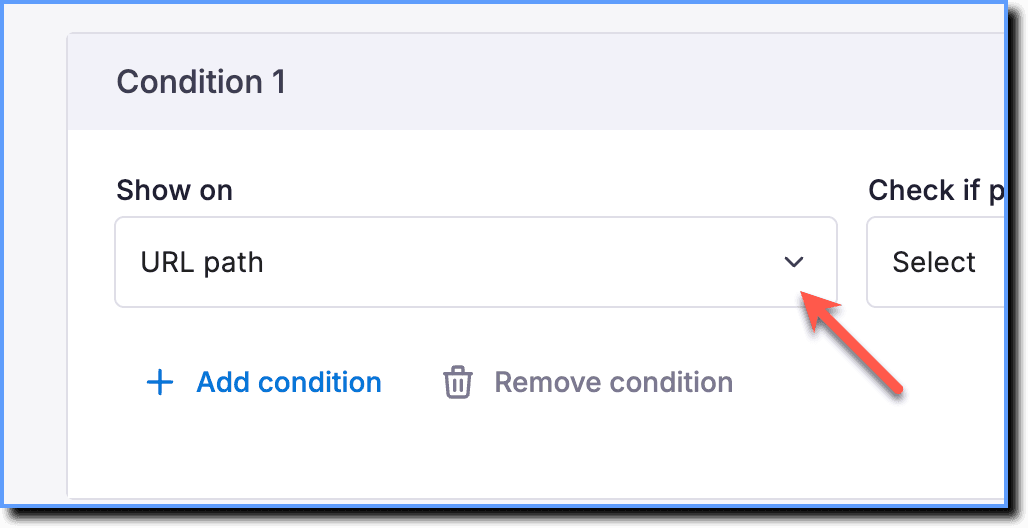 | URL Path 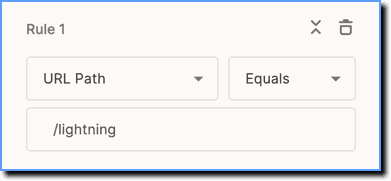 | Show the Smart Tip when the path of the current page URL matches the specified path. | |
URL parameter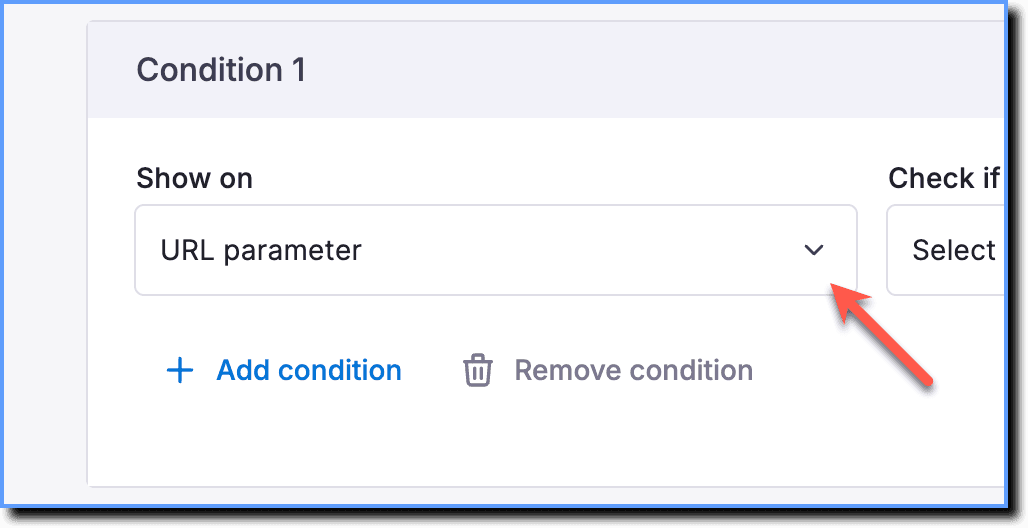 | URL Parameter 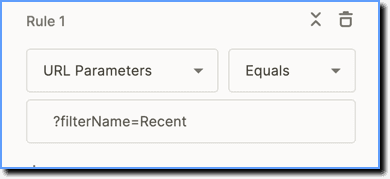 | Show the Smart Tip when the current page URL matches specified URL parameter(s). | |
URL hash value 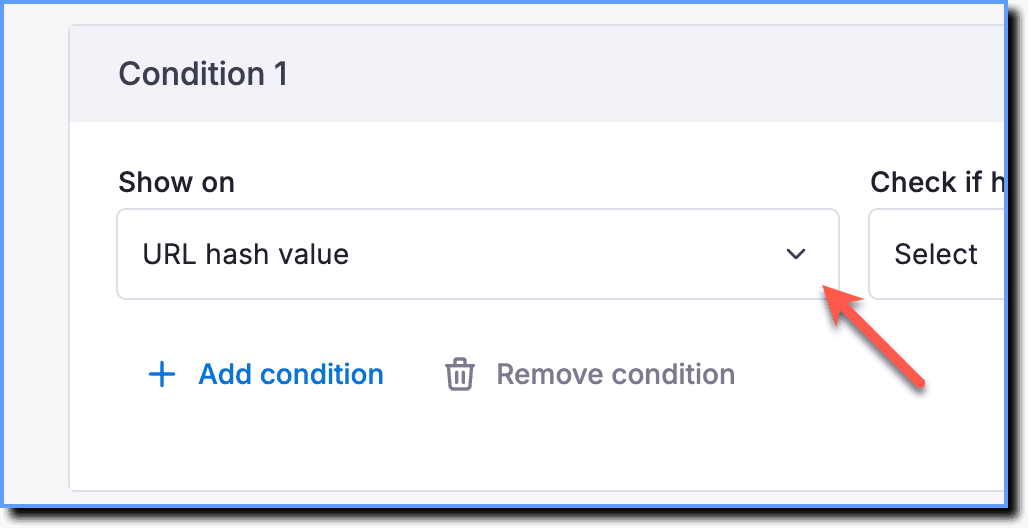 | URL Hash 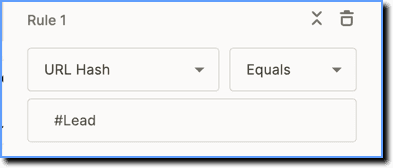 | Show the Smart Tip if the hash value in the URL matches the specified value. | |
Page tags | NA | Show the Smart Tip if the page has matching page tags. | |
| Who does the smart tip appear to? | Enterprise Attributes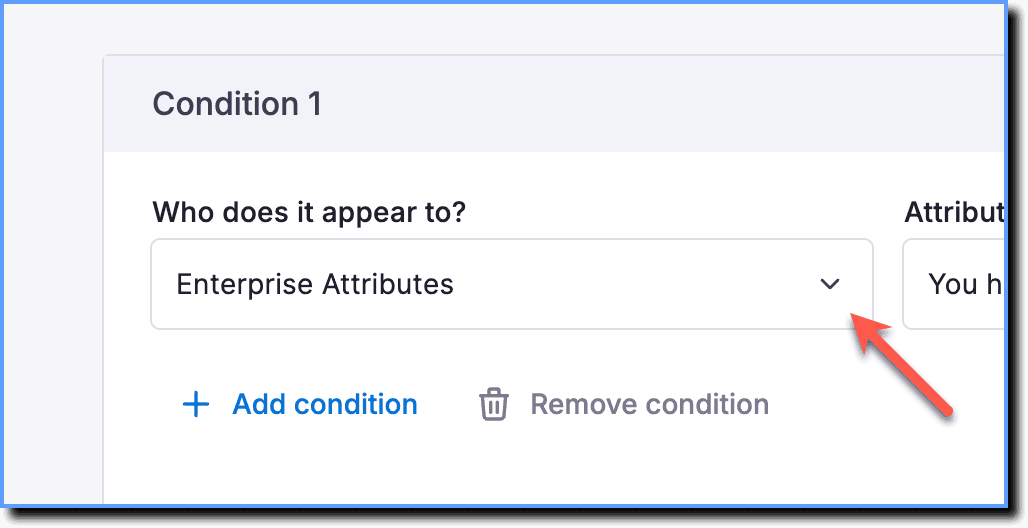 | Enterprise Attribute  | Segment the Smart Tip based on user roles, departments, geography, accounts, and more. |
User Attributes | User Attribute | Segment the Smart Tip based on end-user information from your application. | |
Cohorts  > [!WARNING] > Note: > > Cohorts is a Beta feature. To enable it, contact support@whatfix.com. | NA | Show the Smart Tip to specific user groups based on certain use cases. | |
| Salesforce Objects > [!WARNING] > Note: > > Contact support@whatfix.com to enable it. | NA | Salesforce Lightning objects are properties that help Whatfix serve relevant content to Salesforce Lightning users based on existing Salesforce Lightning properties that help identify different users. Using Salesforce Lightning objects helps you to show relevant content to your users. |
Use the following steps to configure Visibility Rules for Smart Tips using Studio:
- On the Whatfix Studio, click Visibility Rules.
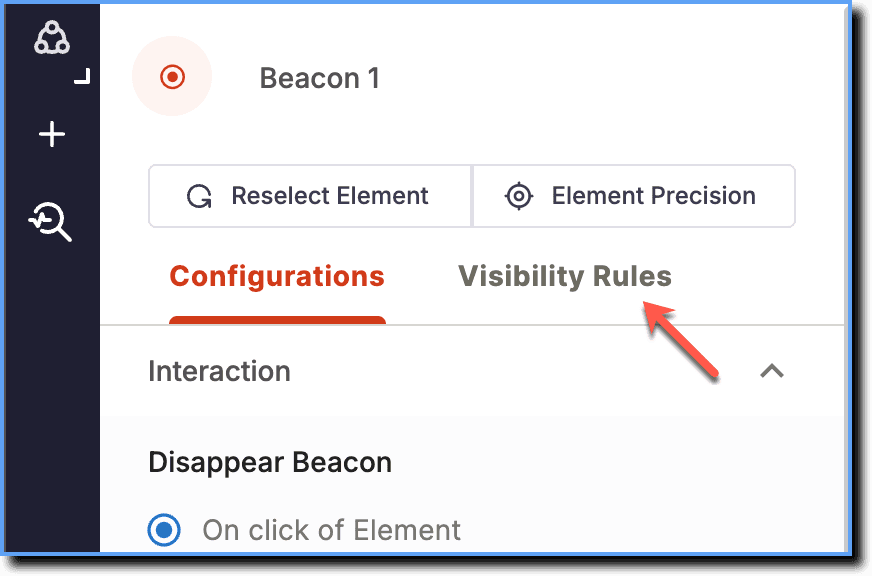
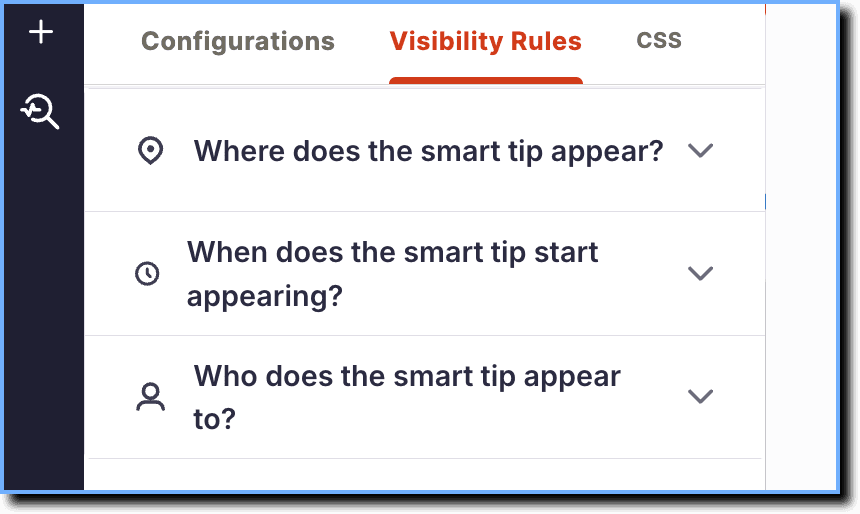
- On the Visibility Rules page, set the following conditions:
- Where does the smart tip appear?
- When does the smart tip start appearing?
- Who does the smart tip appear to?
- Once you have added all the required Visibility Rules, click Save Tip.