Embed Videos in Pop-ups
Embed a Dropbox video using Embed code
Embed Dropbox videos to any Pop-up template to deliver more information to users. Embed the video in the description section. For more information on Whatfix Pop-up templates, see Choose the Pop-up template.
Adding a video embed code in a Pop-up is a 2-step process.
- Step 1: Get the video embed code
- Step 2: Insert the video embed code in the Pop-up using Visual Editor
Step 1: Get the video embed code
Note:
Dropbox does not have an in-built embed option to insert videos. However, we can manually create one.
Use the following steps to get the video embed code:
- Go to the location where the video file is located in your Dropbox account.
- Hover your cursor over the video and click the Copy link icon.
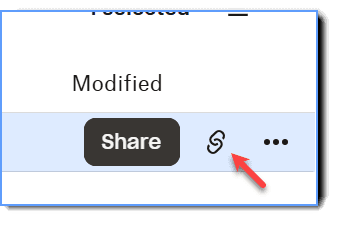
- Paste the copied link on a text editor.

- Remove any parameters after the question mark and replace them with raw=1.
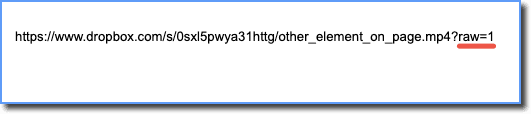
- Add the edited video link to the src parameter in the following code snippet to obtain the embed iframe link.
<iframe src="video_link" height="480px" width="640px" allowfullscreen></iframe>The final embed link appears as follows: 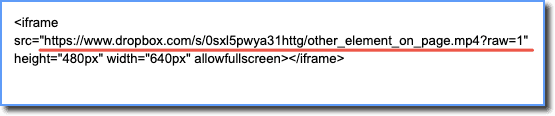
Step 2: Insert the video embed code in the Pop-up using Visual Editor
Use the following steps to insert the video embed in your Pop-up:
-
On the Whatfix Guidance dashboard, click Widgets.
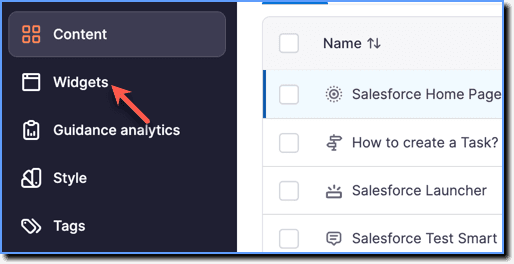
-
Click Pop-ups.
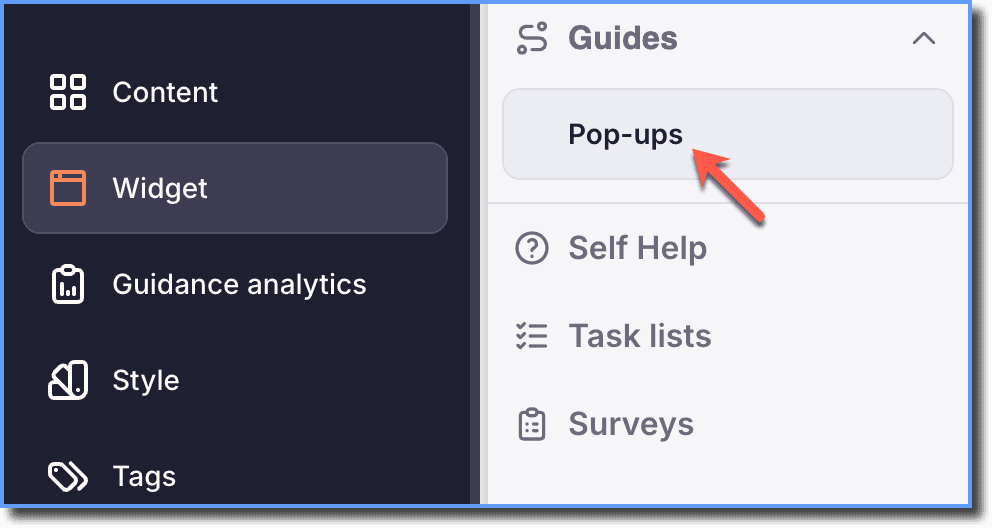
-
Hover your cursor over the Pop-up segment you want to configure, and then click the Edit icon.
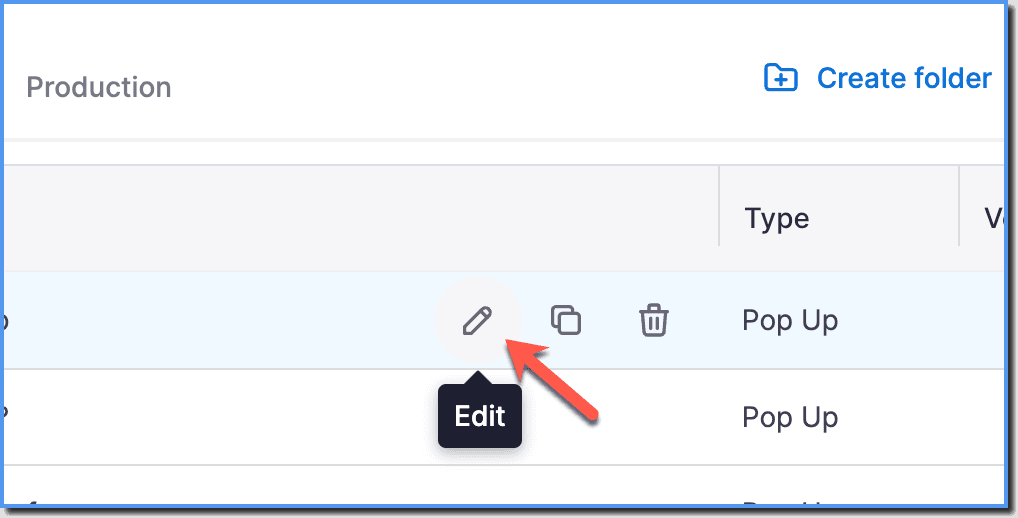
-
In the Description section, place the cursor where you want to add the video and double-click to open the Rich Text Editor.
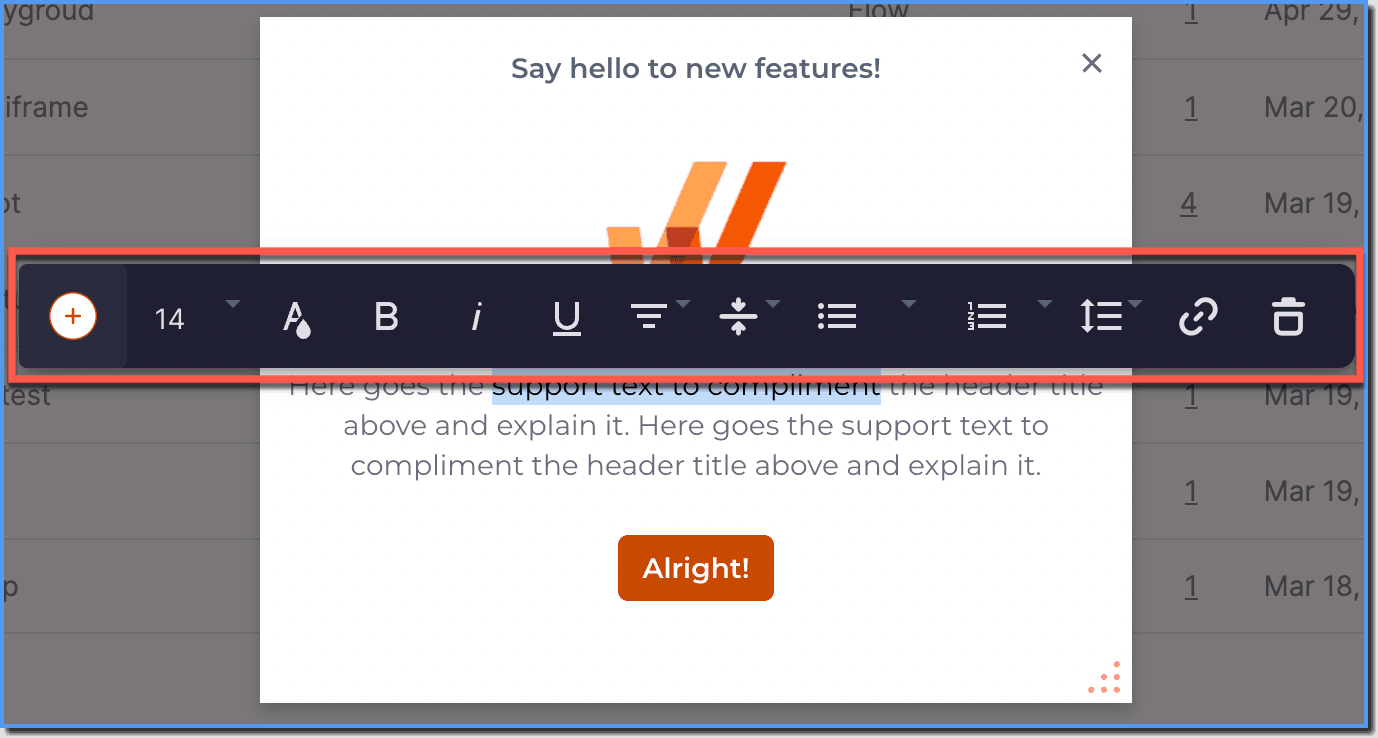
-
Click the + icon. The Add Component dialog box opens.
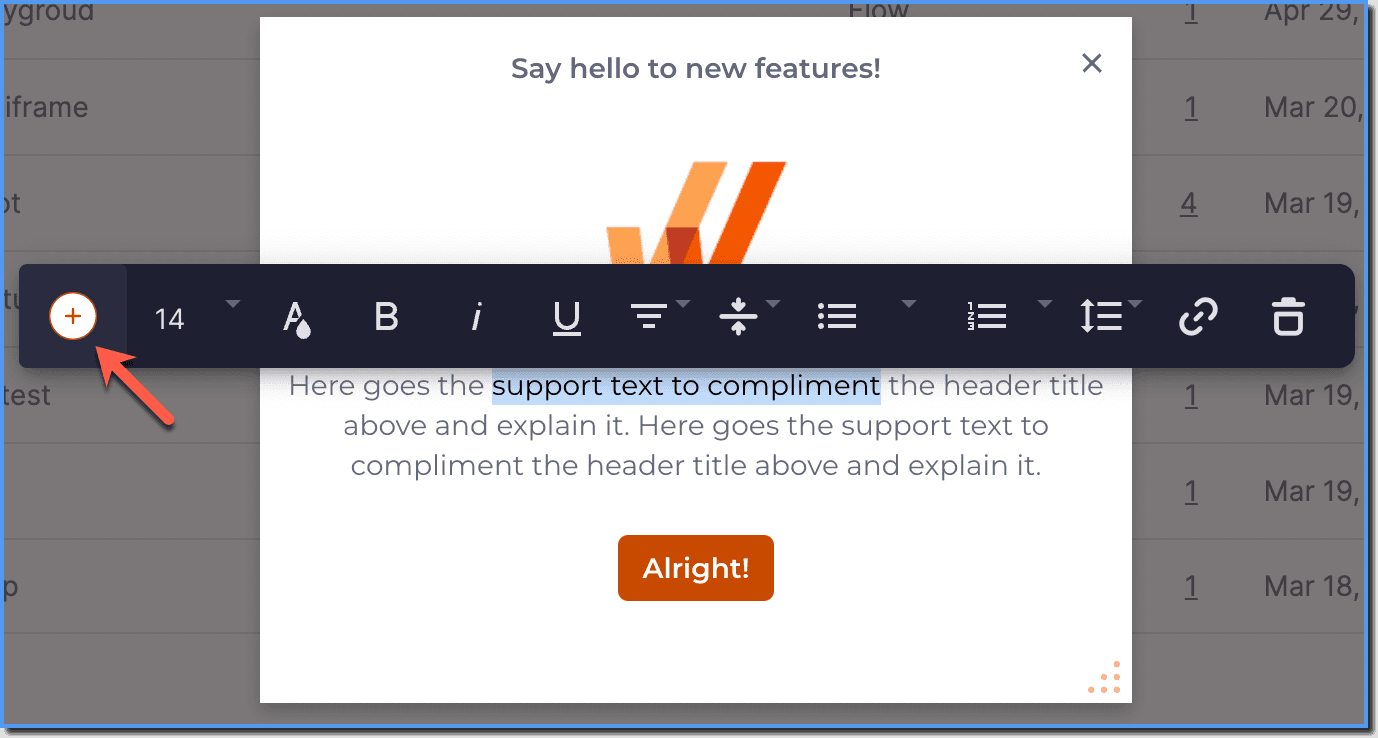
-
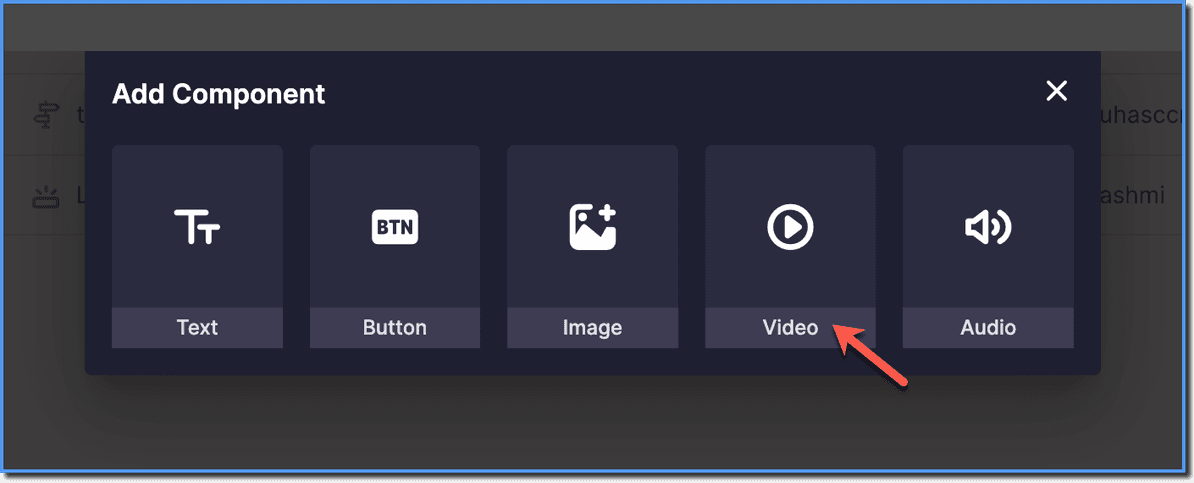
On the Add Component dialog box, click Video.
-
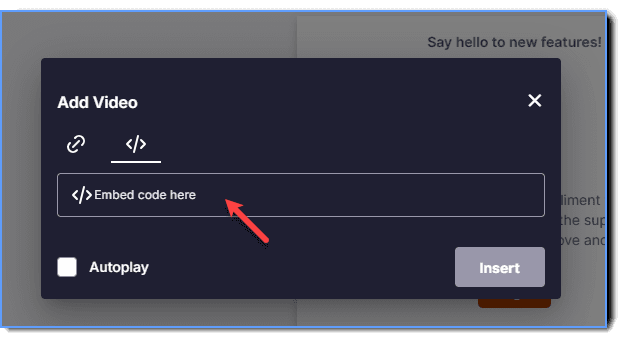
Paste the embed code.
-
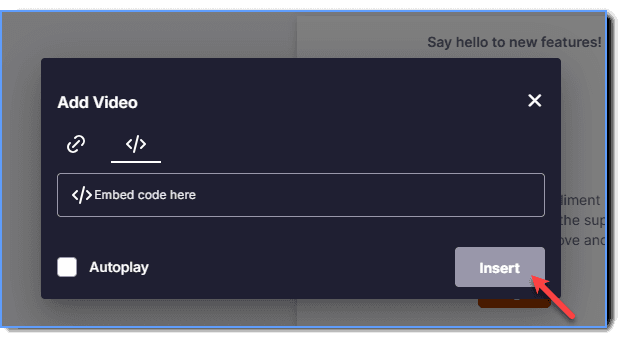
Click Insert.
Note:
- If you want the video to autoplay for your end users, click Autoplay while inserting the video.

- Finish creating the Pop-up.