Whatfix PDF Export
Customize a PDF template
Whatfix enables customization of the PDF template used for generating PDF output from a Flow. Customize the company logo, include or remove the header and footer sections, and choose between portrait or classic designs for the PDF.
Use the following steps to customize a PDF template:
-
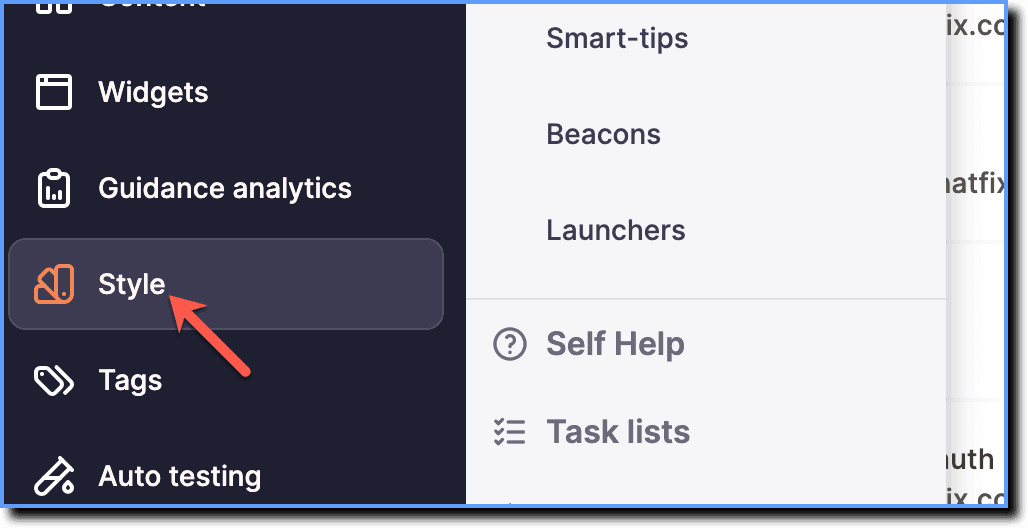
On the Whatfix Guidance dashboard, click Style.
-
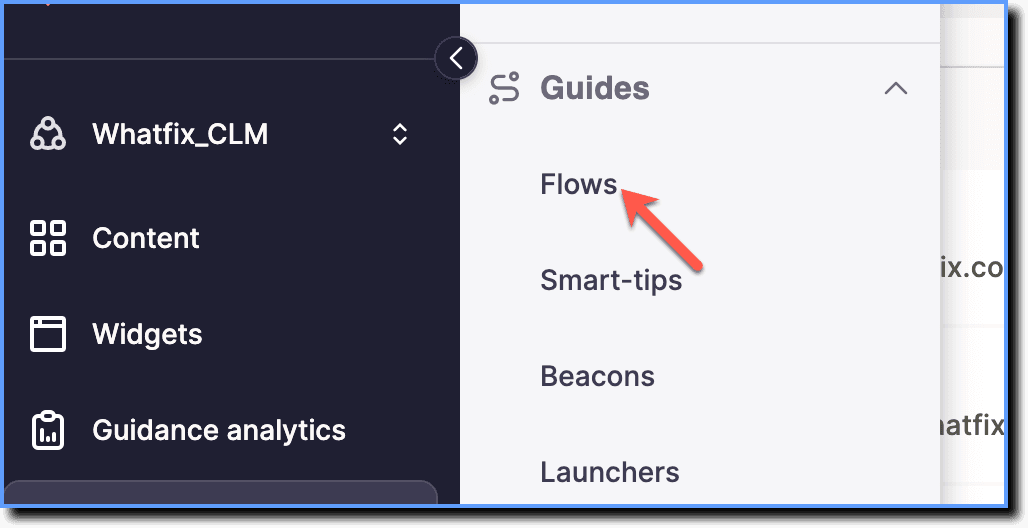
Click Flows.
-
Go to the PDF tab to perform the following customizations.
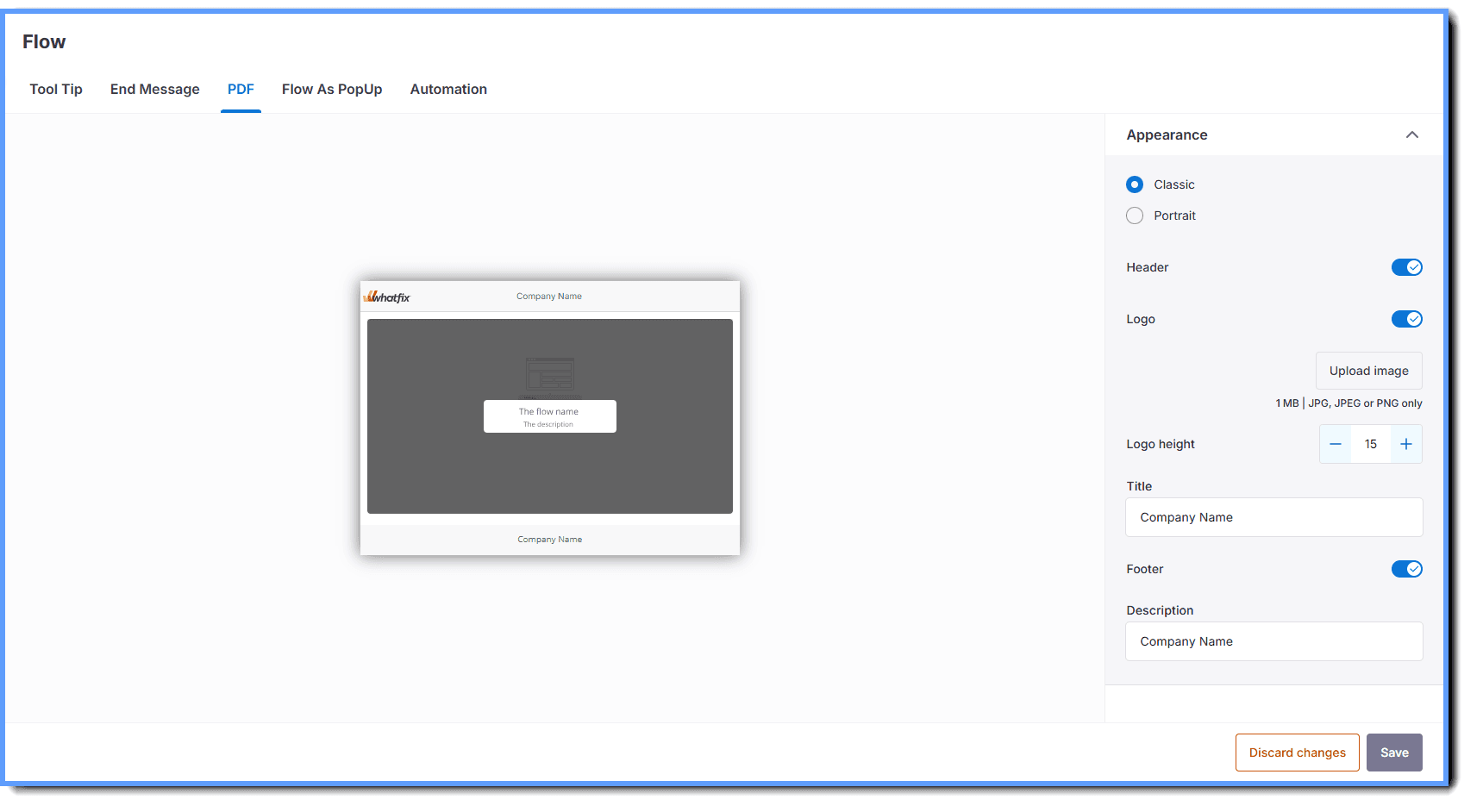
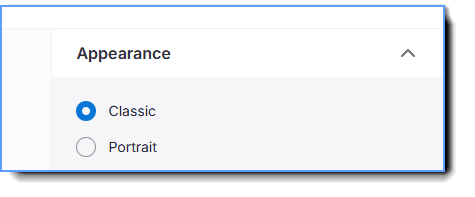
- Choose one of the options for the PDF export.
- Classic - One step in a page
- Portrait - Up to eight steps in a page
- Enable the Header toggle. Once enabled, add your company logo, configure the size, and the header content.
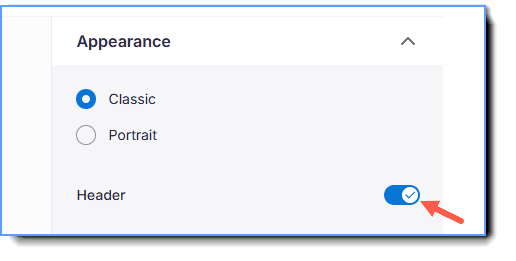
The dimension of the image added to the header can vary, but the logo height cannot exceed 30 pixels.
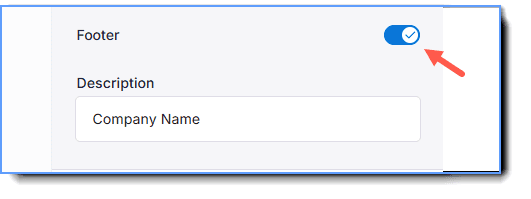
- Enable the Footer toggle to add footer content.
- Set the Number of steps per page.
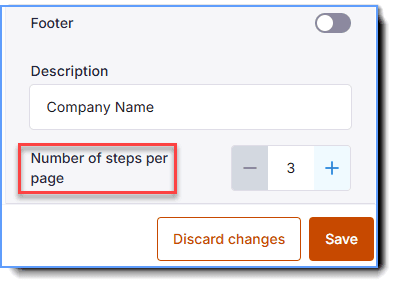
- You can set the number of Flow steps per page only for the Portrait mode.
- Each page can have up to eight Flow steps.
- It is recommended to have not more than 5 Flow steps per page.
- When you change the number of Flow steps per page, a preview of the steps appear in the PDF on the left side.
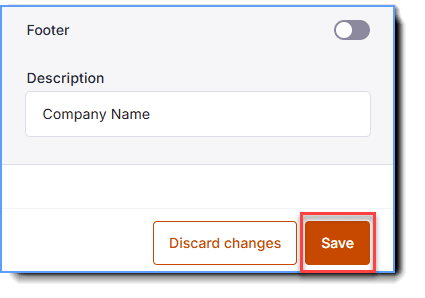
- Click Save.