Whatfix Videos
AI Voiceover for Flow Videos
Overview
The AI Voiceover feature enhances Whatfix Flow video exports with human-like narration powered by AI. It adds a natural, instructor-led delivery style, making training videos more engaging and professional, with better user engagement. The AI Voiceover for videos covers Narration Style, and Content Handling as premium features.

Capabilities
Following are the capabilities of the AI Voiceover in Flow videos:
- Adds narration to a Flow video without recording your own voice or using external voiceover tools.
- Chooses a narration style: read the script as written, smooth its flow, or rephrase it in a friendly tone.
- Ensures consistent pronunciation of acronyms, abbreviations, and brand names across your videos.
- Removes specific words or phrases from the narration.
How AI Voiceover generates narration
AI Voiceover doesn’t take a prompt from you. It generates narration from the text already in your Flow’s steps and the options you set in Video settings.
AI Voiceover uses the following information to generate narration:
- The step text in your Flow.
- The persona, narration style, and content handling options you configure in Video settings.
Whatfix does not use your prompt inputs or generated Flow content to train AI models. For more information, see Data Security and Privacy Policies for Whatfix AI features.
AI Voiceover capability is part of the Authoring Agent in the DAP AI add-on package. To enable or discuss this feature, please contact your Customer Success Manager (CSM). For all other standard features or Beta capabilities, contact the support team.
Steps to add AI Voiceover in Flow video exports
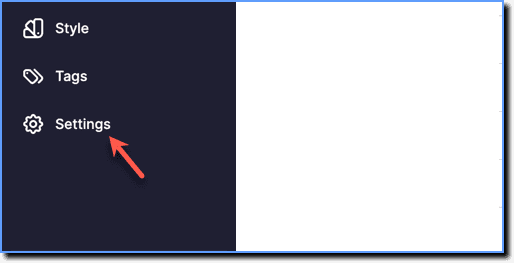
- On the Whatfix Guidance dashboard, click Settings.
- Click Video.

- Under Persona, select any voice personality that you want to add to your videos.
 2. Go to Narration Style.
 3. Under Select a narration style, choose any of the following options:
VerbatimNatural-Verbatim ModeConversational Mode (AI)
Reads the script exactly as written.
Keeps your original text but adds natural flow and rhythm for smoother narration.
Rewrites/Rephrases the script into a friendly, easy-to-follow tone.
- Go to Content Handling and configure the following:

Word OmissionsAcronym PronunciationPronunciation Dictionary
Remove specific words or phrases from the script of your voiceover. You can enter multiple words, separated by a comma. For example, “as shown below”, “as shown above”, “click next to proceed.”
Define how you want acronyms and abbreviations to be pronounced in your voiceovers. For example, KPI as Key Performance Indicator.
Ensure brand names, jargon, and product terms are always spoken correctly. For example, Salesforce as ˈseɪlz.fɔːrs.
You cannot add the script of your video using Content Handling.
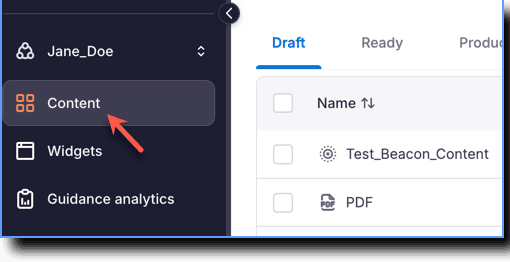
- On the Whatfix Dashboard go to Content once you complete adding AI voiceover.
 2. Click any Flow.
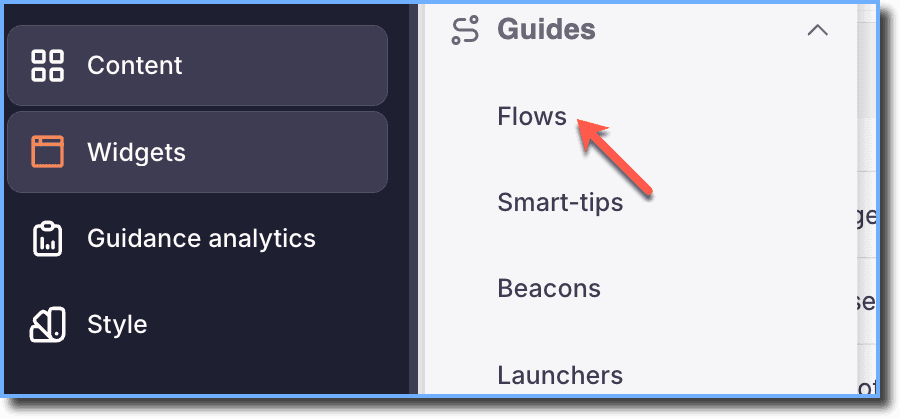 3. Click the More icon and then click Share on a Flow.
 4. Under File Format, click Video.
 5. You can either select Download or Share the video with your stakeholders.
 6. Click Next to export the Flow as a video.
- Any changes you make at this stage of sharing the Flow overrides the changes that you have made at the Settings level. For instance, you can change the Persona and Narration Style and then export your video.

- Flows with incomplete translation don't have any voiceovers when downloaded as videos. Such videos with incomplete or no translation when downloaded has No Audio appended to the filename.
Limitations
AI Voiceover has the following limitations:
- Content Handling doesn’t let you edit the script text directly; edit the Flow’s step text instead to change the narration.
- Language enhancements for voiceovers are currently in Beta.
- AI Voiceover is AI-generated and the output might occasionally contain inaccuracies.
AI Voiceover interprets your Flow’s step text and configured settings to produce narration. It might mispronounce a term you haven’t added to the pronunciation list. For best results, use the phonetic spelling of words.
Preview the video before you share or download it.
The Authoring Agent (part of the Whatfix AI Agents suite) automates the data capture, configuration, and guidance content creation across systems to ensure consistency and minimize manual effort.
Your Customer Success Manager (CSM) is your direct contact for features involving specific customer agreements, such as using AI features.
The feature release stage in which functionality is made available to a limited group of users for testing and feedback. Beta features are generally stable but may still undergo changes before becoming Generally Available (GA).