Walkthrough
Define Step Transition rules
Step Transition rules in a Walkthrough enable you to define when Whatfix Mobile must stop displaying one step and then show the next step of the Walkthrough. For example, users move to the next step when they click the next button, select the element, or after a delay, and more. Step Transition rules are defined while creating a Walkthrough.
Use the following steps to define step transition rules:
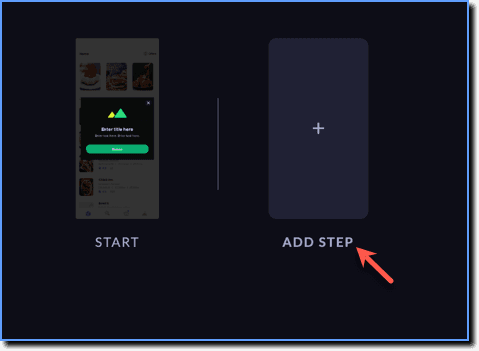
- After creating a Start page for your Walkthrough, click the + icon to create the Walkthrough steps.
your title goes here
For more information on creating a Walkthrough, see Create Walkthrough.
- Connect the app, capture the app screen, and identify the app screen where you want to show the element.
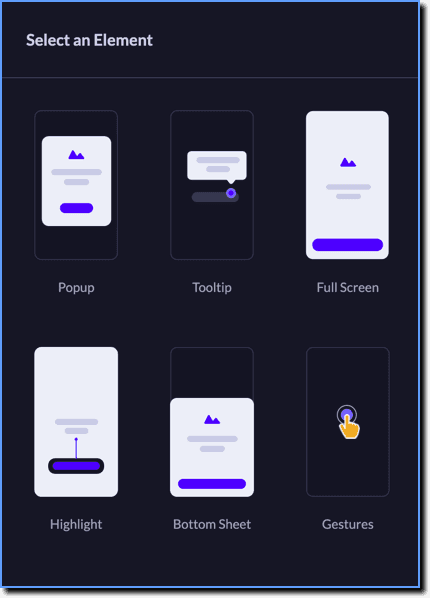
- Select the element you want to show.
your title goes here
Create a Popup, Tooltip, Fullscreen, Highlight, Bottom Sheet, or Gesture as elements in your Walkthrough step. For more information see:
- To enable your end user to go to the next step in the Walkthrough, select the STEP TRANSITION rules using the dropdown.
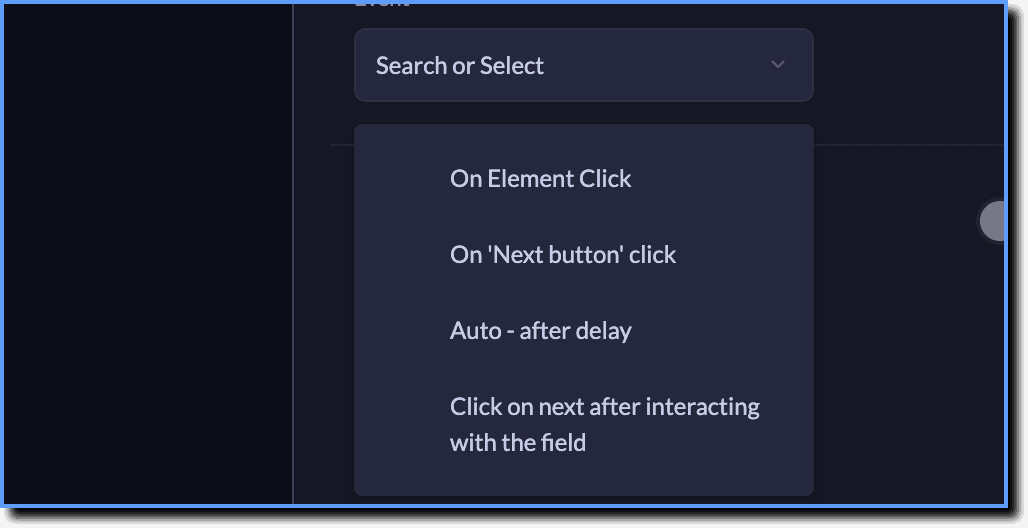
The following table gives a brief description of all available Step Transition rules:
| Rule | Available for | Description |
|---|---|---|
| On Element Click | Tooltip, Highlight, Gesture | The next step is displayed when the user clicks the element. |
| On 'Next button' click | Tooltip, Fullscreen, Highlight, Bottom Sheet, Popup | The next step is displayed when the Next button in the element is clicked. |
| Auto - after delay | Tooltip, Fullscreen, Highlight, Bottom Sheet, Gesture, Popup | The next step is displayed after a few seconds of delay. |
| Click on next after interacting with the field | Tooltip, Highlight | The next step is displayed after the user interacts with the selected element. |