Walkthrough
Add a Close icon to the Walkthrough step
Configure a Close button to enable your end users to close the Walkthrough step or end the Walkthrough whenever needed.
Note:
Add a button to a Tooltip, Pop-up, Bottom Sheet, and Fullscreen of a Walkthrough.
Use the following steps to configure a Close button:
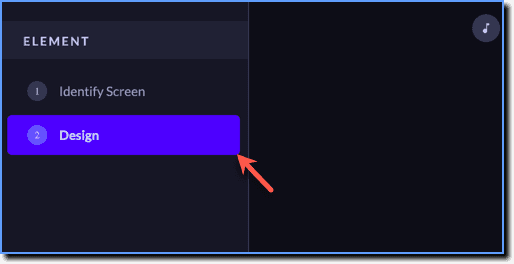
- While creating your Walkthrough, click Design.
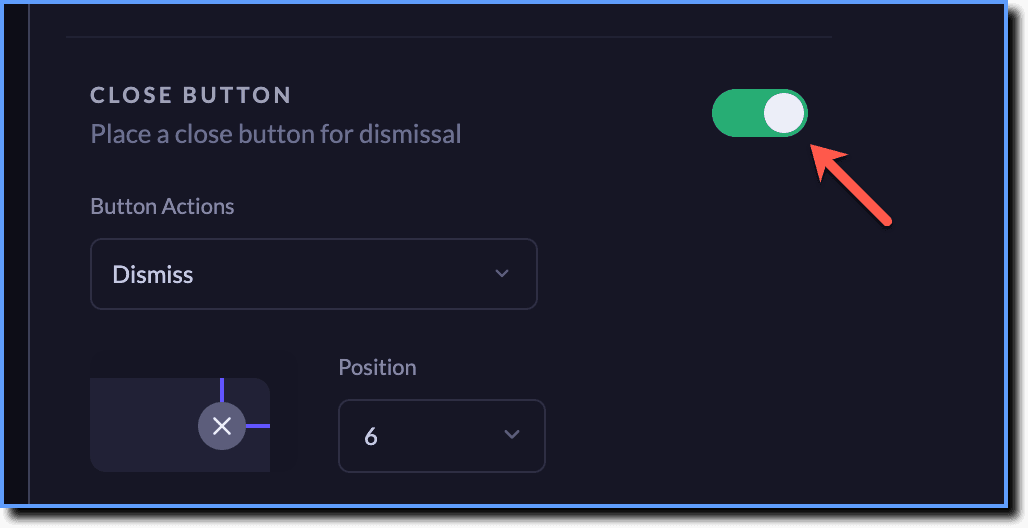
- Enable the CLOSE BUTTON toggle.
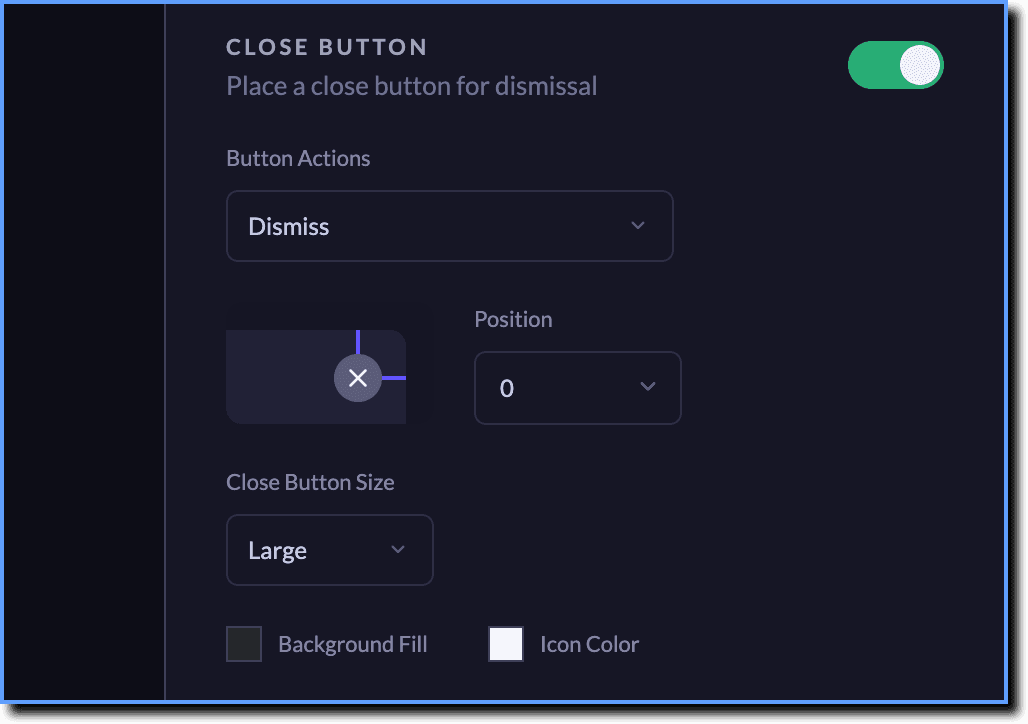
- Customize the Position, Close Button Size, Background Fill, and Icon Color of the Close button.
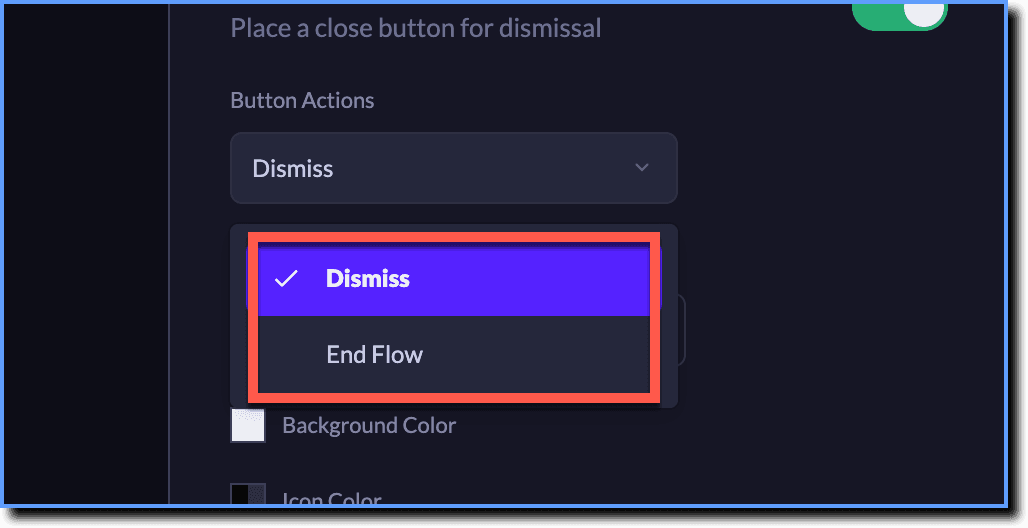
- Select the close button action using the Button Actions dropdown.
Note:
Whatfix Mobile enables you to select the following close button actions:
- Dismiss: Closes the current Walkthrough step and continues to the next.
- End Flow: Closes the Walkthrough and mutes it for the rest of your session.