Trend Insights
User Filters in Insights
User filter
User filters enable you to narrow down the data shown by applying conditions based on user properties, such as browser, operating system, city, or country.
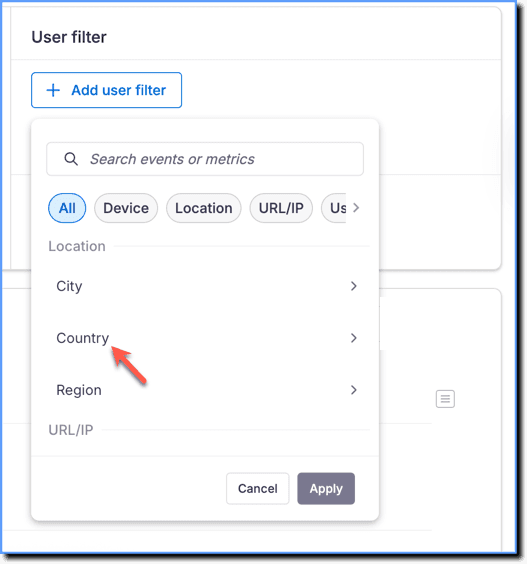
User filters are available in Trend Insights, Funnel Insights, User Journeys, Event groups, and Cohorts.
Use cases:
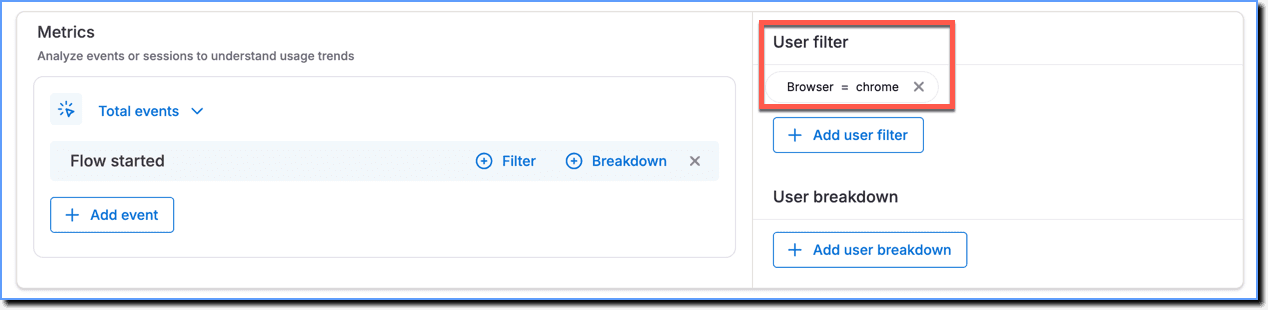
Trend Insights: For the Flow start event, refine results to display data only for users who started the Flow from the Chrome browser or from a specific location.
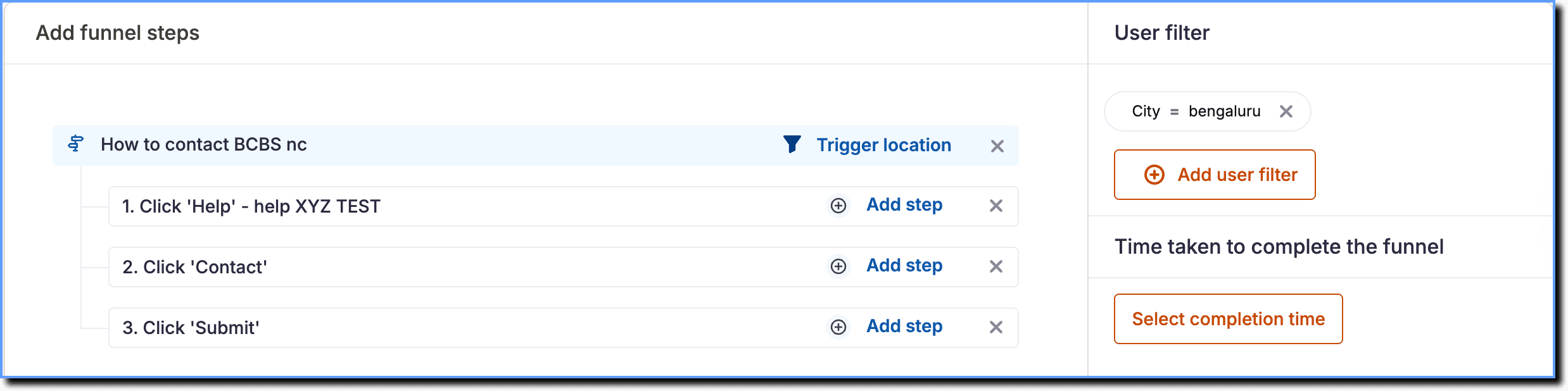
Funnel Insights: For a specific Funnel event (Flow, User Action, or Page View), refine results to display data only for users who engaged with the Funnel steps from the Chrome browser or from a specific location.
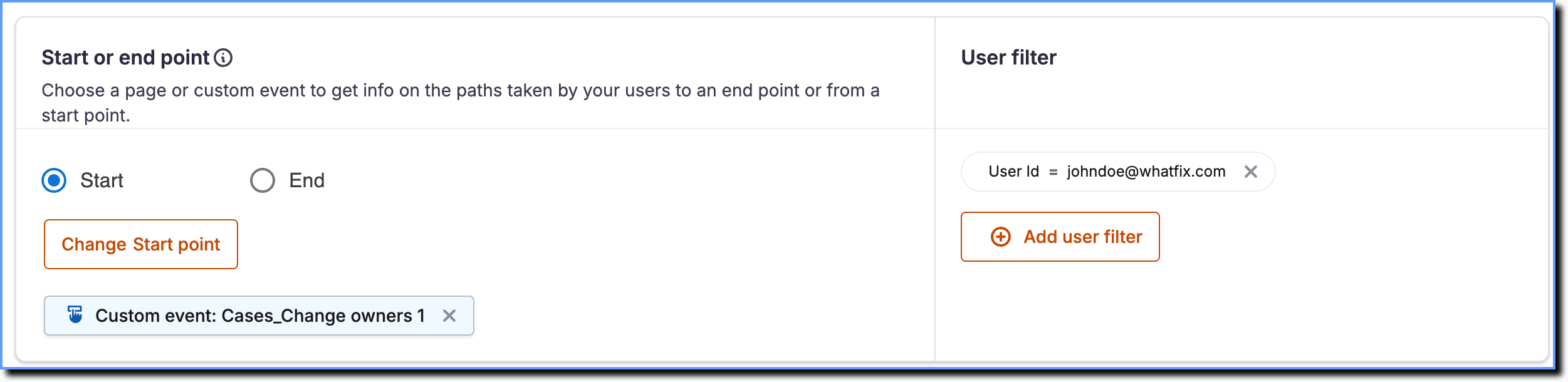
User Journey: Understand the Journey followed by a specific user based on their User ID.
Info:
- To exclude specific filter values for which you don't require data, see How can I exclude filter values in Product Analytics?
- To exclude blank filter values from your data, see How can I exclude blank filter values in Insights?
User breakdown
User breakdowns enable you to group and visualize the filtered data by a specific user property, such as city, browser, or OS. This changes the chart to show how different groups of users behave within the selected segment.
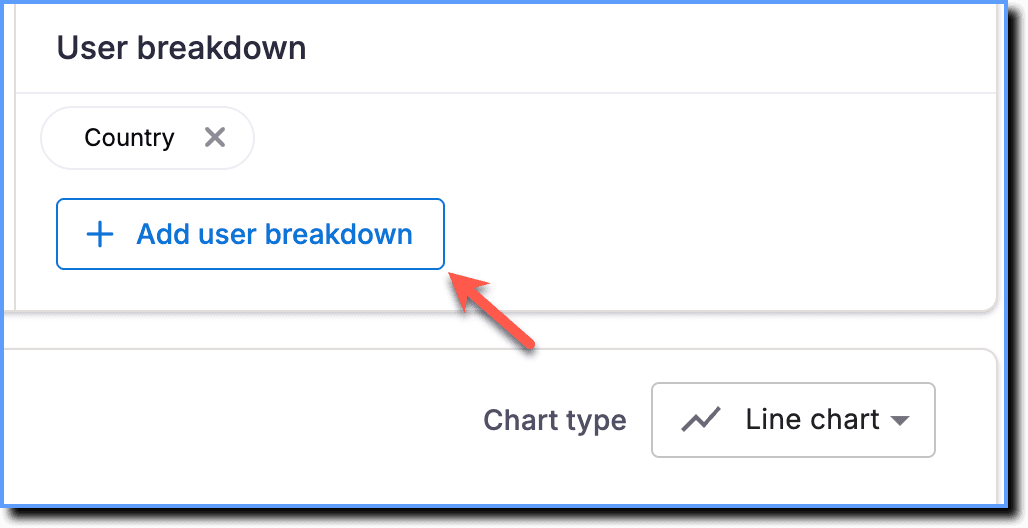
Use case:
For example, for the Flow completed event with the User filter set to Chrome browser, configuring the breakdown as City, displays the chart based on all locations from which users completed the Flow using the Chrome browser.

Note:
User breakdown is only available in Trend Insight.
The following table lists the User filters and User breakdown available in Insights:
| Filters | Description |
|---|---|
| Device | |
| Device Type | Filters data based on the hardware users use. Examples: Mobile phones, desktops, tablets, and more. Info: For more information on the different types of devices that are captured, see What are the device types captured by Product Analytics? |
| Browser | Filters data based on the browser type users use to access the application. Examples: Chrome, Firefox, Edge, and more. |
| OS version | Filters data based on the OS versions. |
| Language | Filters data based on the browser language. Examples: French (fr), Spanish (es), and more. |
| Model | Filters data based on the model of the user's device. Examples: Apple iPhone, the Linux Desktop, and more. |
| OS | Filters data based on the base software(Operating System OS) that runs on the hardware. Examples: iOS, Linux, Windows, and more. |
| Location | |
| City | Filters data based on the city. This data is taken from the browser. Examples: Dallas, Beijing, Bengaluru, and more. |
| Country | Filters data based on country. This data is taken from the browser. Examples: United Kingdom, United States, and more. Info: Country names are shown as ISO country codes. |
| Region | Filters data based on geographical region. This data is taken from the browser. Examples: Camden, Kerala, Central Province, and more. |
| URL/IP | |
| Event trigger page URL | Filters data based on where the event was launched. Example: https://salesforce.com/leads. Note: The following conditions are available for the Event trigger page URL: Contains, Starts with, Ends with, Is equal to, and Not contains. For more information, see How do conditions in the Event Trigger Page URL work? 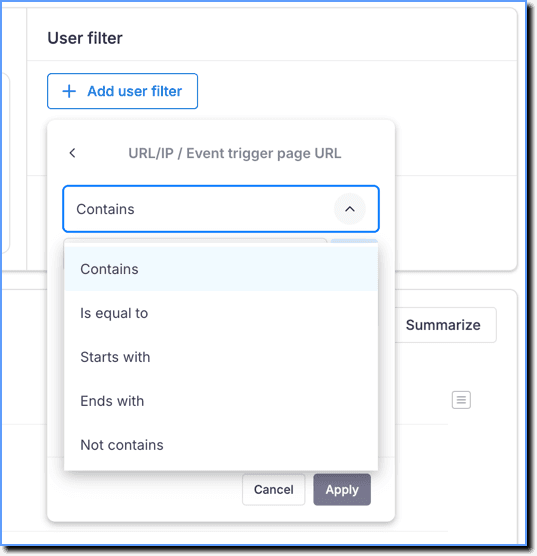 |
| User | |
| User Id | Filters data based on the ID from which the Whatfix event is triggered. Example: johndoe@whatfix.com. Info: - The User Id filter is case-sensitive. Ensure you add the exact User ID value to get the data. - Use a comma to search for multiple User IDs. - To filter based on a User ID that contains a comma, for example Doe, John, enclose the User ID in quotes "Doe, John" while searching. Add a comma after the quotes when filtering for more than one User ID with a comma. - To exclude a User ID that contains quotes, for example "John", do not place a comma between the quotes. |
| User Attributes | Filters data based on the captured User Attributes, such as, role and department. For more information on how to use User Attributes as a filter, see Add User Attributes in Trend Insights and Add User Attributes in Funnel Insights. |
| Cohorts and Users | |
| Cohort | Filters data based on the Cohorts that users belong to. For example, filter new users (grouped using specific conditions as a Cohort) who engage with a feature. For more information, see Add Cohorts in Trend Insights. |
| User List | Filters data based on the User Lists that users belong to. For example, evaluate Task List completion for users added during a training program. For more information, see Add User List in Trend Insights. |
| Variables | |
| Reserved variable 1 | Whatfix reserves two variables as placeholders for additional properties required when sending event data. Reserved Variables are those properties captured along with Guidance events and App events. They are dependent on events and user interaction and capture data only when all necessary conditions are met. For example, set up a ‘session count’ Reserved Variable that gets incremented every time the user logs in. For more information, contact support@whatfix.com. Data is filtered based on these additional properties. |
| Reserved variable 2 | Whatfix reserves two variables as placeholders for additional properties required when sending event data. Reserved Variables are those properties captured along with Guidance events and App events. They are dependent on events and user interaction and capture data only when all necessary conditions are met. For example, set up a ‘session count’ Reserved Variable that gets incremented every time the user logs in. For more information, contact support@whatfix.com. Data is filtered based on these additional properties. |
| Analytics Variable | Filters data based on the captured Analytics Variables, such as Context Variables and User Attributes configured in Advanced Customisation. For more information, see Configure Analytics Variables. |
| Uncategorized | |
| Extension version | Filters data based on the Whatfix browser extension version in use. |
| Extension name | Filters data based on the different Whatfix browser extension names. |
Info:
- To exclude specific filter values for which you don't require data, see How can I exclude filter values in Product Analytics?
- To exclude blank filter values from your data, see How can I exclude blank filter values in Insights?
Trend Insights turns your engagement-related queries, such as the number of users who have completed Flows or the number of users who have clicked the button on your Pop-up, into actionable insights.
An Event group combines two or more individual events into a single grouped-event. It enables you to see the total number of users who performed any of the events in the group.
Cohorts enable you to create a group of users based on specific criteria and analyze the group to take further actions.
Whatfix User Actions enable you to track your end users' actions and behavior on your application
Guidance events include all events triggered when end users interact with Whatfix content or widgets within the application.
App events include engagement with User Actions, Autocaptured events (Beta), or events captured using the Whatfix API.