Insights
How can I exclude filter values while analyzing events?
Sometimes, you might want to eliminate specific filter values and visualize data with all other filter values. Excluding a filter helps you focus only on the data required for analysis.
Use case
Consider that you've rolled out a Pop-up for your customers. You want to use Trend Insights to analyze the number of people who triggered the URL in the Pop-up from all countries, except India. Whatfix enables you to exclude India from the User filter and provides analytics data from all other countries.
Data without the filter value excluded: 
Data setup: 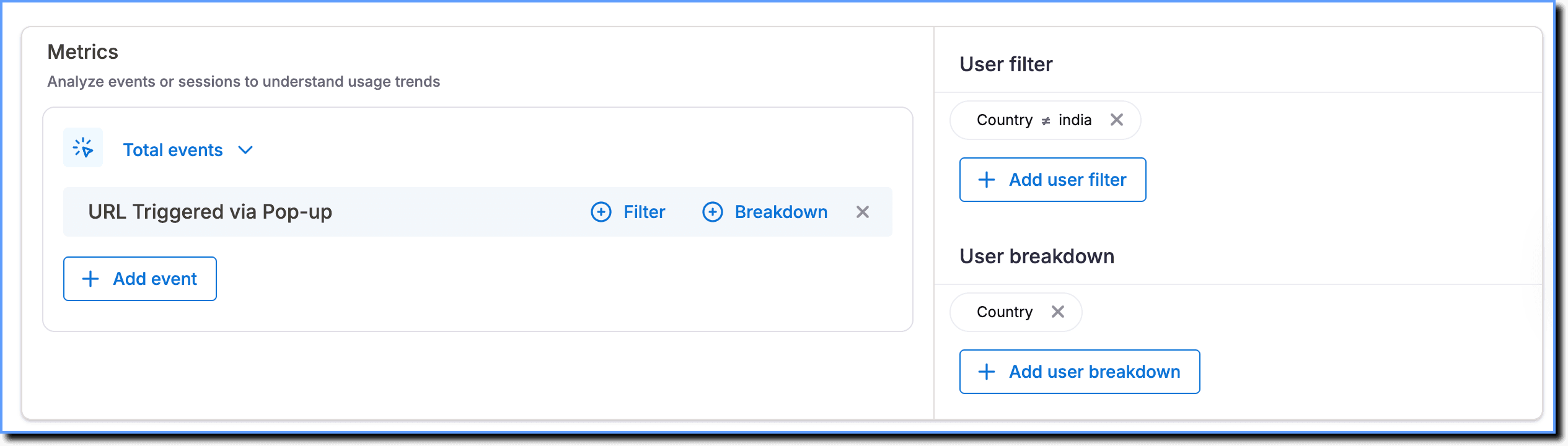
Event metric: Total events Guidance event: URL Triggered via Pop-up User filter: Country Does not equal to India User breakdown: Country
Data after the filter value is excluded: 
Info:
- The exclude filter applies to the User filters found in Trend Insights, Funnel Insights, User Journey, Event groups, and Dashboards.
- It also applies to the Event Filters associated with the Guidance and App events in Trend Insights.
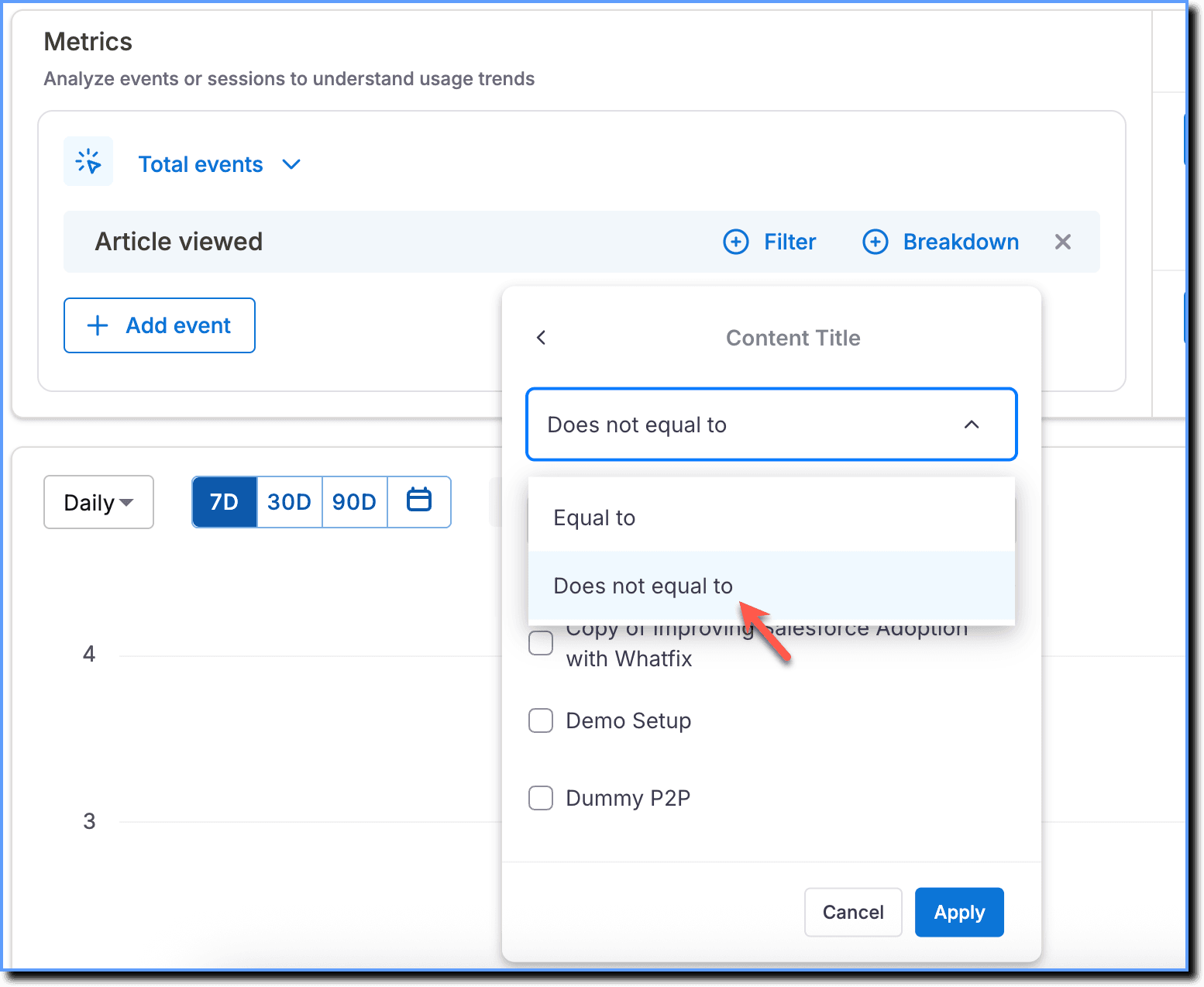
Use the following steps to exclude filter values during event analysis:
Note:
The following steps show how to exclude filter values in Trend Insights. The process is similar for Funnel Insights, Event groups, and Dashboards.
-
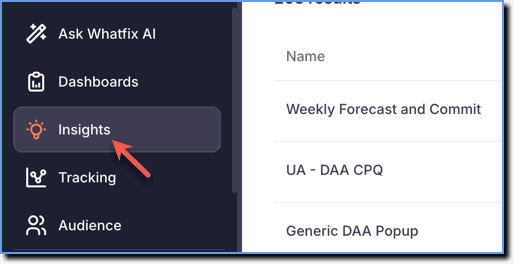
On the Whatfix Analytics dashboard, click Insights.
-
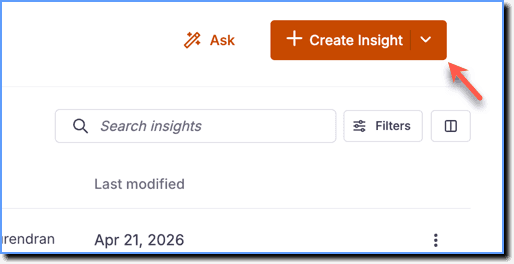
Click Create Insight.
-
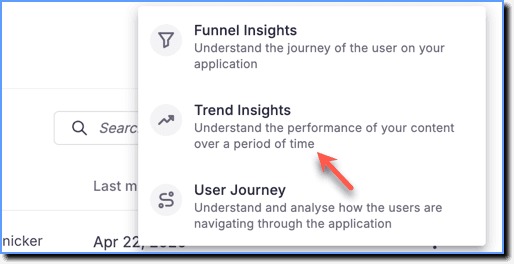
Click Trend Insights.
-
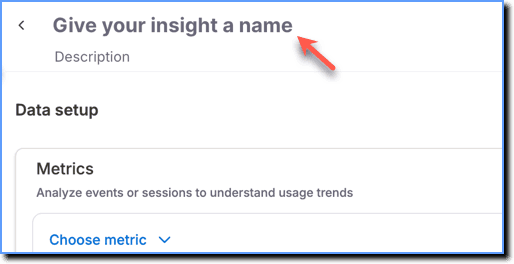
Click the Give your insight a name textbox and enter a name for your Insight.
-
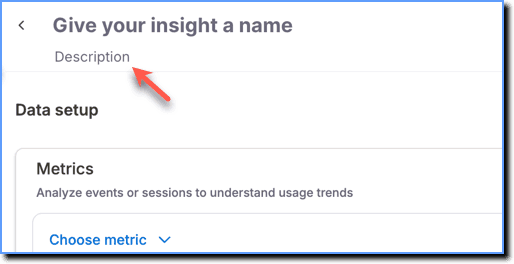
Click the Description text box and enter a description that explains what the Trend Insight is about.
-
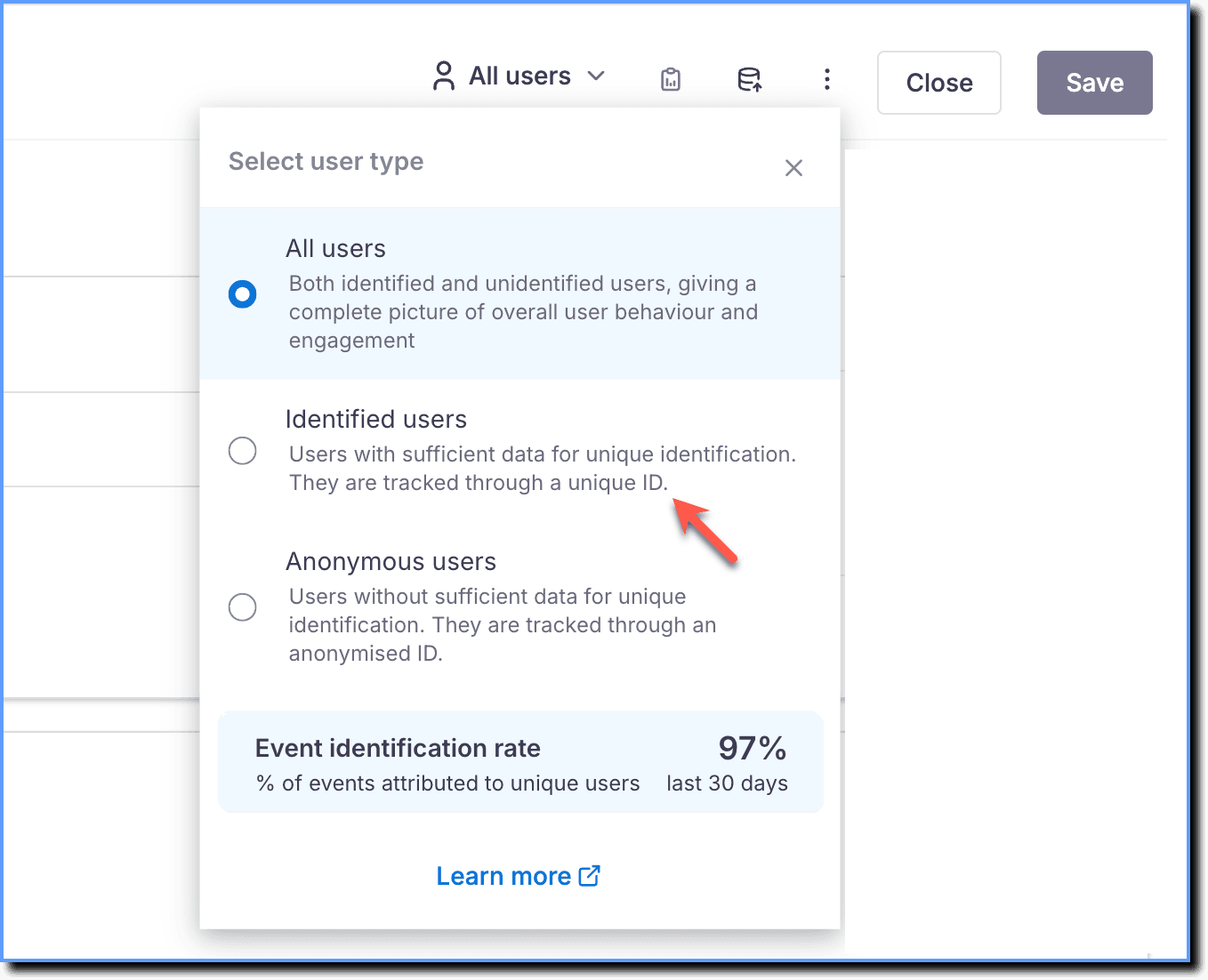
From the Select user type dropdown, choose whether to analyze data for All users, Identified users, or Anonymous users.
Note:
- By default, Insights data might contain identified (users identified by User ID) and unidentified (users not identified but denoted by Anonymized Whatfix IDs) users.
- The Event identification rate indicates the percentage of events Whatfix is able to attribute to uniquely identified users.
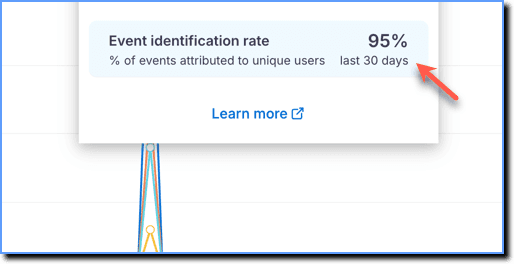
- For more information on filtering users and understanding the Event identification rate, see How can I filter unidentified users in Insights?
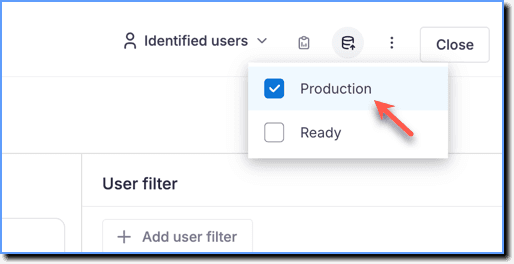
- Click the Data source icon and select the stage from which you want to get the data.
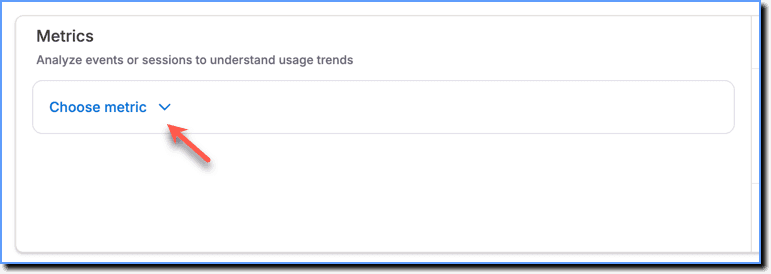
- Click Choose metric.
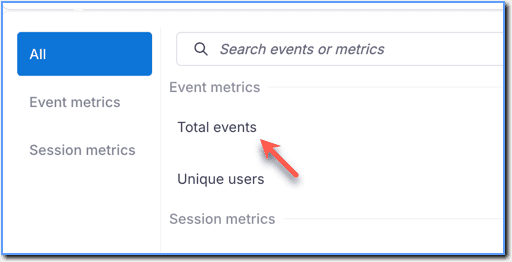
- Under Event metrics, select Total events or Unique users as required.
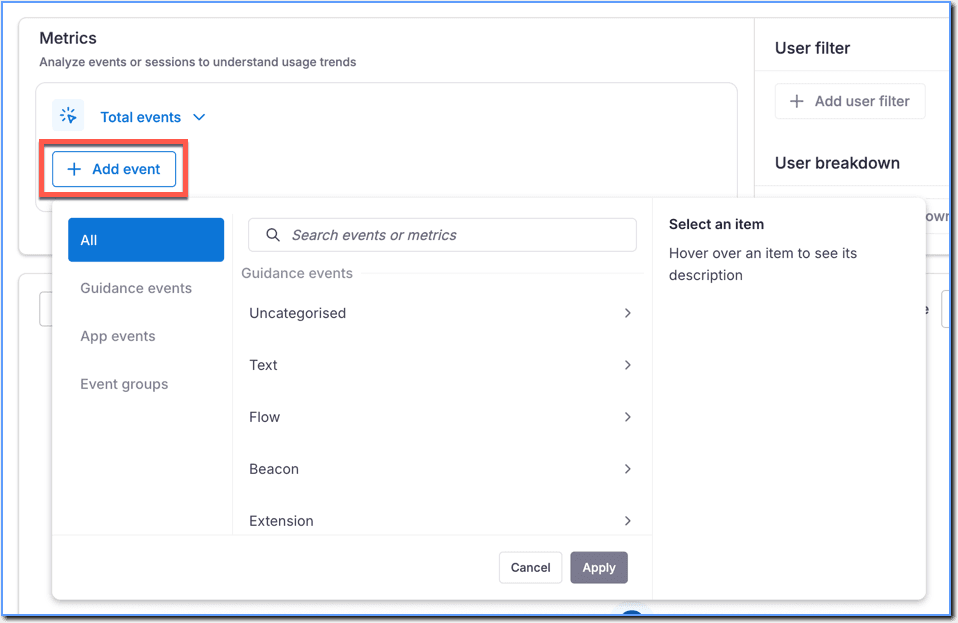
- Click Add event and then add the required Guidance events, App events, or Event groups.
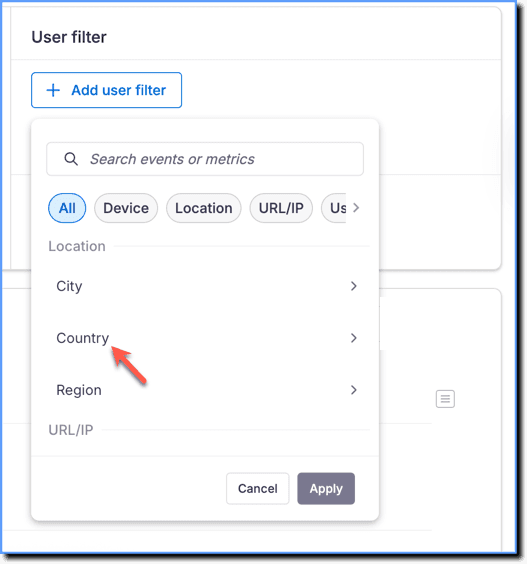
- Click Add user filter and select the required User filter.
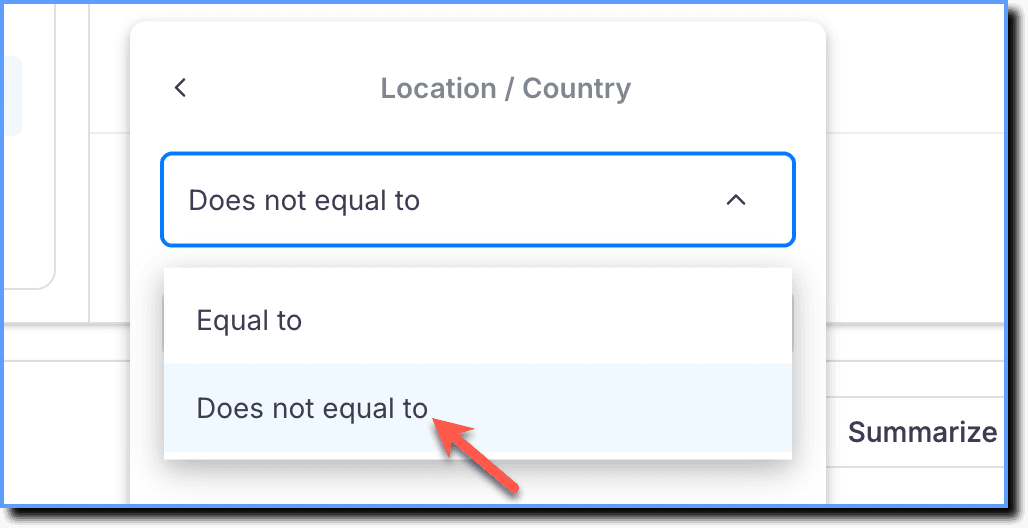
- Select the condition as Does not equal to from the dropdown.
Info:
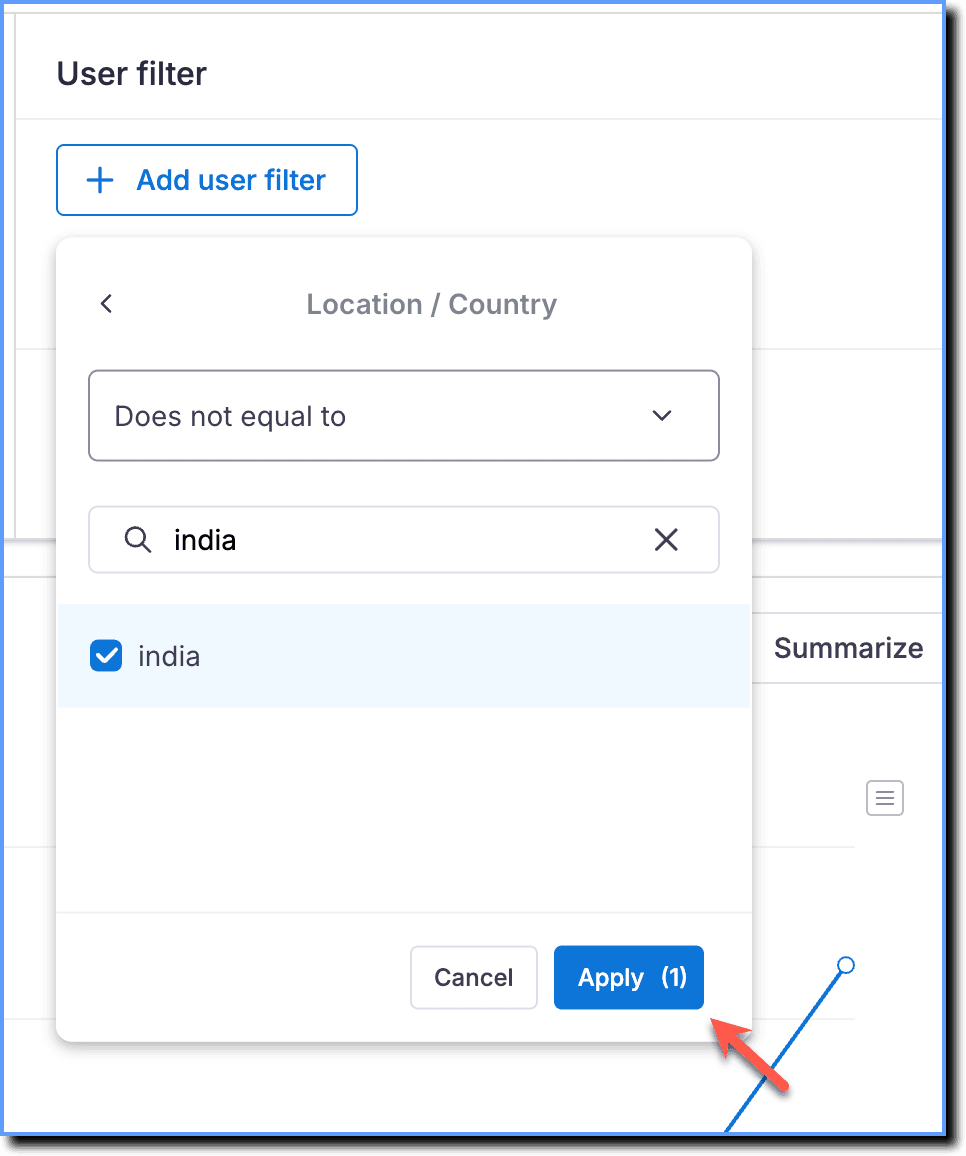
In this example, we want to filter the number of users who've seen a Pop-up from all countries except India.
- Select the filter value that you want to exclude, and then click Apply.
- Click Add user breakdown and select the criteria to breakdown the data.
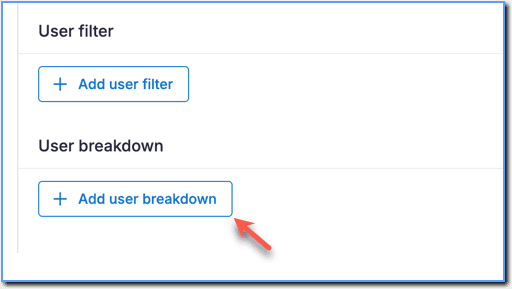
- Scroll down to view the generated data chart.
Note:
The data chart is generated without the data for the excluded filter. It is excluded from the User breakdown as well.
- Click Save.
Shows overall behavior and engagement for both identified and anonymous (unidentified) users.
Users that Whatfix can detect and identify using a unique User ID.
Users that Whatfix cannot identify. These users are denoted by the Anonymized Whatfix IDs rather than an actual User ID.
The total number of times the event occurred.
The number of unique users who triggered the event.
Guidance events include all events triggered when end users interact with Whatfix content or widgets within the application.
App events include engagement with User Actions, Autocaptured events (Beta), or events captured using the Whatfix API.
An Event group combines two or more individual events into a single grouped-event. It enables you to see the total number of users who performed any of the events in the group.