Insights
How to filter search terms in Self Help by country?
Guidance Analytics enables you to find out the successful and unsuccessful search terms in Self Help and their frequency. However, it doesn't help you understand the user-level analytics data, such as from which country or city users are searching for content, on which page users are searching for content, who the users are, and more. With Trend Insights in Product Analytics, apply user-level filters and get drilled-down data.
Whatfix considers a search successful when Self Help displays relevant content to the end user's query. For more information, see Understand how Search Works in Self Help.
Use the following steps to analyze successful or unsuccessful search terms in Self Help using Trend Insights:
-
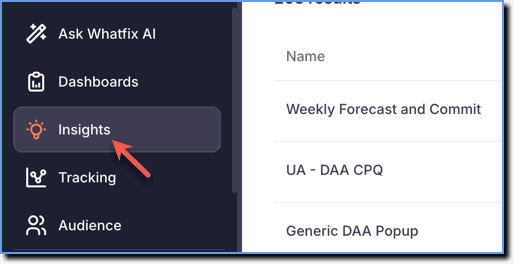
On the Whatfix Analytics dashboard, click Insights.
-
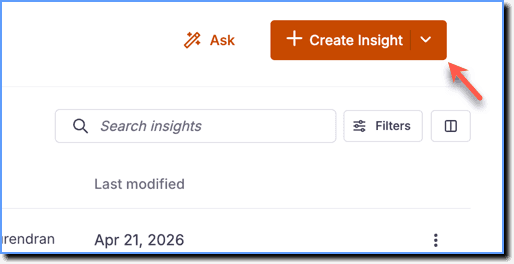
Click Create Insight.
-
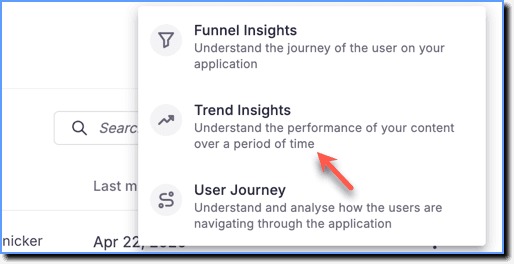
Click Trend Insights.
-
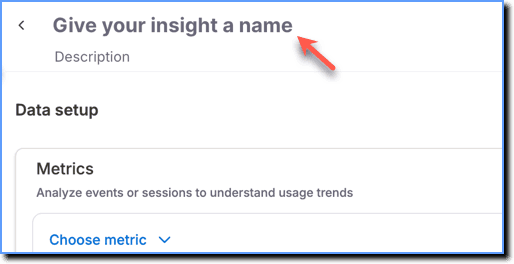
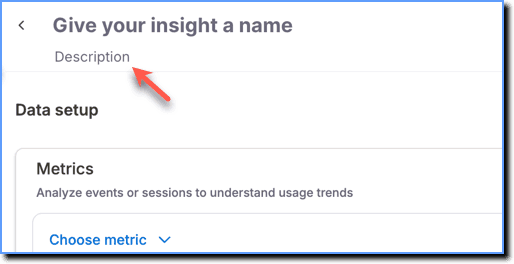
Click the Give your insight a name textbox and enter a name for your Insight.
-
Click the Description text box and enter a description that explains what the Trend Insight is about.
-
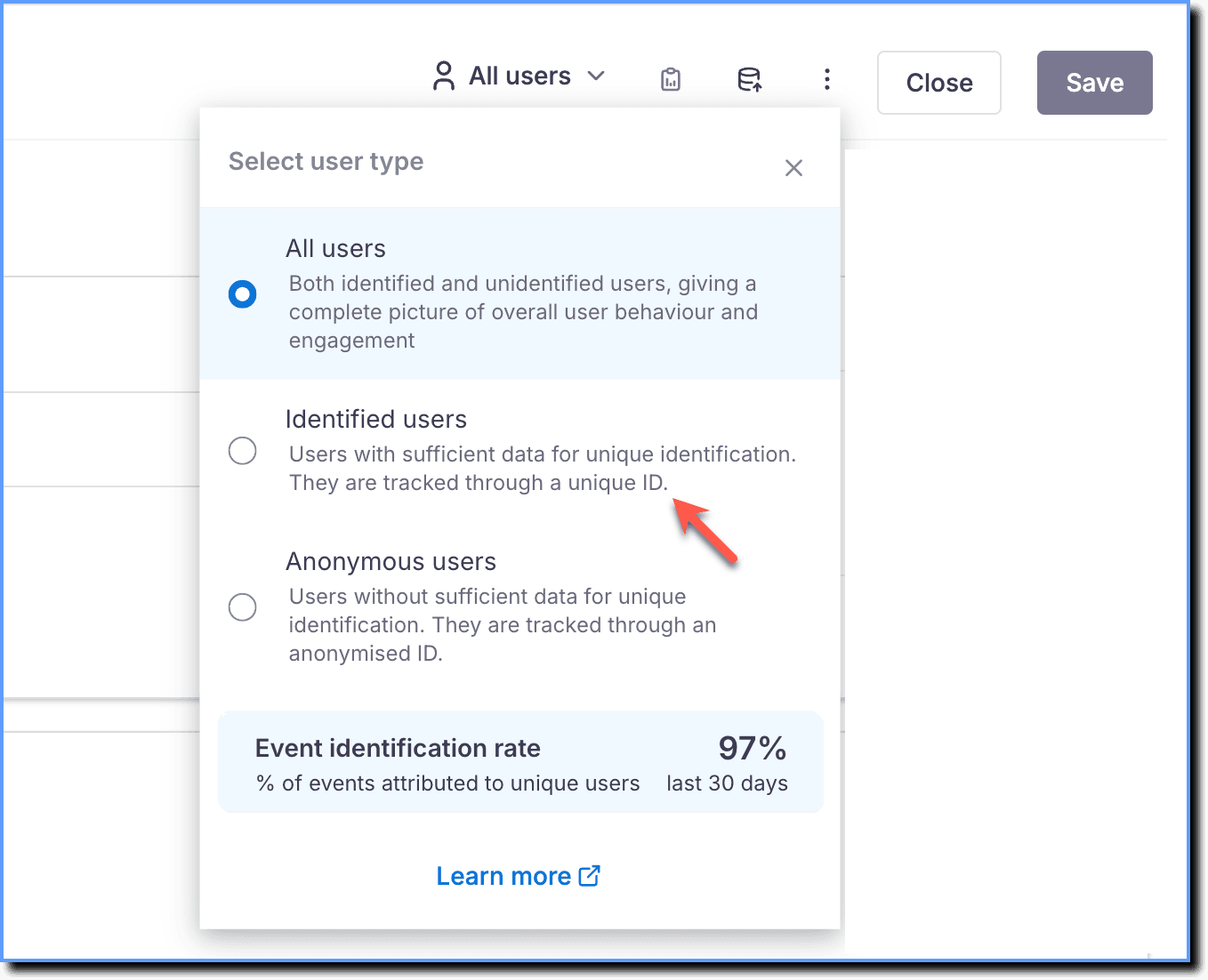
From the Select user type dropdown, choose whether to analyze data for All users, Identified users, or Anonymous users.
Note:
- By default, Insights data might contain identified (users identified by User ID) and unidentified (users not identified but denoted by Anonymized Whatfix IDs) users.
- The Event identification rate indicates the percentage of events Whatfix is able to attribute to uniquely identified users.
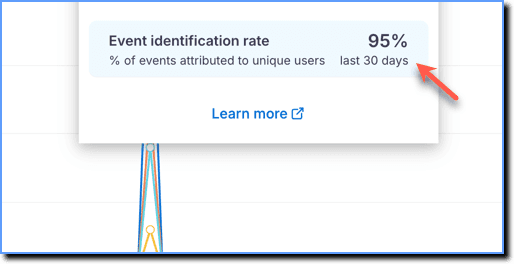
- For more information on filtering users and understanding the Event identification rate, see How can I filter unidentified users in Insights?
- Click the Data source icon and select the stage from which you want to get the data.
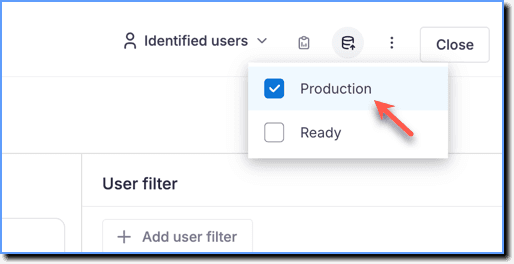
- For more information on obtaining analytics data from different stages, see Get Analytics Data across CLM Stages.
- The stage cannot change after creating the Insight. Switching to a different stage resets the Insight, requiring a restart.
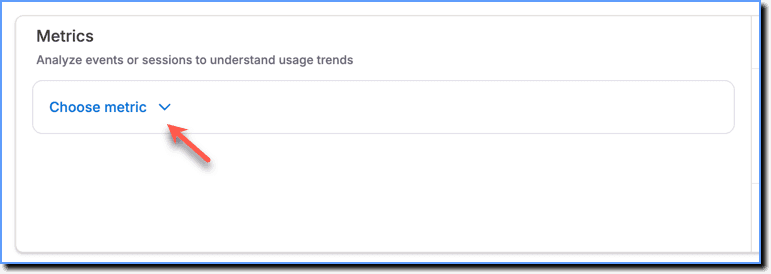
- Click Choose metric.
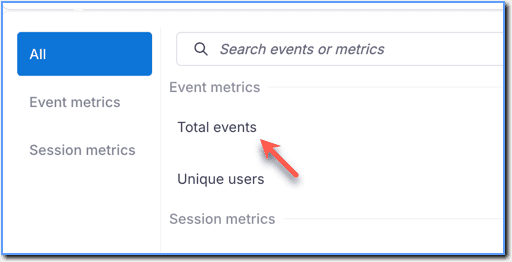
- Under Event metrics, select Total events or Unique users as required.
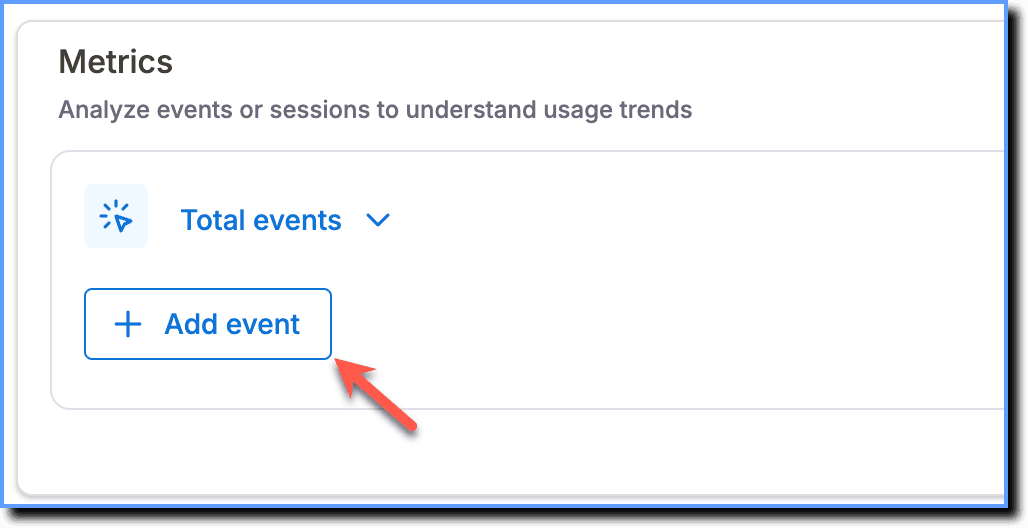
- Click Add event.
If you're using the Improved Self Help, add the event, Self Help (New) Explorer. For more information, see List of Whatfix-related Events. 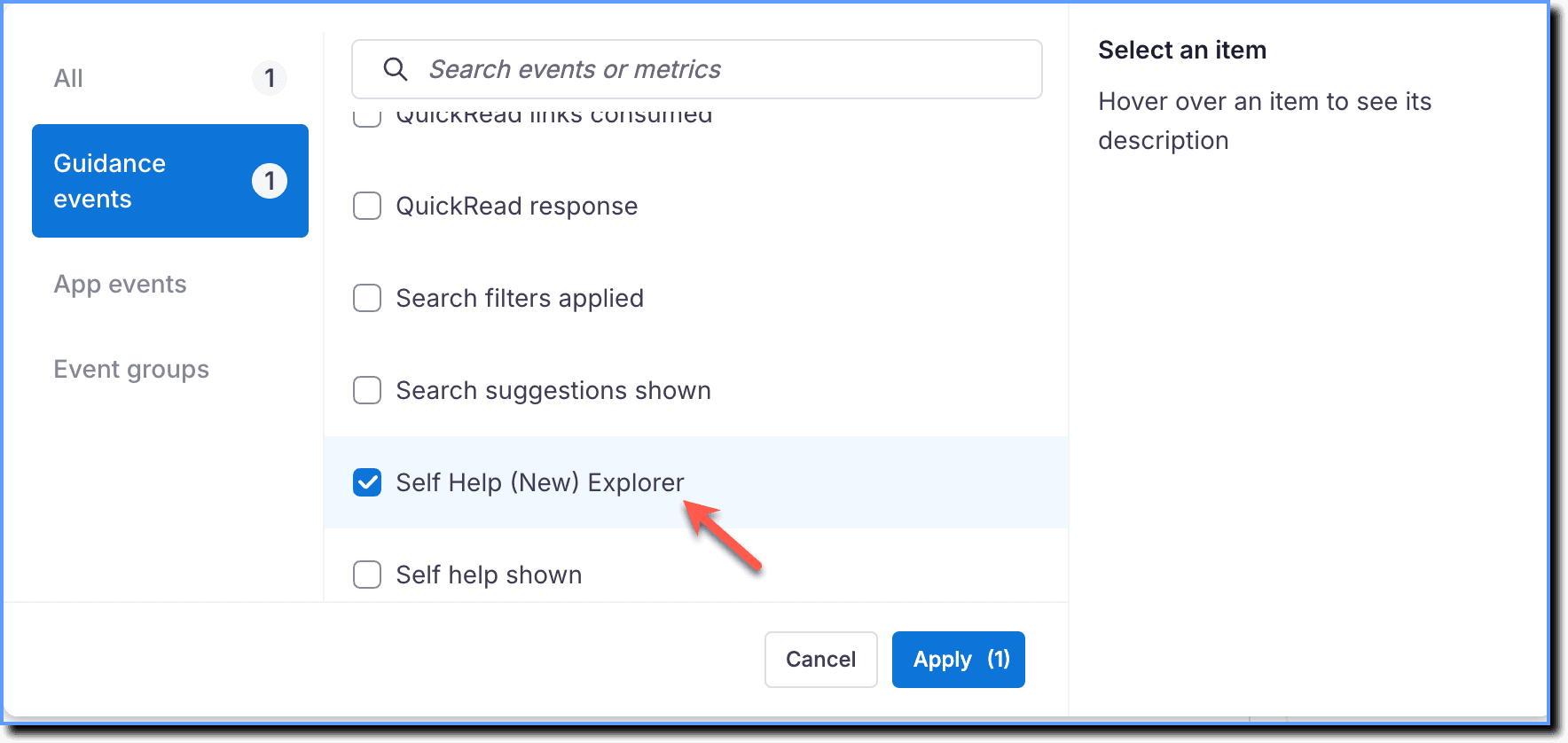
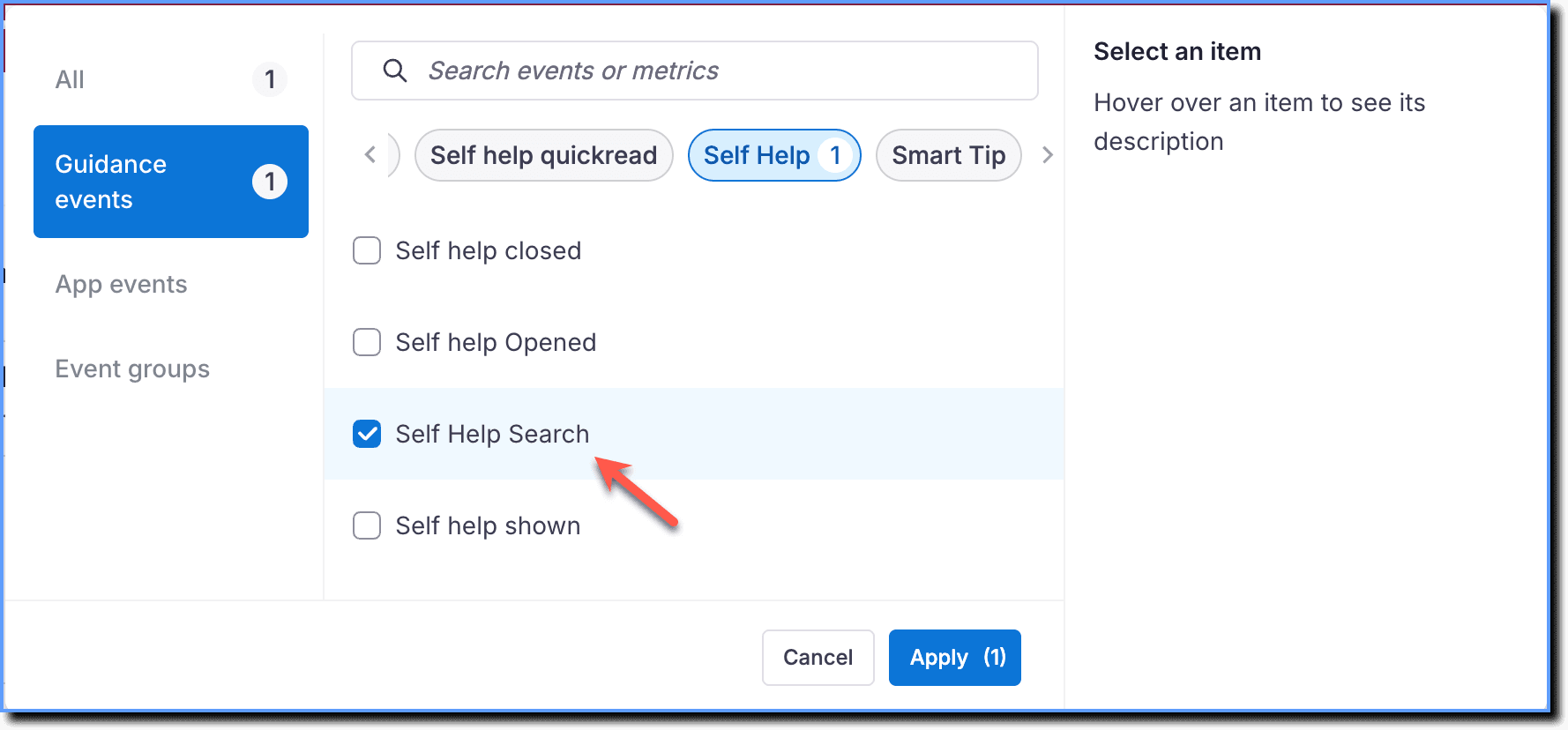
- Click Guidance events, select Self Help Search, and then click Apply.
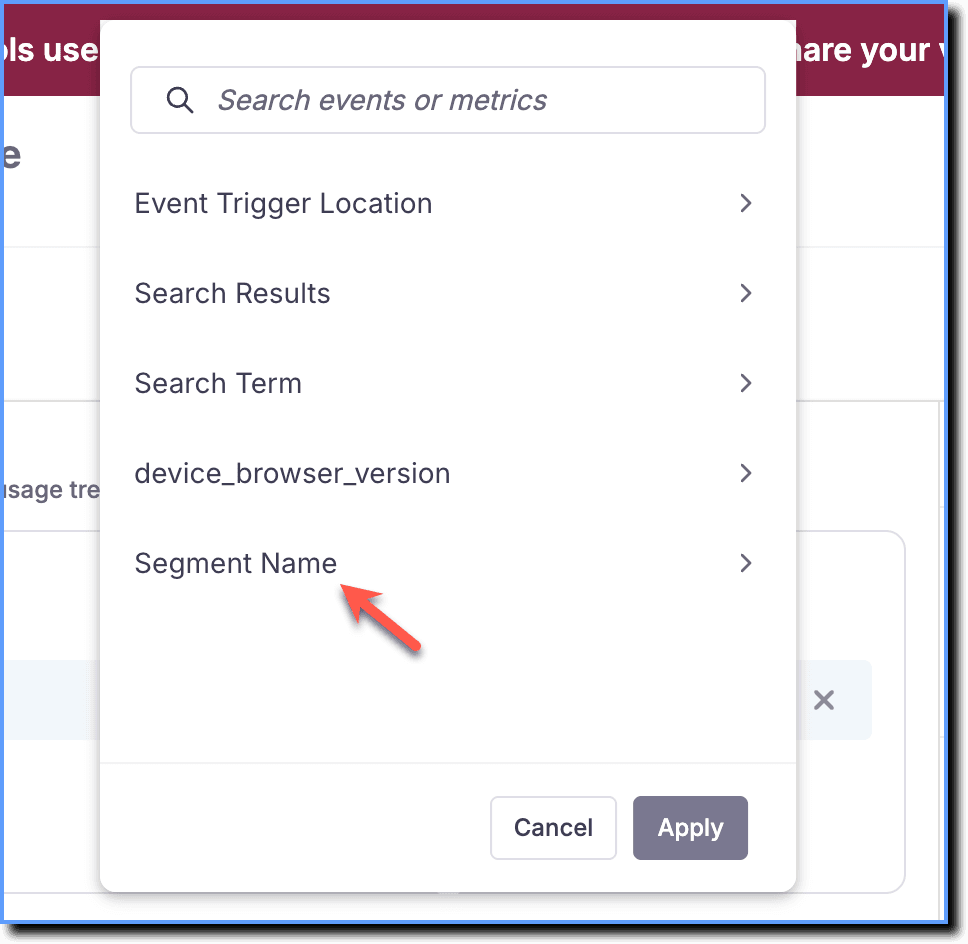
- Click Filter and then select Segment Name. Select the name of the Self Help segment in which you want to analyze the successful or unsuccessful search terms.
Expand the accordions to understand the required filters to be added.
Analyze Successful search terms
a. Click Filter, and then select Search Results. 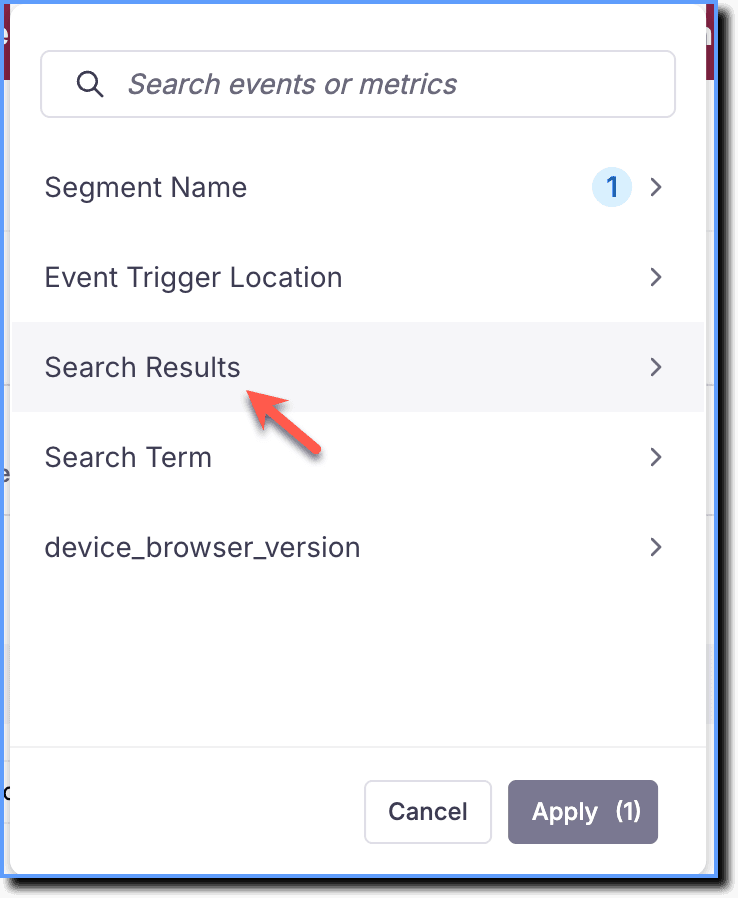
b. Click flows and then click Apply. 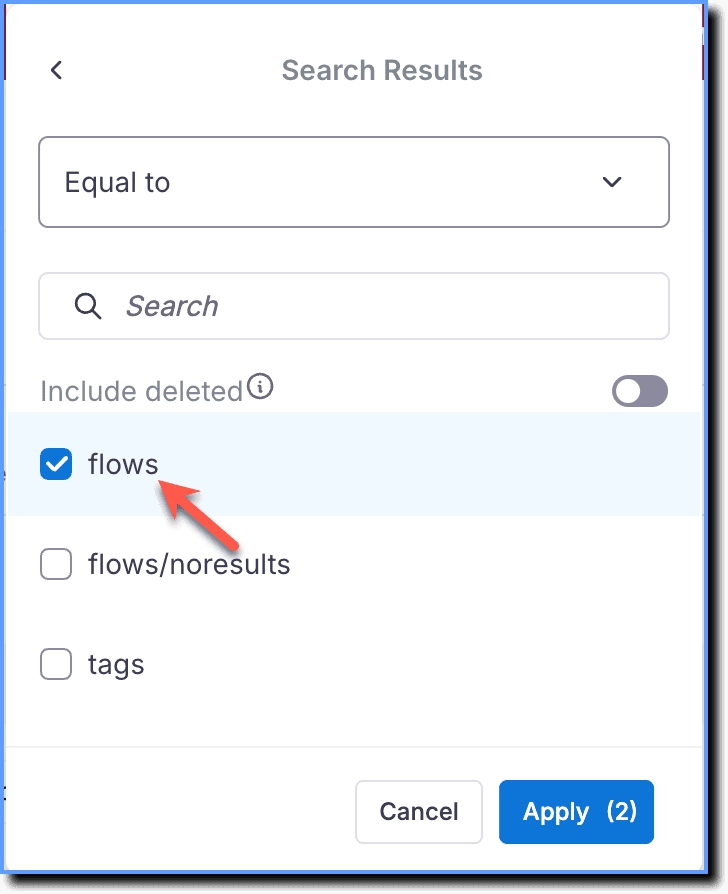
c. Click Breakdown, and then select Search Term. This shows all the successful search terms for the particular Self Help segment. 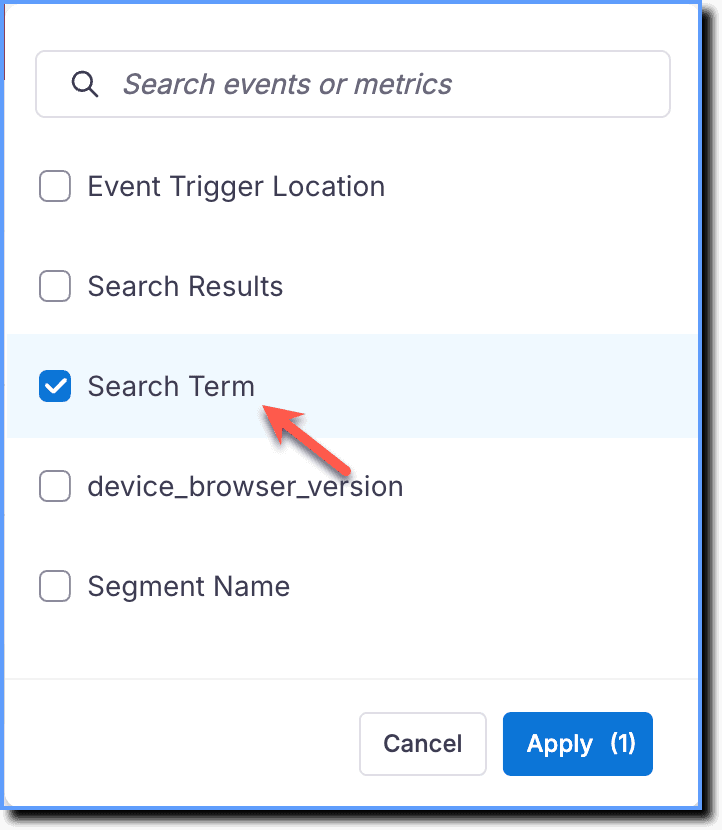
The following image shows the Events setup: 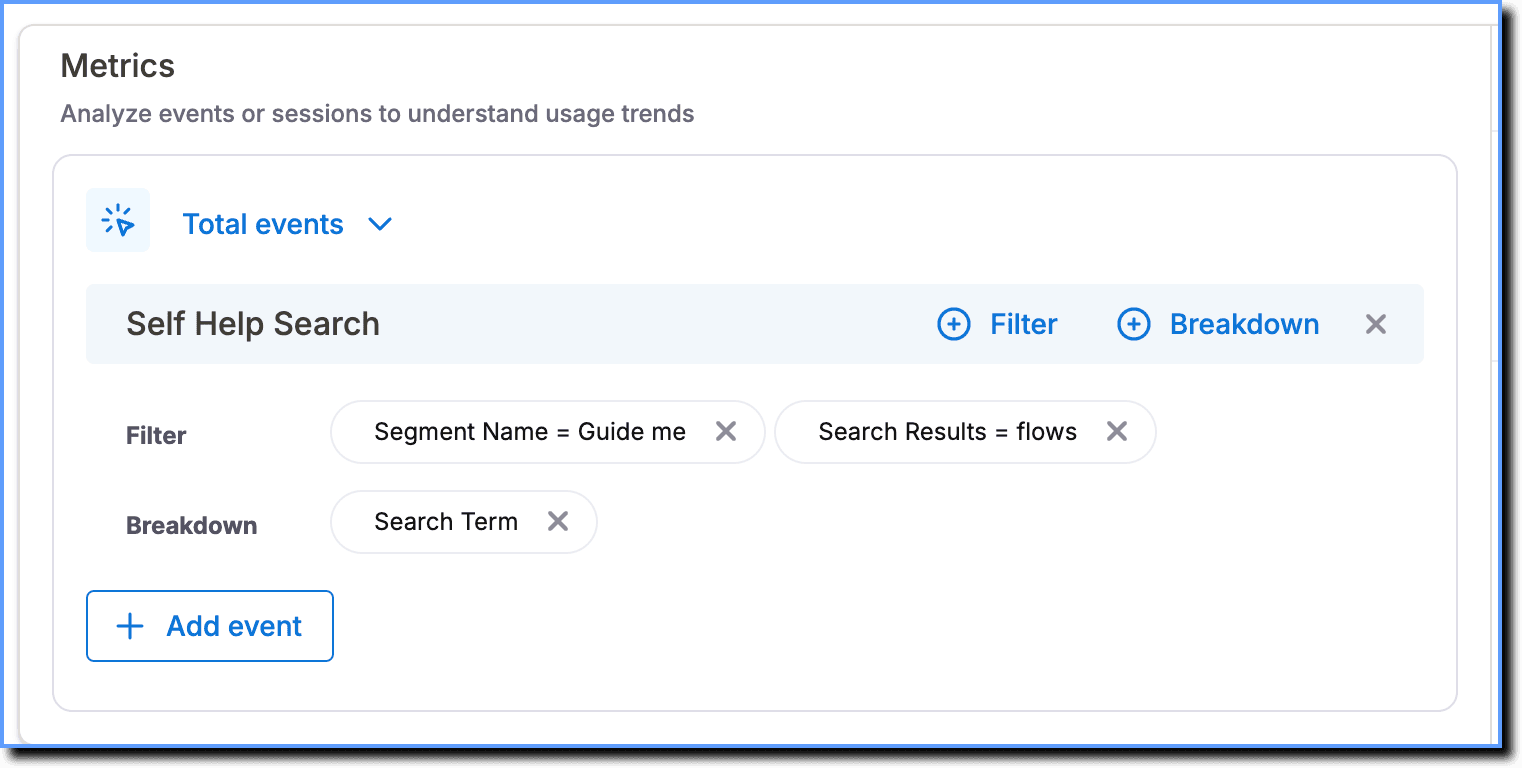
If you're using the Improved Self Help, use the following event setup to analyze successful search terms: Event: Self Help (New) Explorer Filter: Search success = successful Breakdown: Search term 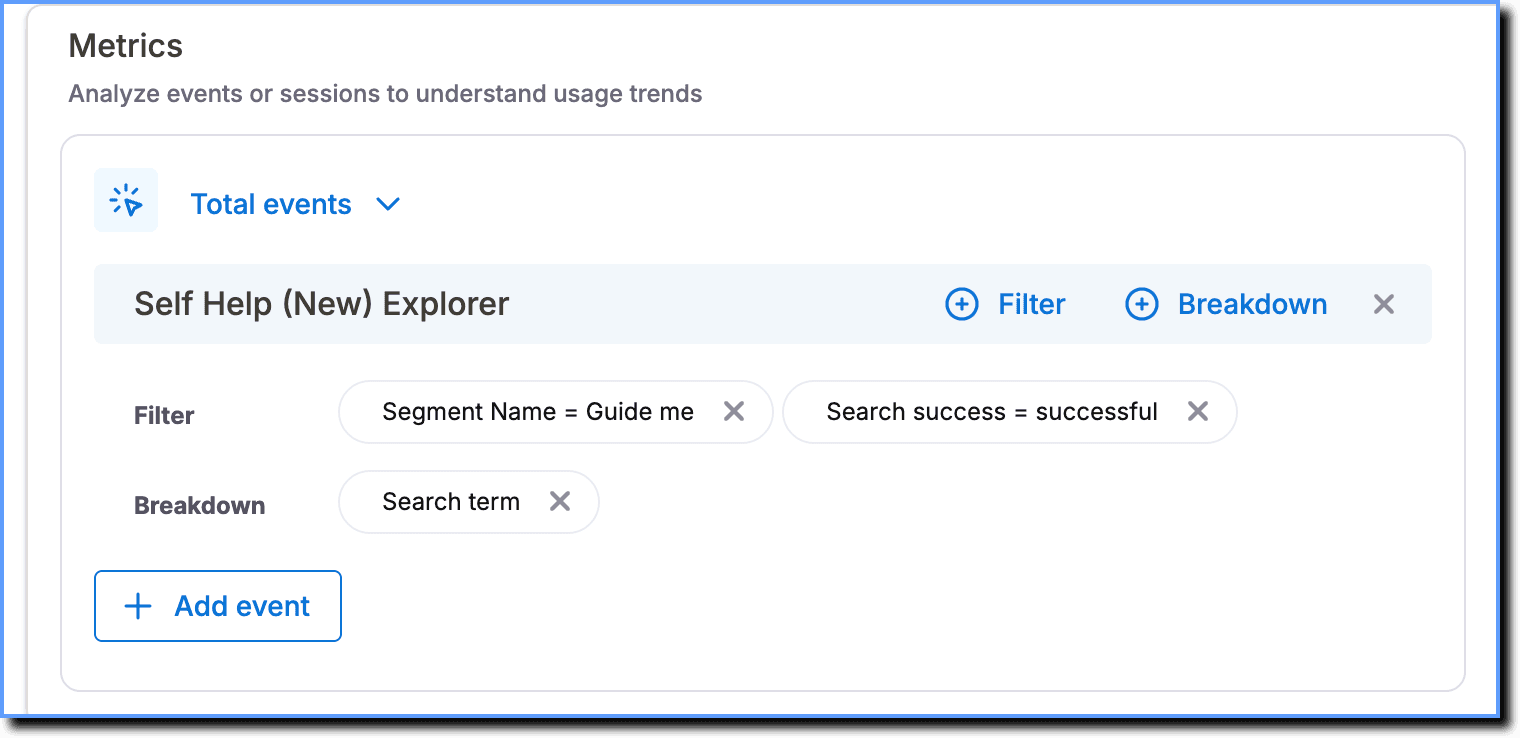
Analyze Unsuccessful search terms
i. Click Filter, and then select Search Results.
ii. Click flows/noresults. 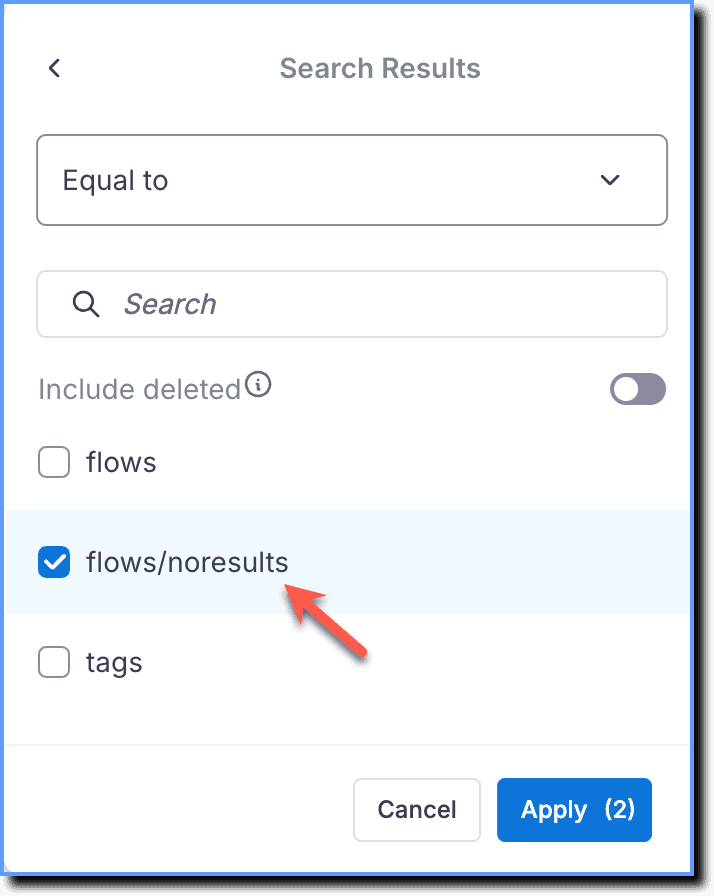
iii. Click Breakdown, and then select Search Term. This shows all the unsuccessful search terms for the particular Self Help segment.
The following image shows the Events setup: 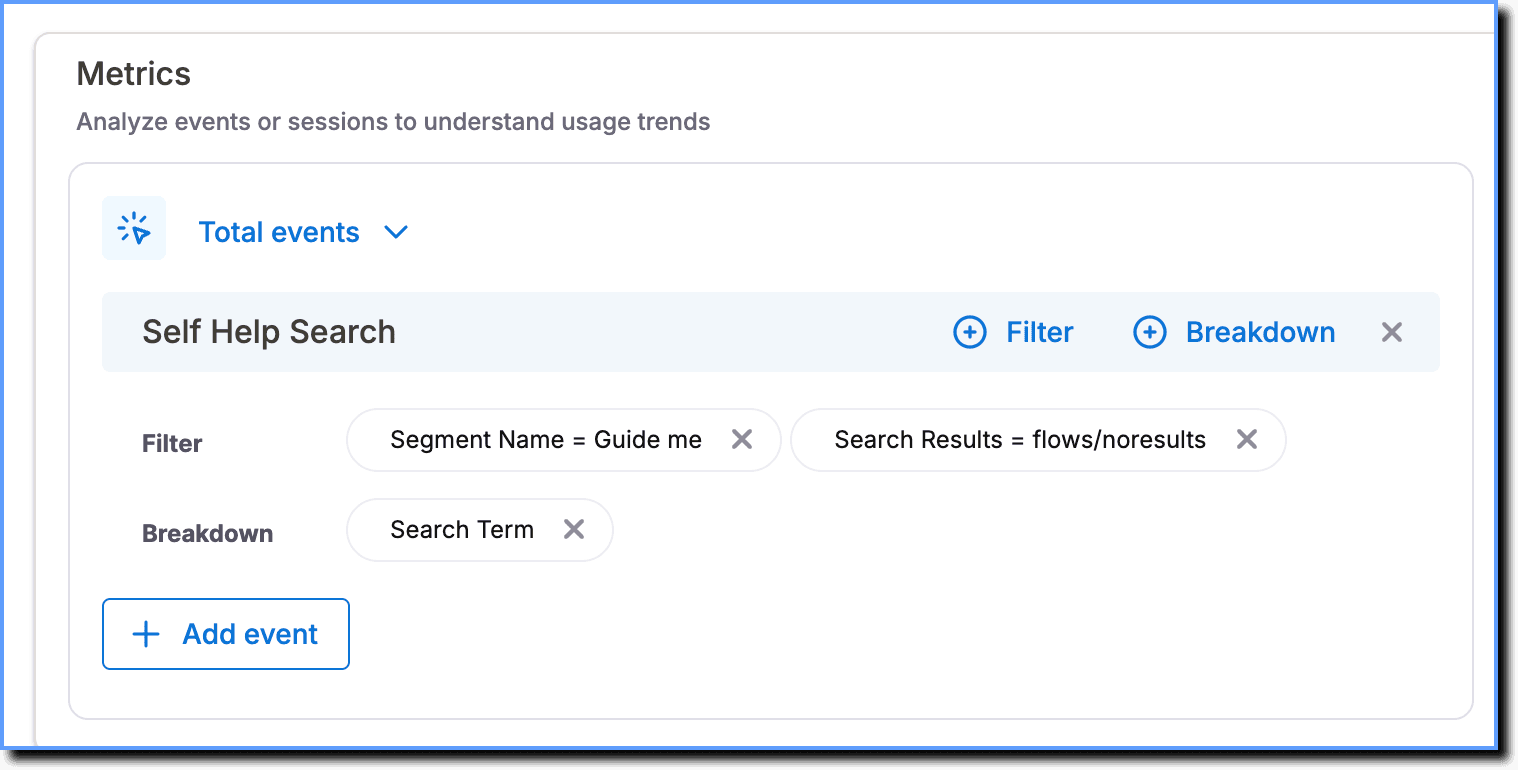
If you're using the Improved Self Help, use the following event setup to analyze unsuccessful search terms: Event: Self Help (New) Explorer Filter: Search success = unsuccessful Breakdown: Search term
-
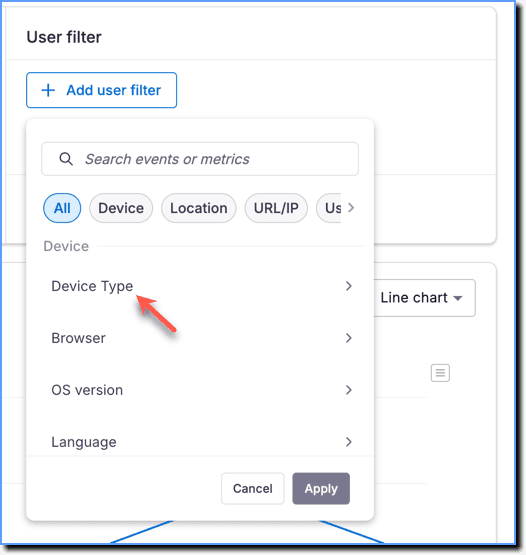
In the User filter section, click Add user filter, and then select the desired filter. For example, filter all users with successful search terms from the country India. For more information on different filters, see Filter Insights data using User Filters and User Breakdown.
Info:
- To exclude specific filter values for which you don't require data, see How can I exclude filter values in Product Analytics?
- To exclude blank filter values from your data, see How can I exclude blank filter values in Insights?
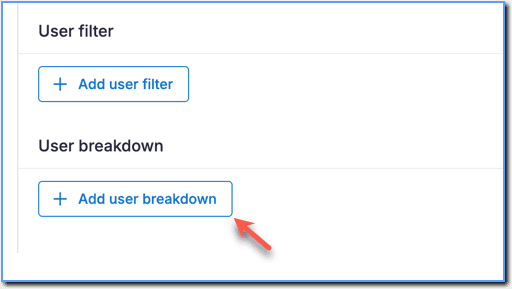
- In the User breakdown section, click Add user breakdown, and then select the desired breakdown. For example, analyze all users with successful search terms grouped by country. The breakdown shows a list of all successsful search terms from all countries.
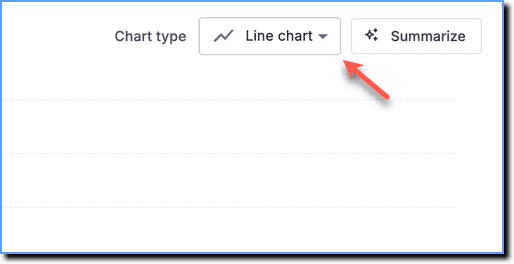
- Visualize the data using different chart types.
- Filter data based on Daily, Weekly, or Monthly timeframes.
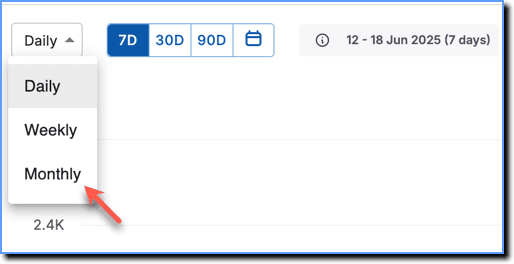
- Scroll down to view the generated data chart.

- Click Save.
Create monthly Trend Insights reports as shown in the article and add it to a Custom Dashboard for reporting.
Shows overall behavior and engagement for both identified and anonymous (unidentified) users.
Users that Whatfix can detect and identify using a unique User ID.
Users that Whatfix cannot identify. These users are denoted by the Anonymized Whatfix IDs rather than an actual User ID.
The total number of times the event occurred.
The number of unique users who triggered the event.