Insights
How do I see Flow Failure information in Product Analytics?
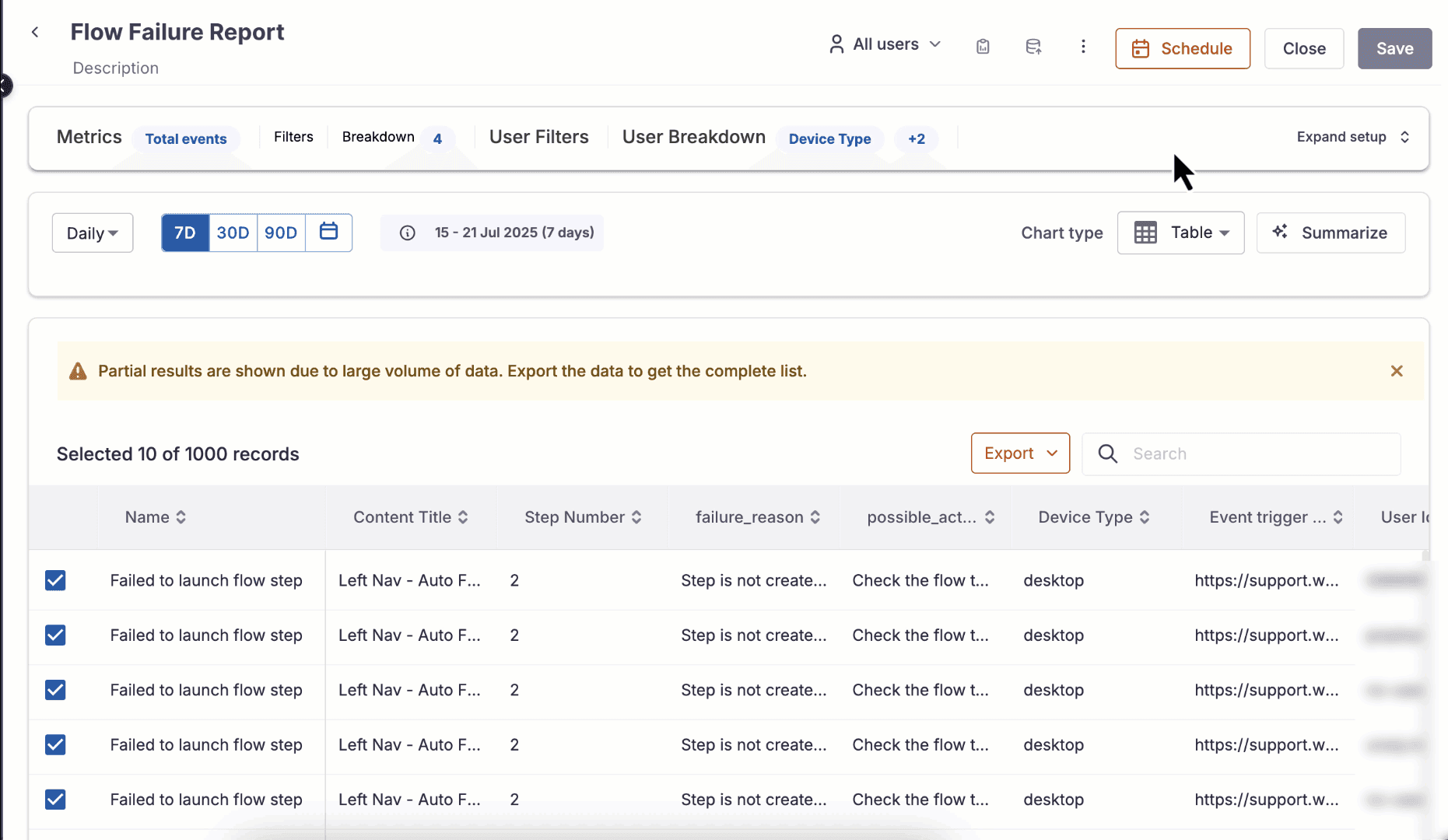
Access a consolidated view of Flow failure information on the Whatfix Analytics dashboard. The default Trend Insight, Flow Failure Report, serves as a one-stop solution to track all Flow failures.
The Insight gives the following information:
- Content Title (Name of the Flow)
- Step number
- Failure reason
- Possible action
- Device Type
- User ID
- Event trigger page URL (the URL where the Flow is played)
- Total number of times the Flow step failed
Use the following steps to view the Flow Failure information on the dashboard:
- On the Whatfix Analytics dashboard, click Insights.
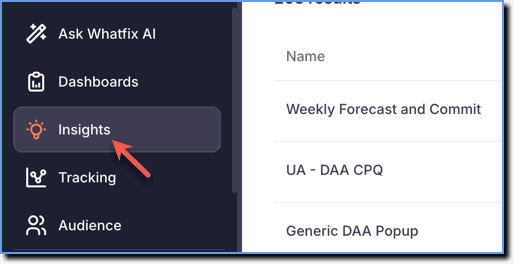
- Search for the Flow Failure Report insight and then click it.

The following GIF illustrates how the Flow Failure Report Insight appears on the dashboard:
- Whatfix enables you to edit the following in the Flow Failure Report:
However, you cannot save these changes to the Insight.
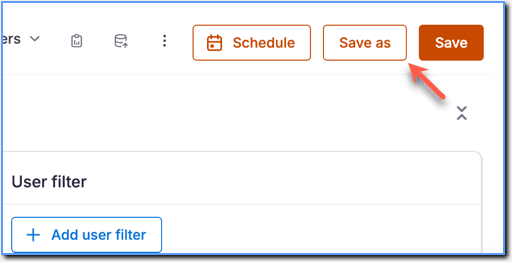
- Click Save as to save the changes made to the Flow Failure Report Insight as a new Insight. For more information, see Copy Trend Insights.
- Scroll down to view the Insight.
- Click Export to download the Insight. For more information, see Download Trend Insight.

- Click Schedule to schedule the insight, which is sent as an email to stakeholders. For more information, see Schedule a Trend Insight.