Insights
How can I see analytics data of deleted content?
Whatfix enables you to get analytics data for deleted content, widgets, and custom events in your Product Analytics dashboard. You might need the analytics data for deleted content to check past engagement.
Use the following steps to view analytics data for deleted content:
-
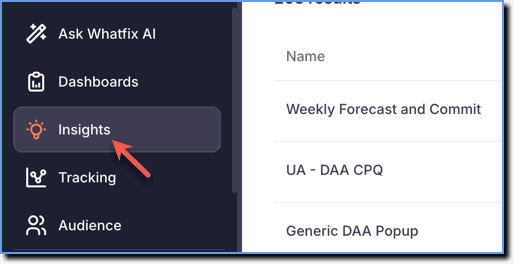
On the Whatfix Analytics dashboard, click Insights.
-
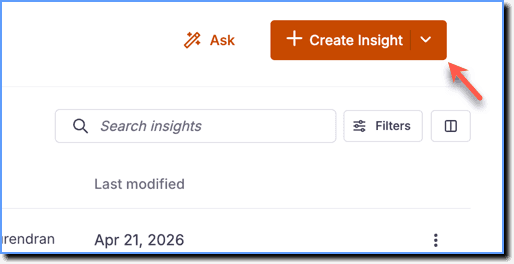
Click Create Insight.
-
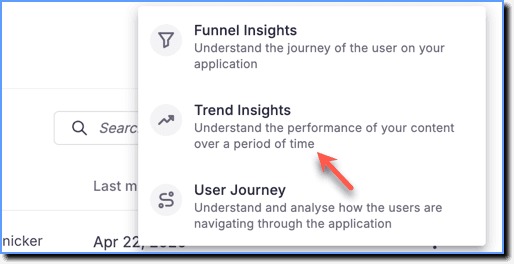
Click Trend Insights.
-
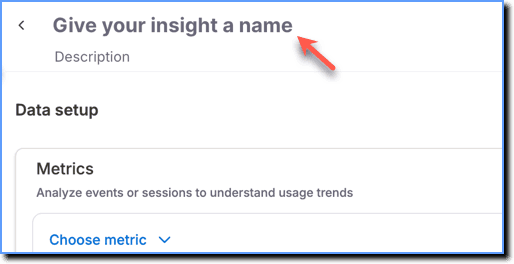
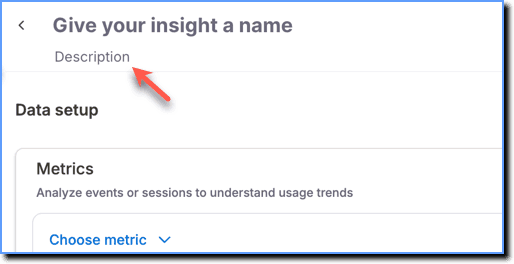
Click the Give your insight a name textbox and enter a name for your Insight.
-
Click the Description text box and enter a description that explains what the Trend Insight is about.
-
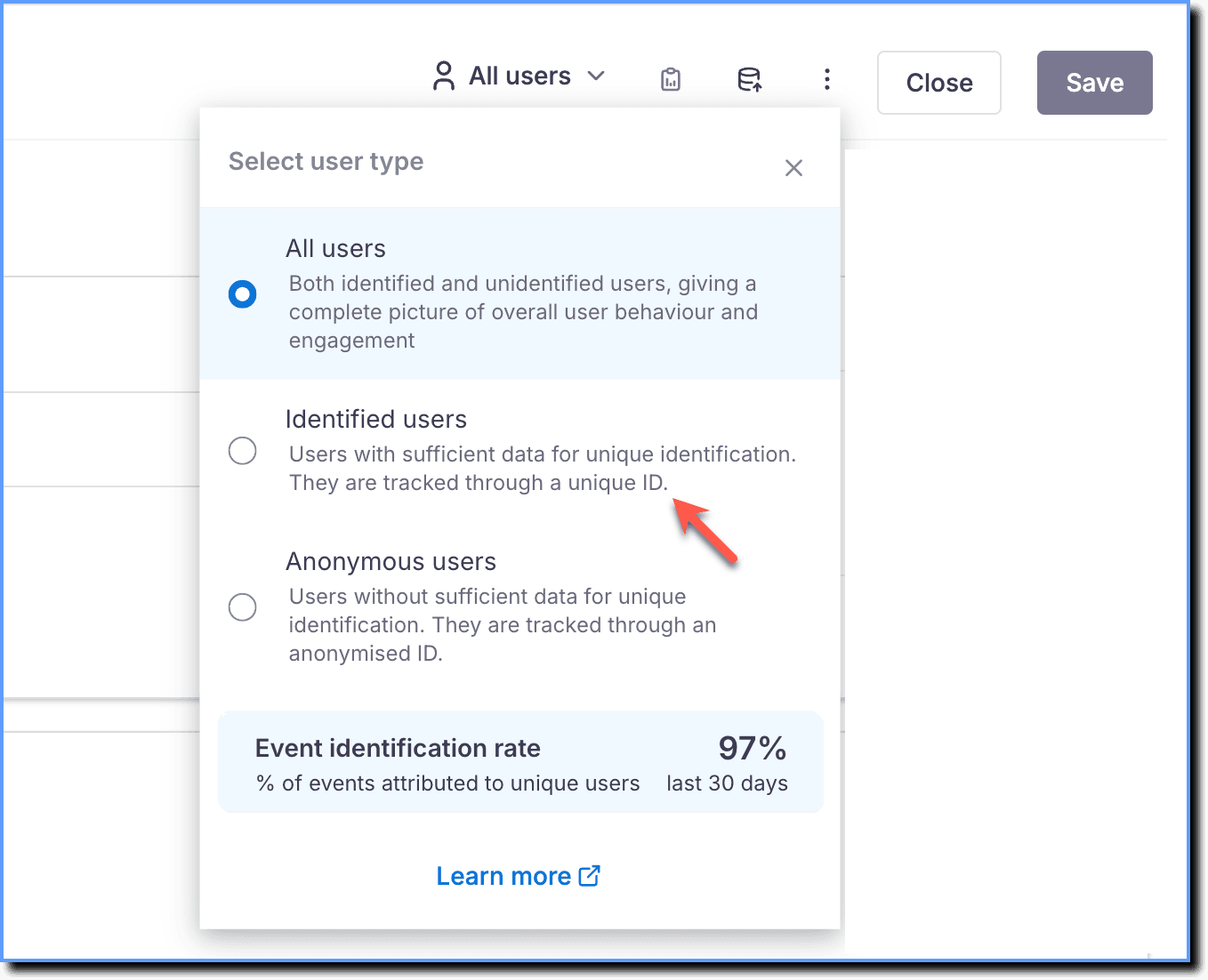
From the Select user type dropdown, choose whether to analyze data for All users, Identified users, or Anonymous users.
Note:
- By default, Insights data might contain identified (users identified by User ID) and unidentified (users not identified but denoted by Anonymized Whatfix IDs) users.
- The Event identification rate indicates the percentage of events Whatfix is able to attribute to uniquely identified users.
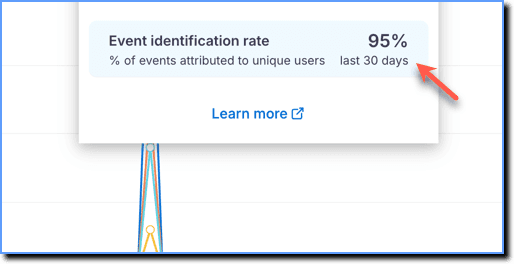
- For more information on filtering users and understanding the Event identification rate, see How can I filter unidentified users in Insights?
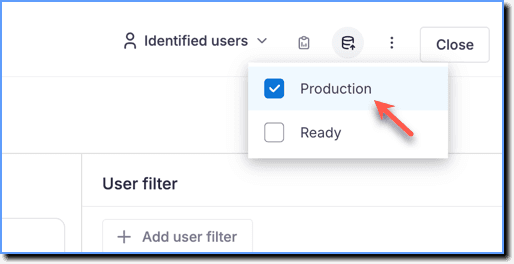
- Click the Data source icon and select the stage from which you want to get the data. For more information, see Get Analytics Data across CLM Stages.
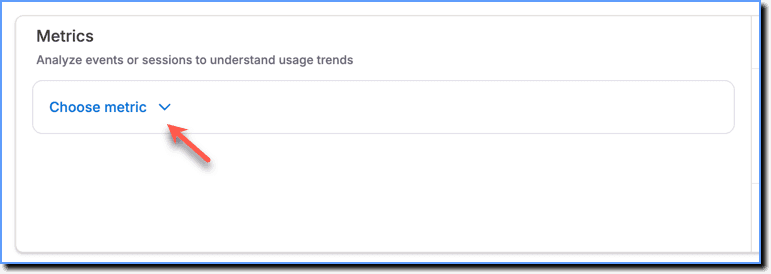
- Click Choose metric.
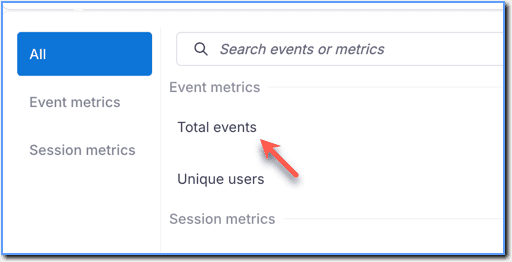
- Under Event metrics, select Total events or Unique users as required.
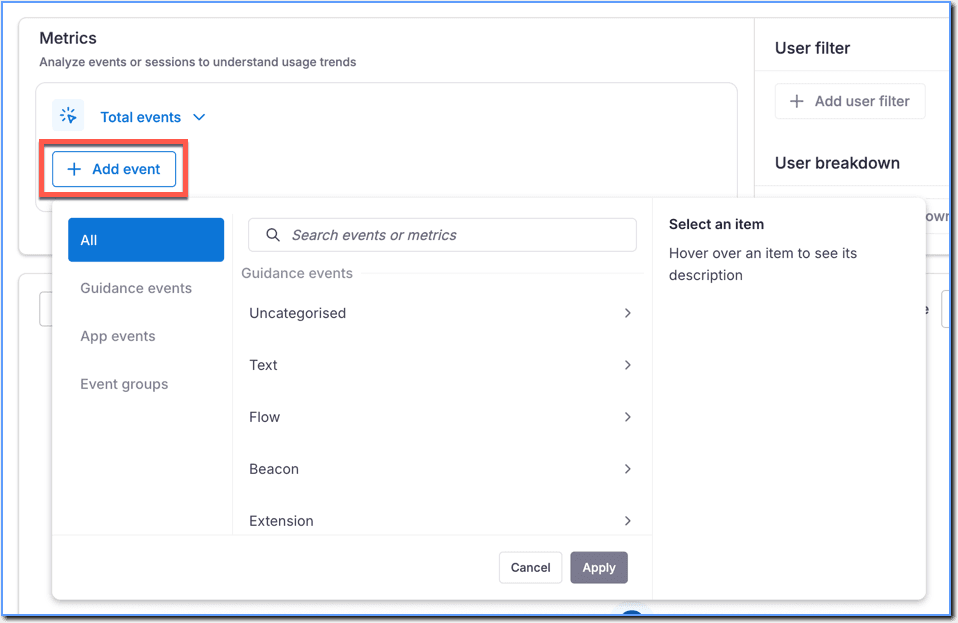
- Click Add event and then add the required Guidance events or App events.
Currently, Whatfix does not enable you to view data for deleted Event groups.
- Click Filter and then select the required Event filter.
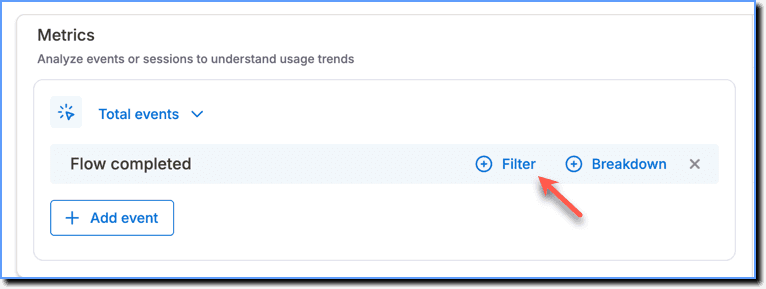
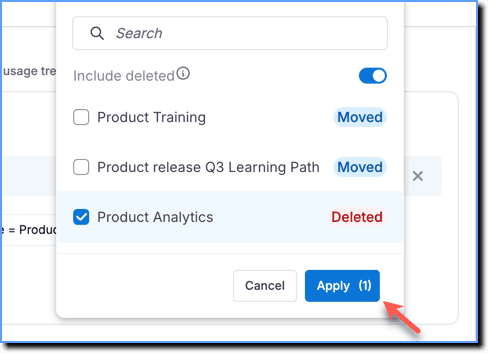
Consider that you want to analyze the Flow completed from a deleted Smart Tip segment called Product Analytics. By default, the deleted segment does not appear in the event filters.
Event: Flow completed Event Filter: Segment Name Segment Name: Product Analytics (Deleted) 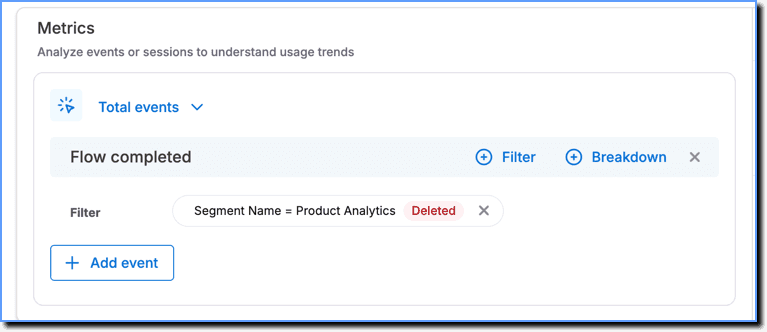
- Enable the Include deleted toggle to see the deleted content.
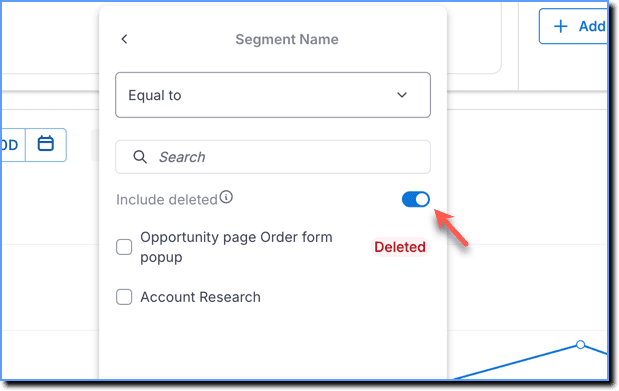
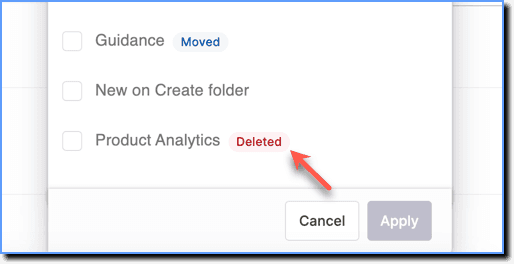
- The deleted segment appears in the dropdown with a Deleted chip next to it.
- To see deleted App events, click App events, and then enable the Include deleted toggle.
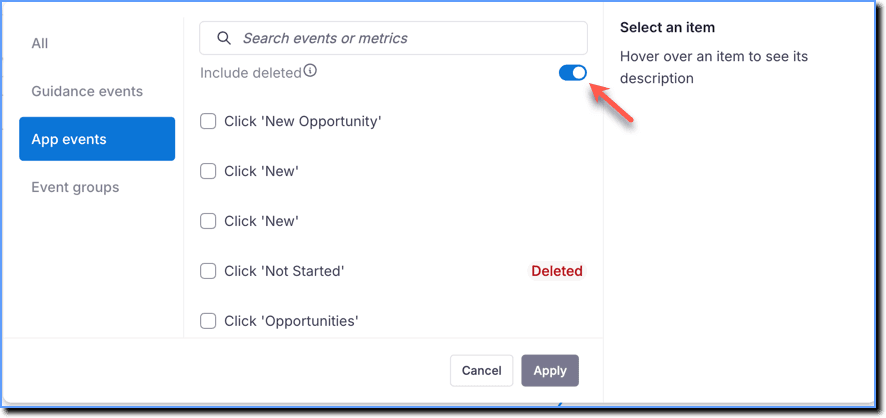
- Click the deleted content or App event, and then click Apply.
- Finish creating the Insight.
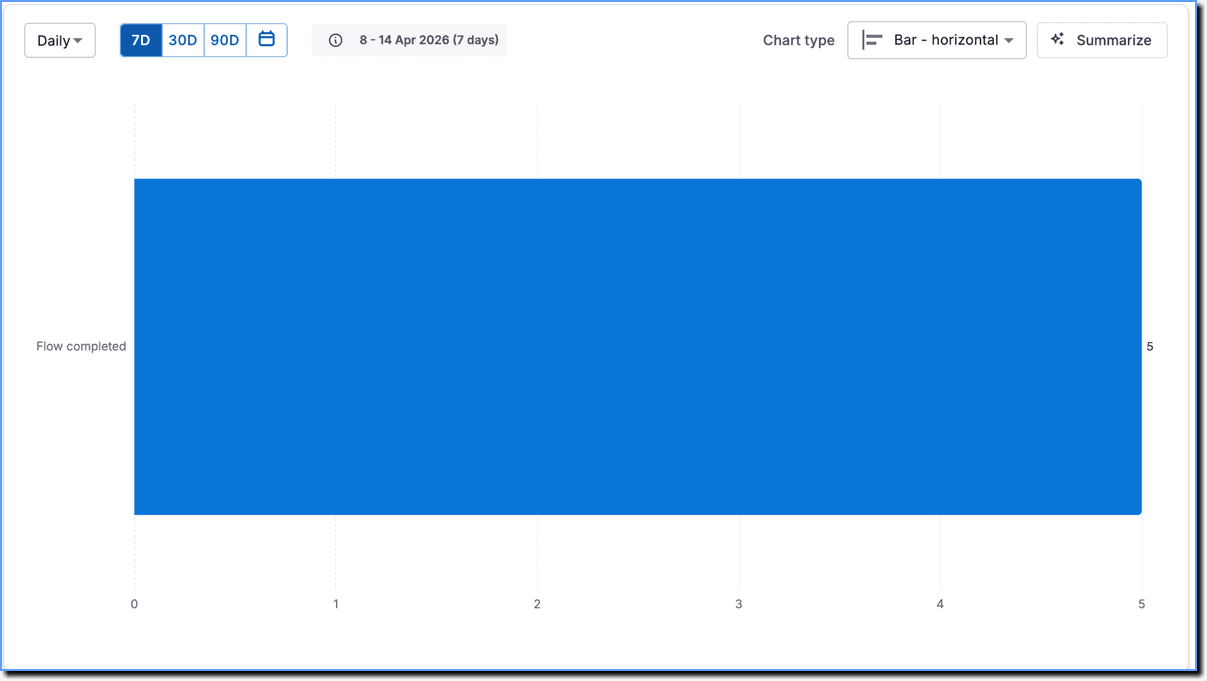
- Scroll down to view the generated data chart.
- The Include deleted toggle is present for Guidance events (Default) and App events (Custom) events in Funnel and Trend Insights, Cohorts, and User Actions-based User Journey.
- You cannot see data for deleted Flows in Funnels.
- Click Save.
Shows overall behavior and engagement for both identified and anonymous (unidentified) users.
Users that Whatfix can detect and identify using a unique User ID.
Users that Whatfix cannot identify. These users are denoted by the Anonymized Whatfix IDs rather than an actual User ID.
The total number of times the event occurred.
The number of unique users who triggered the event.
Guidance events include all events triggered when end users interact with Whatfix content or widgets within the application.
App events include engagement with User Actions, Autocaptured events (Beta), or events captured using the Whatfix API.