Trend Insights
Edit Trend Insights
After creating a Trend Insight, Whatfix enables you to edit it as required.
Perform the following actions on your Trend Insight:
- Change the metric
- Add or remove an Event
- Edit Event Filters and Event Breakdown
- Add or remove User filters
- Add or remove User breakdowns
- Change the chart type
- Change timeframe, and more.
For more information, see Create Trend Insights.
Currently, you cannot analyze a combination of events and sessions in the same Trend Insight. You can either analyze engagement with events or analyze session data at a point in time.
Use the following steps to edit a Trend Insight:
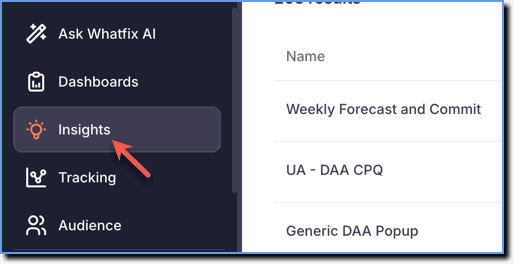
- On the Whatfix Analytics dashboard, click Insights.
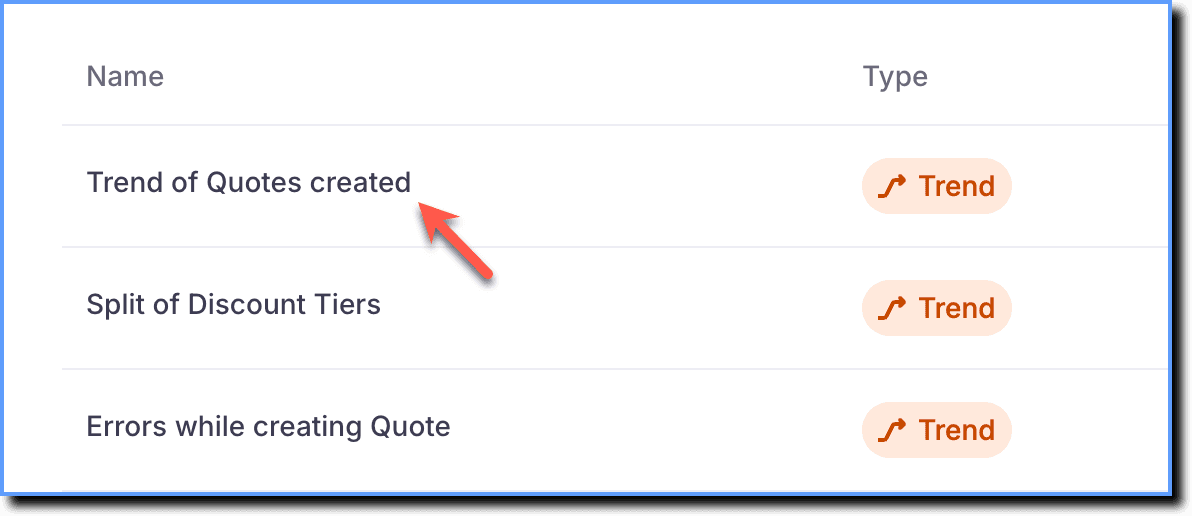
- Click the Trend Insight you want to edit.
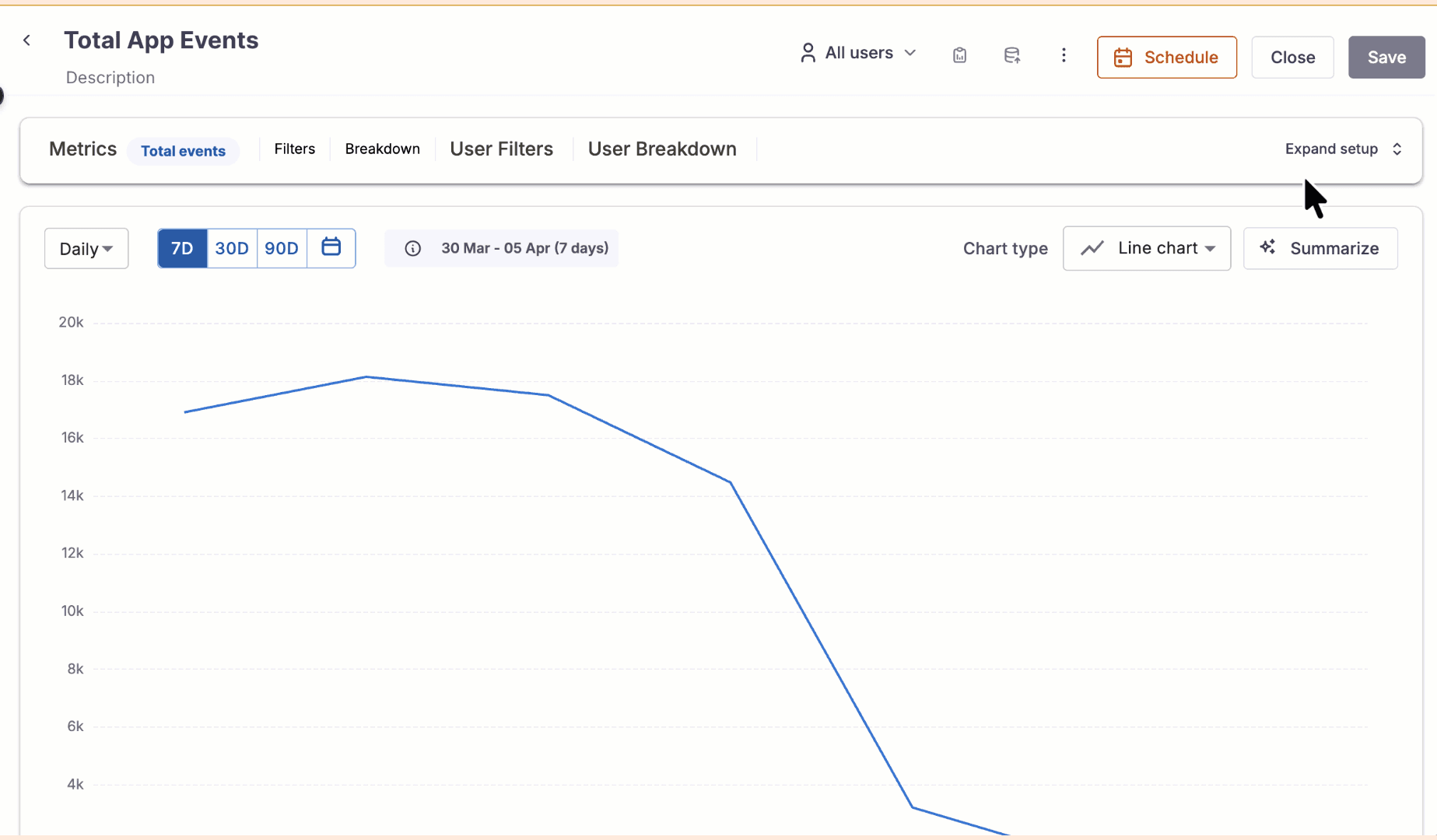
- Click Expand setup to view the data setup.
You cannot edit the Data source of an existing Trend Insight. For more information, see Get Analytics Data across CLM Stages. 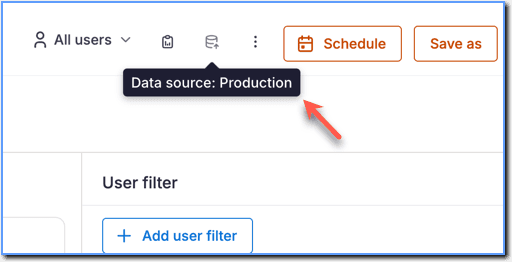
- Make the required changes.
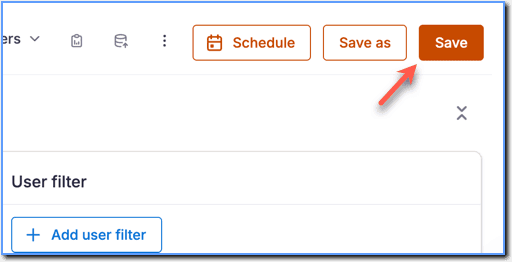
- Click Save.
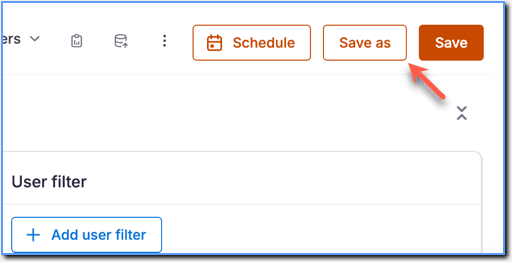
- Click Save as to save the changes made to the existing Insight as a new Insight. For more information, see Copy Trend Insights.
- If you have edited a Trend Insight that is part of a Dashboard, then the changes are updated in the Dashboard as well. For more information, see Dashboards.