Use the Whatfix UI for translation
Translate Whatifx Content as a Translator
Whatfix enables you to auto-translate Whatfix content into different languages and reduces the manual effort spent on translating content by a Translator or third-party tools and services. Whatfix enables you to auto-translate individual or multiple Whatfix content using the Whatfix UI.
Note:
- Whatfix uses Microsoft Machine Translation Services to auto-translate the content. The table in language supported by Whatfix shows the languages you can add and manage translations on the Whatfix Dashboard, but there is a difference in the languages supported for auto-translation. To view the list of languages that are supported for auto-translation, see Microsoft Translator Language Support.
- Whatfix auto-translates content based on the primary language of your content.
Use the following steps to translate Whatfix content:
-
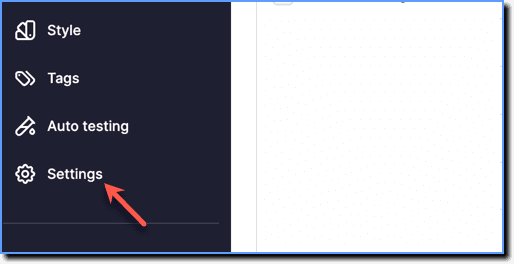
On the Whatfix Guidance dashboard, click Settings.
-
Click Translations.

-
In the Translations section, select the language.

-
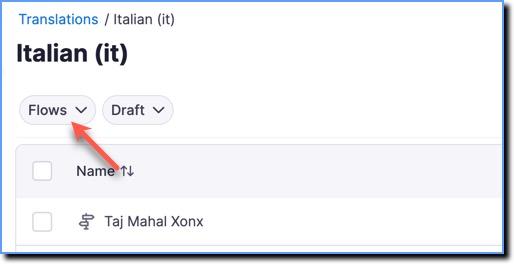
In the dropdown, select the content type for which you want to translate content.
-
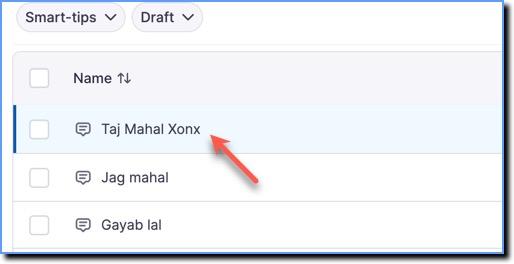
Click the content that you want to translate.
-
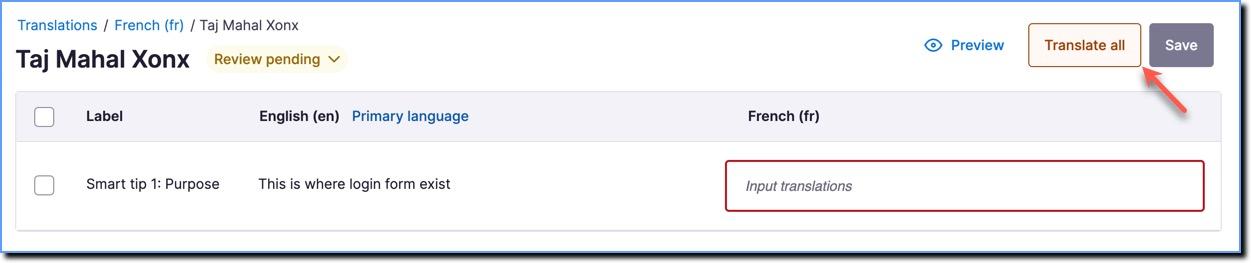
Click Translate all.
Info:
- To translate specific labels, select the fields you want to translate, and then click Translate selected.

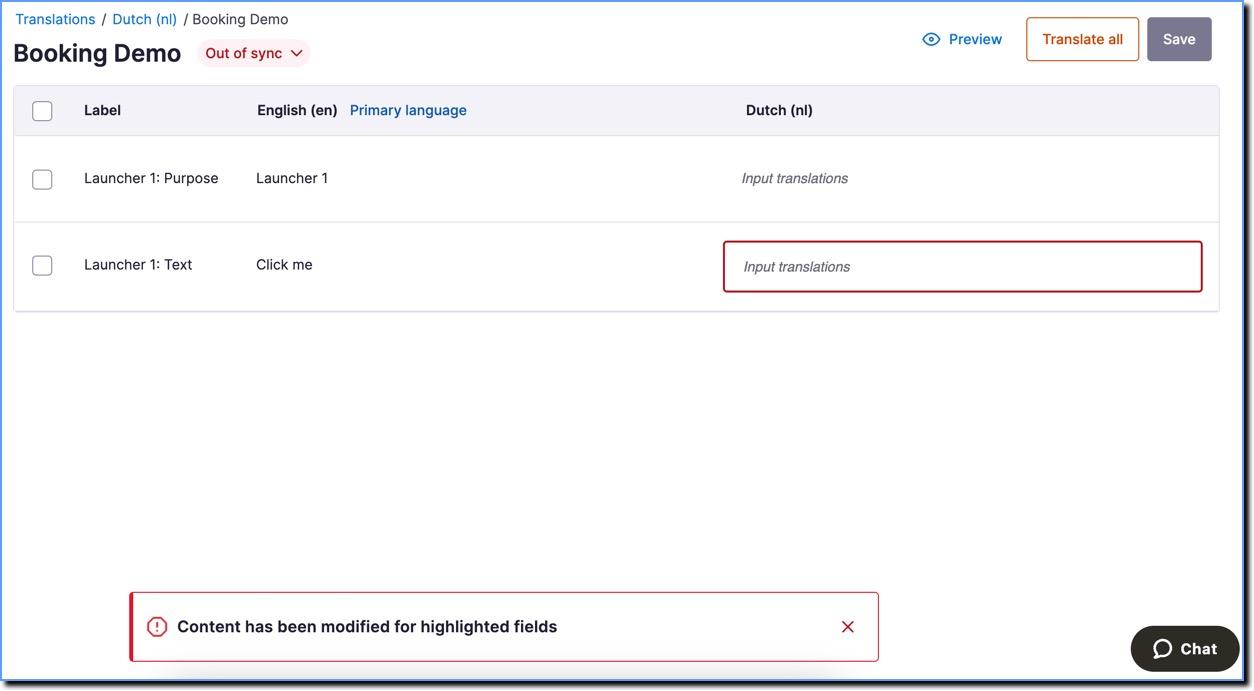
- When content is out of sync, specific fields that require translation appear highlighted. The highlight disappears when you edit those fields or manually change the status to Translated.
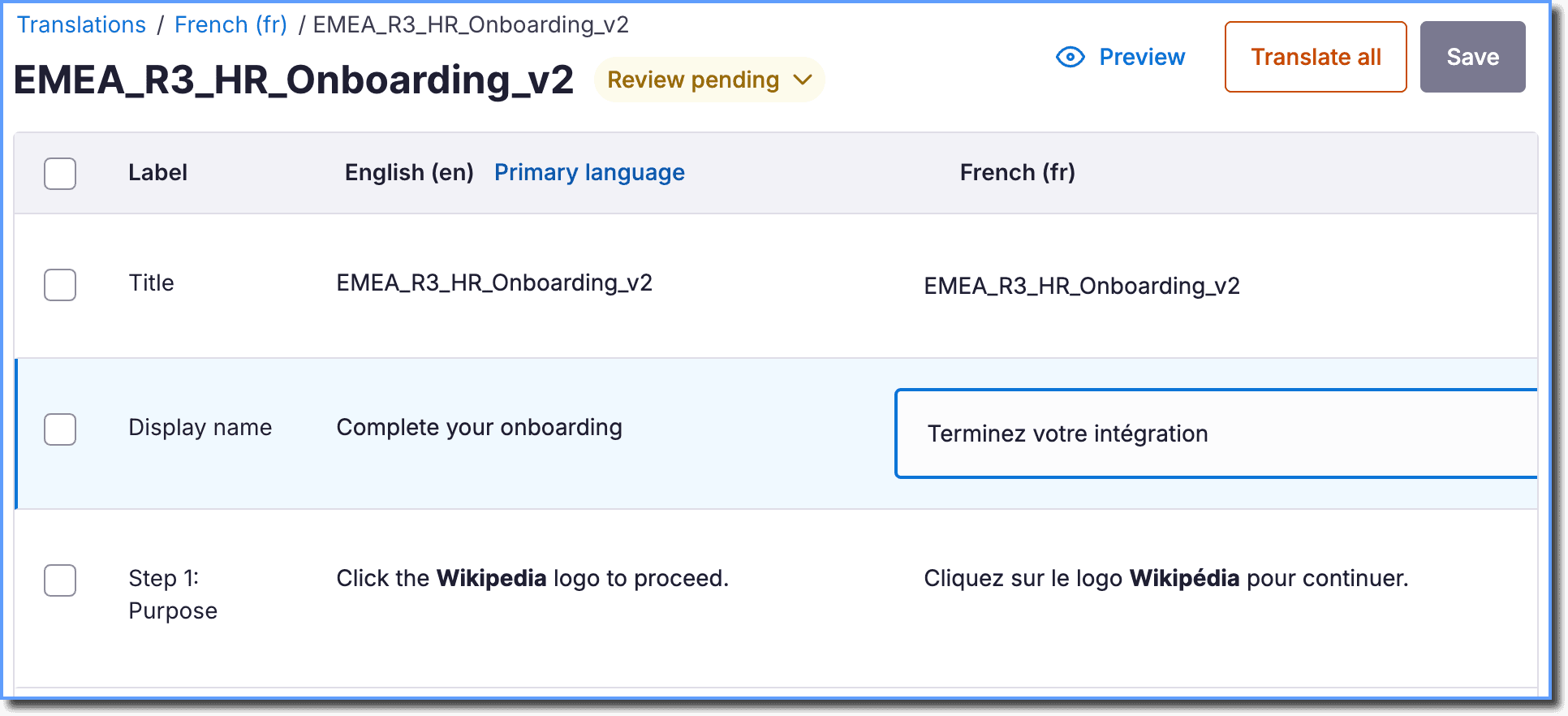
- If the content has a Display name, translate it along with the Title. Users see the translated Display name instead of the Title when exporting content.
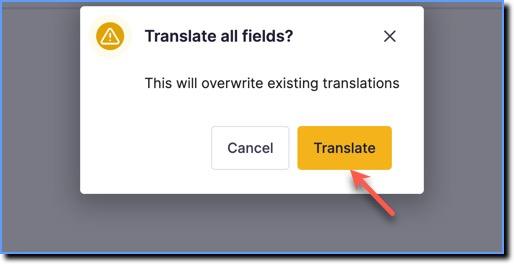
- In the confirmation pop-up, click Translate.
- Verify the translated content.

- Click Save.

Note:
- As Whatfix uses a machine translator, it is recommended that you review the translated content before pushing it live for your end users. Validate the auto-translated content by checking the translated content, which is shown next to the content that is in the default language.
- You can only auto-translate the content that is in the Draft and Ready stages.
- You can auto-translate only the text of the content. Images and videos cannot be auto-translated.