Launcher
Reselect Launcher elements to manage UI changes
Whenever an application is updated, it's possible that the underlying UI elements may change. These changes may result in a situation where Whatfix won't be able to identify the element on the page. As a result, Whatfix content (like Launchers) may not appear on the desired element or location.
Whatfix enables you to reselect the elements for the existing content as a first step when content is not shown correctly. Re-selection saves the Content creator the time required to create the content from scratch every time the application undergoes an update.
Use the following steps to reselect Launcher elements:
-
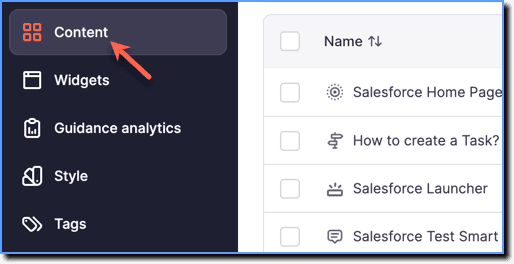
On the Whatfix Guidance dashboard, click Content.
-
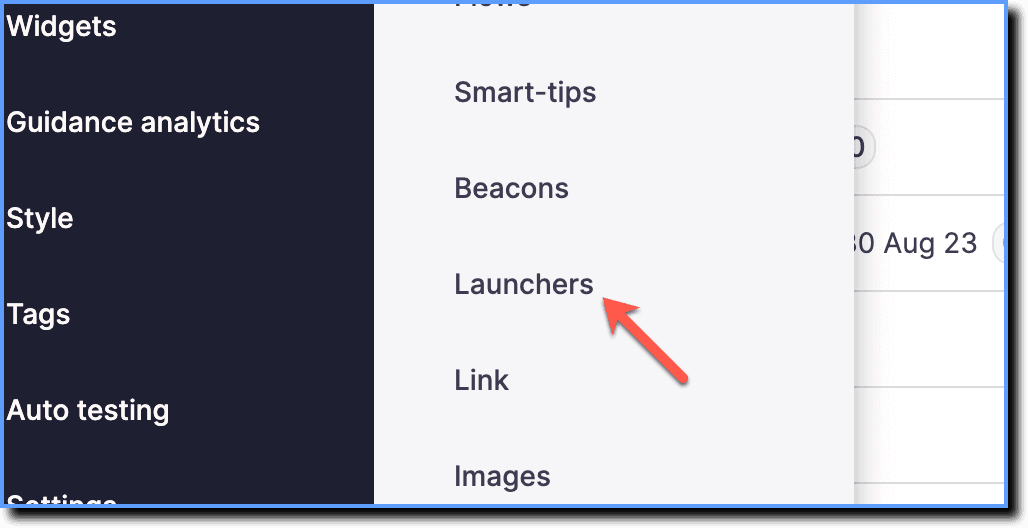
Click Launchers.
-
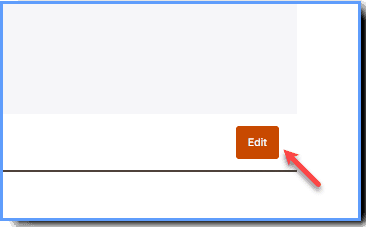
Go to any Launcher and then click Edit.
-
Click Launch live edit.

-
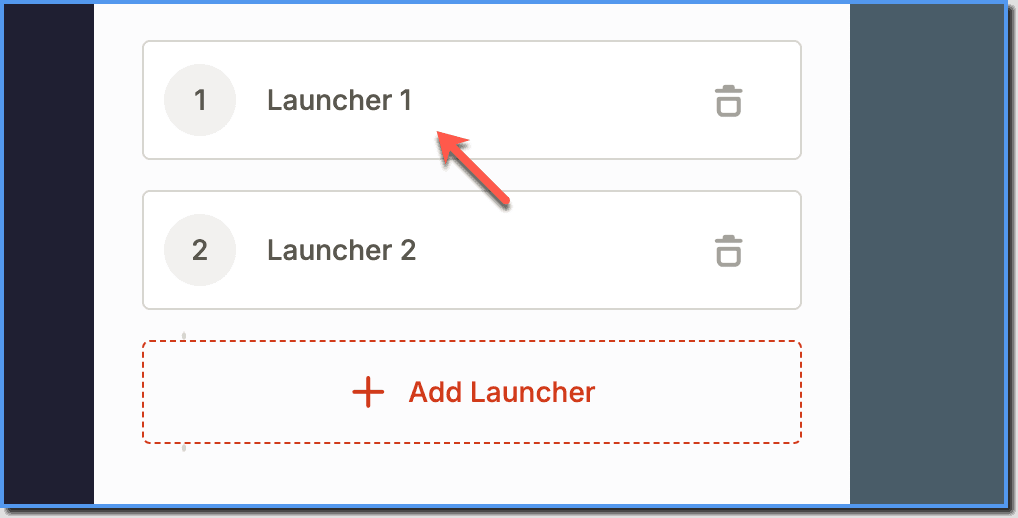
Once the Studio launches on the application, click the Launcher you want to reselect the element for.
-
Click Reselect Element or make any changes that you require in the Launch live edit stage. For more information, see how to customize a Launcher.

-
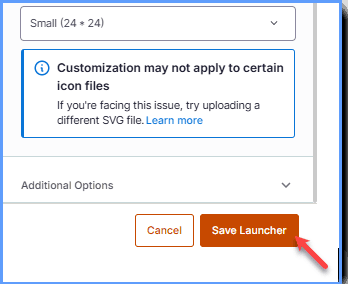
Click Save Launcher.
-
Click Save to save the final changes.