Pop-Ups
How does Whatfix display multiple Pop-ups?
Create a Pop-up using either Whatfix Studio or Dashboard. Once you've created the Pop-up, Whatfix enables you to choose the order of display of the Pop-up on the application based on recent modifications.
This is the default method for displaying Pop-ups based on the order in which you update them. For example, when there is more than one Pop-up active with similar Visibility Rules on an application, Whatfix displays the Pop-up that you modified recently. If you created Pop-up 1 and Pop-up 2 with similar Visibility Rules. But you made changes to Pop-up 2 and then you published both. Whatfix displays Pop-up 2 first and then displays Pop-up 1 in such cases.
Note:
- For more information on visibility rules, see New Visibility Rules for Widgets and New Visibility Rules Use Cases.
- To know about Advanced Customization, see Understand Advanced Customization.
Use the following steps to set precedence for displaying multiple Pop-ups on Dashboard:
-
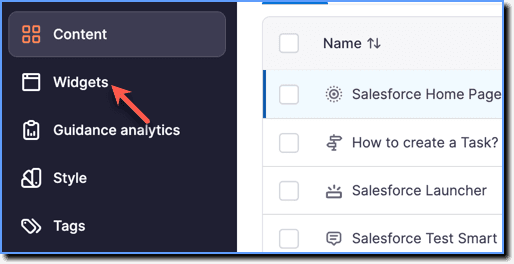
On the Whatfix Guidance dashboard, click Widgets.
-
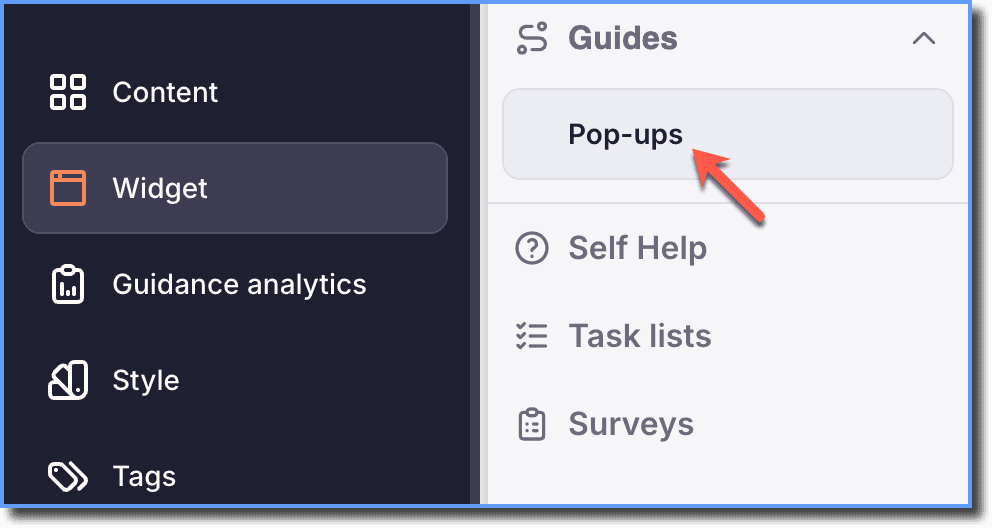
Click Pop-ups.
-
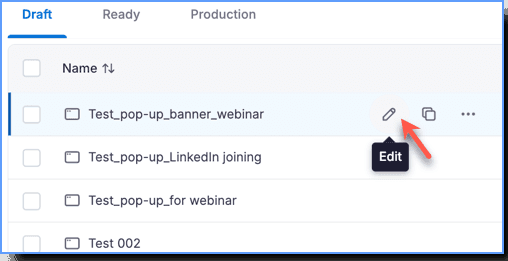
Go to the Pop-up which you want to display first, and then click the Edit icon.
-
Make any modifications or updates to the Pop-up, and then save the Pop-up.
Note:
- When you save a Pop-up without making any changes to the existing content, it is counted as a modification and the saved Pop-up takes precedence over other Pop-ups.
- When Pop-ups are scheduled to appear during different time intervals, Whatfix displays the Pop-ups at the scheduled time without any conflict.
- You also have the option to set Pop-up precedence using Advanced customization. It enables you to add segment ID of Pop-ups to set their precedence. In this method, you add a code snippet in Advanced customization, and then you add the segment ID of the Pop-ups in the order in which you want the Pop-ups to be displayed. This method of setting precedence for Pop-ups works regardless of the Visibility Rules that you add. For more information, see Set the precedence of Pop-ups using segment ID.