Custom Analytics
Download Report Analytics data using API
Whatfix Report APIs can be used to download Reports analytics data in CSV format.
your title goes here
Different browsers and extensions can be used to perform the following task. In this article, Google Chrome browser with ModHeader extension is used as an example.
Use the following steps to download the data using API:
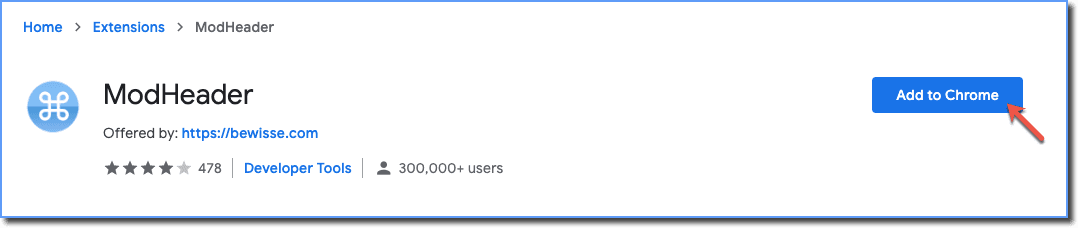
- Install the extension - ModHeader from the Chrome Store.
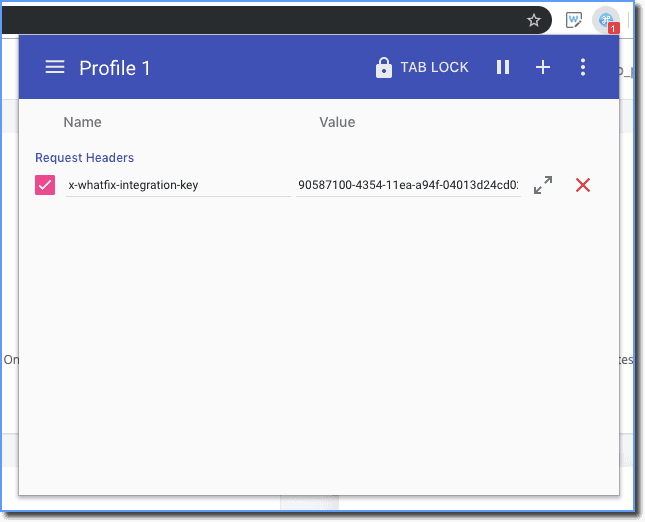
- Open the extension and enter the header x-whatfix-integration-key and its Value.
your title goes here
The integration key value is your User API token. To get your API token, see Generate the API token.
- On the top right, click the + icon.

- Select Request header.
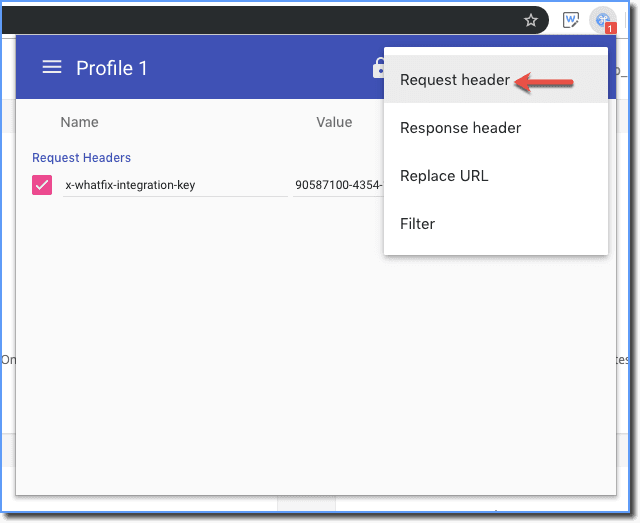
- Enter the next header x-whatfix-user and its value. The value is your Whatfix email address.
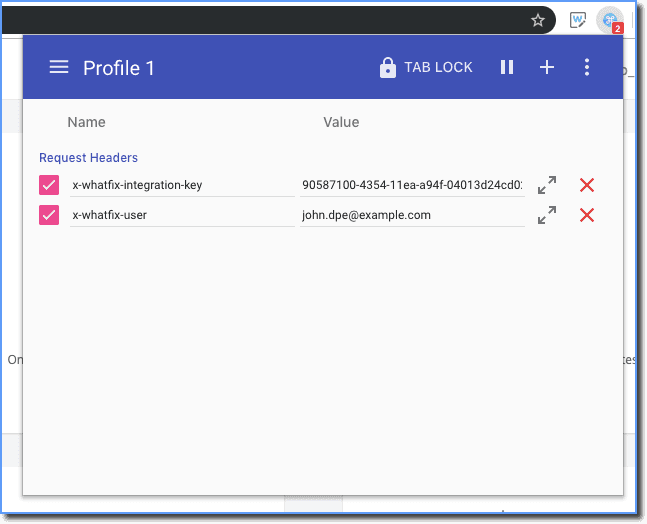
your title goes here
- Ensure that the extension is not paused.
- If you're using multiple profiles, then ensure that you're using the correct profile.
- Go to the Whatfix Reports API.
- Click GET on the top right and copy the URL: https://whatfix.com/api/v1/{accountId}/reports/summary/mostPopularFlows
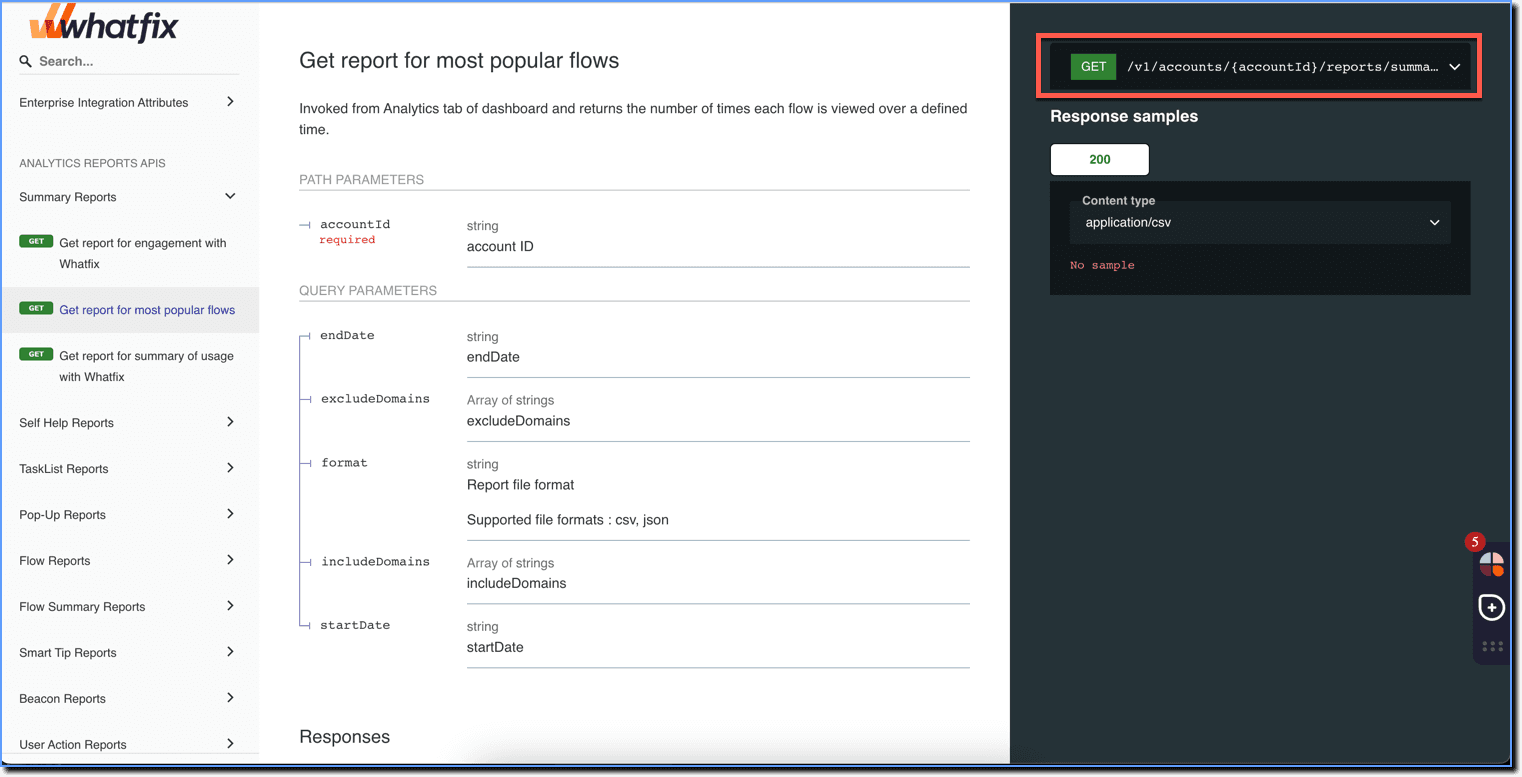
- Construct the URL to get the report.
your title goes here
To get your Account ID, contact support@whatfix.com.
- Replace {accountId} with your Account ID value - https://whatfix.com/api/v1/**XXXxXxXx-XXXx-XxXX-XXXX-XXXxxxXxxX**/reports/summary/mostPopularFlows
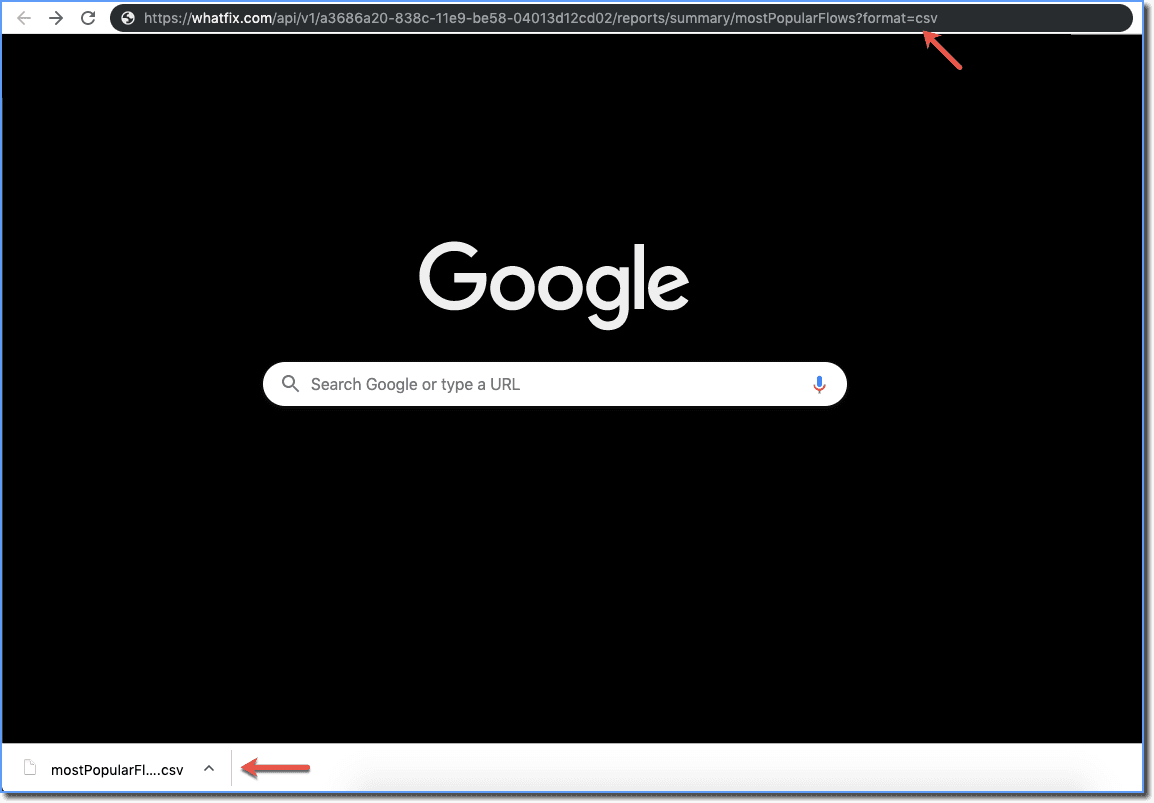
- Add the format parameter at the end - https://whatfix.com/api/v1/XXXxXxXx-XXXx-XxXX-XXXX-XXXxxxXxxX/reports/summary/mostPopularFlows**?format=csv**

- Copy and paste the final URL in a new tab and click Enter.
your title goes here
The CSV file is downloaded.